There are three different methods of installing software on the Mac:
1) Via the Mac App Store.
2) Via homebrew.
3) Via DMG file.
The last option is, by far, the most popular delivery format for Mac applications that are available outside the Mac App Store.
One must first download the DMG file, open it, drag the application into the Applications folder, eject the DMG container, and then delete the DMG file. That’s five separate steps to install a Mac app. And it’s been this way since 2001, when Mac OS X was first introduced.
For an operating system that Apple touts as being easy to use, the aforementioned method is anything but.
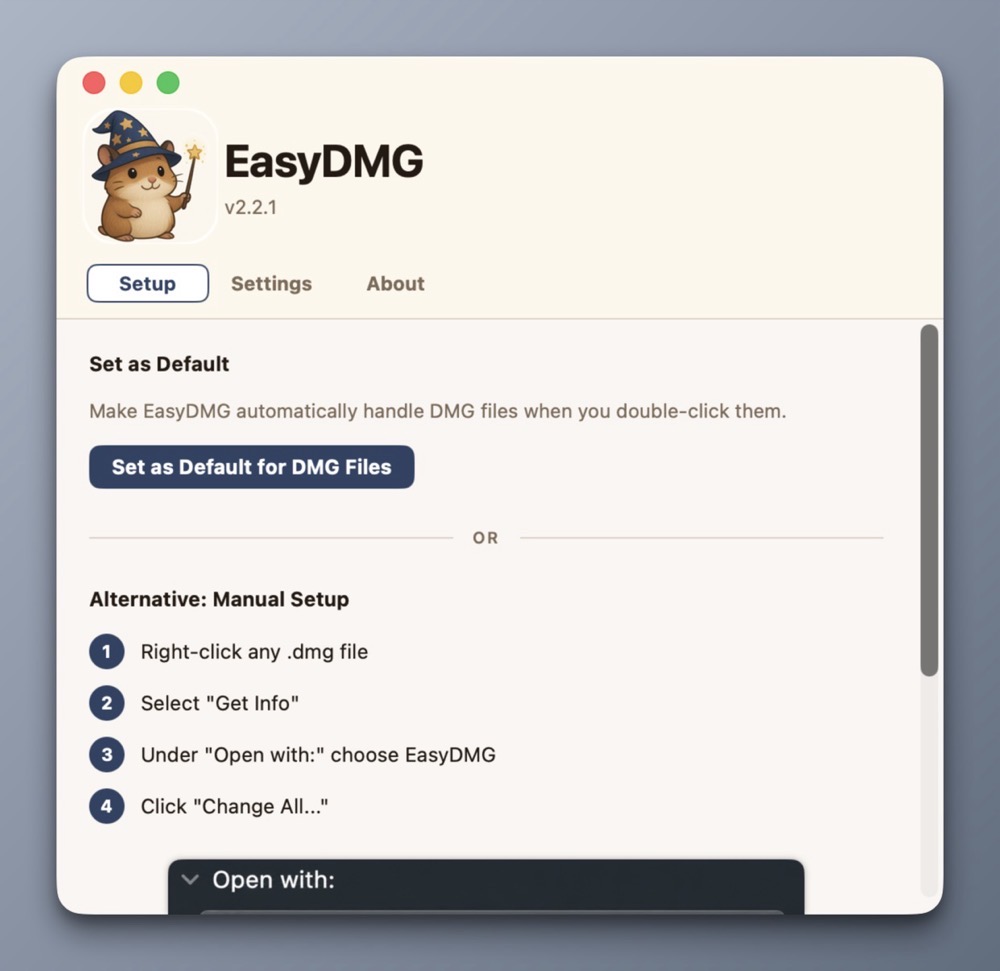
After setting it as the default for opening DMG files, installing a new application becomes as simple as opening its DMG file. EasyDMG takes care of the rest. (And that hamster wizard mascot is downright adorable!)
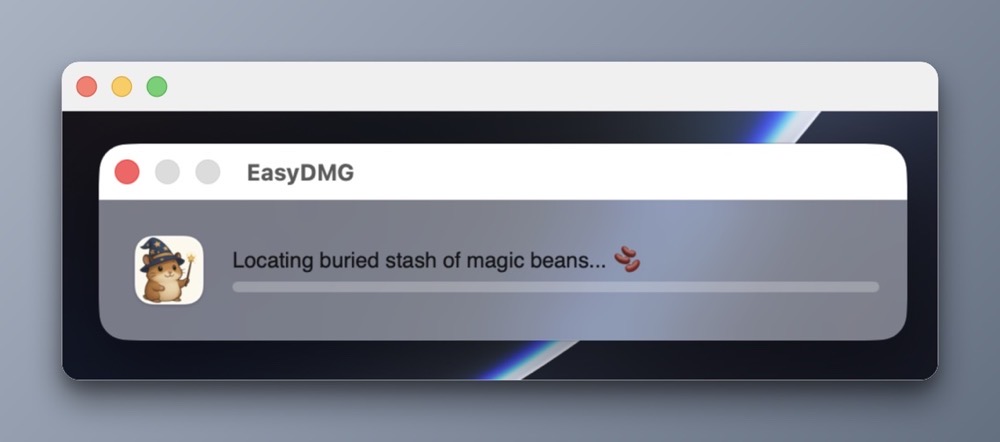
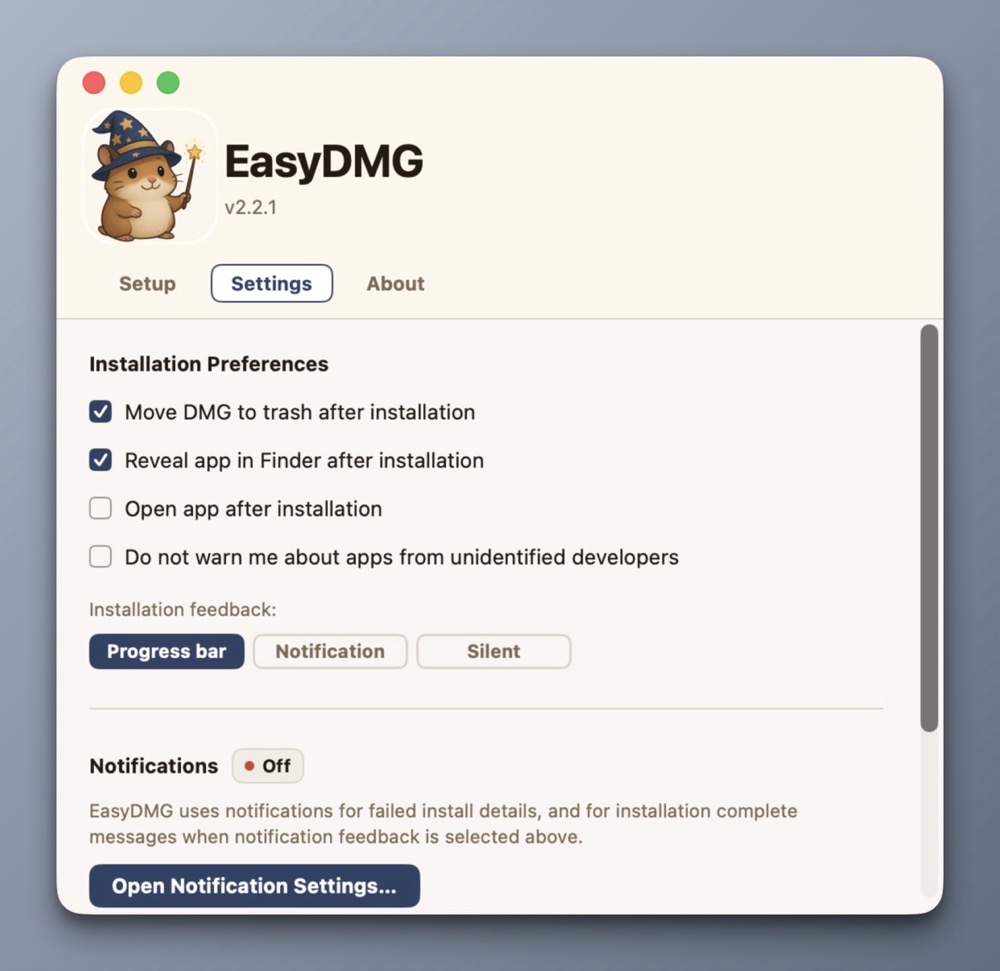
Not only will EasyDMG install the application, it will eject the DMG container and move the DMG file into the Trash.
Users who want more control can perfom the setup manually. Given the problem EasyDMG is solving for me, I opted for the former.
As EasyDMG performs the install, it can display a progress bar or a notification. Or neither.
EasyDMG is an excellent addition to my Mac setup because it works flawlessly while removing friction. It’s a completely native Mac app, written in Swift. And best of all, it’s free!
EasyDMG is what Apple should have included in macOS at least a decade ago. It’s baffling to me that nothing has been done on that front, even in macOS Golden Gate.
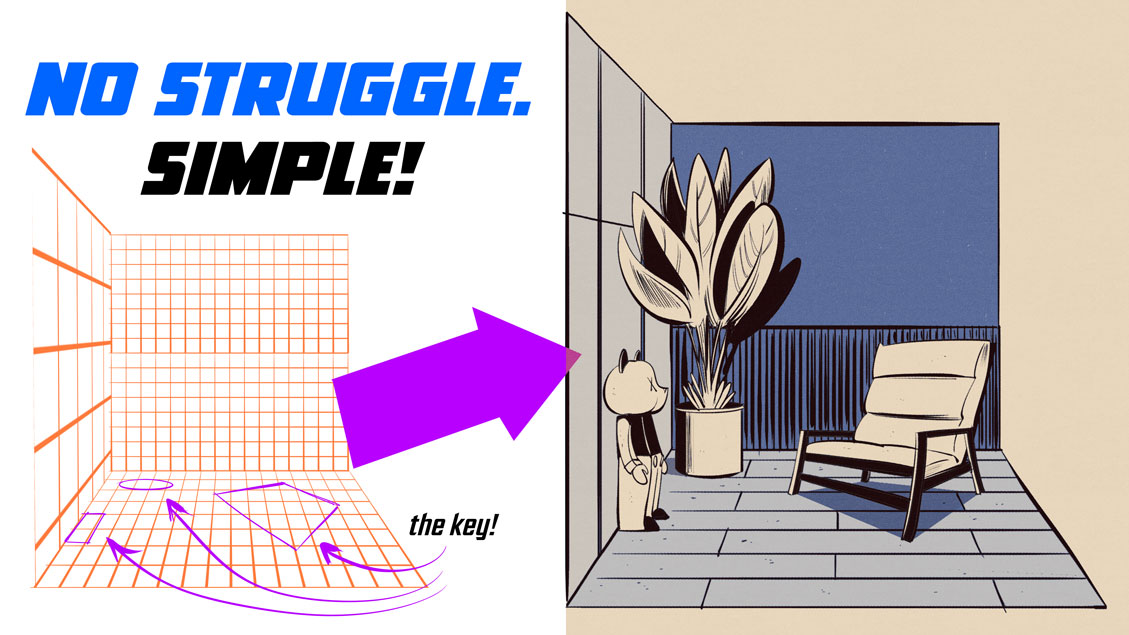
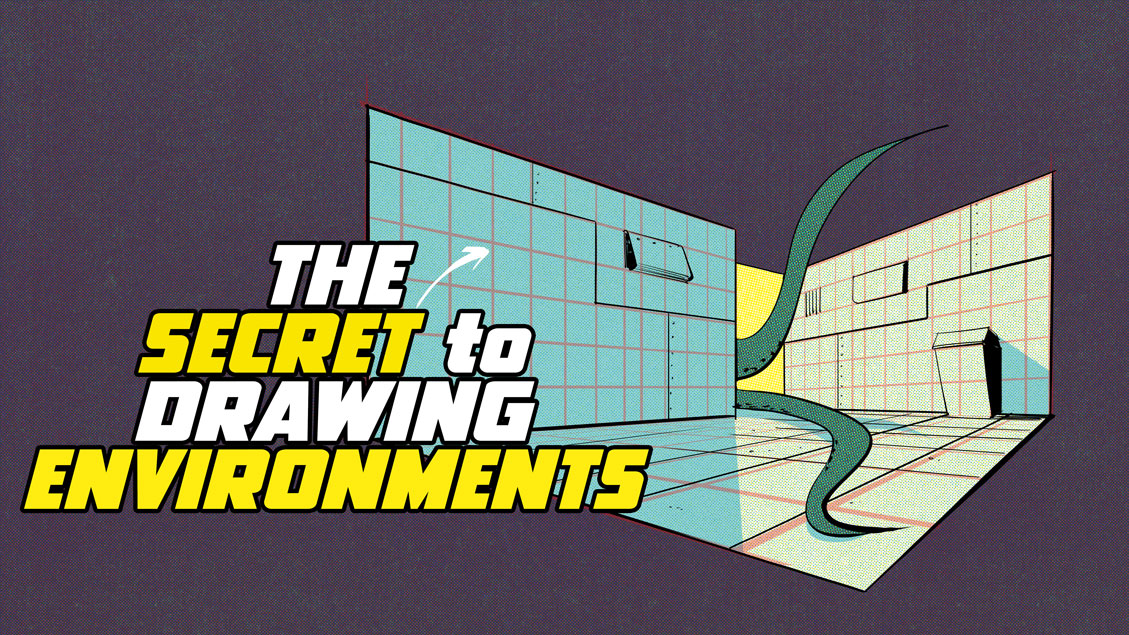
Drawing interior spaces can be a struggle without utilizing grids. In my latest video, I share techniques for placing objects within an interior environment, using a reference photo to inform my study.
When publishing content online, whether it’s for this blog or social media channels, I prefer to work with an image that’s no wider than 1000px. (Smaller images load faster.)
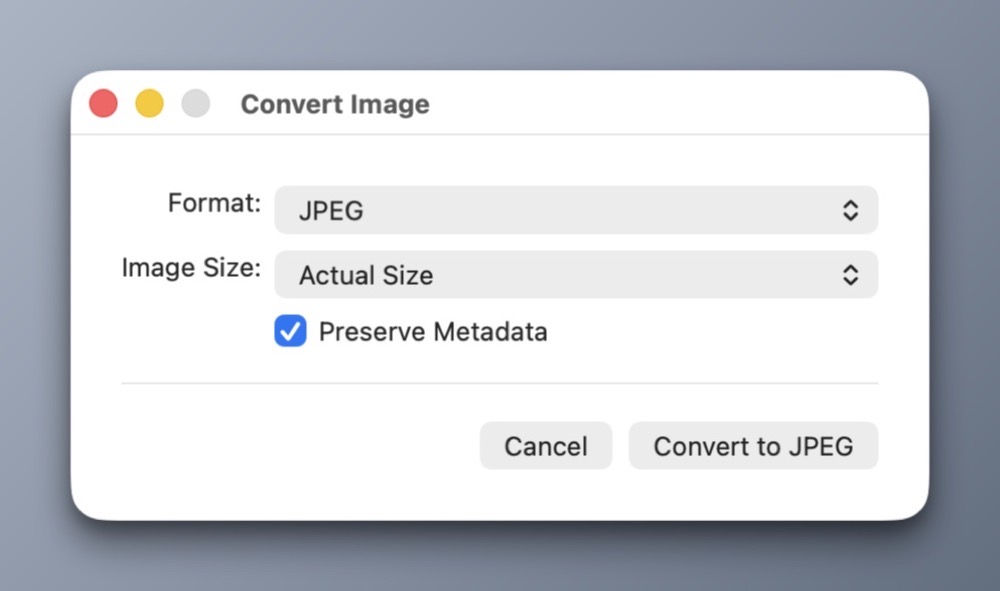
Before this automation, the process involved several manual steps:
1) Select the image.
2) Right-click on the image to see the context menu.
3) Choose Quick Actions > Convert Image.
4) Interact with the following modal dialog to perform the conversion.
Automation is the chief reason I prefer macOS over other platforms. The Mac has a wide range of third party automation tools, but it also includes a few of its own that ship with the OS that often go overlooked.
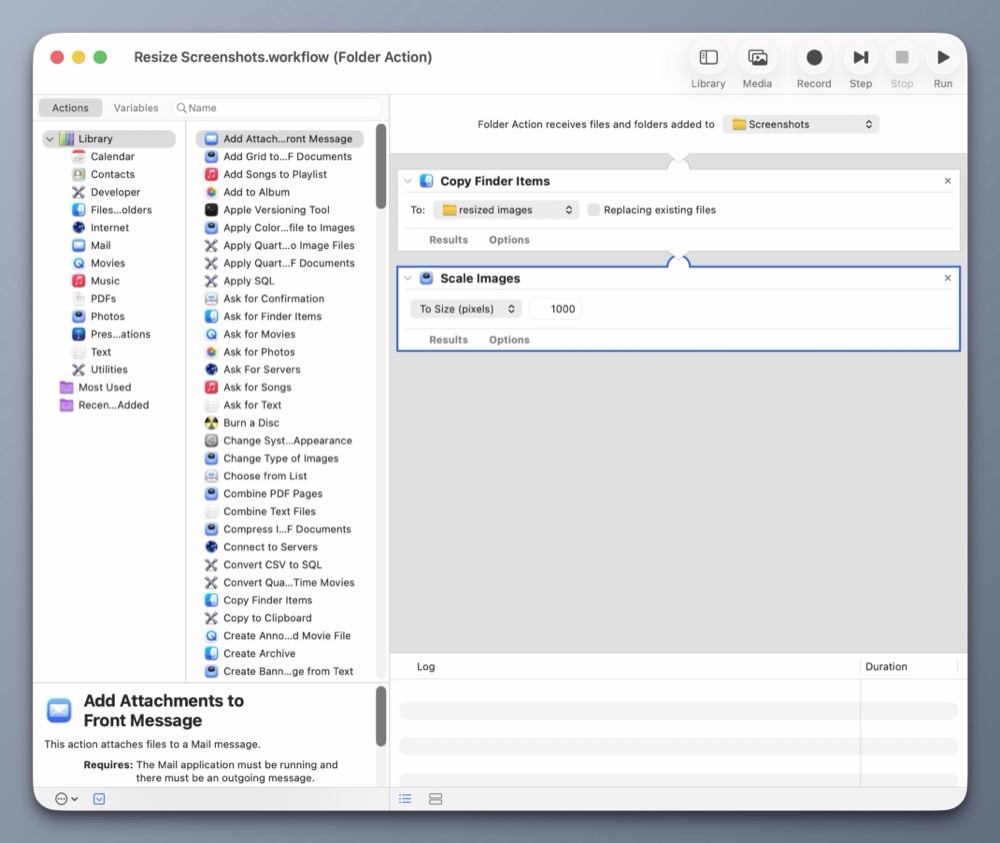
Chief among them is Automator. With it, I have created a simple automation that will resize any image to the preferred size I’m after. (No programming required.)
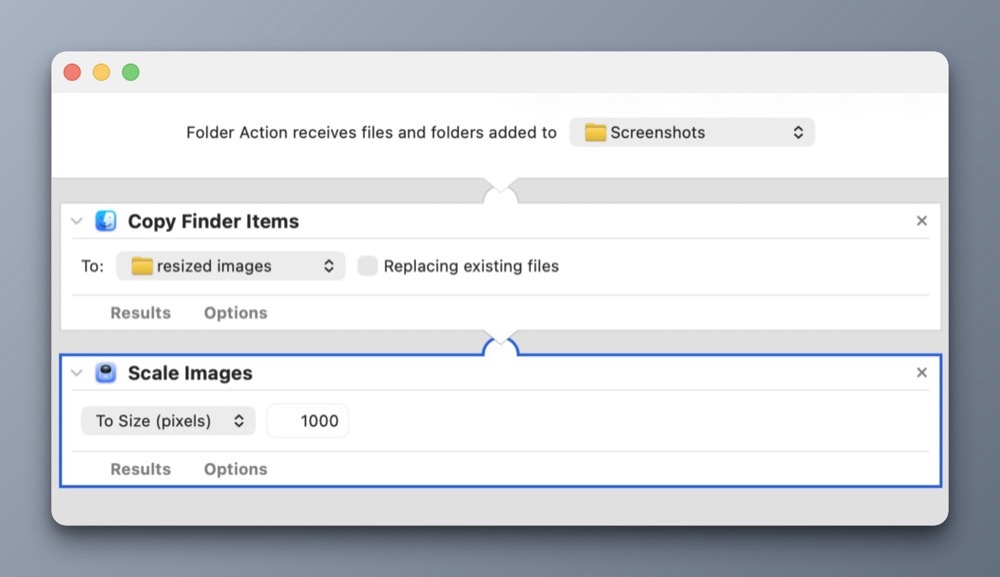
Automator includes Folder Actions, a handy construct for automating actions on files within specific folders. In this case, it’s my Screenshots folder.
Here’s how it works:
My Folder Action automation will copy any new files from the Screenshots folder and place them into the resized images folder. It will then scale the copied images down to 1000px wide, leaving the originals intact.
Each time I take a new screenshot (like the ones for this post) they are automatically saved into my Screenshots folder. Automator detects the new images in this folder and automatically scales them down. It’s a big time saver. Best of all, I did it all using the provided automation tools within macOS.
In my last post, I prepared my G-mail accounts for use with Apple Mail. Today, as promised, I’m sharing my Apple Mail settings along with some accompanying rationale.
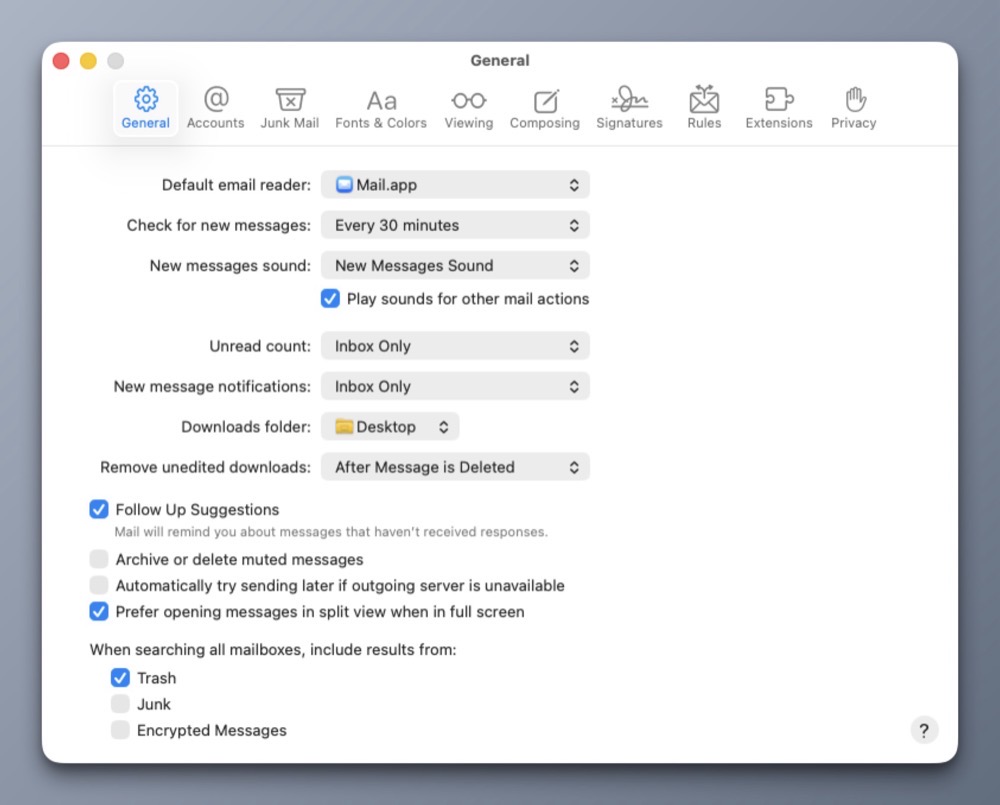
In the General tab, I’ve made three changes.
1) Fetch new email every 30 minutes from both G-mail accounts. For me, any value less than 30 minutes feels masochistic.
2) Downloadable content will appear on my Desktop. This saves me a trip to the Downloads folder.
3) Follow-up suggestions are checked ON so I can be reminded when I haven’t received a response.
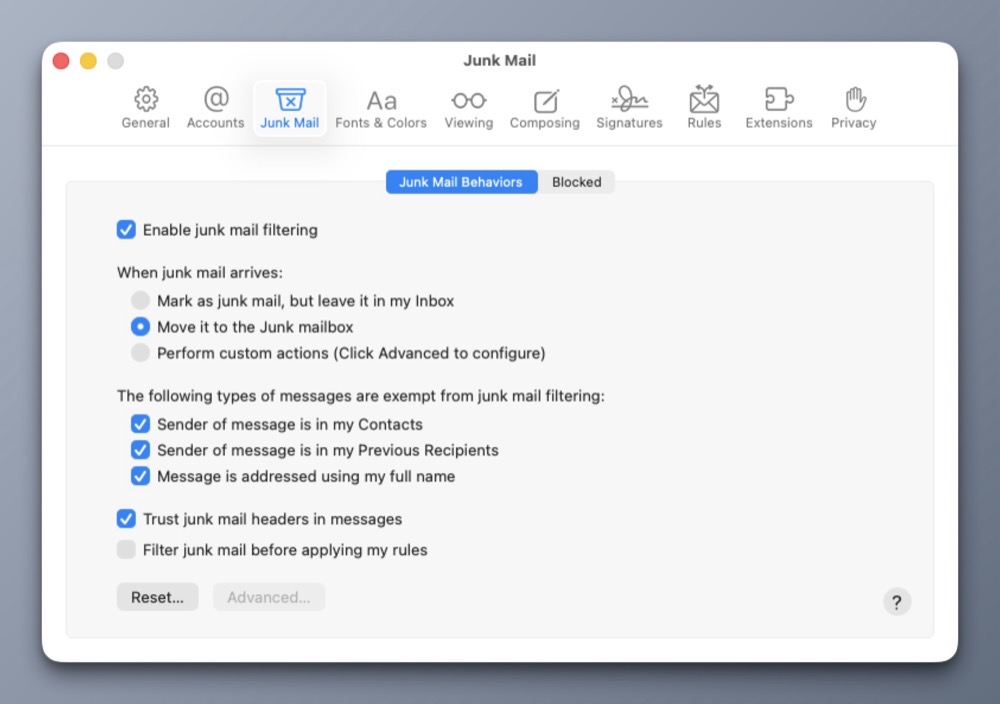
Moving to the Junk Mail tab, I have Junk Mail filtering ON with all default settings. It seems to work OK.
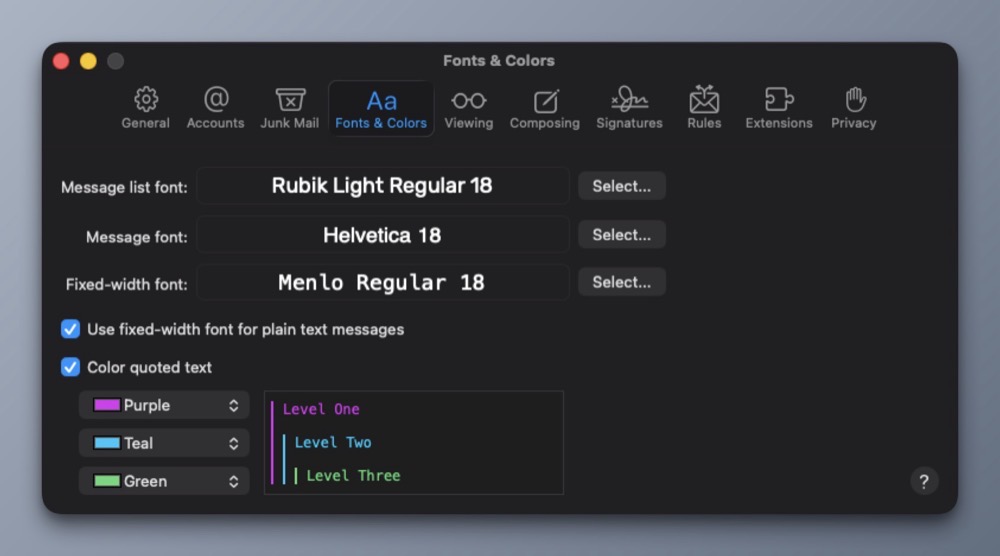
For Fonts and Colors, I prefer Rubik Light Regular as my message list font. It’s a clean sans serif typeface that’s easy on my eyes. And speaking of eyes, I’ve bumped the point sizes to 18 to minimize eye strain.
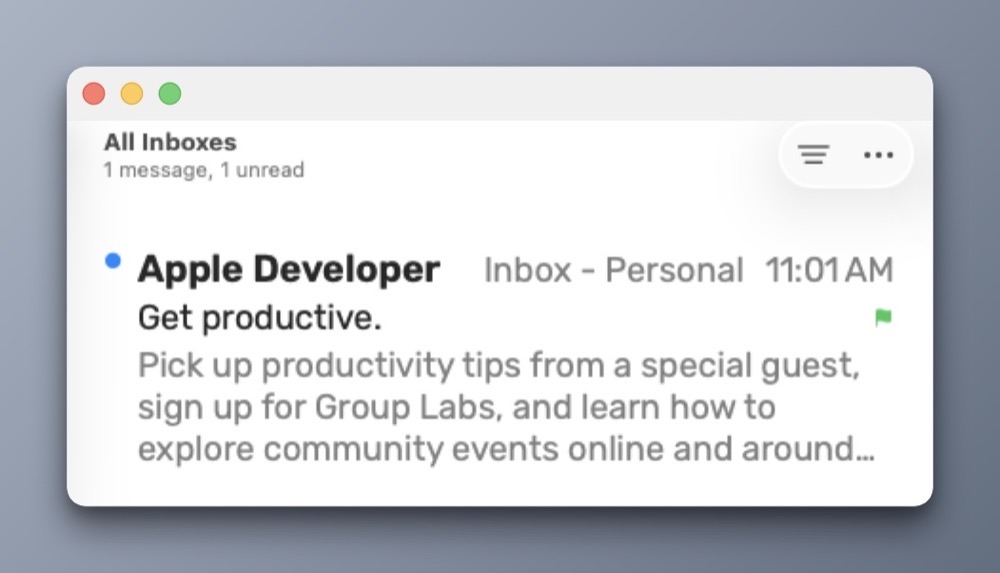
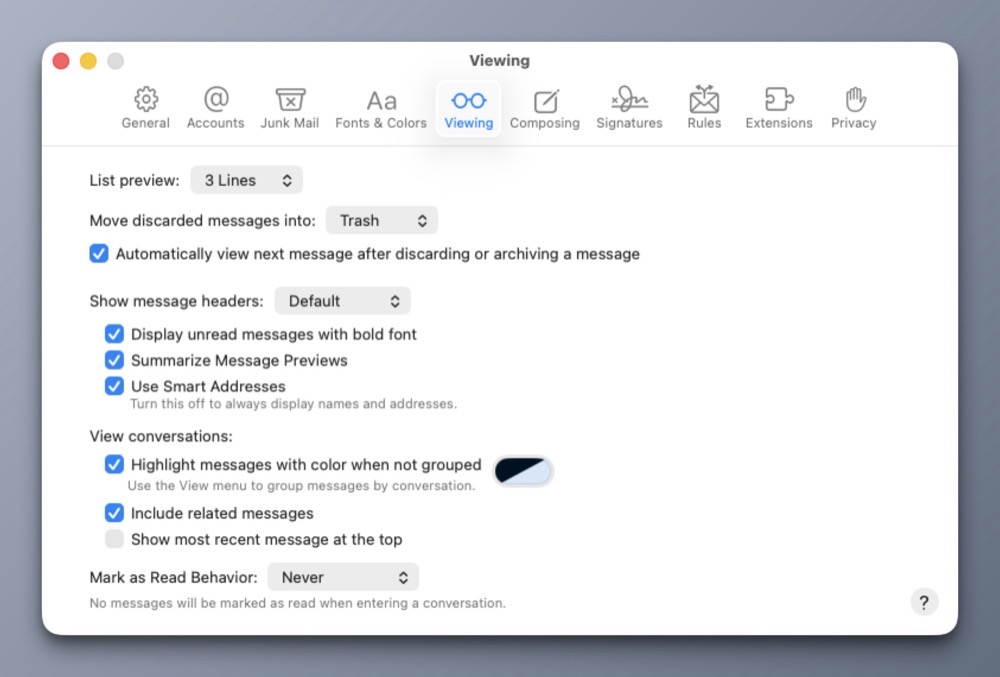
For Viewing, I prefer 3 preview lines for each email. I’ve also turned on Smart Addresses.
Below is a visual example of what the above settings look like when an email arrives in my InBox.
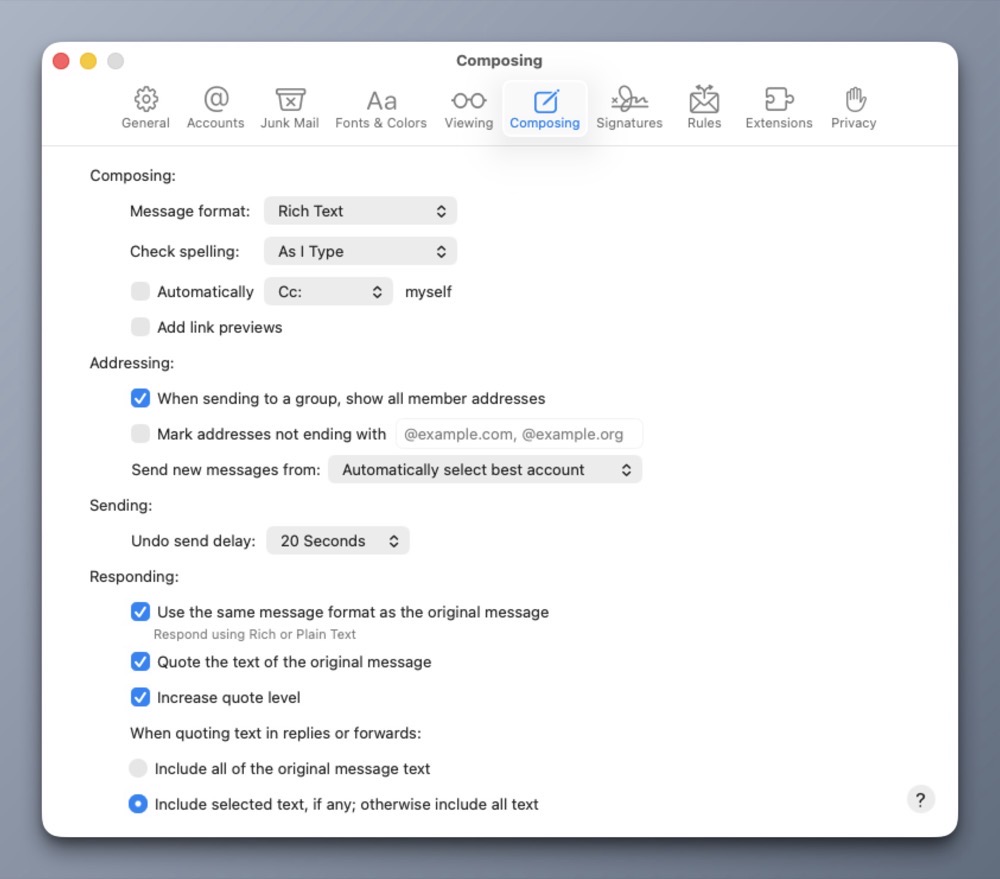
In the Composing tab, I’ve set the message format to Rich Text, keeping all other settings at their defaults.
Within the Signatures tab, I have custom text signatures set for each of my accounts, and the signature is placed above the quoted text, because I’m not an animal. I have yet to configure the Rules tab with custom settings, but I did delete the Apple provided rule.
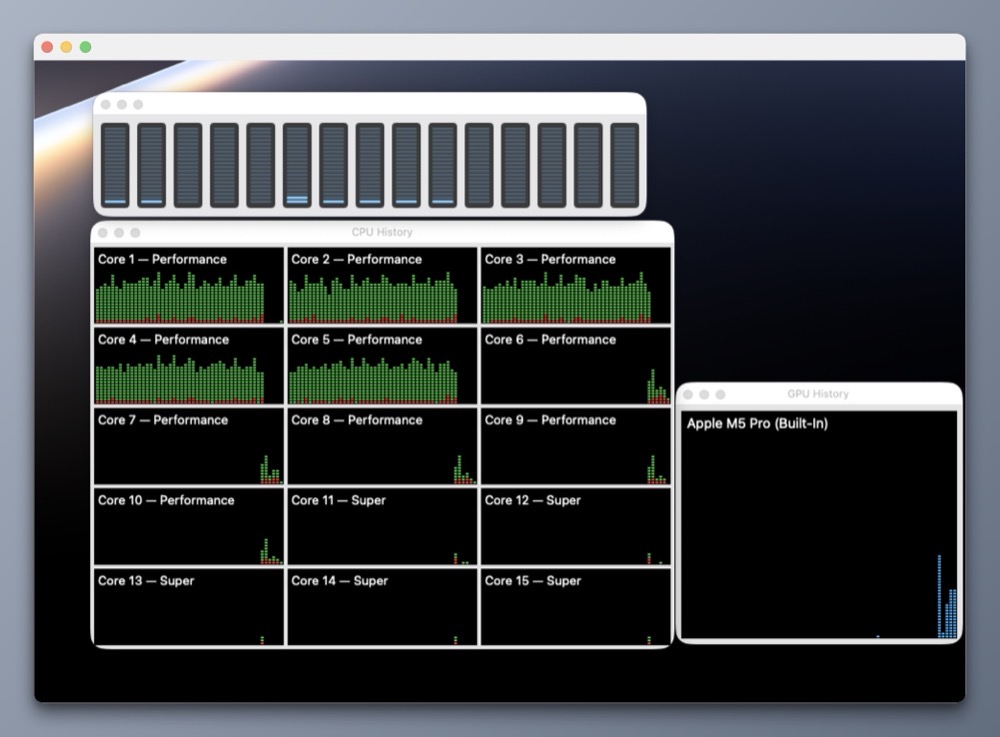
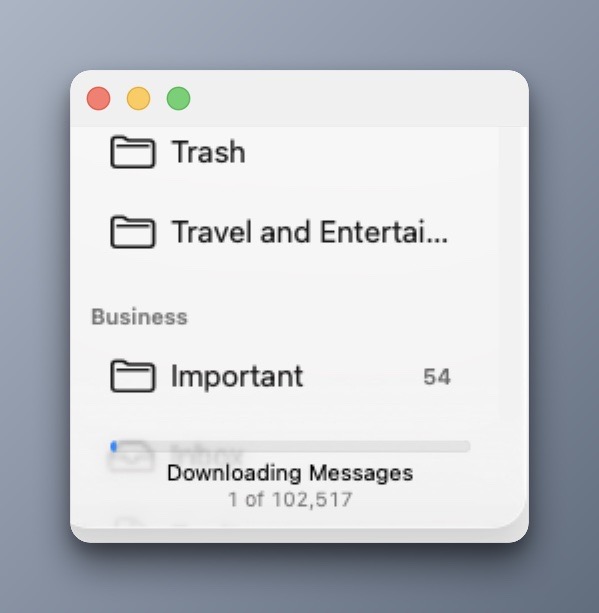
As a footnote, it took several hours to import my email into Apple Mail, even with the task utilizing five full cores of my laptop’s M5 Pro CPU.
The reality is I have threee-mail accounts, each with its own purpose. The first is dubbed Business for tasks related to my writing / design side hustle. The next account is dubbed Personal, as a catch all for personal correspondence, bills, onlineshopping, etc. Finally, the last e-mail account is Academics, for my academic / work related correspondence. Two are G-mail based, and one is (shudder!) Outlook. But, before i continue, I must state the obvious:
No two people handle e-mail the same way.
So there will be a lot of “this is how I do it” sprinkled across this post. There may be better methods and approaches out there, but this is what has been manageable for me. I’m not even the closest at being an expert at dealing with e-mail, but I know enough to be dangerous.
Before setting up my e-mail client (Apple Mail), I wanted to get my e-mail accounts in proper order. That meant taking a closer look at how I categorize and file my e-mails. Moving to a new computer requires some tidying up, so as to avoid dealing with the same mess in the new location.
G-mail does not use folders, but my brain does, and so I have specific labels (which I’m referring to as folders) set up for organizing e-mails. But before we go on, we need to think about the function of e-mail.
There are two types of e-mails, in my view.
1) Those that need to be acted on or retained for an upcoming task.
2) Those that are important enough to keep, for future reference.
Everything else is just noise. That being stated, I have accrued almost three decades of email. It would take more than a year to prune what I no longer need.
Instead, to preserve what’s left of my sanity, I created a label / folder called Cold Storage, for each of my G-mail accounts. Cold Storage is where my e-mail folders go when they must be kept, but not actively needed. It’s like the Archive folder, but feels more intentional because I’m designating its function. (Besides: the Archive label can’t be renamed.)
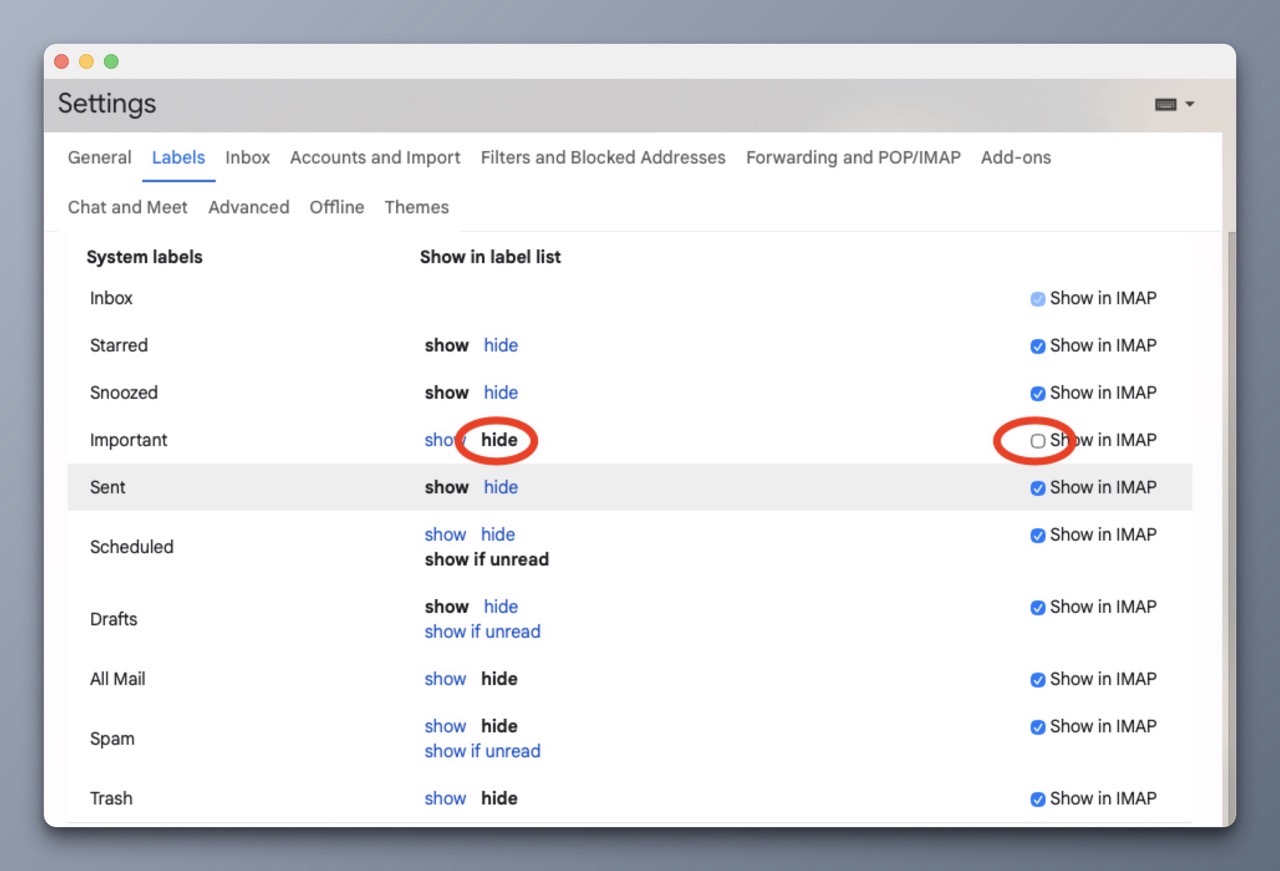
G-mail’s Important label seems ineffectual to me, because it considers ALL incoming emails as being “important”. I prefer hiding the Important Gmail label.
To hide labels in G-mail:
1) Open G-mail in your web browser.
2) Click on the Gear icon in the top-right corner and select See all Settings.
3. Click the Labels tab at the top of the page.
4. Hide the labels you no longer need / wish to see.
I have also unchecked “show in IMAP” so I never have to see the Important folder in Apple Mail across all my devices.
For my Personal account, I’ve designated a label called To Do where I toss emails related to upcoming tasks / activities that will be acted upon in the near future.
Before I close, I want to mention that I will be sticking with Apple Mail. Not because it’s great (it’s not). It’s just the only one that I can tolerate. I’ve looked at the other options within this space, and I’ve found them to be either too clunky, have limitations or require a paid subscription. Sometimes, it’s all three.
Color me gun shy, but my experience using paid third party email clients has been less than stellar. Not because they aren’t good – it’s just that the support and longevity just aren’t there. (See: Claris Emailer, Eudora, PowerMail, and Airmail)
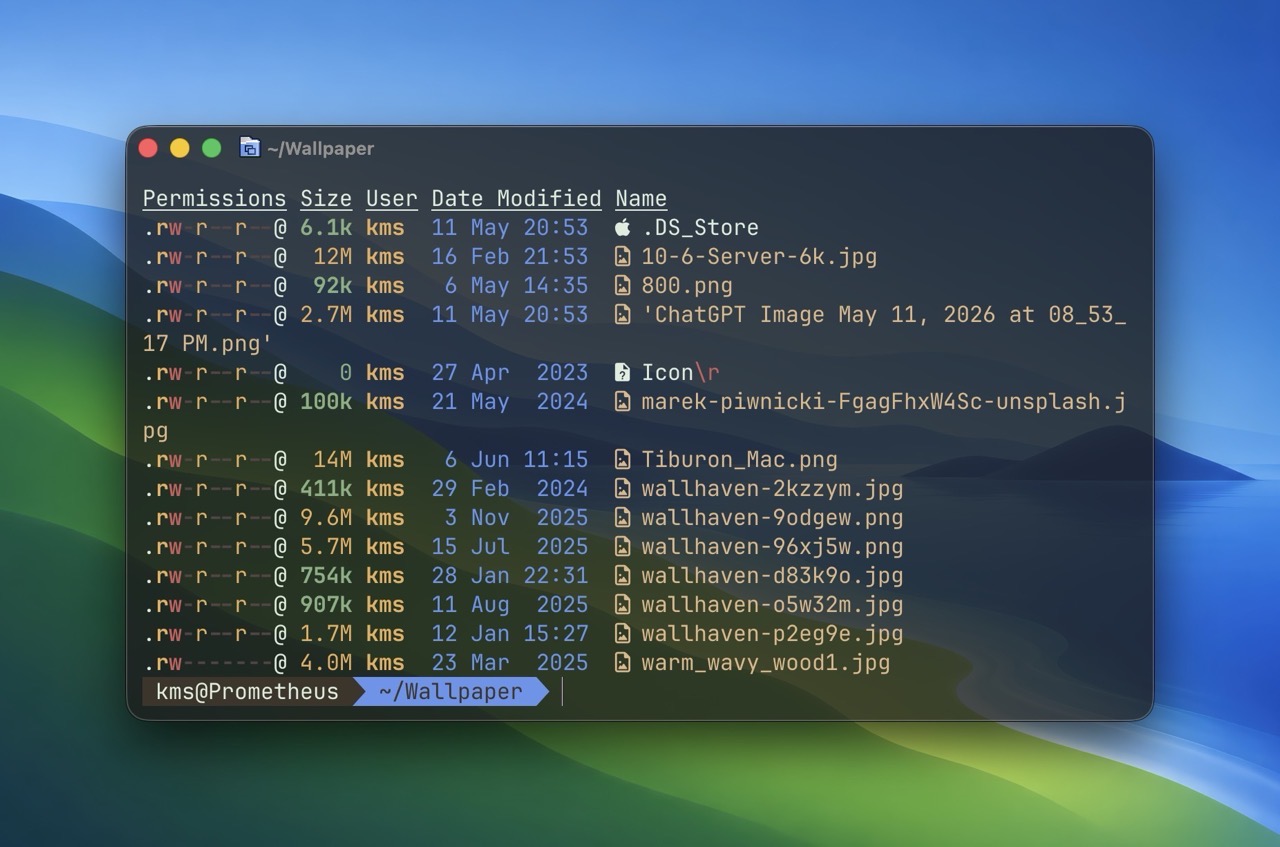
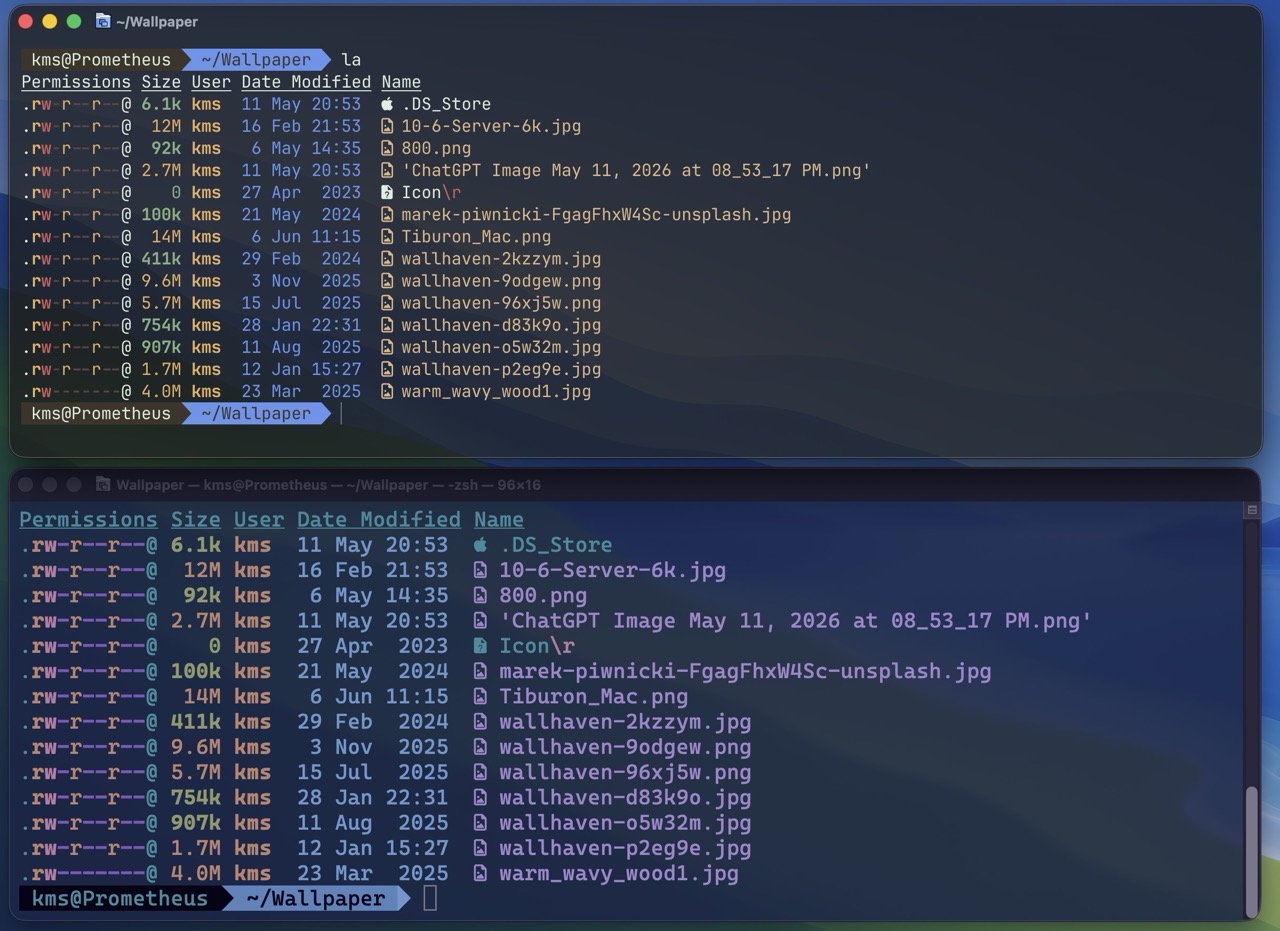
For those who are interested, my latest post for OWC Rocket Yard shares more detail about Ghostty, a modern terminal replacement for macOS. I have Ghostty installed on all three of my Macs, and working within its environment has been a delight. So much so that I can’t fathom the thought of using Apple’s staid Terminal app.
The image below shows a comparison between Ghostty (top) vs Apple’s Terminal (bottom). Notice how sharp and crisp the text appears in Ghostty, compared to Terminal. Unlike the Terminal, Ghostty does a great job of displaying content within smaller window sizes.
One of my main goals with setting up a new Mac is to be more intentional with my software selections. I want to choose the best software that suits my needs.
This involves reevaluating what I currently use to see if my selections are still valid. Although what I have currently works – I’m always curious to know if better options are present, both in terms of features and value.
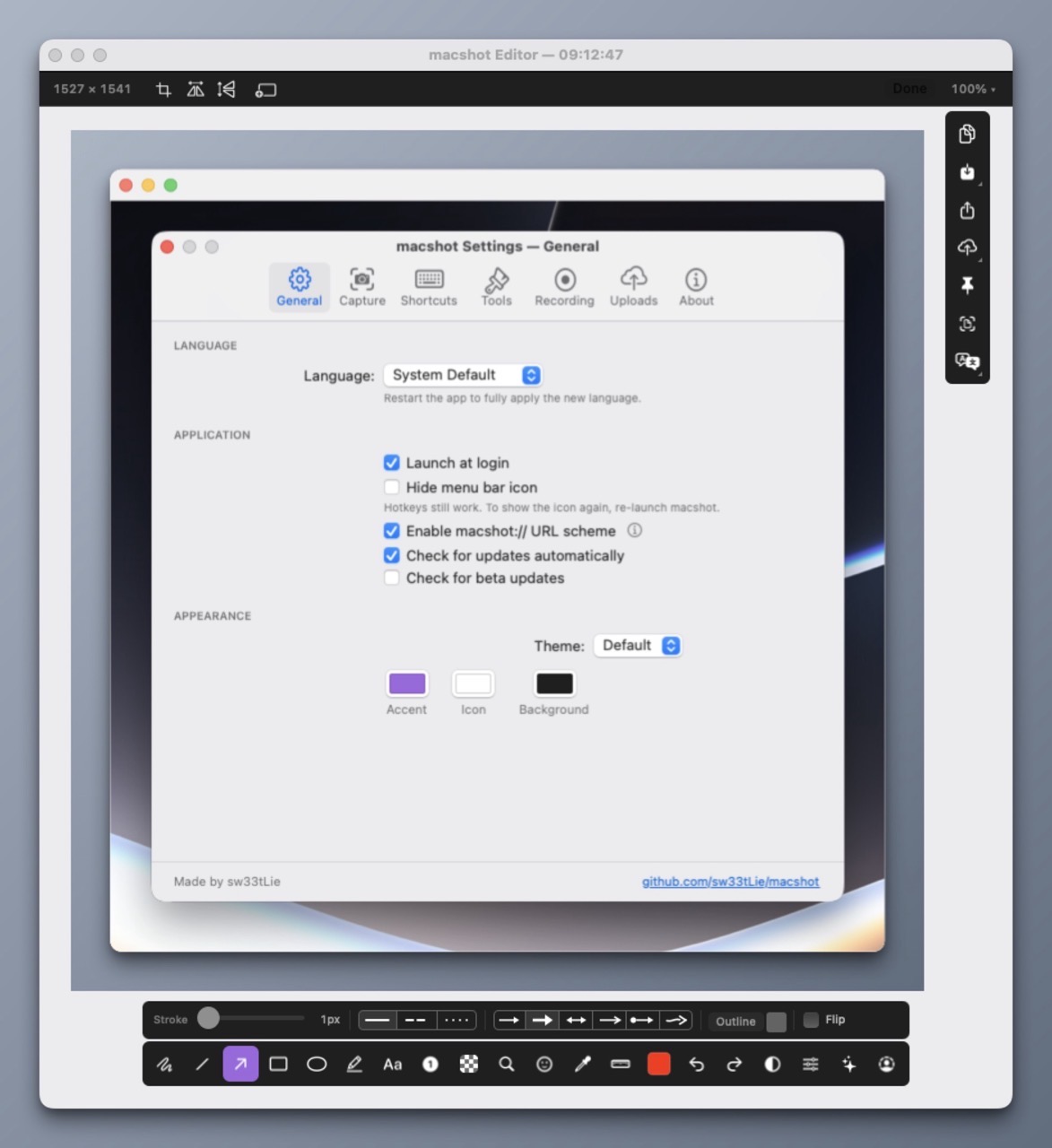
Today we’ll look at two tasks that I perform on a daily basis: making and annotatingscreenshots and screen recording. My main go-to for both tasks has been CleanShot X. It’s a reliable and intuitive app that I’ve come to rely on for almost three years. My chief complaint is its expensive per Macsubscription fee. (I currently pay $49US for the privelege of running CleanShot X on two Macs.)
To that end, I wanted to see if there were other, better options for screen capture and screen recording. It turns out there are!
macShot has been my go to for screenshots over the past two weeks. Feature-wise, macShot appears to do almost everything CleanShot X does, and it’s free and opensource. Like CleanShot X, macShot provides intuitive tools for annotating, redacting, and editing screenshots. It’s also a native Mac app that is highly performant and light on resource usage. (It takes up a mere 8MB of memory on idle). macShot also performs screen recording with a built-in trim editor.
The only issue I have with macShot is key casting; a useful option to display keystrokes when screen recording. This feature is crucial for me when creating instructional demos.
(For key casting, I am currently using the free and open source KeyCastr.)
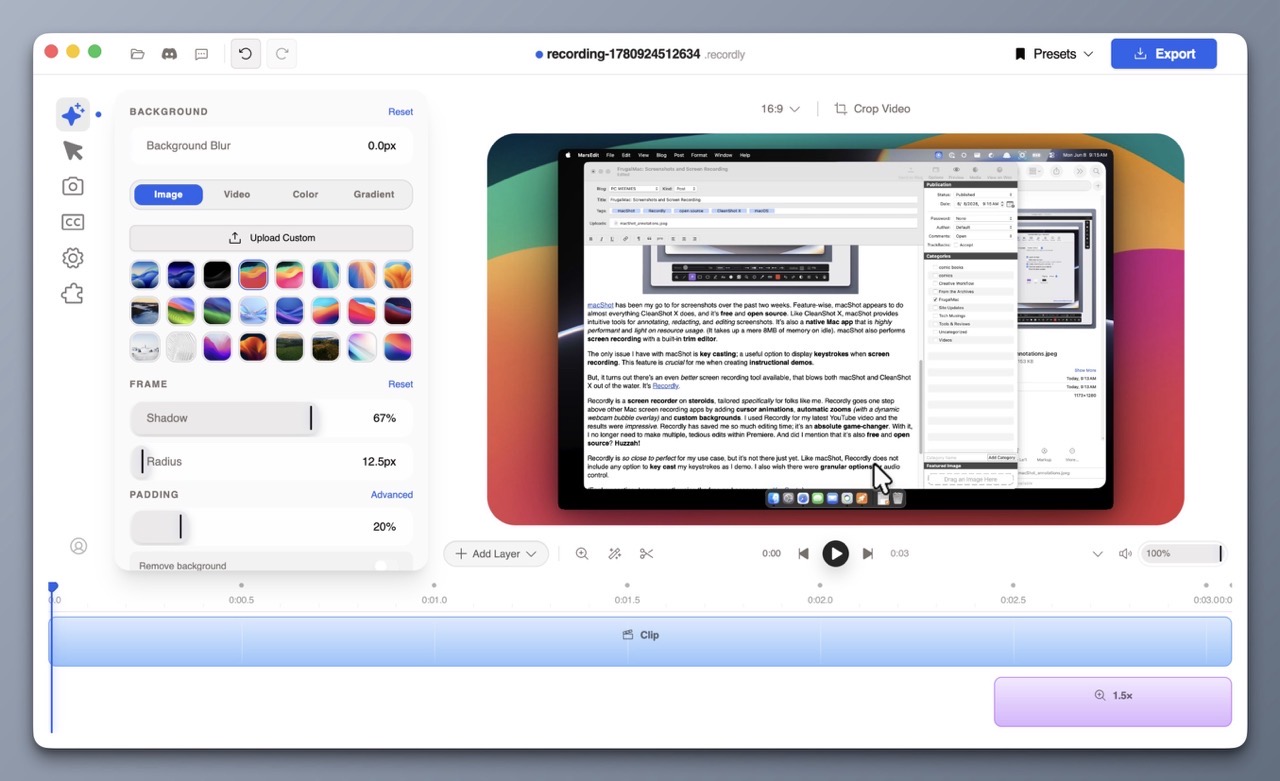
But, it turns out there’s an even better screen recording tool available, that blows both macShot and CleanShot X out of the water. It’s Recordly.
Recordly is a screen recorder on steroids, tailored specifically for folks like me. Recordly goes one step above other Mac screen recording apps by adding cursor animations, automatic zooms(with a dynamic webcam bubble overlay) and custom backgrounds. I used Recordly for my latest YouTube video and the results were impressive. Recordly has saved me so much editing time; it’s an absolute game-changer. With it, I no longer need to make multiple, tedious edits within Premiere. And did I mention that it’s also free and open source? Huzzah!
Recordly is so close to perfect for my use case, but it’s not there just yet. Like macShot, Recordly does not include any option to key cast my keystrokes as I demo. I also wish there were granular options for audio control.
I have a dedicated Rode microphone and an Insta360 Link 2 webcam with its own internal mic. It would be nice if I could tell Recordly to use the audio from the dedicated microphone, and mute the audio coming from the webcam mic.
Recordly and macShot are both excellent, well-designed applications. With them, I no longer need CleanShot X.
Perspective drawing can be difficult, but if you have digital tools, you have easier options. My latest instructional video focuses on the power of grids, and how they can be used to create interior or exterior structures. I look at techniques to make grids quickly and also how to use Photoshop’s Vanishing Point tool.
I wanted to share two fantastic resources that I came across recently that will be helpful for Mac users.
First up is Glenn Fleishman’s Apple Specs Database which lets you search technical specifications by model — iPhone, iPad, Mac, Apple Watch, and more. But the really interesting feature that I haven’t seen elsewhere is search by spec. Simply select a specific spec and see every Apple product model that includes it, along with its release date and more. Wild!
Alongside hardware, the Apple Specs Database includes a tab for searching OS features across macOS, iOS, iPadOS, tvOS and visionOS. So if you’re curious to know what key features were introduced in macOS 11 Big Sur, you can see them at a glance.
Next up is the Mac Cable Bandwidth Calculator, found on the RetinaDesk website. This site lets you select your input signal (4K, 1440p, etc.), resolution, refresh rate and more and provides a list of compatible cables that can carry that signal. The “Try a Scenario” option includes selections like 4K Gaming on a Mac, 8K 60Hz, etc. so you can get a feel for the types of cables that will work best for your setup.
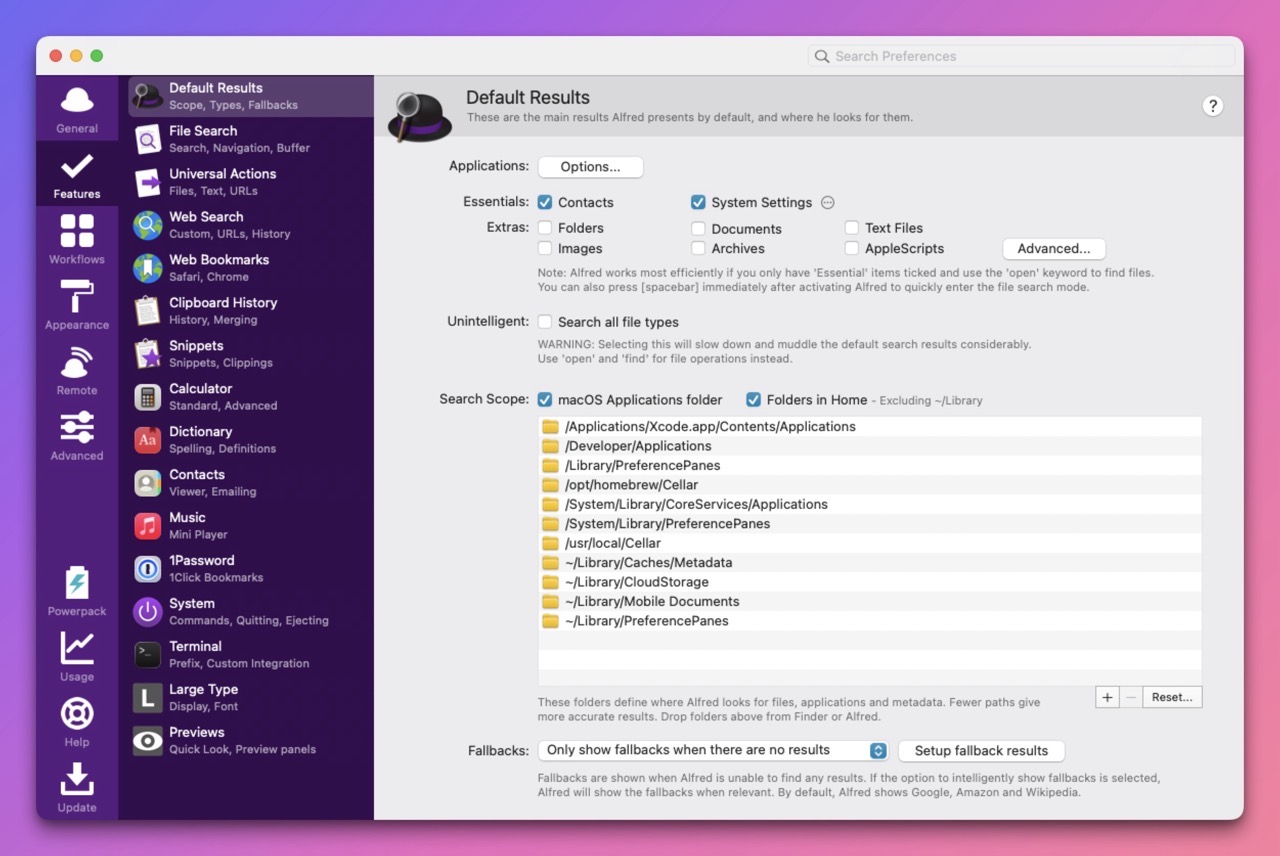
There is no shortage of Mac launcher apps available. But in the end, after carefully weighing my options, I’ve decided to stick with the venerable Alfred.
How long have I been using Alfred?
Since October 26, 2010. Almost a decade later, I purchased the Alfred PowerPack. Alfred is a launcher, and PowerPack is a set of powerful features that adds to and extends Alfred’s capabilities.
A few years ago, I purchased David Spark’s excellent Alfred Field Guide, which helped me immensely in understanding the capabilities and power of the combo.
Alfred is a very capable tool, but it’s showing its age in its overall user interface. Alfred has many options to configure it just as you’d like. But without any affordance of a Search bar, it can be daunting to find what I’m looking for.
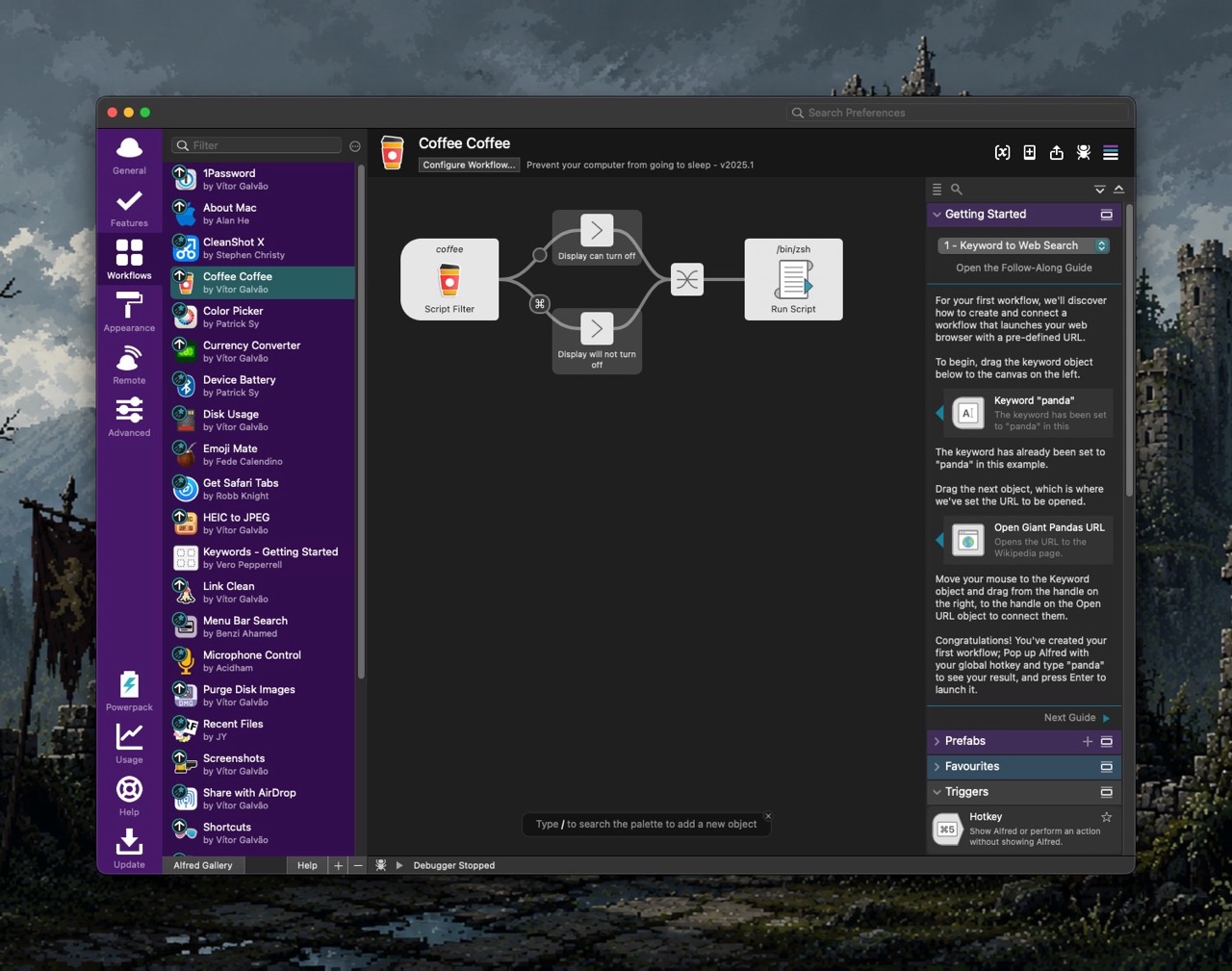
The PowerPack extends Alfred by way of customized workflows. Conceptually, I understand what a workflow can do, but it still feels unintuitive for me to make one on my own.
Alfred includes theming options to configure it’s appearance. Colors, type, margins and the like can be changed on a near granular level, but the interface to do so feels clunky.
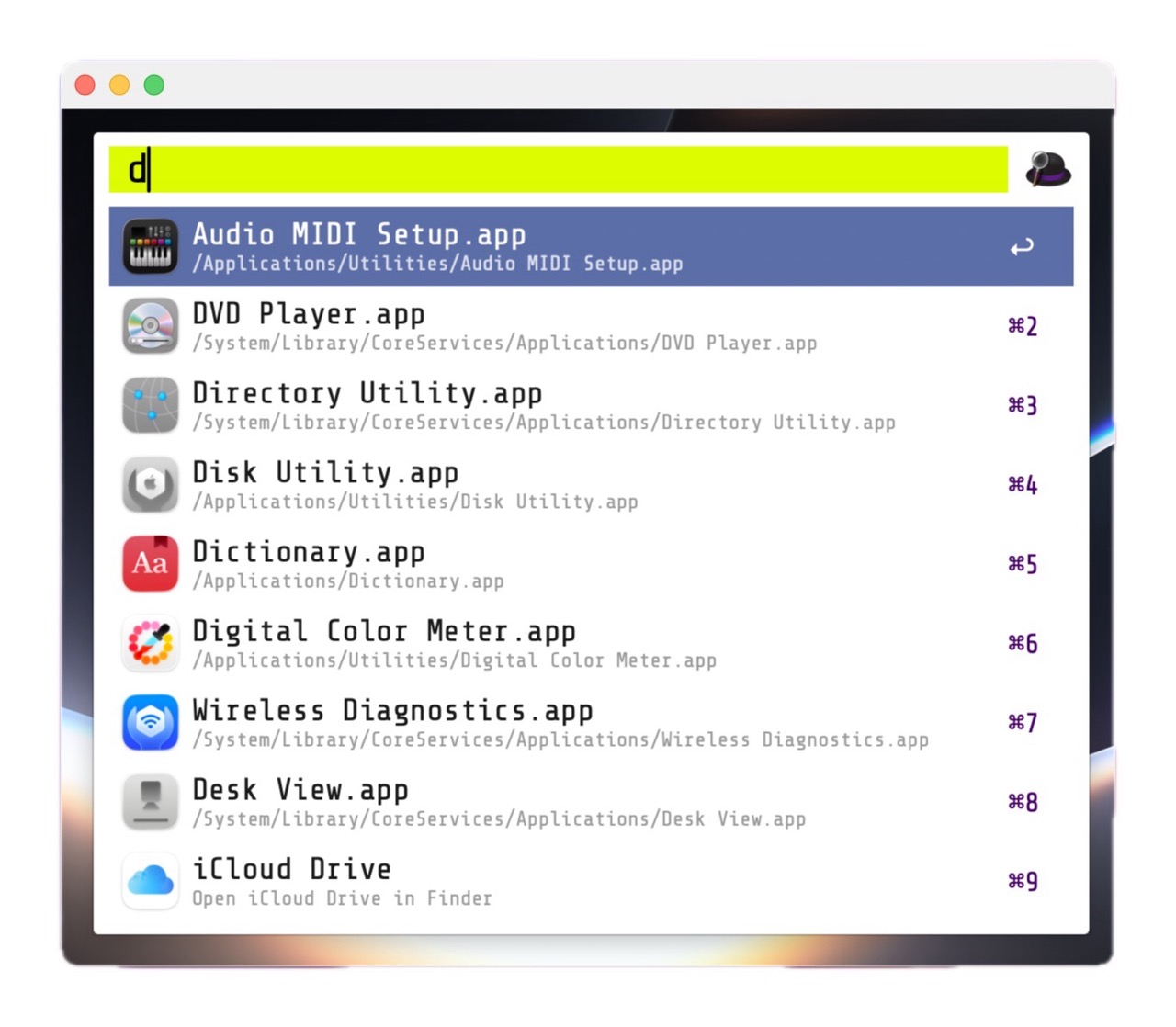
For my M5 Pro MacBook Pro, I’ve intentionally crafted a custom theme for Alfred, called BattleBeast. It uses the Google Font ShareTechMono. I prefer a clean, minimal look, with tight margins – and I feel that the BattleBeast theme reflects those decisions.
Alfred’s developers have teased the upcoming Alfred 6, which I’m eagerly anticipating. I’m hoping that Alfred’s Workflows receive an overhaul and that the UI complexity gets some much needed refinement.