How do you identify and label your tech accessories?
For me, it’s through the use of custom designed stickerlabels. I created my stickers in Photoshop and used a print-to-order company to print a spool of them. I use my custom sticker labels on just about every tech gadget I carry: smartphone cases, external storage devices (hard drives, SSDs, etc.) and portable accessories, such as USB chargers.
My sticker labels were designed intentionally. Each label measures approximately 2” wide by 3/4” tall. The labels are orange and red and include my last name, with blank lines reserved for Name and Capacity. For convenience, the stickers can be written on with a Sharpie marker. This makes it easy to annotate information, like a storage device’s volume name and storage capacity.
Since I travel back and forth between work and home, having labels on my devices allows me to quickly identify them. The stickers were designed to stand out visually, making it less likely that I’ll forget my devices when I pack up and go.
I also use my sticker labels for any gadget that comes with a large power brick. I never have to guess which power brick goes with which device.
If you use a Mac for any period of time, you will slowly accumulate a raft of applications. But what happens when you want to remove an app you no longer need or use? In this scenario, users are often left to discover third party uninstallers, such as Pearcleaner, CleanMyMac or AppCleaner. Reviews across the Internet have been mixed, with regard to their effectiveness at removing all traces of a given app. (Personally speaking: I’ve used all three, and haven’t had any issues.)
But it brings me to my main point: Why doesn’t Apple include its own uninstaller app?
In the year of 2026, the exercise of removing apps is left to the user. And it’s not as simple as dragging an application into the Trash.
From the Archives features select blog posts that I recovered from the original PCW website. Every effort has been made to preserve the original article as is. Some minor updates are included, as needed. Links that no longer work have been removed.
originally published: November 11, 2016
When I first saw the Wacom Cintiq 27QHD model a year ago, I was instantly smitten. Last week, I ordered one for myself. It’s been in the studio for a week now, and by all accounts, the Cintiq 27QHD is everything I expected it to be. But, I’m getting ahead of myself…
As of this writing, there are numerous offerings in the tablet monitor space from Huion, Yiynova, Microsoft and even Apple’s own iPad Pro. Long time readers will note that I have been using a Yiynova MSP19u for nearly 4 years. This post will attempt to address why I made the switch to the Cintiq 27QHD, and also why I picked this model over other competitive offerings (including Wacom’s recently announced Cintiq Pro and Cintiq Mobile Studio models).
Let’s start at the top.
Let me be clear: Yiynova makes a good product for its price point, but it has certain limitations that users need to be aware of. The first is the limited viewing angle, which makes any work involving color more challenging. The second limitation is the 1440 x 900 screen size. This wasn’t so much of an issue for me, because I made use of a second display. The third is the limited driver support, especially on the Windows side. (Note: Yiynova released updated Windows drivers last month.) These limitations were not deal breakers for me, but given the volume of work that I’ve been doing over the past year, I was ready for an upgrade.
Last month, Microsoft announced its Surface Studio device. While my initial reaction was very positive, I’ve tempered my attitude over the past few weeks as I’ve learned more about the device. While the Surface Studio’s 4K screen is no doubt very impressive, the device has only 1024 levels of pressure sensitivity. Both the Yiynova and Cintiq offer double the amount. Furthermore, the Surface Studio stylus requires a battery. Again, this wasn’t a deal breaker for me, because I’ve been using a battery operated stylus with my Yiynova with no issues whatsoever.
For me, the biggest deal breakers in considering the Surface Studio was
1) the price ($3000US)
2) the expense in purchasing Windows equivalent versions of the Mac software I already own.
In addition to the software, I would also have to reinvest time in rebuilding my automation tools from scratch on the Windows side. The time and inconvenience of finding and using programs that offer similar features to Automator and KeyboardMaestro on the Windows side wasn’t worth it to me.
Before I dropped coin on the Cintiq 27QHD, I was also considering the newly announced Cintiq Pro 16 model. It retails for $1500 and offers a 4K screen with 8,192 levels of pressure sensitivity – with virtually no parallax between the stylus and the screen. While the extra screen resolution and increased pressure sensitivity are tempting, I wanted a bigger unit to work on. The 16″ screen would be similar to the size of my current Yiynova tablet. The Cintiq Pro 16 doesn’t ship until February 2017, and I needed to make a purchase before the end of the year, so I had to rule that model out. New models also tend to have bugs or problems. As of this writing, the Cintiq 27QHD has been around for almost two years, so any kinks should have hopefully been worked out by now.
I believe I’ve made the best decision for me. The Cintiq 27QHD is a visually arresting piece of kit. It comes with a very useful and programmable remote that you can assign keys to and the color range is stunning. Drawing on its textured surface is very pleasant and smooth – in comparison, it’s head and shoulders above drawing on the Yiynova’s glass screen.
Before installing the Cintiq, I first removed the Yiynova and its accompanying software drivers.
Below are some photos of the unboxing. Wacom, in this regard, does an exceptional job. The Cintiq 27QHD comes double-boxed and superbly packed.
The screen is protected by no less than 4 layers of plastic covering.
The bottom of the Cintiq 27QHD contains the ports to plug the device to both power and your computer…
…while each side of the unit contains 2 conveniently located USB 3.0 ports.
The included pen stylus and remote control both exude quality and craftsmanship. The remote has a magnetic backing that lets you keep it on the display while you are working.
The Cintiq 27QHD is HUGE. Make sure you have a large enough desk to accommodate it.
I’m using the Cintiq with an HDMI to DVI adapter cable, which gives a screen resolution of 1920 x 1080. Computers equipped with DisplayPort cards or ports can get the native 2560 x 1440 pixel resolution. At some point, I’m going to upgrade my video card to take advantage of this. When I first powered on the Cintiq, I ran an online pixel checker to test the Cintiq for dead pixels. Thankfully, my unit passed with flying colors (ahem!).
To connect the Cintiq 27QHD to a mounting arm requires the additional purchase of a VESA plate adapter. I purchased an Atdec AC-AP-2010 adaptor plate and it works beautifully with it. Using the adaptor plate, you can take a 100mm x 100mm VESA connection and mount it to devices with a 200mm x 200mm mounting surface. Even with the mounting plate, the AmazonBasics Single Monitor Display Mounting arm I’m currently using with my Cintiq 27QHD is not strong enough to fully elevate and support the unit. I’m hoping to address that problem soon, so I can comfortably position my Cintiq where I want while I’m working.
Here’s the Cintiq integrated into my current desk setup.
And here’s the first illustration I made with my new toy:
In summary, I absolutely love drawing and working with the Wacom Cintiq 27QHD. It’s a complete game-changer for me. I hope to get many, many useful years out of it.
April 2026 Update:
It’s been almost ten years since I wrote that post, and I’m still using the very same Cintiq. I have had only one issue with the Cintiq (a faulty panel). Thankfully, the device was still under warranty and Wacom fixed the issue. I did have to pack and ship the Cintiq back to them at my own expense. (I’m glad I kept the original box.)
The Cintiq has served me well. I don’t use the ExpressKeys, preferring keyboard shortcuts instead. The stylus is durable and has withstood numerous drops from my desk.
Over the years, its display panel has lost a little of its brightness. And while it’s certainly not as crisp as panels found in modern displays, it still gets the job done. Given its age, Wacom recently dropped driver support for the 27QHD; older drivers still work under macOS Tahoe.
Having read and studied a wide range of cartooning approaches over the decades, I wanted to share my approach for drawing stylized cartoon heads. I start off with a rounded asymmetrical line, which I then duplicate, rotate and transform.
By using the repetition of one curved line, I’m able to create characters that appear to be highly unique from both a design and silhouette standpoint.
Remember when software could fit entirely on one floppy disk?
If you used a computer in the late 80’s, this was the norm. Hard drives were a luxury for many of us, so the almighty floppy disk was our only means to load programs and games. For context: my first computer, an Apple IIGS, came with one external 3.5″ 800K drive and one external 5.25″ (140K) drive. For computers of that era, it was commonplace to insert a disk, power on the computer, and wait anywhere from 30 seconds to a minute for an application to load. (We were more patient back then.)
I seriously doubt that anyone still yearns for the days of using floppy disks. But being forced to use floppies had a profound impact on developers from that era. They had to squeeze a lot of capabilities within a seemingly paltry amount of storage.
With gigabytes and terabytes of data being the norm nowadays, developers have no incentive to create fully optimized applications. As a result, modern software is mostly bloatware, getting larger and larger in size with each new release. (I’m looking at you Adobe, Microsoft, and Apple.)
The mindset of shipping something small, fast, native, and single-purpose is largely lost upon most modern developers. But one guy is doing something about it. Matt Sephton created a clever macOS screensaver called Fits on a Floppy, which thoroughly embraces the mindset of late 80’s development: speed and efficiency, in an almost meta way.
Fits on a Floppy is like After Dark’s Flying Toasters screensaver, if the toasters were replaced with a variety of 3.5″, 5.25″ and floppy disks. And if you’re feeling fancy, you can also toss in a few miniDiscs into the mix.
What I really appreciate about this screensaver is the attention to detail. Each and every disk that floats by is adorned with its own custom disk label. Watching the screensaver for a few minutes filled me with a wave of nostalgia. Fits on a Floppy isn’t bare-bones, it comes with several customization options – such as Disk Count, Disk Scale, Speed and more.
Fits on a Floppy, true to its namesake, fits inside a 1.44MB disk. (I wouldn’t expect anything less.) It’s also free, so what are you waiting for? And while you’re at it, check out the rest of Matt’s apps.
A few weeks ago, I wrote about my Mac blogging software stack. I use MarsEdit to write my posts. This week on the RocketYard blog, I take a deeper dive into MarsEdit’s offerings and why I prefer using it over the built-in WordPress editor.
Supercharge, by Sindre Sorhus, is not one of those products. I’ve written about this potently powerful Mac utility before, but this time around I wanted to highlight how this powerful app has replaced several niche apps on my Mac.
With Supercharge, I no longer have a need for dedicated apps like:
Caffienated (keeps the Mac awake)
Color Slurp (screen-wide color sampler)
Jettison (eject all mounted storage)
KeyboardCleanTool (locks keyboard for easy cleaning)
That’s because each of the apps’ functionality are all contained within Supercharge.
Supercharge goes further by providing a wealth of extremely useful customization options. Some of my favorites include:
1) Hiding / revealing desktop widgets
2) Toggling grayscale / color on my displays
3) Clearing all notifications
4) Selecting a default web browser
5) Custom Appearance colors
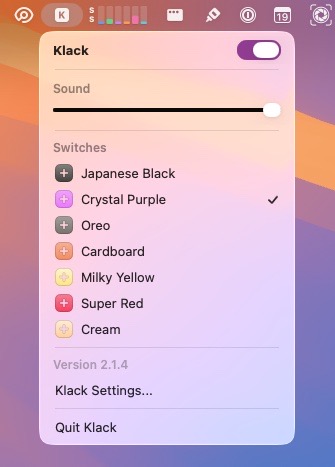
6) Auto-muting my microphone when typing
There’s a time to work and there’s a time to play. Supercharge doesn’t forget to have a little fun. It includes a few clever novelties like additional appearance colors and the ability to change the white Apple logo in the Mac menu bar to the retro-flavored rainbow variant from classic MacOS.
Supercharge gets new features with each new update. It’s incredibly versatile in terms of the conveniences it provides. And what I like the most is the ability to assign many of its features to custom hotkeys.
If you’re coming over to a Mac from Windows, you’ll find a lot of Windows Explorer specific features pre-baked into Supercharge, such as Cut and Paste, Create New Text Files in Finder, and more. Supercharge isn’t free, but it’s well worth paying for.
Supercharge is one of those rare apps that truly lives up to its name.
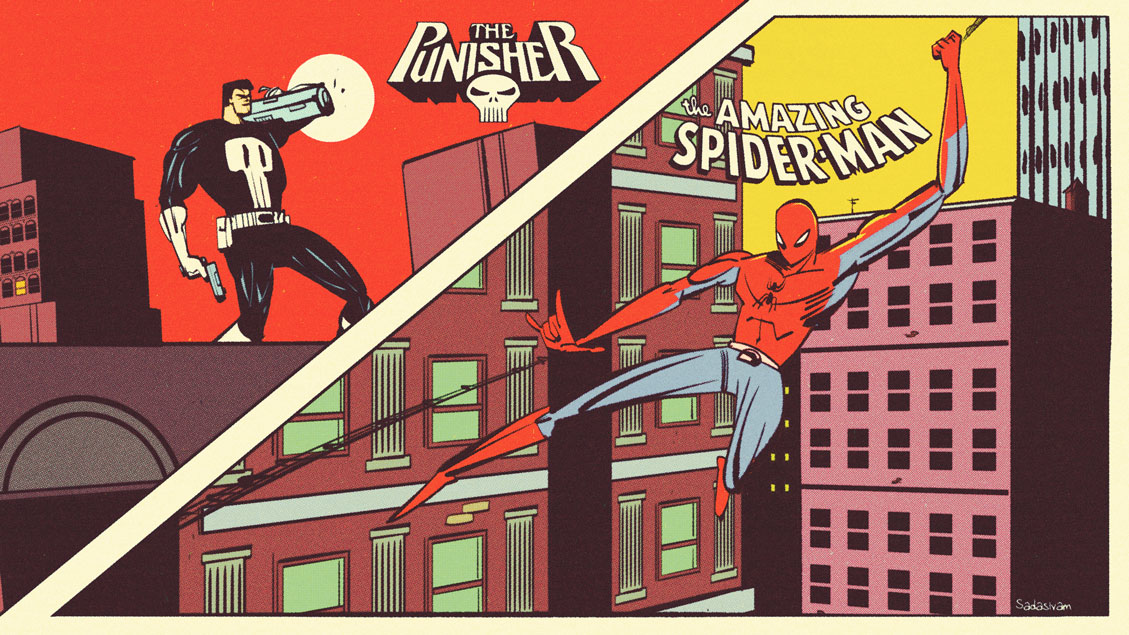
Creative Director Tyler Sticka brilliantly reimagines the modern web experience as a Rogues’ Gallery of evil doers. These antagonists make the Joker or Doc Ock seem tepid by comparison.
When did the web get so… bad? And, more importantly, why are we still putting up with it?
My latest video focuses on a few techniques I employ when drawing popular characters, using a combination of photos and reference illustration to map the character onto a different pose. To demonstrate the process, I selected an image of Dr. Doom, drawn by Jack Kirby, and an unrelated photo of a cloaked figure, facing a different direction.
From the Archives features select blog posts that I recovered from the original PCW website. Every effort has been made to preserve the original article as is. Some minor updates are included, as needed.
originally published: March 30, 2020
(Lengthy blog post. Sit back and bring your favorite beverage…)
Based on the last several blog posts, it should be obvious that I’ve been bitten by the bug that is retro-computing. I had so much fun resurrecting my Mac SE FDHD that I wanted a new challenge.
Several months ago, I bid and won a Mac SE/30 on eBay. From the seller’s own photos, the Mac was listed as “sold as is”. From the seller’s photos, the case was yellowed, but intact. The machine did not boot, but displayed the infamous Simasimac screen. After assurances from the seller that he would properly pack the machine before shipping it, I placed my bid and won the Mac for a whopping $60US + shipping.
I felt confident that I could bring this venerable Mac back to life…
When buying vintage computers on eBay, it’s always a roll of the dice. The seller did not disclose much information outside of the four photos accompanying his post. I placed my trust in what he listed. After all, the seller had a 100% positive rating on eBay.
What could go wrong?
A lot, it turns out.
A few days after I won the bid, a box showed up at my doorstep. It was no bigger than the Mac SE/30 itself. My first thought was “I hope the Mac is okay.”
I brought the box inside and opened it up. The first thing that hit me was the pungent aroma of a fishy smell. Then I looked at the packaging: One thin layer of bubble wrap. Lifting the Mac out of the box, I could see granules of sand pouring out from its base. I had flashbacks to the final scene in “Raiders of the Lost Ark”, where the Nazis open the Ark of the Covenant.
It didn’t look so good. There were prominent cracks on the front bezel. One crack was by the floppy drive, while the larger one was on the top right corner of the front bezel. My heart sunk.
Immediately, I reached out to the seller. After some back and forth – he reluctantly refunded me for the entire amount that I paid. He didn’t want the Mac back, so I was now left with a nonfunctioning, dilapidated Mac SE/30.
Opening up the Mac with my Torx screw driver, I uncovered even more tragedy. The Mac SE/30’s RF shielding was eaten away.
My worst suspicions were confirmed when I pulled out the logic board…
The CMOS battery had exploded, taking out a corner of the SE/30’s logic board. I say “exploded” because of the massive corrosion ring splattered on the Mac’s chassis.
The “sand” was not sand, but rather – it was remnants of an exploded Maxell CMOS battery. Sadly, exploded batteries are fairly common for vintage Macs. Many people don’t realize the extent of the damage until they open up the case.
How did the rest of the Mac fare?
The back case appeared fine. I got a small chuckle out of the AppleCare sticker on it.
Apparently the Mac was last serviced on March 27, 1996. (I’m willing to bet at that last servicing, the battery was not replaced.)
The bottom (not pictured) was missing two of its rubber feet. The Mac was heavily yellowed, with a few minor marks on its sides.
The inside components of the Mac were the big unknown. Straight away, I could see the damage on one of the CRT mounts on the front bezel. The CRT had been pushed in, most likely in transit.
The CRT picture tube itself looked intact, which was a relief. I had no idea if any of the other components worked, but aside from the dust – they seemed ok.
Time to roll up my sleeves and get to work…
The first order of business was to remove all the components from the chassis.
Taking the front bezel off wasn’t too difficult. Sadly, it was too far gone for repair. When removing the CRT – the bezel’s mounts crumbled apart. Before tossing the front bezel out, I extracted the speaker and Apple logo from it. I used an Exacto knife to remove the four small plastic stubs that held the speaker. For the Apple logo, I used a small thin paper clip on the inside of the chassis to pop the Apple logo out.
I needed a new front bezel. Instead of hunting online for the possibility of finding a donor Mac, I opted to go with the MacEffect’s clear front bezel. These are in very limited supply, as they were produced for Kickstarter backers last year. I was fortunate that the owner of MacEffects had a spare front bezel for sale, so I scooped it up. Within a few days of ordering it, the new front bezel arrived. The test fit was perfect!
I turned my attention towards de-yellowing the back case. This time around, I wasn’t as successful. The back case displayed some mild streaking, even after 3 rounds of retrobriting. I decided to live with it.
I attempted to repair the logic board (in vain). I replaced some of the logic, diodes and capacitors that were most affected from the corrosion. But there are many traces that were fully eaten away. Sadly, repairing the logic board is beyond my repair skills.
Like the logic board, the chassis was another basket case. Or so I thought…
The floppy drive cage was also pretty badly corroded.
Removing corrosion was actually not too difficult, thanks to Apple Cider vinegar. I filled up an empty bucket with the vinegar and submerged the floppy drive cage and chassis.
Within 24 hours, a good percentage of the corrosion disappeared.
After two treatments of vinegar submersion, the chassis and drive cage were looking significantly better.
Next,I used Barkeep’s Friend to remove the remaining corrosion, by spraying the chemical on the chassis and floppy drive cage. The results were pretty impressive. Pro tip: do this type of work in a well ventilated area (preferably outside). You do not want to breathe in those fumes.
With 97% of the corrosion, it was time to use some Rustoleum gray primer to make the chassis and floppy drive cage more aesthetically pleasing.
After applying two coats of primer, I used Rustoleum’s Clear Coat to protect the paint from further rust and corrosion. The chassis and drive cage were looking infinitely better now!
While waiting for the clear coat to dry, I turned my attention towards the high density floppy drive. Unsurprisingly, the unit was caked in dust and non-functional. I took the whole unit apart and thoroughly cleaned and lubricated each component. I also replaced the crusty auto eject gear with a 3D printed replacement.
I also took some time to clean the CRT and CRT yoke, using a combination of Clorox Wipes, 70% isopropyl alcohol and a tooth brush. With all the main components cleaned, it was now time to reassemble all the components. I’ll let the photos speak for themselves.
It looks good, but does it work? For that, I employed the service of my Mac SE FDHD’s logic board. SE logic boards work and fit perfectly inside an SE/30. With the logic board in place inside the Mac SE/30 case, I plugged the Mac into the wall and yelled “Fire in the Hole!”.
The Mac greeted me with its familiar chime. But there was no picture! Adjusting the brightness knob brought the familiar gray and white display to life. I’m pleased to report that the power supply, analog board, and CRT all work. There is some minor ghosting on the top of the CRT, but given where I started this project from – I was pleased that it still worked!
The floppy drive took some coaxing. It read and wrote to disks with no issue but struggled when attempting to eject a disk. I gave it the assist using a pair of my tweezers. After a few struggling attempts, the drive’s fresh lubrication took over and it was finally able to eject floppies all by itself.
The main casualties from this project were the logic board, the front bezel and the original Quantum drive that came with the unit. (To be honest, I did not expect the original platter based drive to work and would have been surprised if it did.)
Since this photo was taken, I have procured a replacement RF shield for the dilapidated Mac SE/30 (I’ve named it “Louie”). I’ve returned the SE FDHD logic board back to its original Mac (named Dewey). The only thing Louie needs now is a new logic board.