
I struggled with perspective for so many reasons. Chief among them was the labor involved in setting up grids and guides. In my latest video, I look at some smart ways to reuse assets when creating environments in perspective.
-Krishna

I struggled with perspective for so many reasons. Chief among them was the labor involved in setting up grids and guides. In my latest video, I look at some smart ways to reuse assets when creating environments in perspective.
-Krishna
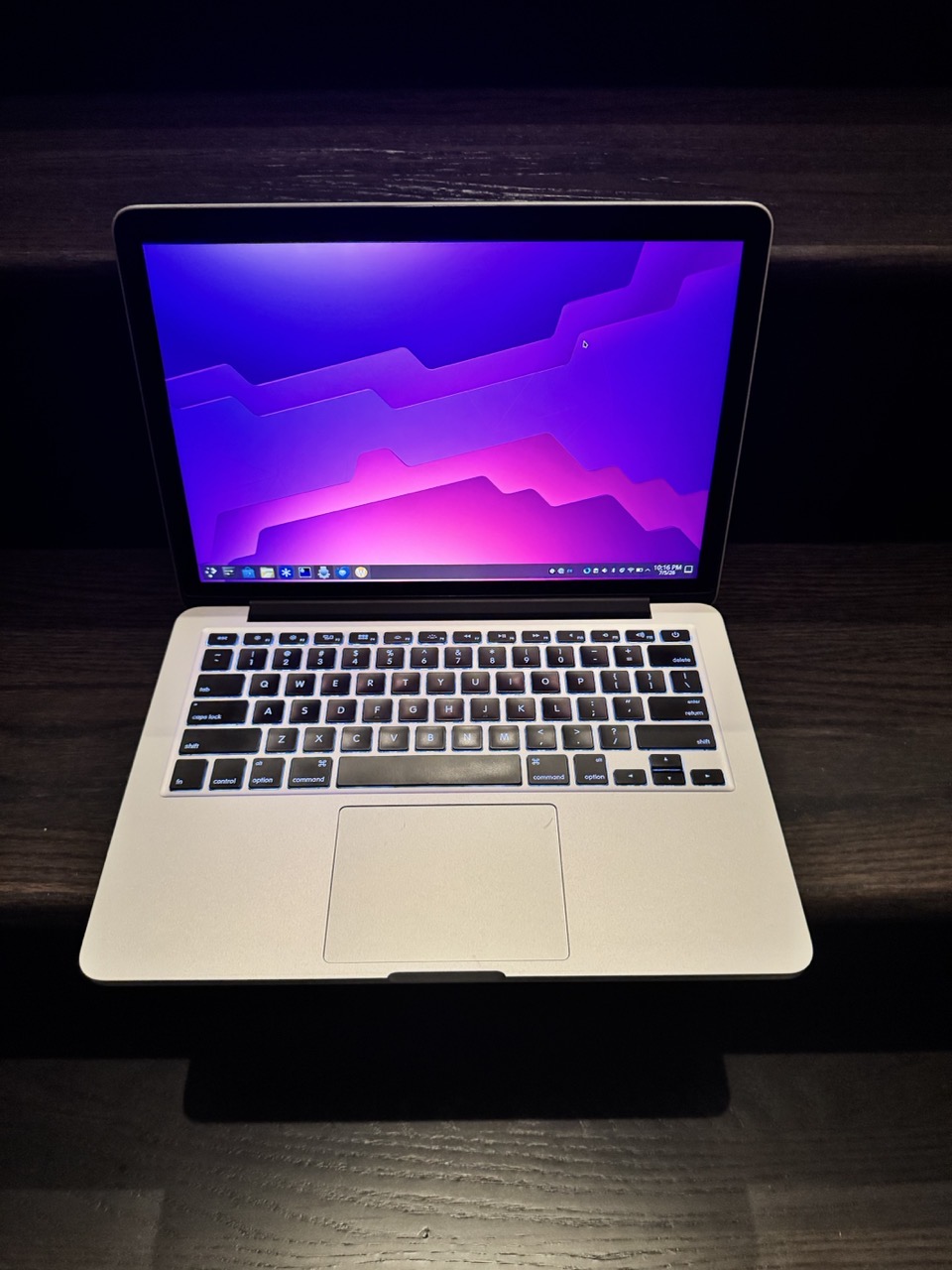
In 2014, I purchased a 13” MacBook Pro with 8GB of RAM and 256GB of storage. The machine served as my main computer for my academic work. After 6 years of regular use, I passed the laptop down to my daughter.
Due to the Covid pandemic, her middle school classes were being taught completely online. She needed a computer for her coursework. By this point, the MacBook Pro was still operational, but showing its age. Surfing the web while simultaneously streaming from a webcam would cause the machine’s fans to spin up loudly while thrashing the overall performance.
After limping along with her Mac for a few years, my wife and I bought her a M3 MacBook Air, with 16GB of RAM and 1TB of storage. At this point, the 2014 MacBook Pro was back in my hands. While its battery was completely shot, it still worked. I couldn’t bring myself to get rid of it.
After some searching online, I discovered that this machine could run Linux. In 2022, I replaced the battery with a new one and popped out the paltry 256GB storage for a 1TB Samsung NVME stick.
Two observations here:
1) the total cost for the new battery and NVME stick was less than $100US.
2) This Mac laptop was the last of its kind to have upgradeable storage.
After experimenting with various distros, including Ubuntu and popOS, I made the move to Fedora. As a Linux machine, this MacBook Pro feels much more performant. It’s still somewhat underpowered, with the fans kicking in when loading a modern webpage. But it’s more than serviceable as a “couch surfing” machine.
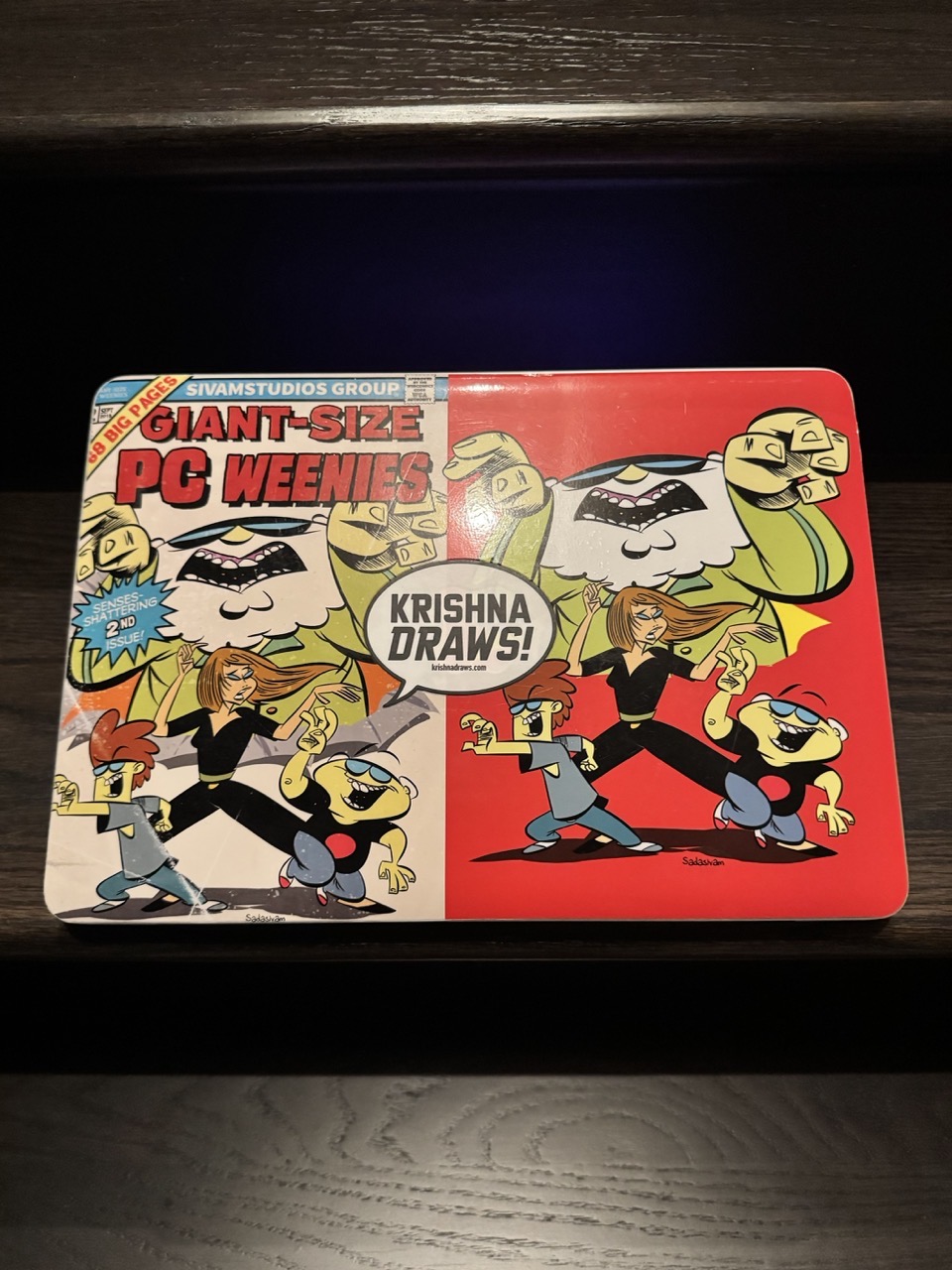
I settled on Fedora KDE Plasma because it has wider support from the Linux community and its less “fiddly” compared to something like popOS. I use this machine for web browsing and answering email.
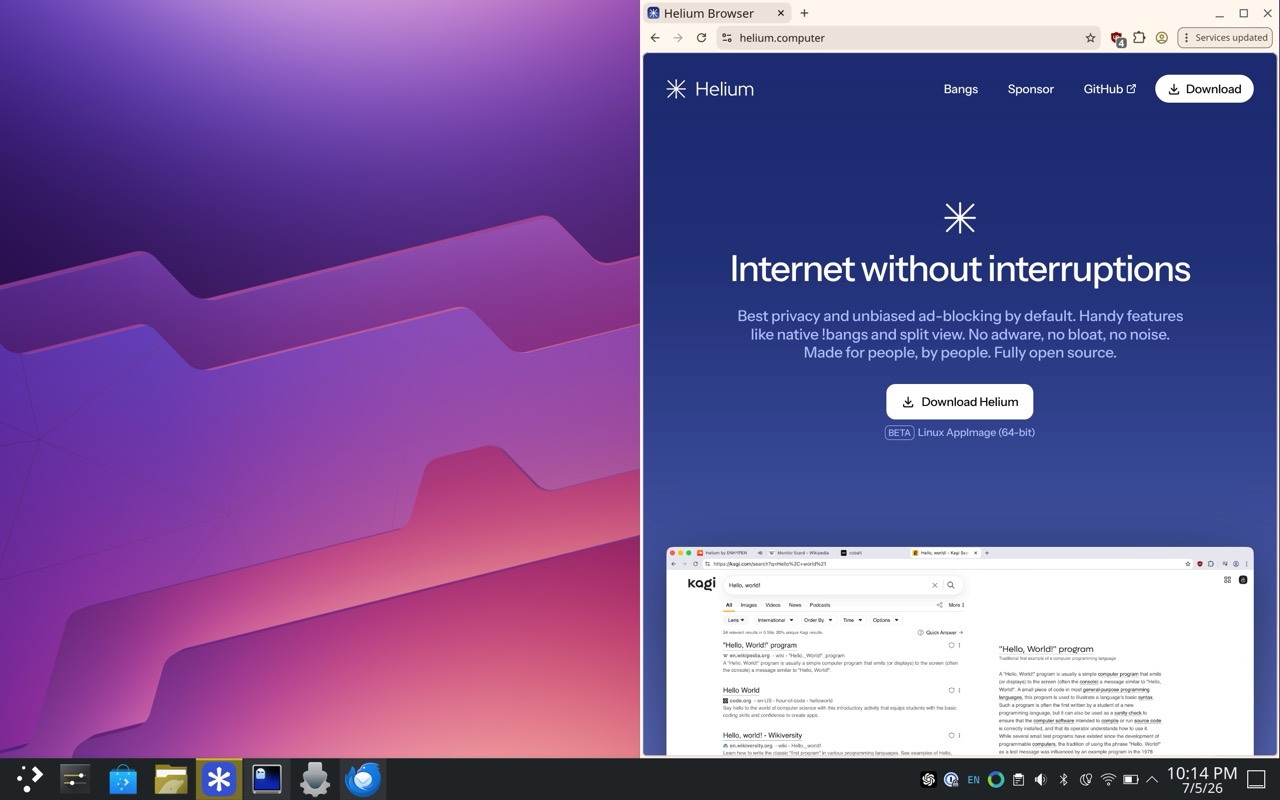
For web browsing, I use Helium. It’s privacy focused, Chrome-based, and light-weight.
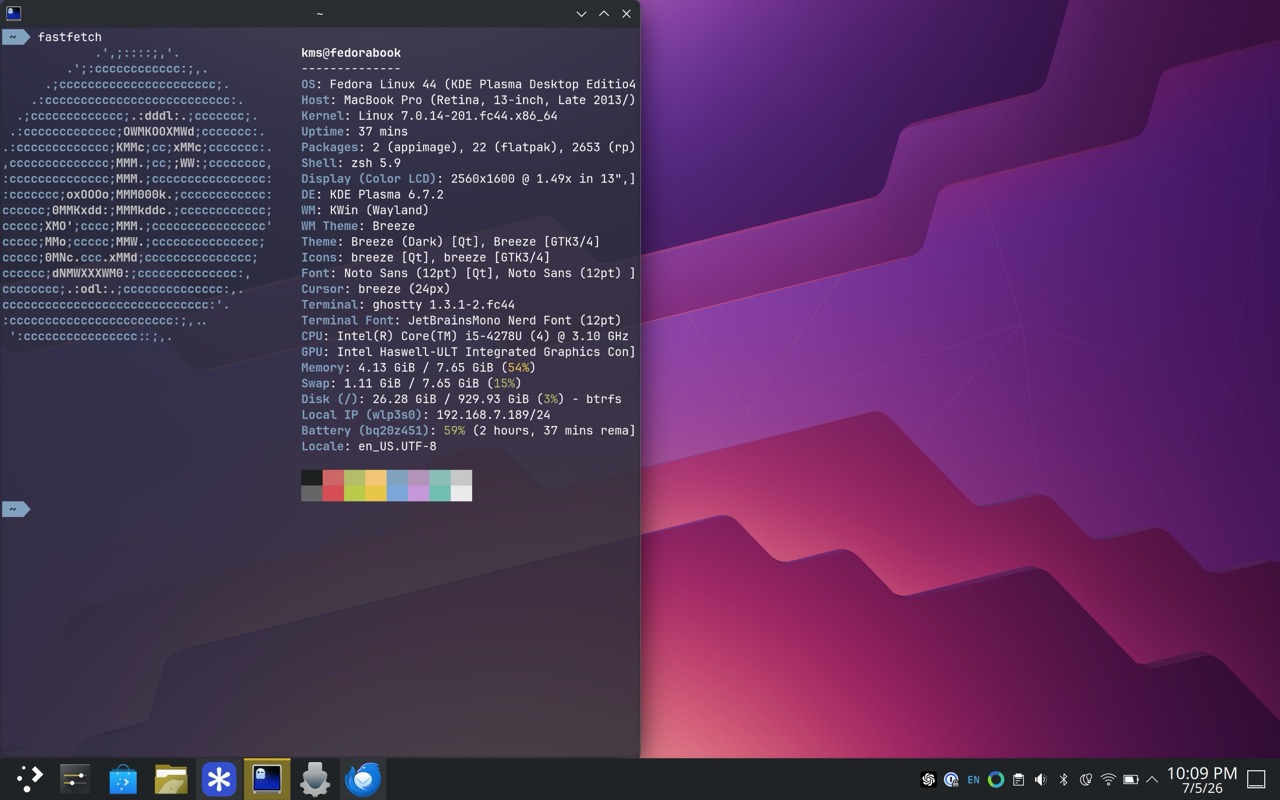
Ghostty is my preferred terminal of choice, and that’s what I’ve installed on this device.
For email, I use Thunderbird. My experiences with Thunderbird have been hit or miss over the last few years. But now that its main underpinnings have been modernized, I feel it’s moving in the right direction.
While I still remain firmly entrenched in the Apple ecosystem, I’m pleased with how Linux has improved over the years. In my opinion, it’s a great option for anyone who has an old Intel Mac collecting dust.
I can’t wait to see what comes next.
-Krishna
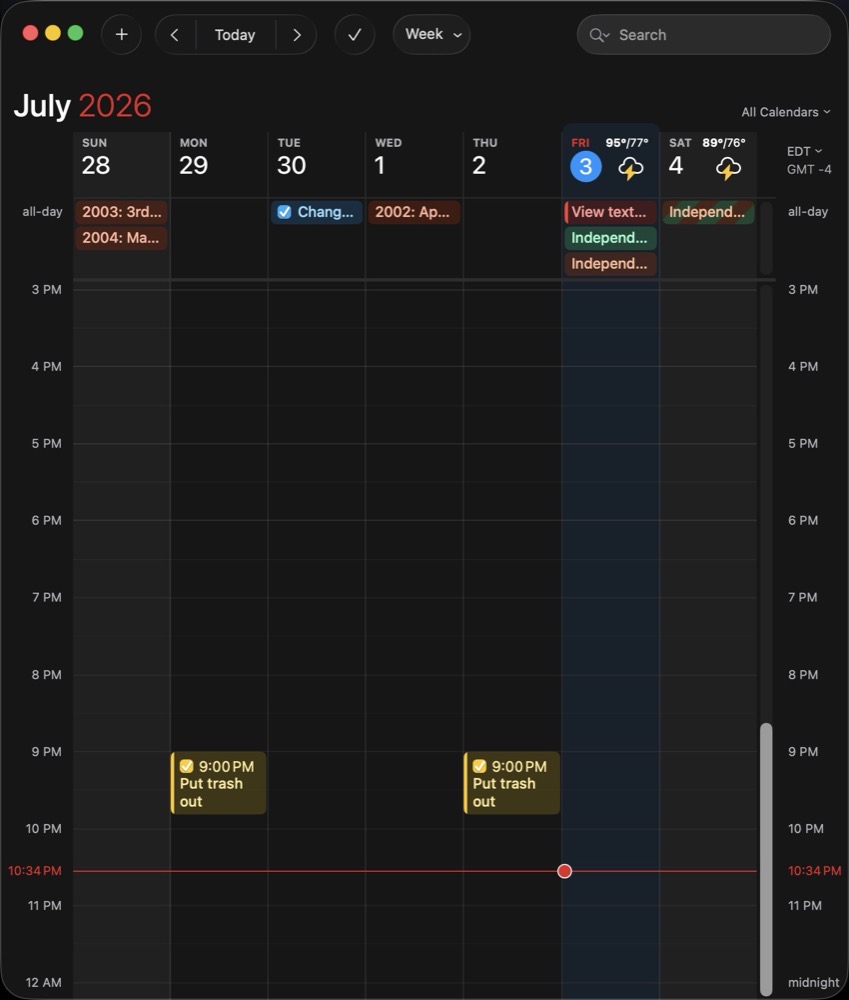
My FrugalMac build continues with the installation of three macOS productivity applications that I use regularly.
First up is Fantastical, my calendaring tool of choice for both personal and work related scheduling. I’ve used Fantastical for nearly a decade; it offers many conveniences over Apple’s included Calendar.app. Chief among them is natural language parsing. I can easily add items to my calendar, by typing (or dictating) phrases like:
Meet Bob next Wednesday at 1PM at Panera Bread.
Set up Office Hours every Monday from 2 – 3PM from August 17th to December 19th.
Fantastical also links with my Reminders.app, allowing me to track and complete upcoming tasks directly within my calendar. It’s extremely convenient.
Fantastical includes built-in scheduling, which allows me to share openings to let colleagues or students book time directly on my calendar. I plan to take full advantage of this new feature during the upcoming academic term.
Fantastical includes a convenient menu bar item, where I can add an upcoming meeting or check my upcoming schedule at a glance.
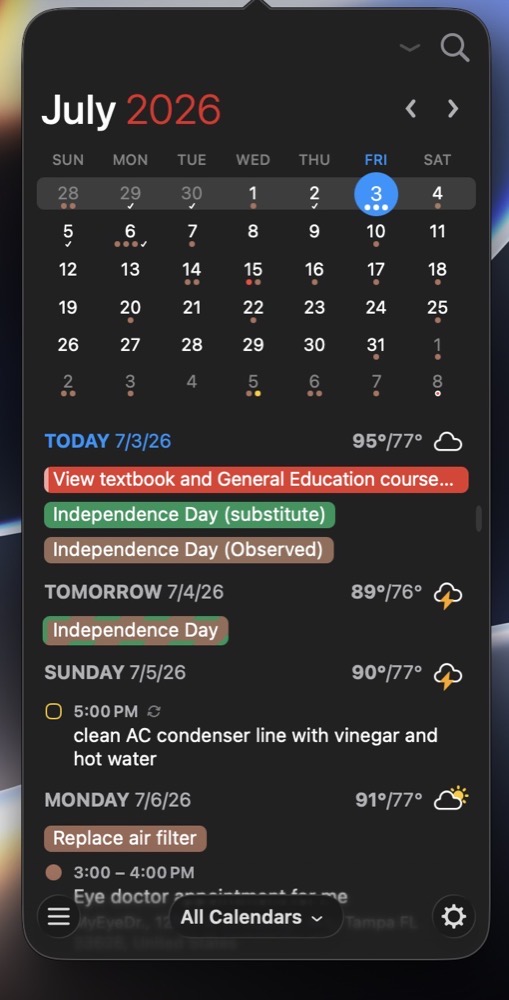
I do pay an annual subscription for Fantastical. In my view, it’s worth it, as useful features are added to the program throughout the year.
I also use Notion Calendar, for the sole purpose of tracking project / assignment due dates.
Next up is Zoom. There’s no escape from this one, as we use it at work. Compared to its web counterpart, the dedicated Zoom app offers better performance and reliability when it comes microphones, web-cams and screen sharing.

Finally, to round things out, I’ve installed a Chrome-compatible browser called Helium. My browser of choice has always been Safari, but there are times where I find myself needing a Chrome-based browser. Helium is open-source, privacy focused and includes ad-blocking by default. I like Helium because it’s clean and fast. It does not come with a password manager or cloud-based sync, which is fine for my occasional use.
-Krishna
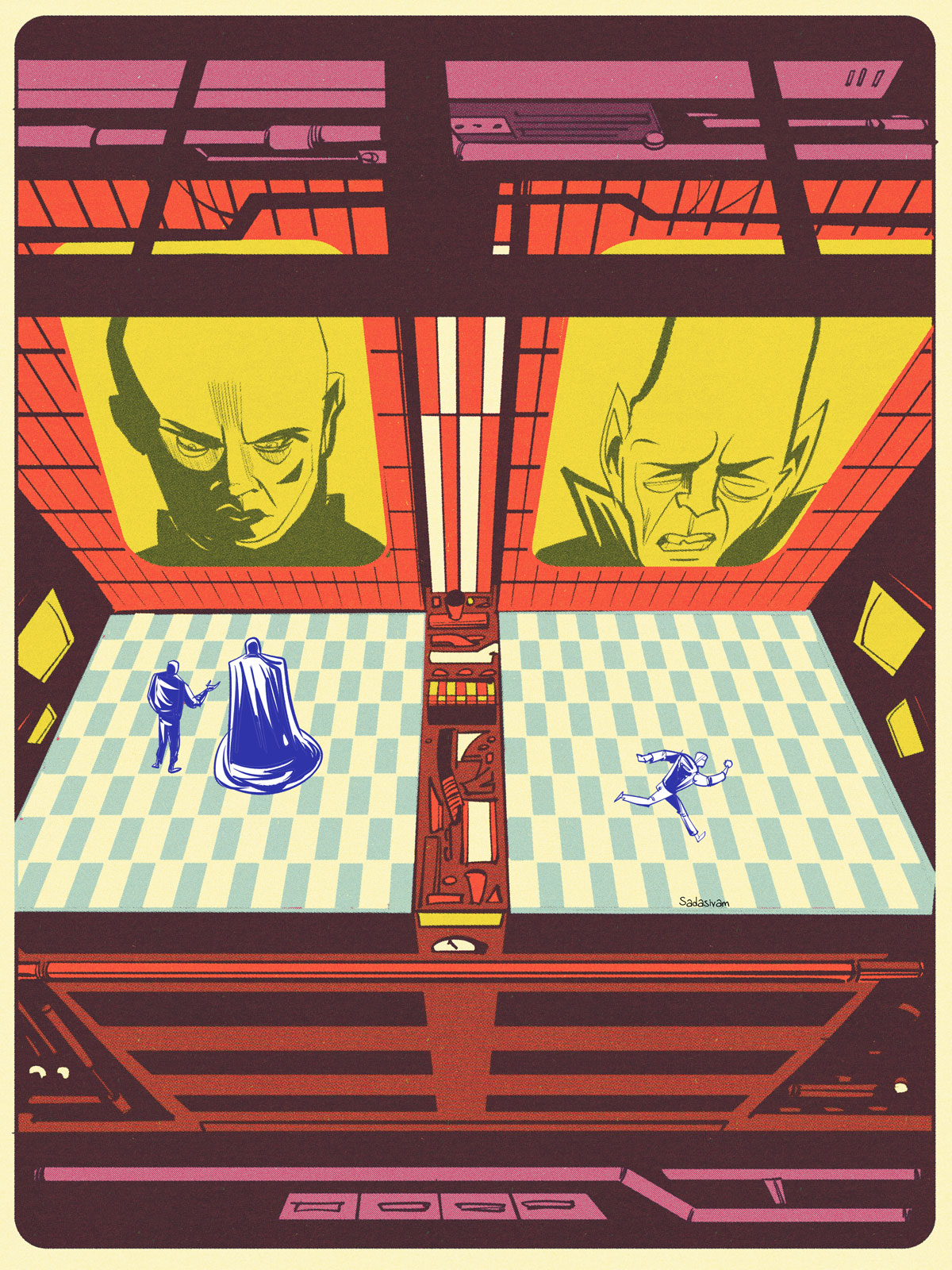
My latest video shows my approach to digitally drawing a kitchen interior, complete with fridge, top shelves and counter. Of course, these techniques can be adapted for other interior spaces.
I make extensive use of grids when drawing interior spaces.
-Krishna
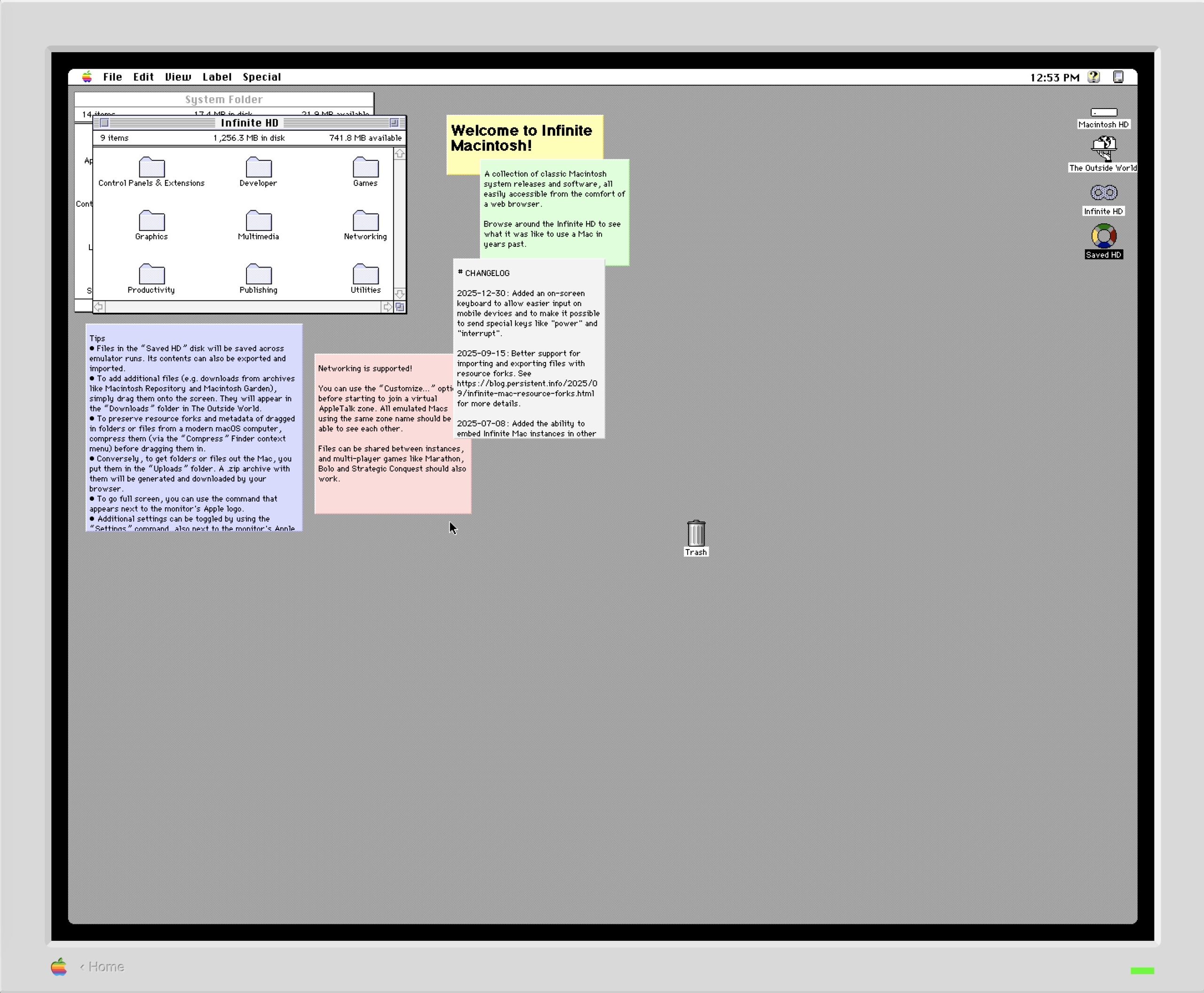
I’ve had a long-standing beef with macOS, going all the way back to the very first version of Mac OS X. It may be minor to some; to others, it may even be a non-issue. But for me, it’s pretty big.
In a nutshell, here’s my issue:
The text that accompanies each icon on the Mac Desktop is very difficult to read when placed atop a light-hued background wallpaper. The text, rendered in white, is accompanied by a subtle drop shadow. On a medium or dark background wallpaper, this drop shadow creates the illusion of depth. But when this style is paired with a light-hued wallpaper, the text becomes much more difficult to read.
Exhibit A: a mid-value wallpaper in macOS Tahoe:
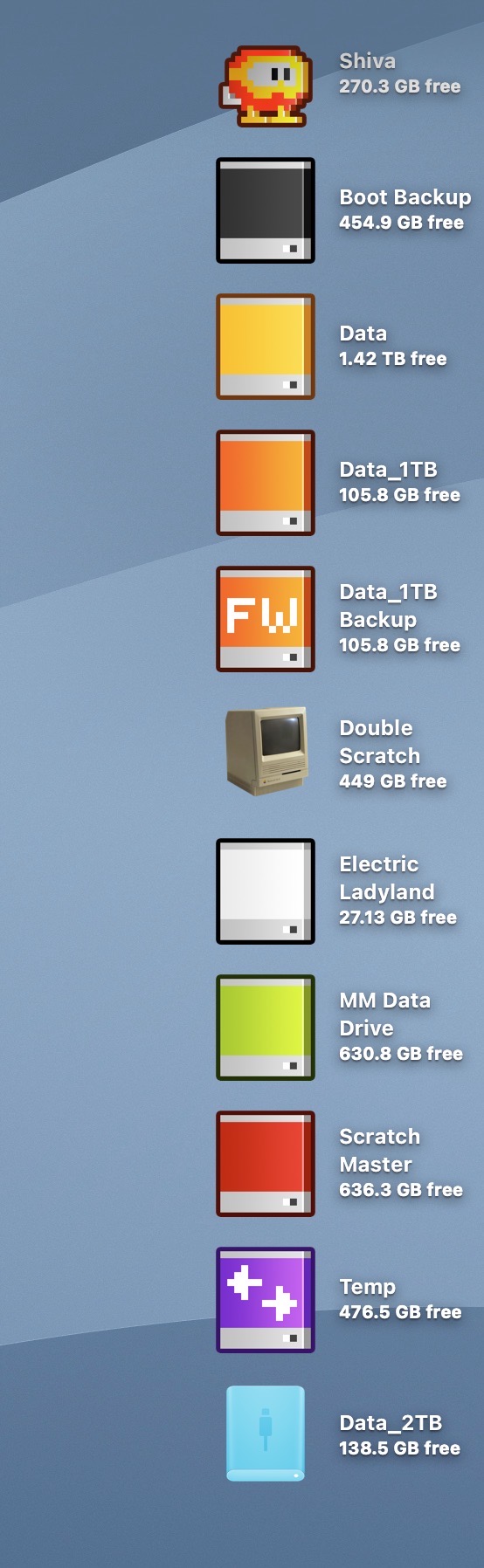
Exhibit B: a light-value wallpaper in macOS Tahoe:
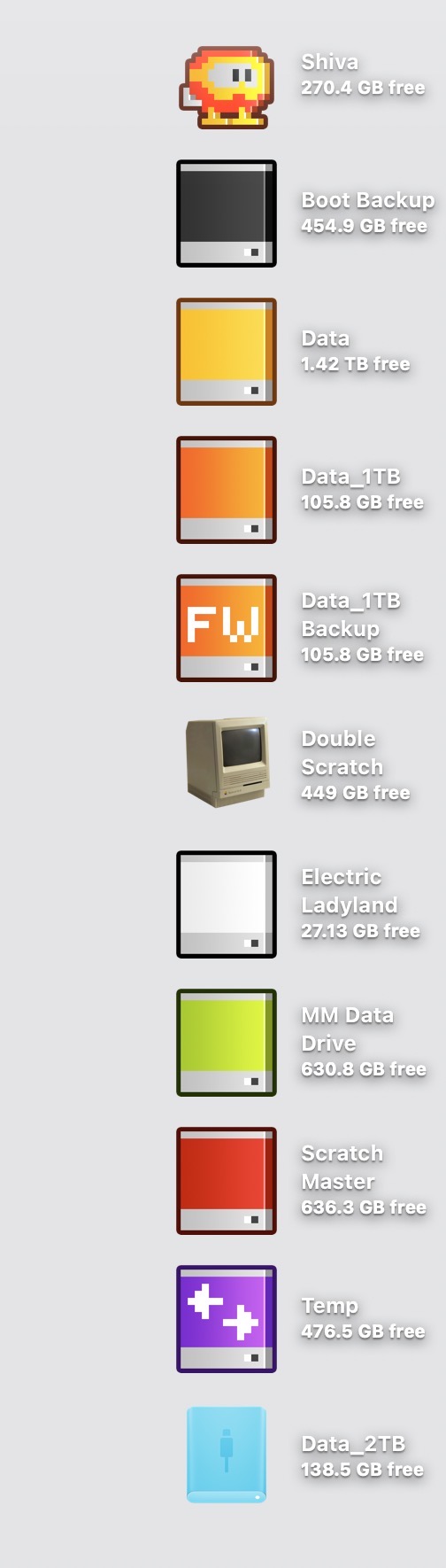
It wasn’t always this way.
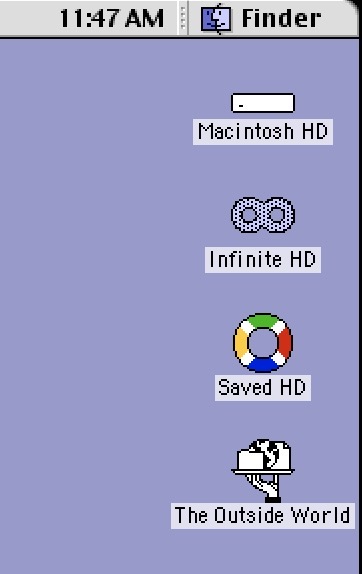
In classic Mac OS, each icon had accompanying black text with a white background strip behind it. This approach ensured clear readability, independent of whatever wallpaper was chosen.
Exhibit C: The Mac Desktop (macOS 7.5):
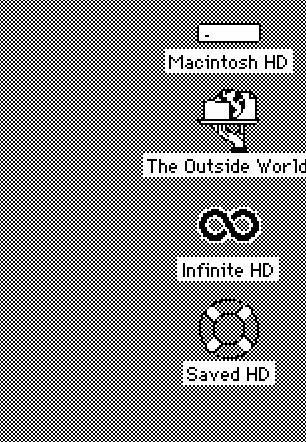
Exhibit D: The Mac Desktop (macOS 9):
Every version of macOS (including the forthcoming macOS Golden Gate) still provides no option to change the color of the text accompanying Desktop icons. It would be nice if Apple Intelligence could be employed to detect the value of the wallpaper background and automatically adjust the text color. In this setup, light backgrounds would automatically shift the icon text to black, and vice versa.
I’ve filed a feedback form on this issue before macOS Tahoe shipped last year, but have yet to receive a response from Apple.
-Krishna
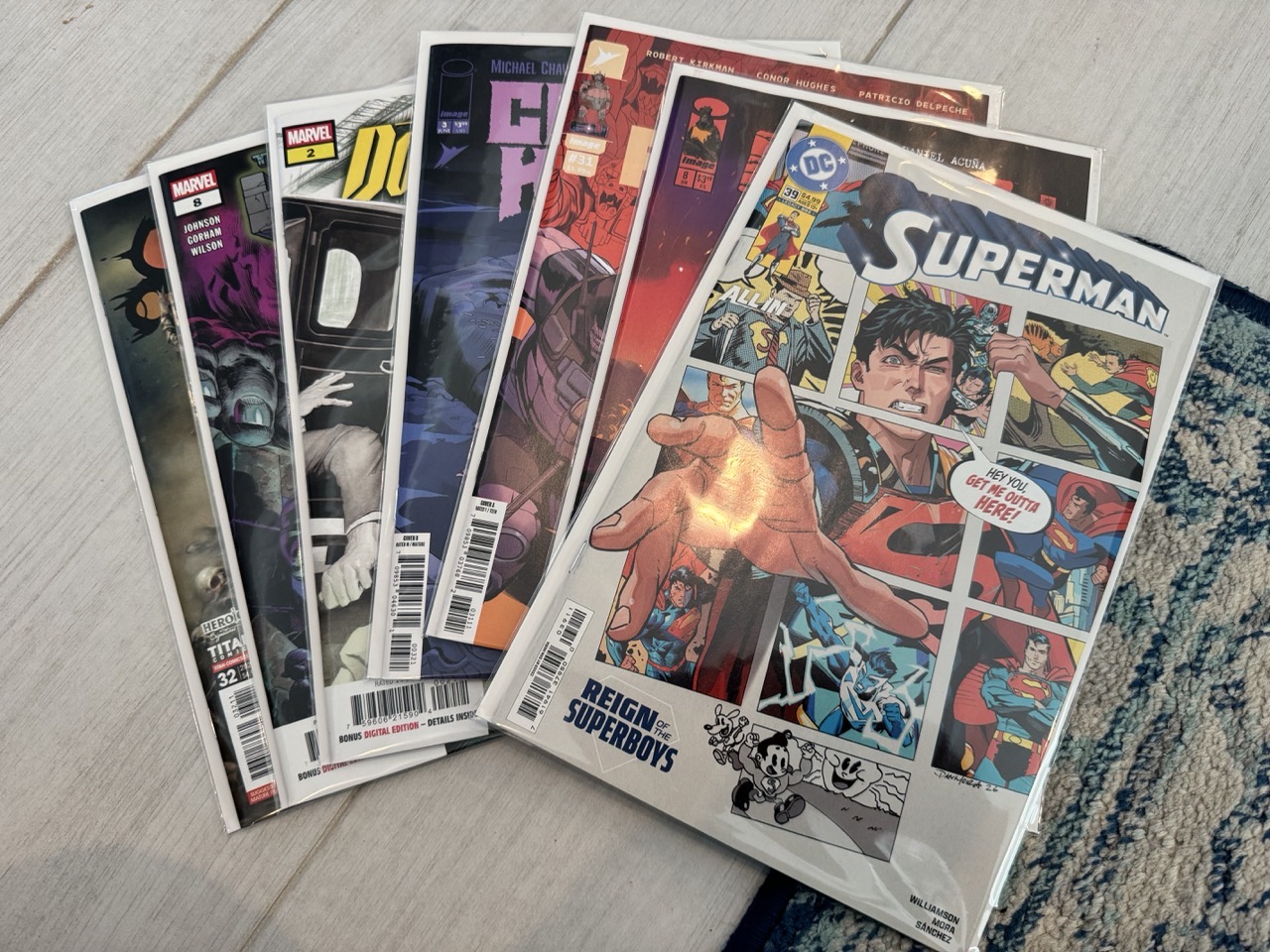
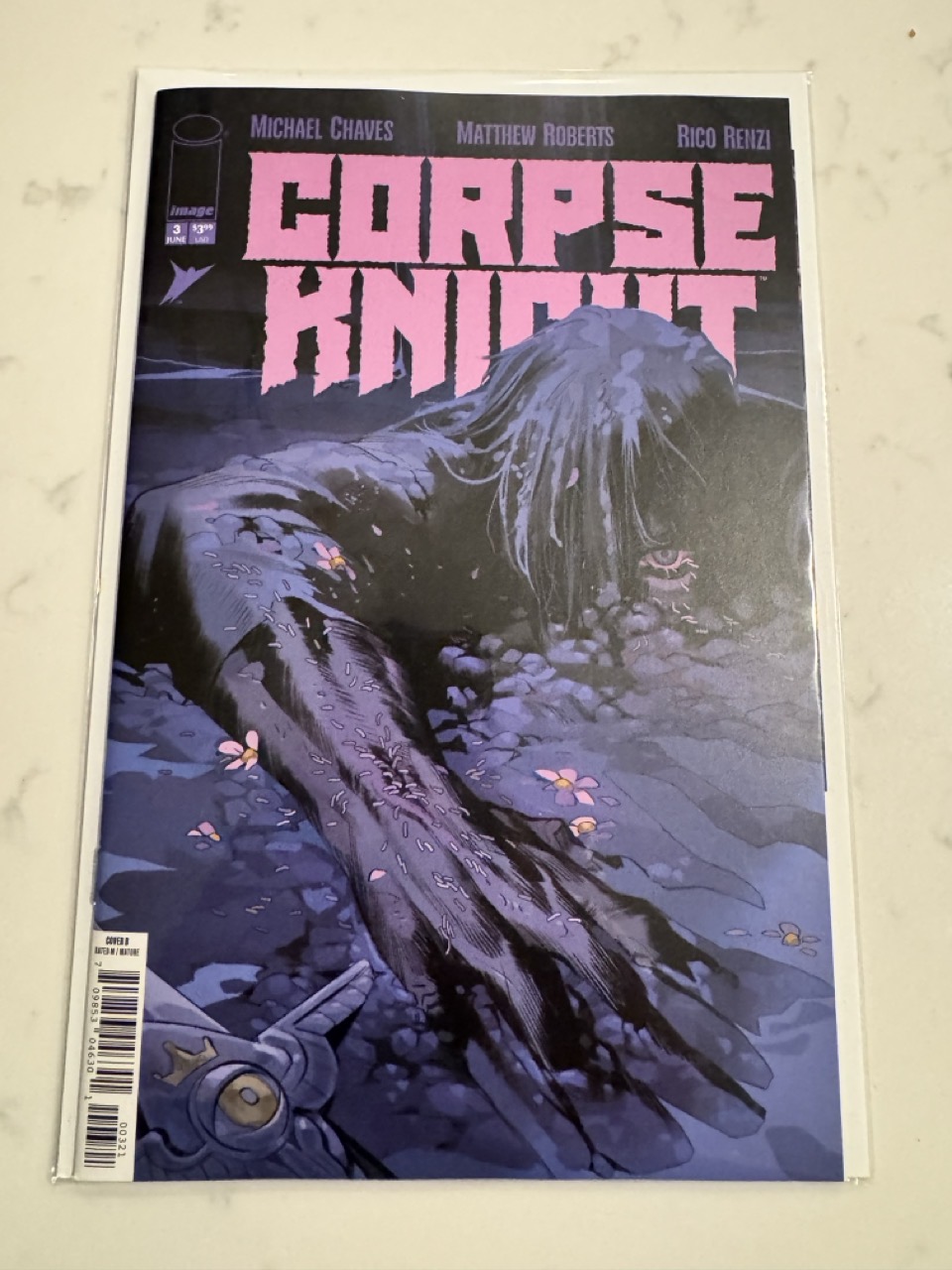
The highlights this week for me are from DC Comics and Image Comics. First up, Corpse Knight. The third issue continues a period piece story set in France during the time of Joan of Arc. A young girl named Foy lives in peace with her dad, until he’s murdered. Thanks to a miracle, he comes back from the dead to protect her… as the Corpse Knight. Together, they go on a quest to find Joan of Arc, while facing murdering foes, wild animals, and black magic. This comic series blends fantasy, action and family in a way that really tugs on my heartstrings, as the Corpse Knight is really the story of the love and bond between a dad and his daughter. Highly recommended.
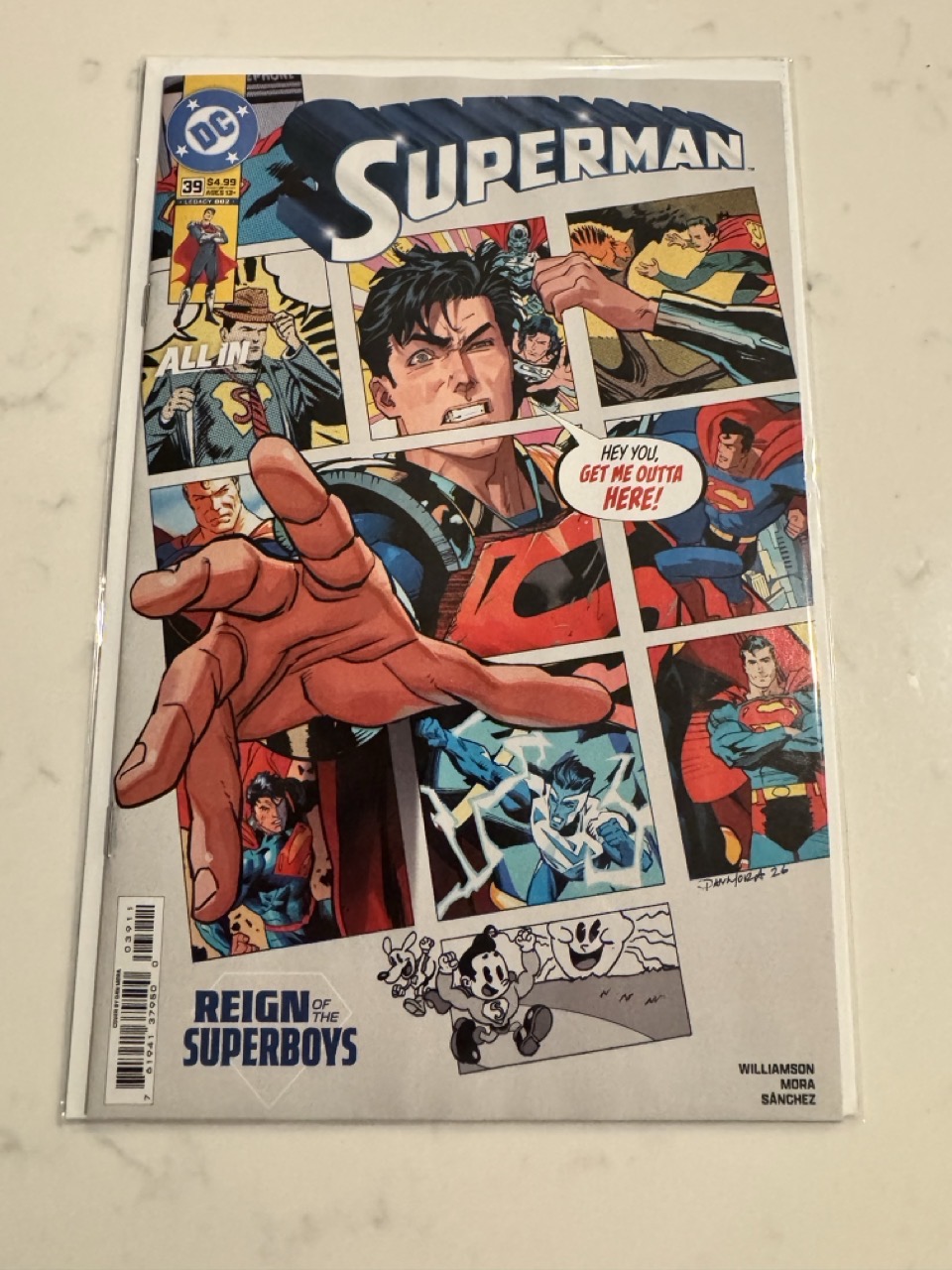
Next up is Superman. I’m no stranger to this hero, but I’ve never really liked Supes as a character. What really grabbed me is the cover. It’s absolutely stunning, with SuperBoy Prime attempting to break out of the comic book page, fourth wall style. The story itself, by talented scribe Joshua Williamson, is a fun romp through different DC Universe events, lost reboots and restarts, with stunning art (by the artistic powerhouse Dan Mora) that matches each period. Mora changes his art effortlessly to match a wide variety of recognizable art styles. Not having read the previous issues of the series, it was relatively easy to get into the book as a new reader.
-Krishna
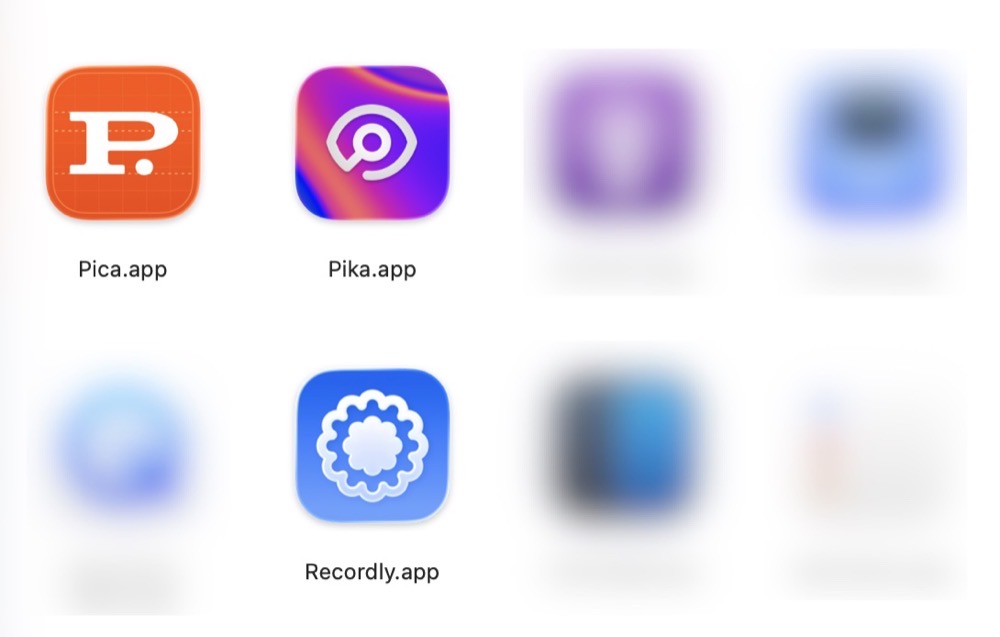
There are many open source macOS applications available, but finding them online has been a bit hit or miss for me. Occasionally, I’ll discover an app from a Mac focused YouTube channel. Other times, I’ll run across a recommendation via my Mastodon feed. And, from time to time, I’ll come across something useful on one of the many independently run Mac blogs.
Stumbling in the dark to find an open source Mac app is an option, but a better way is perusing IndieGoodies. Apps are categorized by tag, making it easy to find what you’re looking for. IndieGoodies is by no means a comprehensive list, but it’s a good start, and I like how it’s organized.
For native, open source macOS apps developed in Swift, check out Wang Ghujiang’s curated list. Apps are neatly organized by category, but what I really appreciate are the tags which identify when each app was last updated. This useful metric allows me to determine whether or not an app is actively being maintained. Be sure to check out the author’s apps while you’re at it.
Another solid place to find open source Mac apps is Awesome Native MacOSX Apps on Git. The Mac apps in this list meet a specific criteria: they must be native and lightweight (no electron bloat). This list includes both free and paid software offerings.
Part of my FrugalMac experience is discovering high quality open source Mac apps that provide similar or improved features compared to their paid counterparts.
It’s not that I object to paying for an app (I often do!), but there are some fantastic open source Mac apps that often fly under the radar. I want to make sure that these apps are given full consideration before opening my wallet.
-Krishna
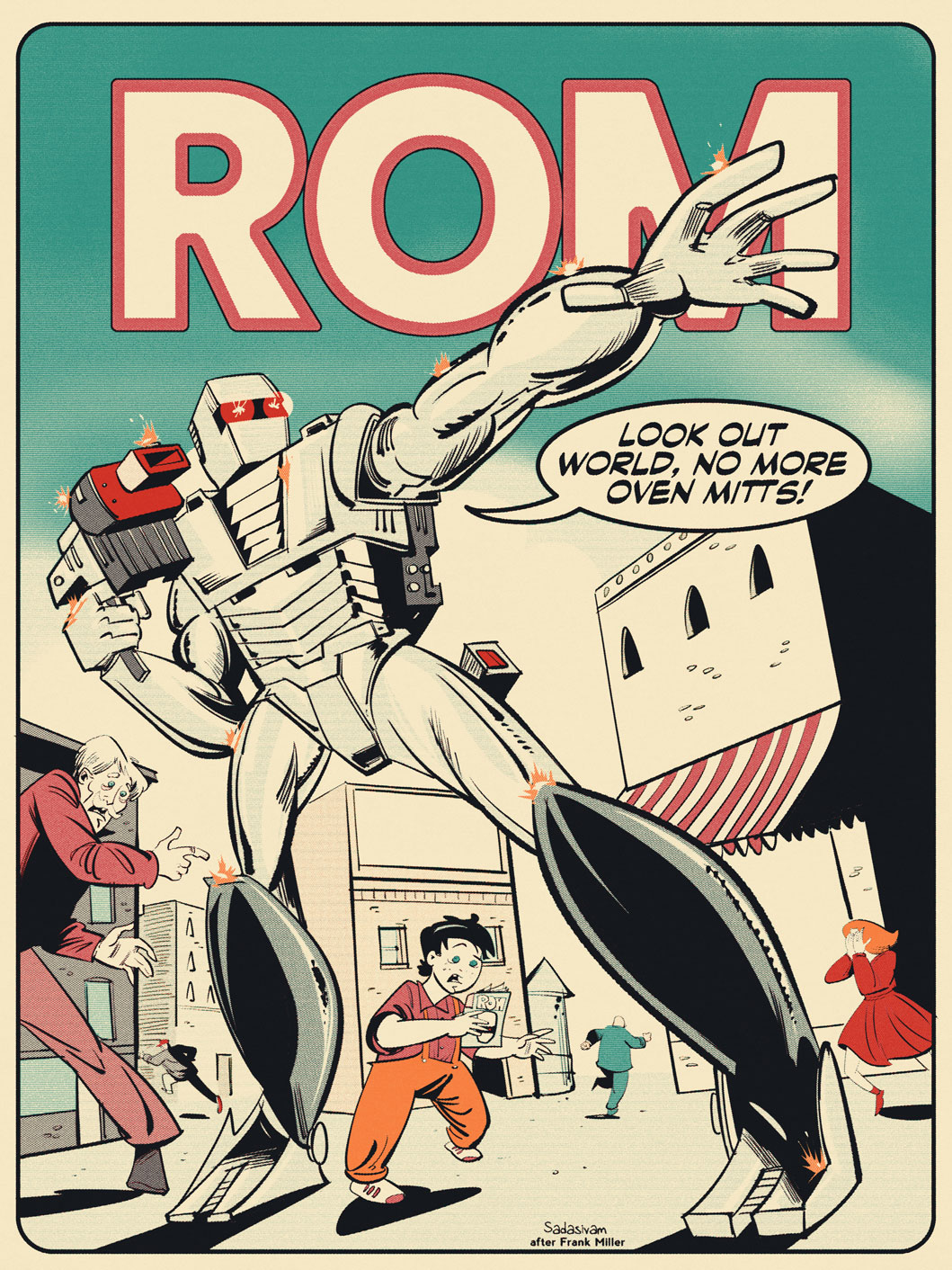
For me, the wonderful thing about making digital art boils down to experimentation. I’m a big fan of the vintage / retro aesthetic and enjoy incorporating these types of effects within my own work. Part of it stems from my own feelings of nostalgia, and part of it comes from the visual appeal.
The process of making digital art look aged has become a cottage industry for bespoke design asset vendors. For my own work, I use Texturelab’s Retratone plugin for Photoshop. It can take work that I’ve created, like this ROM Spaceknight #1 recreation below…
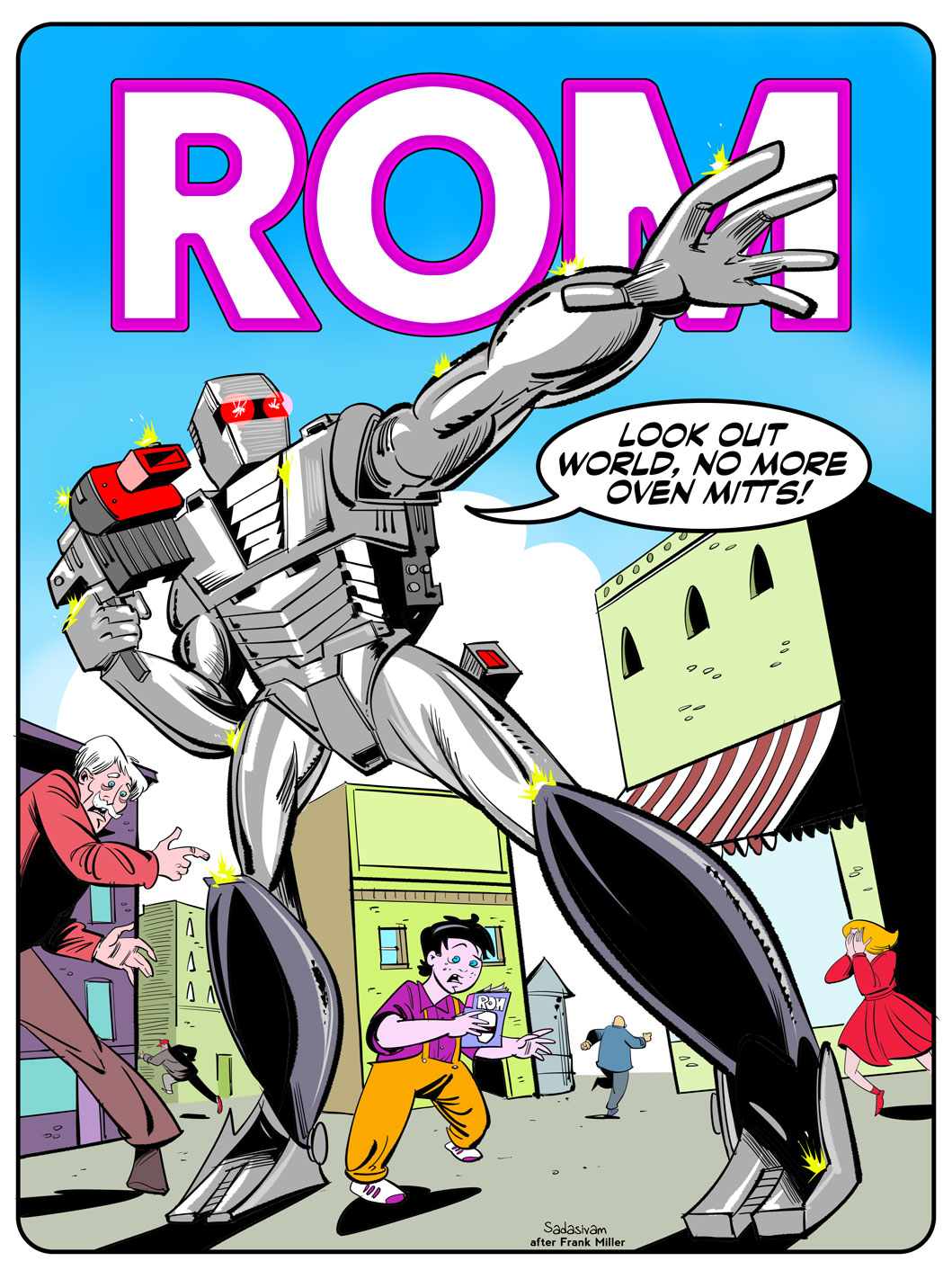
…and give it a more aged look. All within one or two clicks!
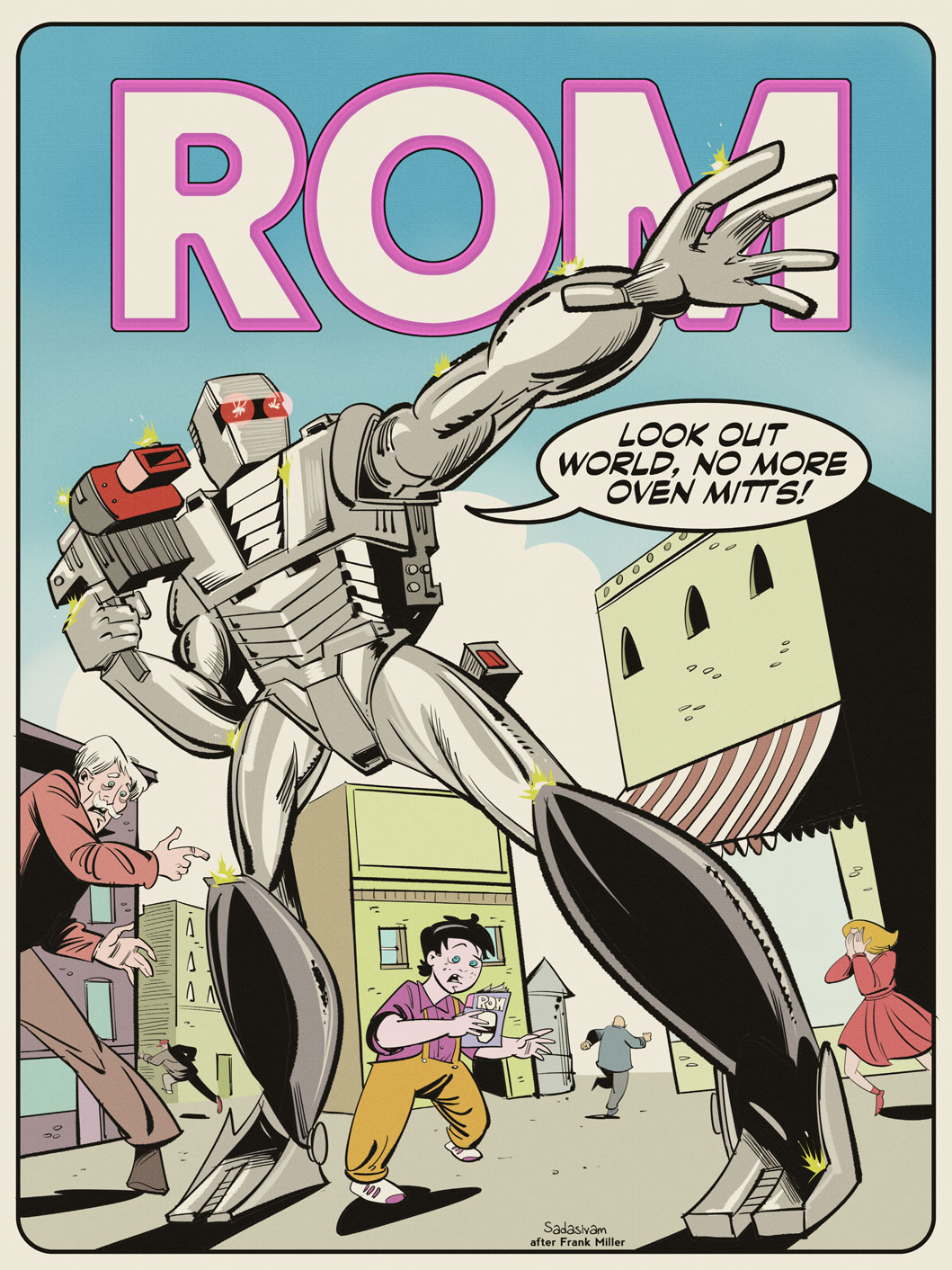
My latest video demonstrates how I use the Retratone plugin. I really like it for its ease of use and versatility. It comes with around 50 bespoke presets, which serve as a great starting point. And you can always make your own presets, too.
-Krishna
The Finder.
It’s been around since the original Mac rolled off the assembly line in 1984. Ironically, my first exposure to the Finder was not on a Mac, but rather, on an Apple IIGS running GS/OS. (But that’s a story for another day…)
While the Finder has evolved with the Mac over the years, it still feels inefficient to work with, especially when it involves movings files around.
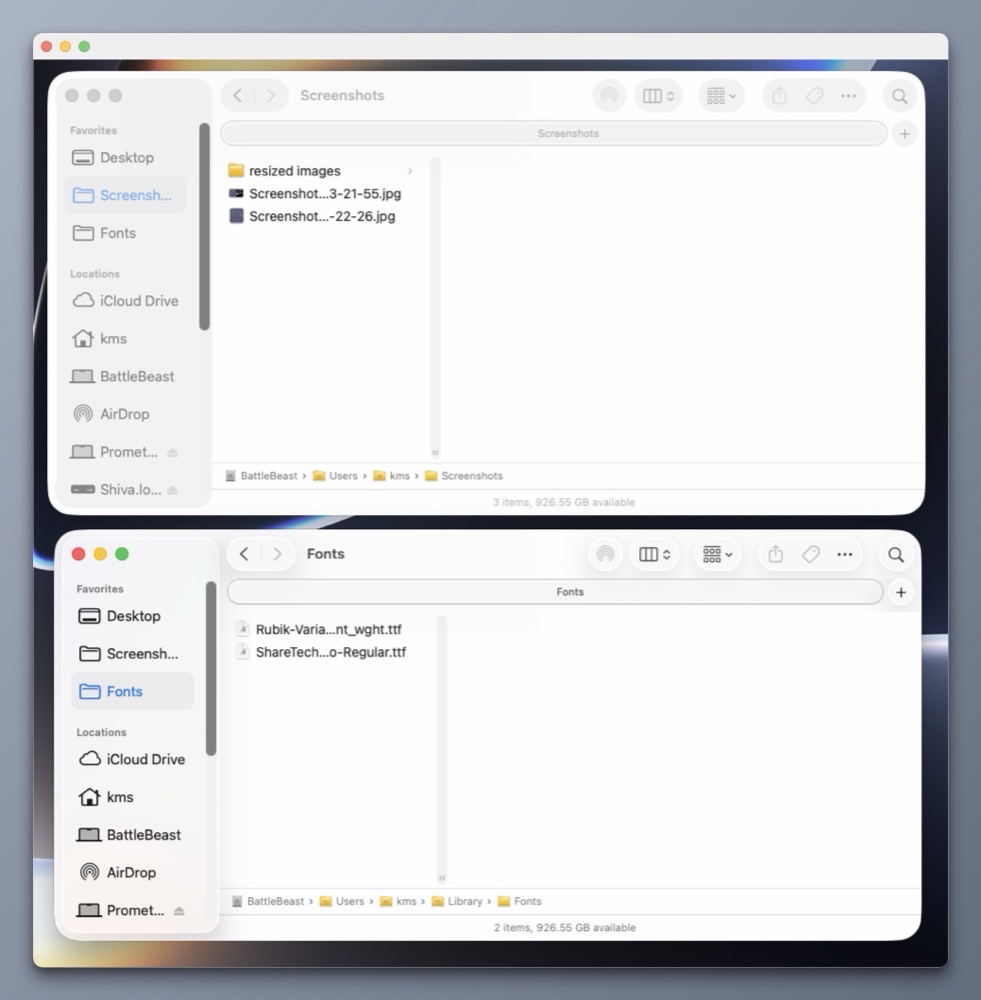
Let’s assume you have to copy or move a file from one location on your Mac to another location on your external storage device. To perform the task within macOS, two Finder windows are needed. One which shows the location of the source file, the other showing the intended destination.
We’re still moving files around like this in the year 2026.
Bananas.
While Apple seems content with making small, incremental features to the Finder, it’s not enough for me.
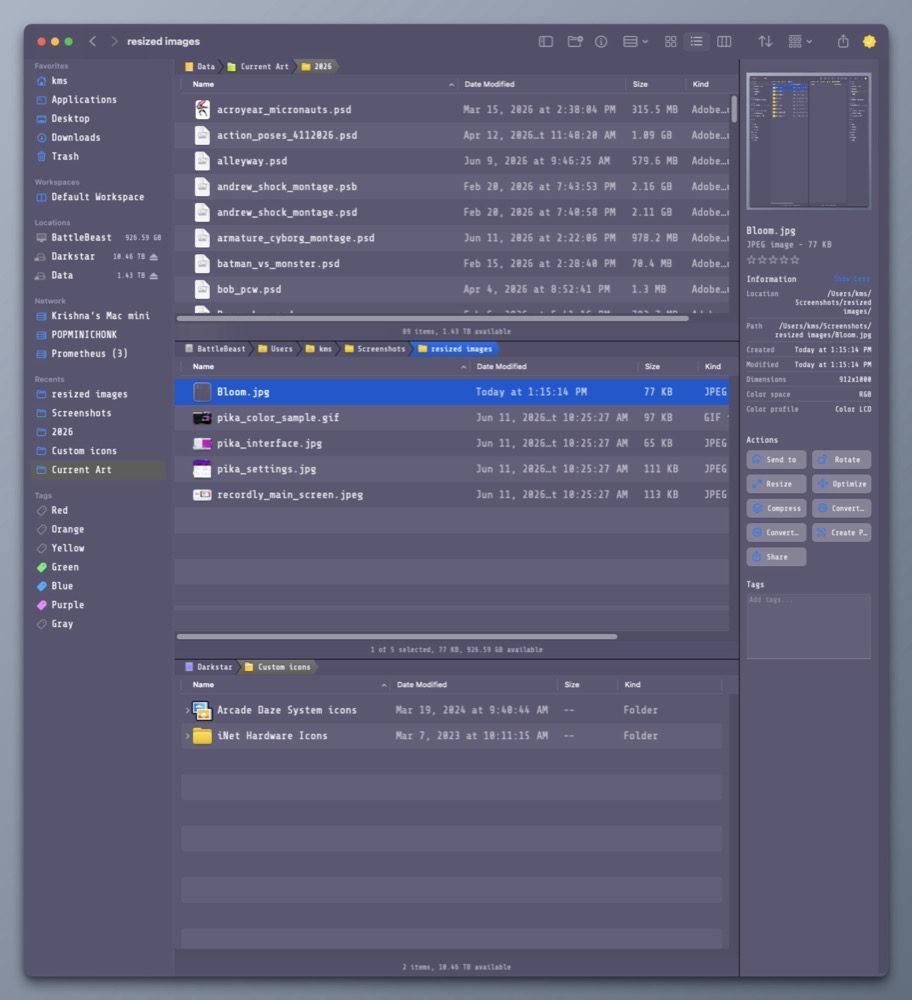
That’s where Bloom comes in. I’ve been using Bloom for many months now, and it truly delivers on its promise of providing a “refined Finder experience”.
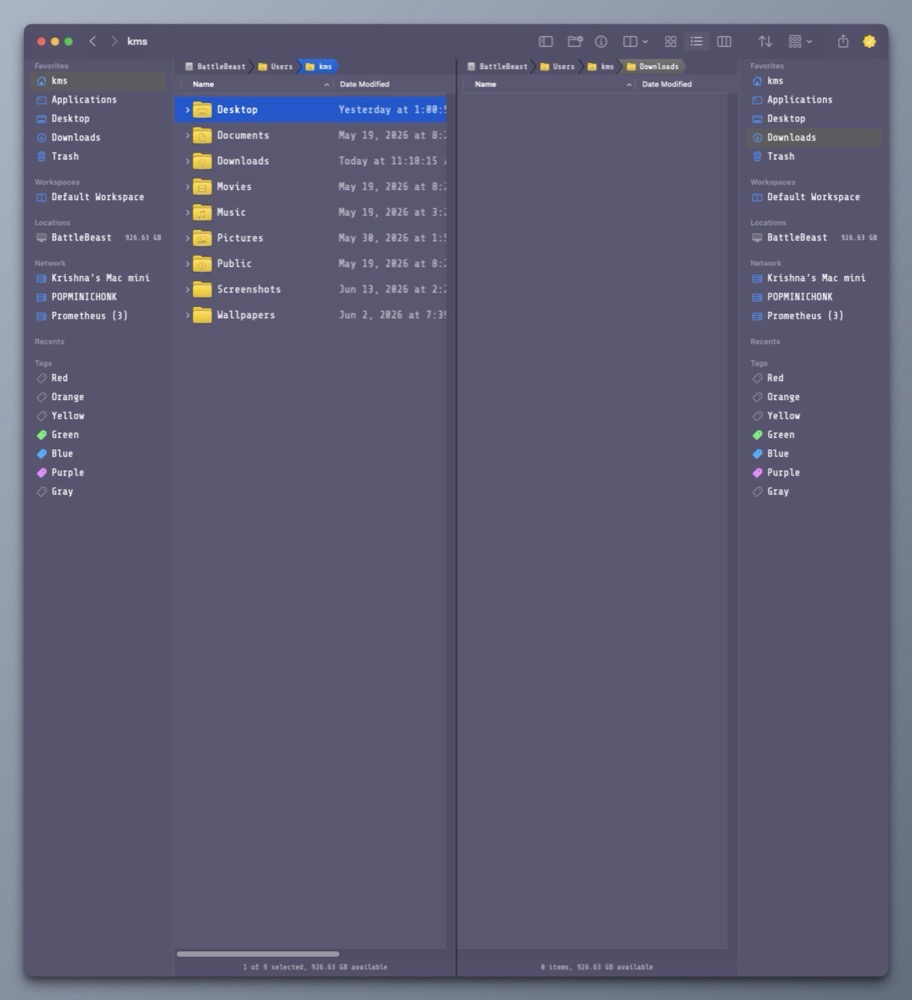
Why do I like Bloom so much?
1) Flexibility.
Bloom includes many multi-panel layouts so that I can easily view, arrange and copy files and folders within one Bloom window pane. (I particularly like the 3-vertical stack option.)
2) Better Search.
Hit Command Shift Return and Bloom will bring up its search bar. Type what you want and get results at blazing speed. I know Apple will be overhauling search in macOS Golden Gate (macOS 27), but I can have it right now.
3) Convenience.
Superman has X-Ray vision. Bloom lets me see the contents within a compressed .zip file within its inspector. Bloom also works with Cloud storage like iCloud Drive, DropBox or OneDrive.
4) Customization.
Unlike the Finder, Bloom gives me the ability to change its appearance, including the color of the window, the type face for the main window and side bar, and so much more. The side bar can be completely customized to show only what you want. There’s also a handy rename feature to quickly change one or more filenames. It even supports RegEx!
Bloom is what the Finder wishes it could be when it grows up.
Boom isn’t free, but I think it’s well worth its reasonable purchase price ($16US). The alternative is to wait for Apple to make improvements. But I’m not holding my breath.
-Krishna
There are three different methods of installing software on the Mac:
1) Via the Mac App Store.
2) Via homebrew.
3) Via DMG file.
The last option is, by far, the most popular delivery format for Mac applications that are available outside the Mac App Store.
One must first download the DMG file, open it, drag the application into the Applications folder, eject the DMG container, and then delete the DMG file. That’s five separate steps to install a Mac app. And it’s been this way since 2001, when Mac OS X was first introduced.
For an operating system that Apple touts as being easy to use, the aforementioned method is anything but.
But now there’s a better way.
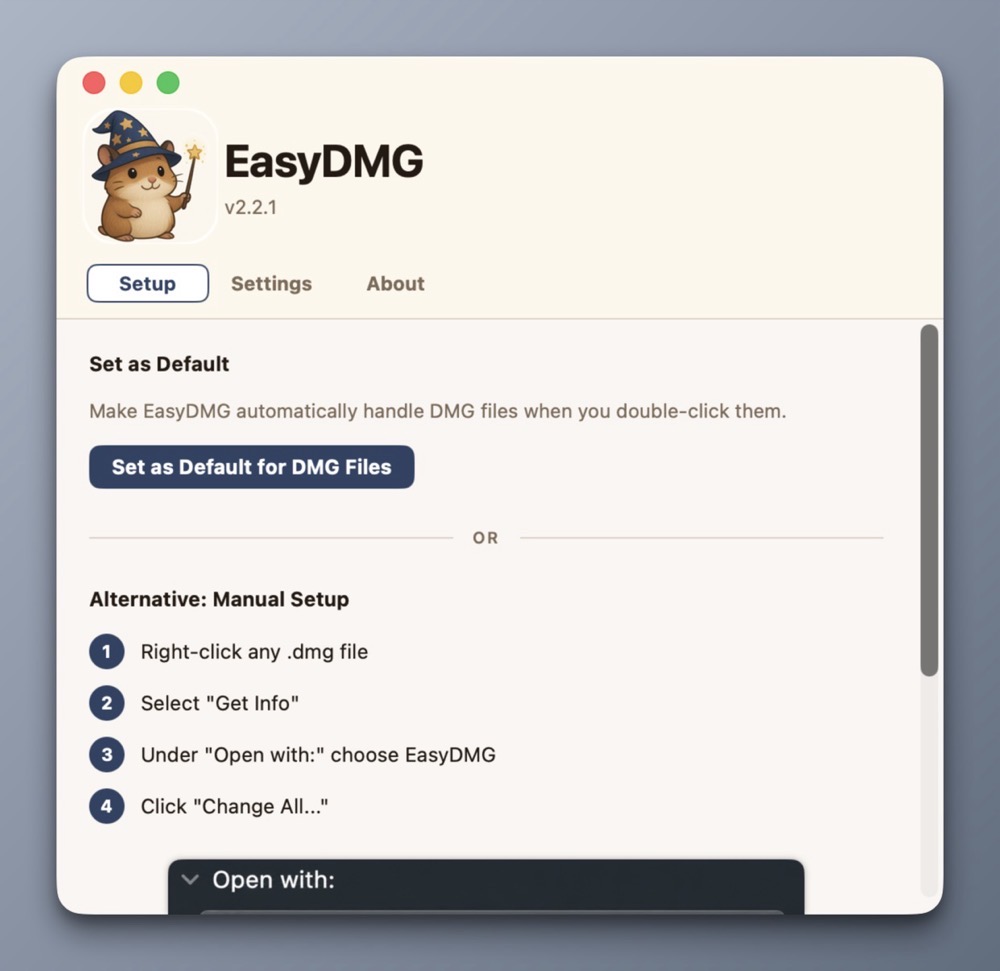
It’s EasyDMG.
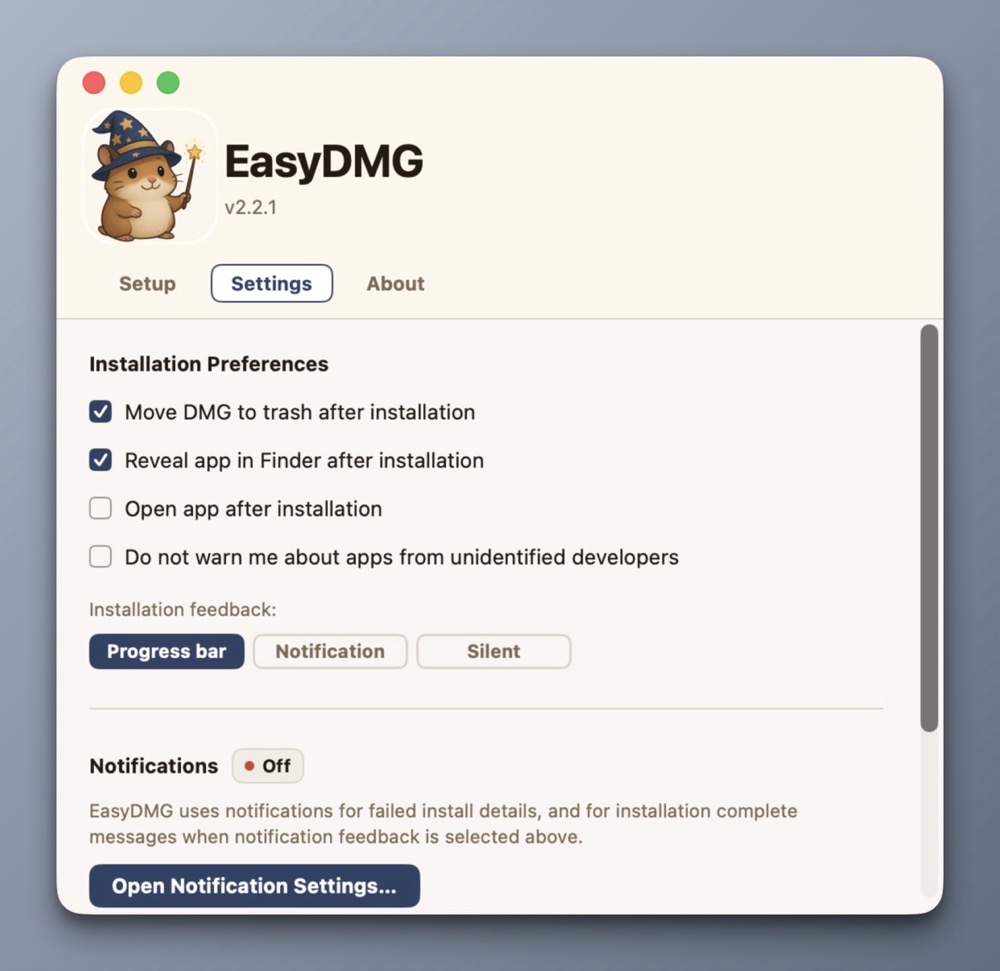
After setting it as the default for opening DMG files, installing a new application becomes as simple as opening its DMG file. EasyDMG takes care of the rest. (And that hamster wizard mascot is downright adorable!)
Not only will EasyDMG install the application, it will eject the DMG container and move the DMG file into the Trash.
Users who want more control can perfom the setup manually. Given the problem EasyDMG is solving for me, I opted for the former.
As EasyDMG performs the install, it can display a progress bar or a notification. Or neither.
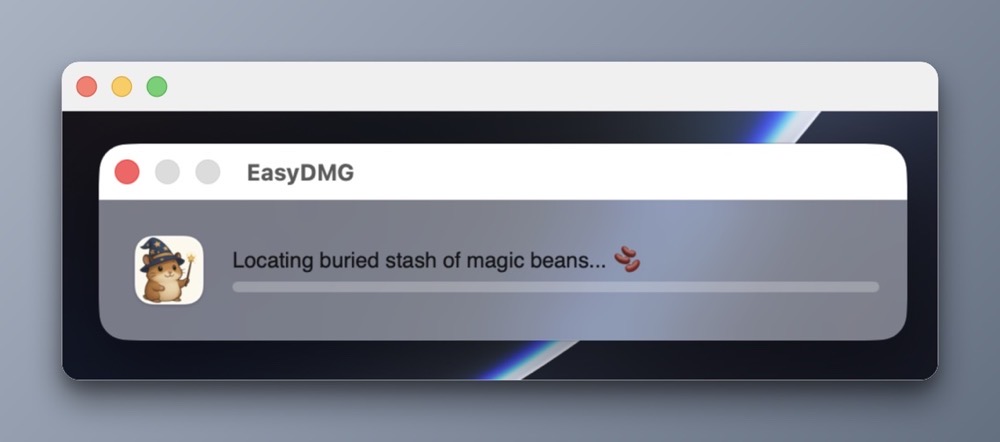
EasyDMG is an excellent addition to my Mac setup because it works flawlessly while removing friction. It’s a completely native Mac app, written in Swift. And best of all, it’s free!
EasyDMG is what Apple should have included in macOS at least a decade ago. It’s baffling to me that nothing has been done on that front, even in macOS Golden Gate.
-Krishna