
There are three different methods of installing software on the Mac:
1) Via the Mac App Store.
2) Via homebrew.
3) Via DMG file.
The last option is, by far, the most popular delivery format for Mac applications that are available outside the Mac App Store.
One must first download the DMG file, open it, drag the application into the Applications folder, eject the DMG container, and then delete the DMG file. That’s five separate steps to install a Mac app. And it’s been this way since 2001, when Mac OS X was first introduced.
For an operating system that Apple touts as being easy to use, the aforementioned method is anything but.
But now there’s a better way.
It’s EasyDMG.
After setting it as the default for opening DMG files, installing a new application becomes as simple as opening its DMG file. EasyDMG takes care of the rest. (And that hamster wizard mascot is downright adorable!)
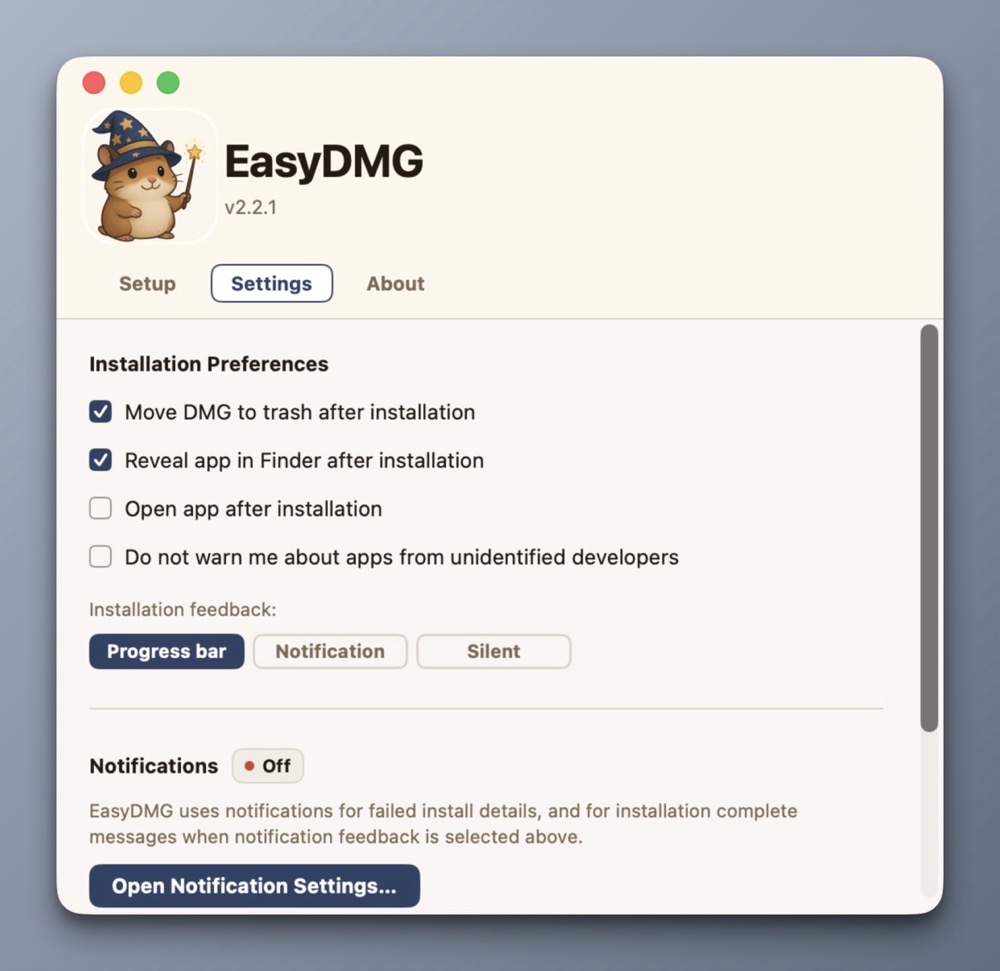
Not only will EasyDMG install the application, it will eject the DMG container and move the DMG file into the Trash.
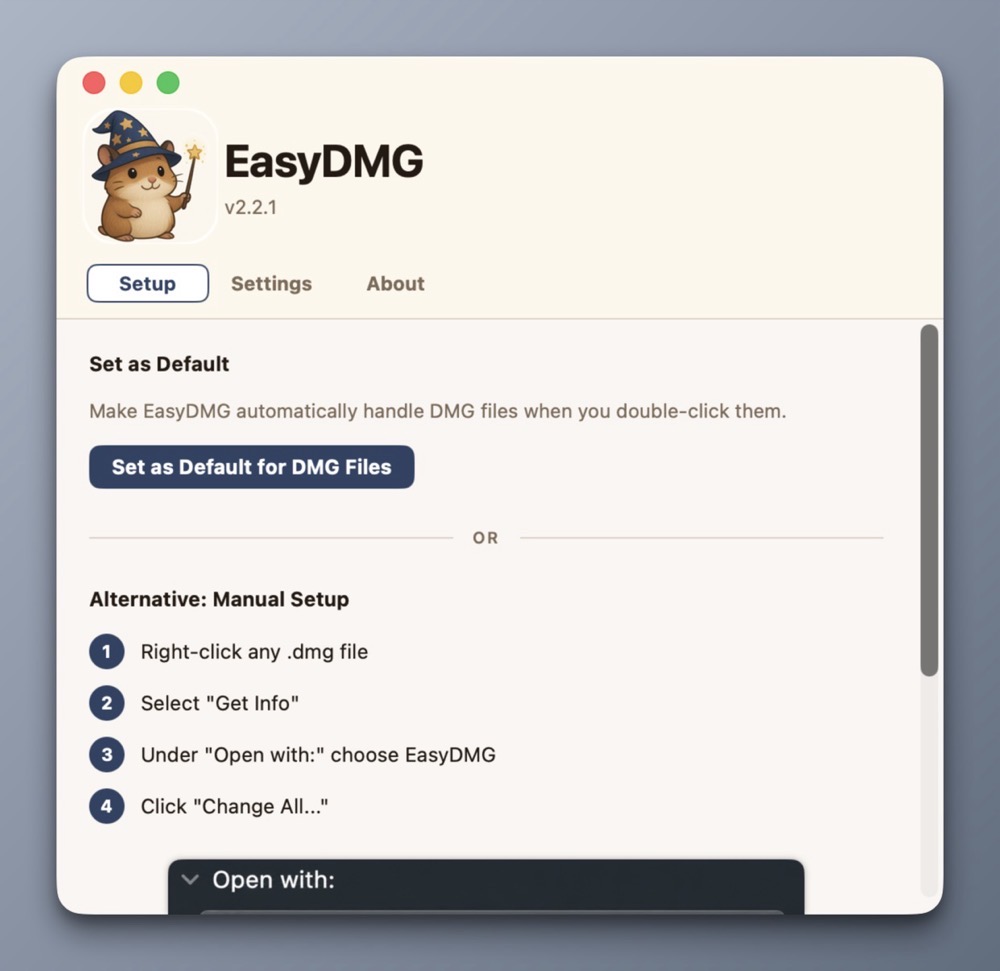
Users who want more control can perfom the setup manually. Given the problem EasyDMG is solving for me, I opted for the former.
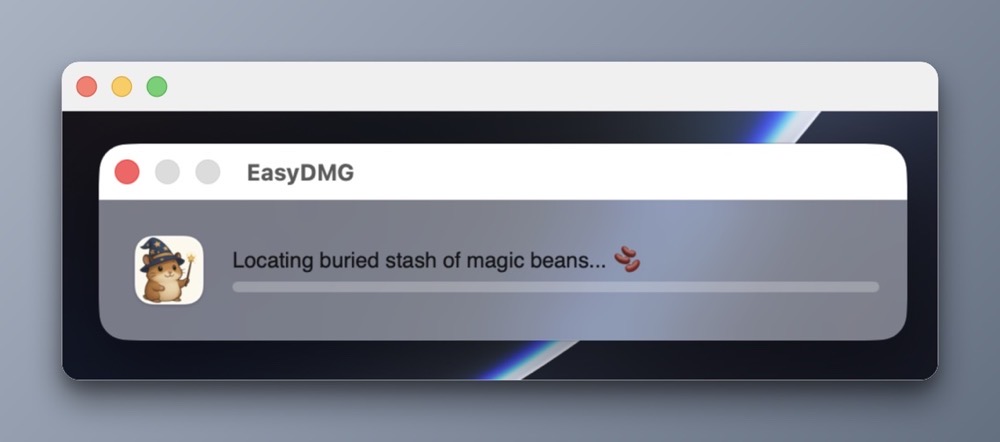
As EasyDMG performs the install, it can display a progress bar or a notification. Or neither.
EasyDMG is an excellent addition to my Mac setup because it works flawlessly while removing friction. It’s a completely native Mac app, written in Swift. And best of all, it’s free!
EasyDMG is what Apple should have included in macOS at least a decade ago. It’s baffling to me that nothing has been done on that front, even in macOS Golden Gate.
-Krishna