

Let’s talk about macOS File Sharing, an option I use almost daily. On macOS, File Sharing lives under:
System Settings → General → Sharing → File SharingThat method works fine if you only need to toggle it occasionally. But I need File Sharing ON when I bring my laptop home, and OFF when I’m about to take it with me when I leave for work. Visiting the System Settings each time to toggle File Sharing was getting tiresome.
So I decided to do something about it.
Below is a custom Alfred Workflow I made called File Sharing Toggle that I’ve tested on both Macs at home.
My Alfred Workflow has three options:
Turn File Sharing ON
Turn File Sharing OFF
Check File Sharing Status
The ON/OFF actions toggle File Sharing appropriately and displays a dialog box showing the current File Sharing state. A separate Status action displays a dialog box showing the result of a query on the current File Sharing state.
What You Need
- Alfred (free)
- Alfred Powerpack (paid)
- macOS File Sharing / SMB
My workflow uses macOS shell commands and will ask for your administrator password when turning File Sharing on or off. (It’s a small price to pay for the convenience.)
Step 1: Create a New Alfred Workflow
Open:
Alfred Preferences → WorkflowsClick the + button and choose:
Blank WorkflowName it something like:
Toggle File SharingStep 2: Add a Keyword Trigger
Right-click in the workflow canvas and choose:
Inputs → KeywordUse these settings:
Keyword: fileshare
Title: File Sharing Toggle
Subtext: Turn SMB File Sharing on, off, or check status
Argument: Argument Optional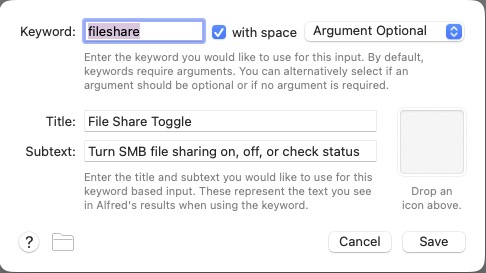
Click Save.
Step 3: Add a List Filter
Right-click the canvas and choose:
Inputs → List FilterConnect the Keyword object to the List Filter.
Set the Keyword to fileshare and Argument Required. Then add these three list items.
Item 1
Title: Turn File Sharing ON
Arg: on
Item 2
Title: Turn File Sharing OFF
Arg: off
Item 3
Title: Check File Sharing Status
Arg: status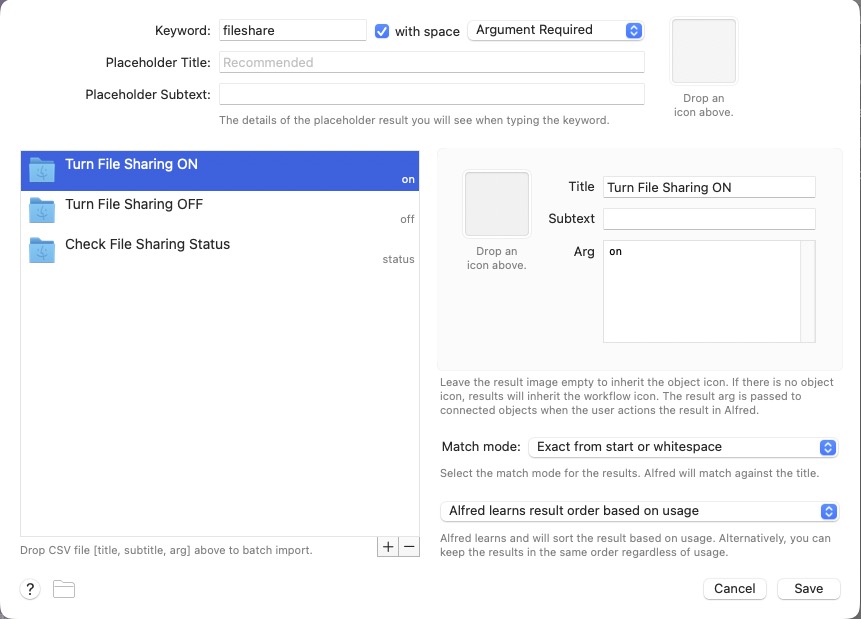
Click Save.
Step 4: Add a Run Script Action
Right-click the canvas and choose:
Actions → Run ScriptConnect the List Filter to the Run Script action.
Use these settings:
Language: /bin/zsh
with input as: argv
Paste this script:
#!/bin/zsh

ACTION="$1"
MESSAGE=""

case "$ACTION" in
  on)
    osascript -e 'do shell script "launchctl enable system/com.apple.smbd; launchctl bootstrap system /System/Library/LaunchDaemons/com.apple.smbd.plist 2>/dev/null" with administrator privileges'
    MESSAGE="File Sharing turned ON"
    osascript -e "display notification \"$MESSAGE\" with title \"File Sharing\""
    ;;

  off)
    osascript -e 'do shell script "launchctl disable system/com.apple.smbd; launchctl bootout system /System/Library/LaunchDaemons/com.apple.smbd.plist 2>/dev/null" with administrator privileges'
    MESSAGE="File Sharing turned OFF"
    osascript -e "display notification \"$MESSAGE\" with title \"File Sharing\""
    ;;

  status)
    if /usr/bin/pgrep smbd >/dev/null 2>&1; then
      MESSAGE="File Sharing is ON"
    else
      MESSAGE="File Sharing is OFF"
    fi
    osascript -e "display dialog \"$MESSAGE\" buttons {\"OK\"} default button \"OK\" with title \"File Sharing\""
    ;;

  *)
    MESSAGE="Unknown action: $ACTION"
    osascript -e "display dialog \"$MESSAGE\" buttons {\"OK\"} default button \"OK\" with title \"File Sharing\""
    ;;
esac

echo "$MESSAGE"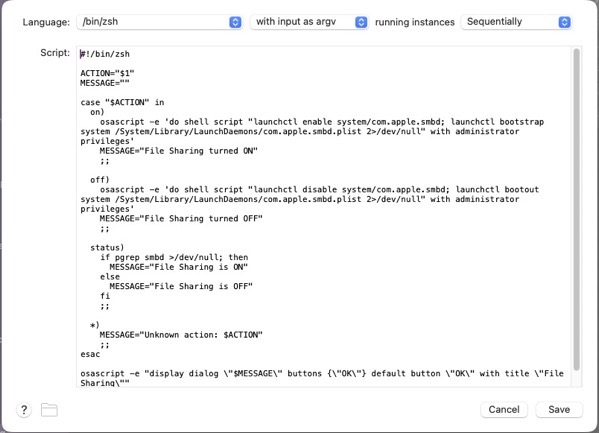
Click Save.
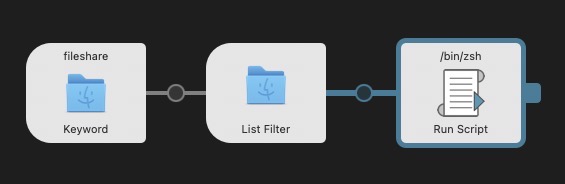
Your final Alfred Workflow Object Chain should look like this:
Step 5: Test the Workflow
Bring up Alfred and type:
fileshareYou should see three options:
Turn File Sharing ON
Turn File Sharing OFF
Check File Sharing Status
Select Turn File Sharing ON. macOS will prompt for your administrator password, and you should see a notification:
File Sharing turned ONSelect Turn File Sharing OFF to disable it, and choose Check File Sharing Status to see a dialog with the current state.
Status Dialogs
Switching File Sharing states (ON/OFF) will show a dialog indicating the updated state. Checking File Sharing status will show the current File Sharing state.
How the Script Works
The workflow interacts with the macOS SMB service:
com.apple.smbdTo enable File Sharing:
launchctl enable system/com.apple.smbd
launchctl bootstrap system /System/Library/LaunchDaemons/com.apple.smbd.plist
To disable it:
launchctl disable system/com.apple.smbd
launchctl bootout system /System/Library/LaunchDaemons/com.apple.smbd.plist
Status is determined by checking if the SMB daemon is running:
/usr/bin/pgrep smbdFinal Result
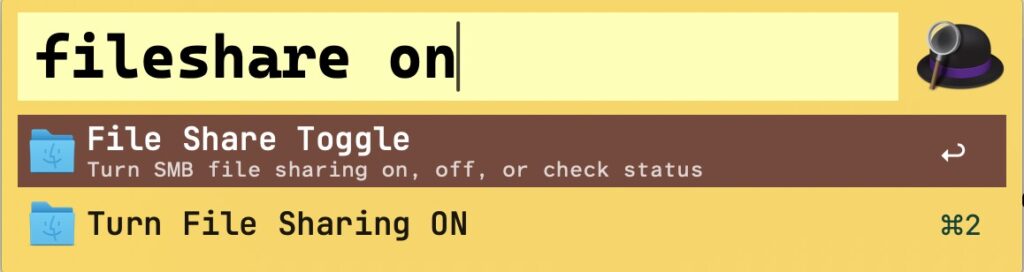
Now you can type fileshare on in Alfred to quickly toggle File Sharing ON. Similarly fileshare off turns File Sharing OFF. And fileshare status will check its current state— no need to root around inside System Settings.
(I did use AI to help me in writing the shell script.)
-Krishna