Author: Krishna

  • Two Launchers, One Mac

    Two Launchers, One Mac

    Jason Snell’s recent post on reverting back to Launchbar led me to reflect a bit on my own use of Mac launchers. I use two, specifically.
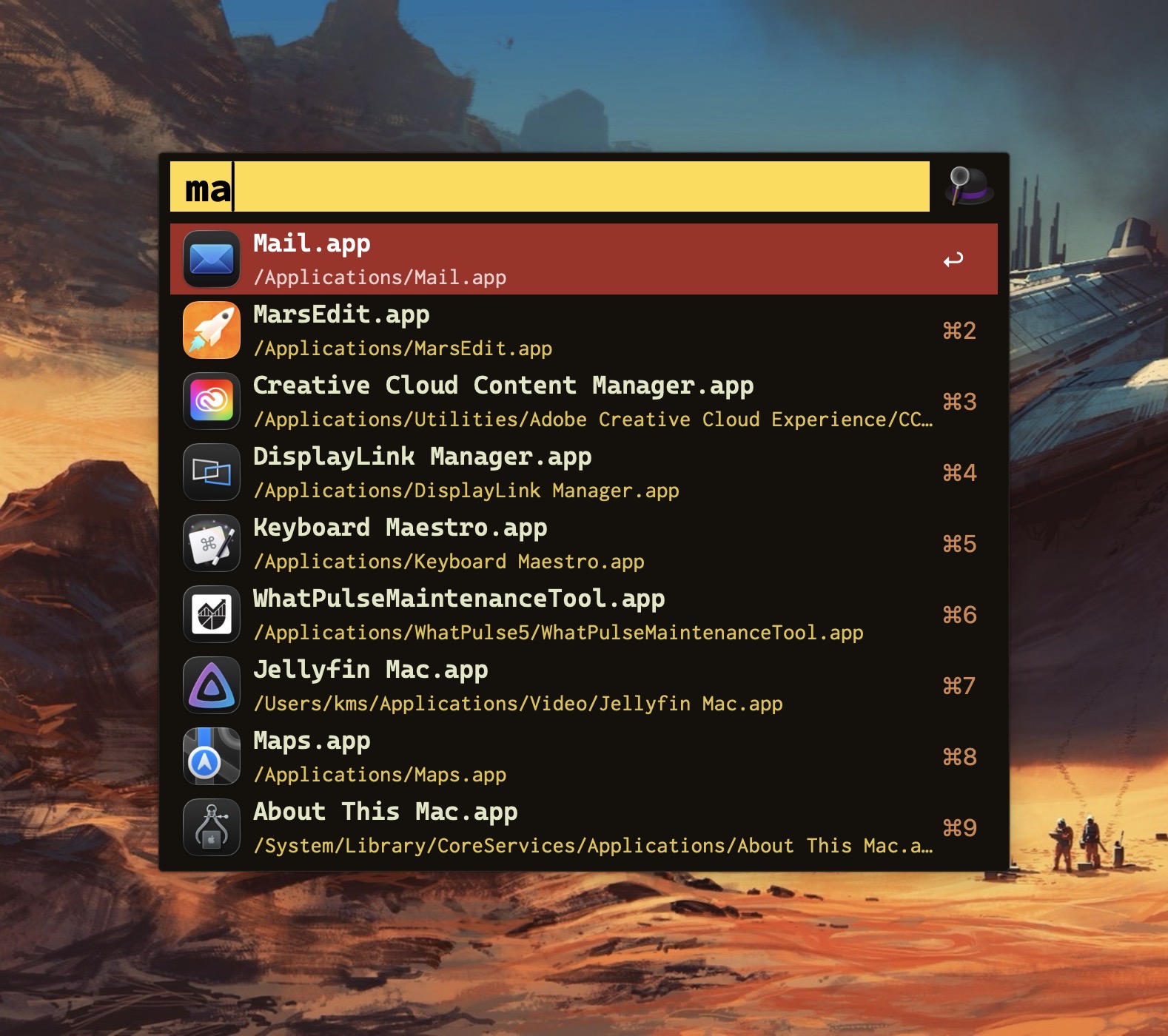
    Alfred app search.

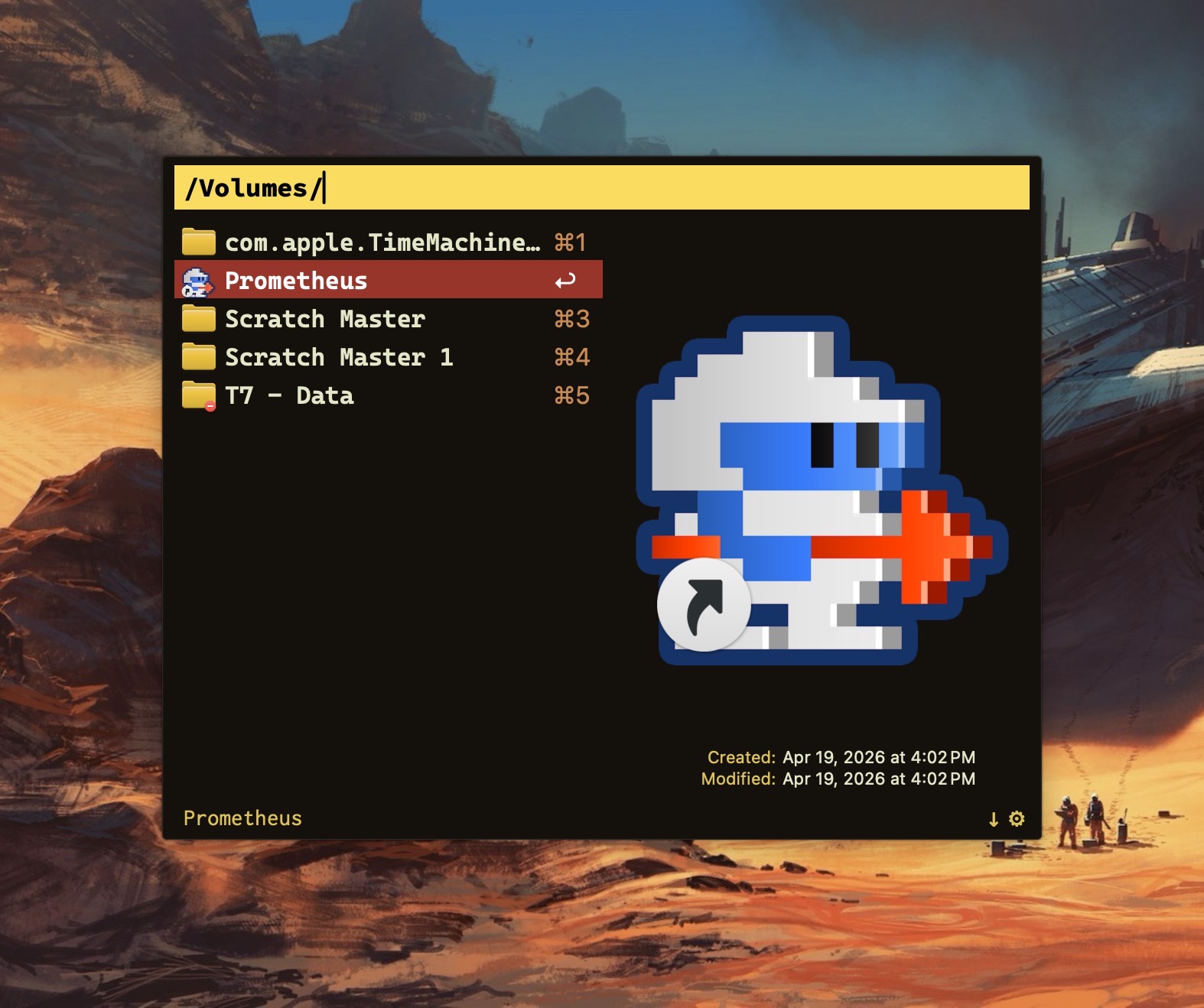
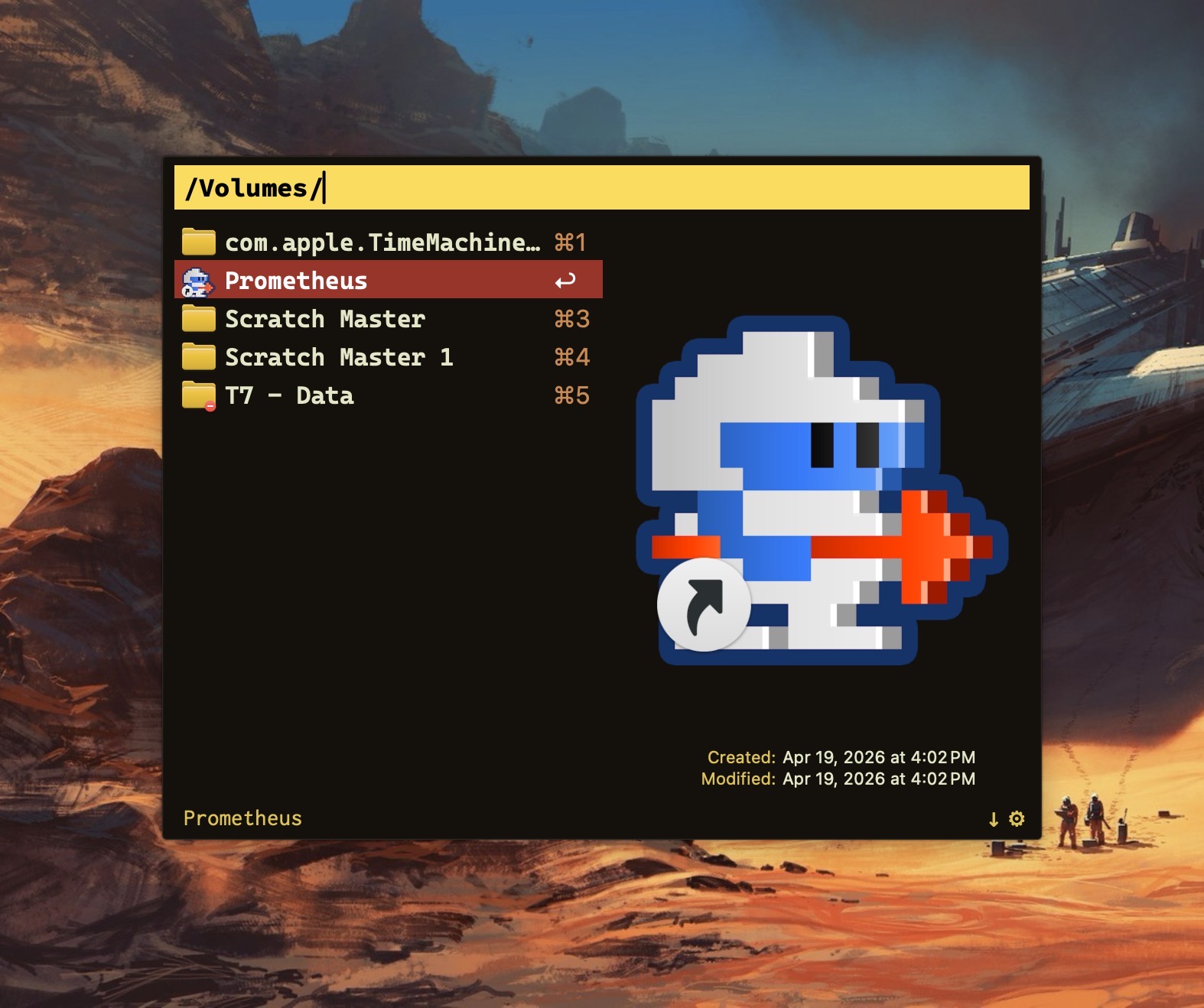
    Alfred file nav.

    My launcher of choice is Alfred, which I use for a variety of tasks: launching apps, file navigation, running terminal commands, searching the web, etc. As a power user, it’s efficient (and, dare I say, liberating) to perform these operations entirely from the keyboard.

    Alfred’s power comes in the form of its extensibility, thanks to the (optional) Alfred Powerpack. Think of the Powerpack as a turbo-charger that integrates seamlessly with Alfred’s main engine. I’ve used Alfred for almost a decade; I can’t imagine sitting at a Mac that doesn’t have it.

    So if Alfred’s the cat’s meow, why use Raycast?

    Simply put: window management.

    Raycast includes several useful window management configurations; each can be assigned a customized hotkey.

    Why not switch from Alfred to Raycast then? Raycast lacks the ability to traverse my Finder files in the same way that Alfred does. 

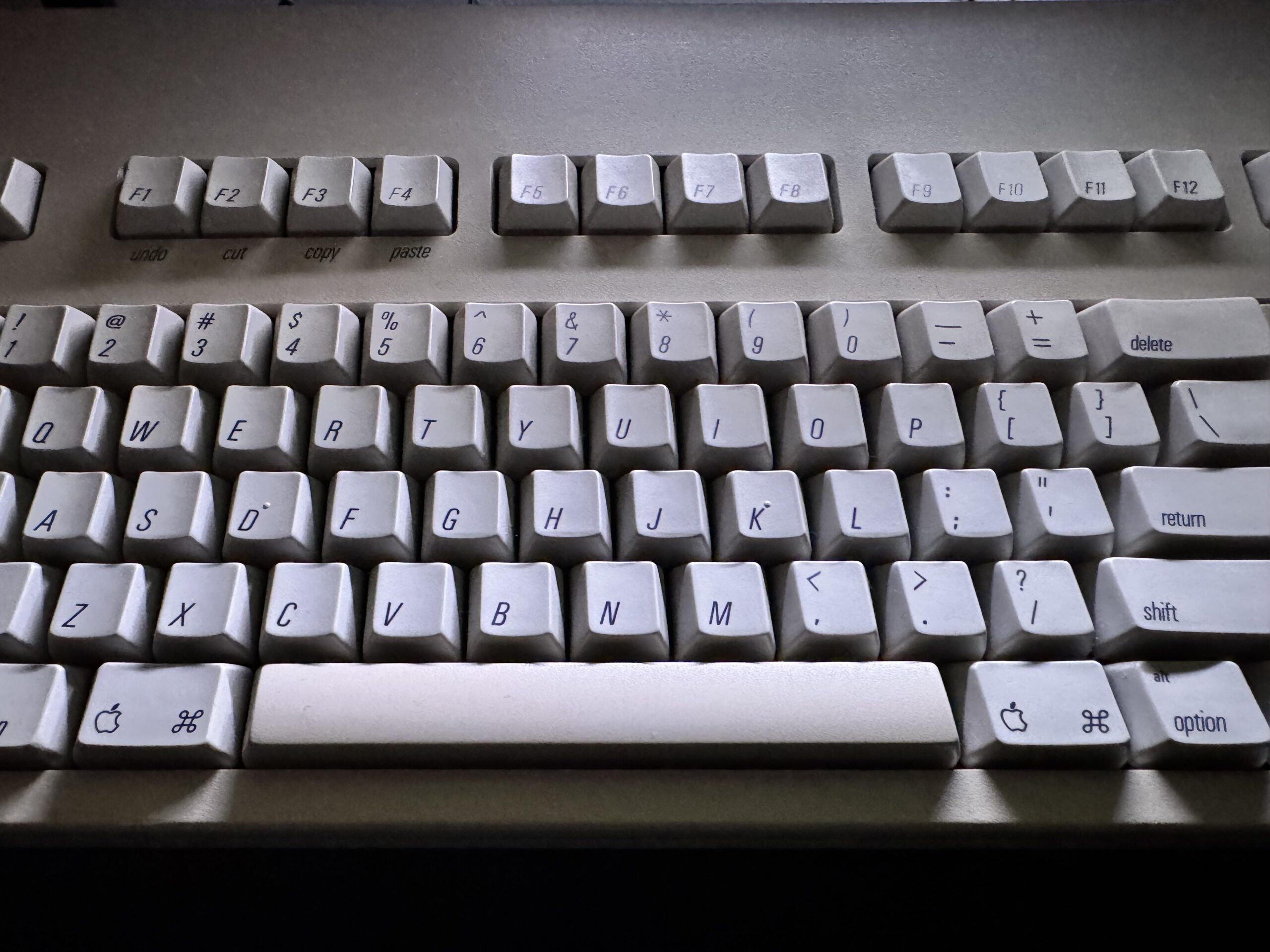
    For visualization purposes, I’ve mapped my custom window management hotkeys to a numeric keypad (see below). They also work fine when used with a standard keyboard.

    In my Raycast configuration, pressing Option-1 moves the active window to take up the left half of my Mac’s display. Option-3 moves the active window to the right half. I use these two hotkeys the most, so they are configured for easy reach. (I use keyboards with built-in numeric keypads.)

    In my view, hotkey assignments are only useful if they’re memorable. The quadrant hotkeys are easy to remember because they are spatially correlated. On a numeric keypad, 4 is in the lower left, 7 is on the upper left, 6 is on the lower right, and 9 is on the upper right.
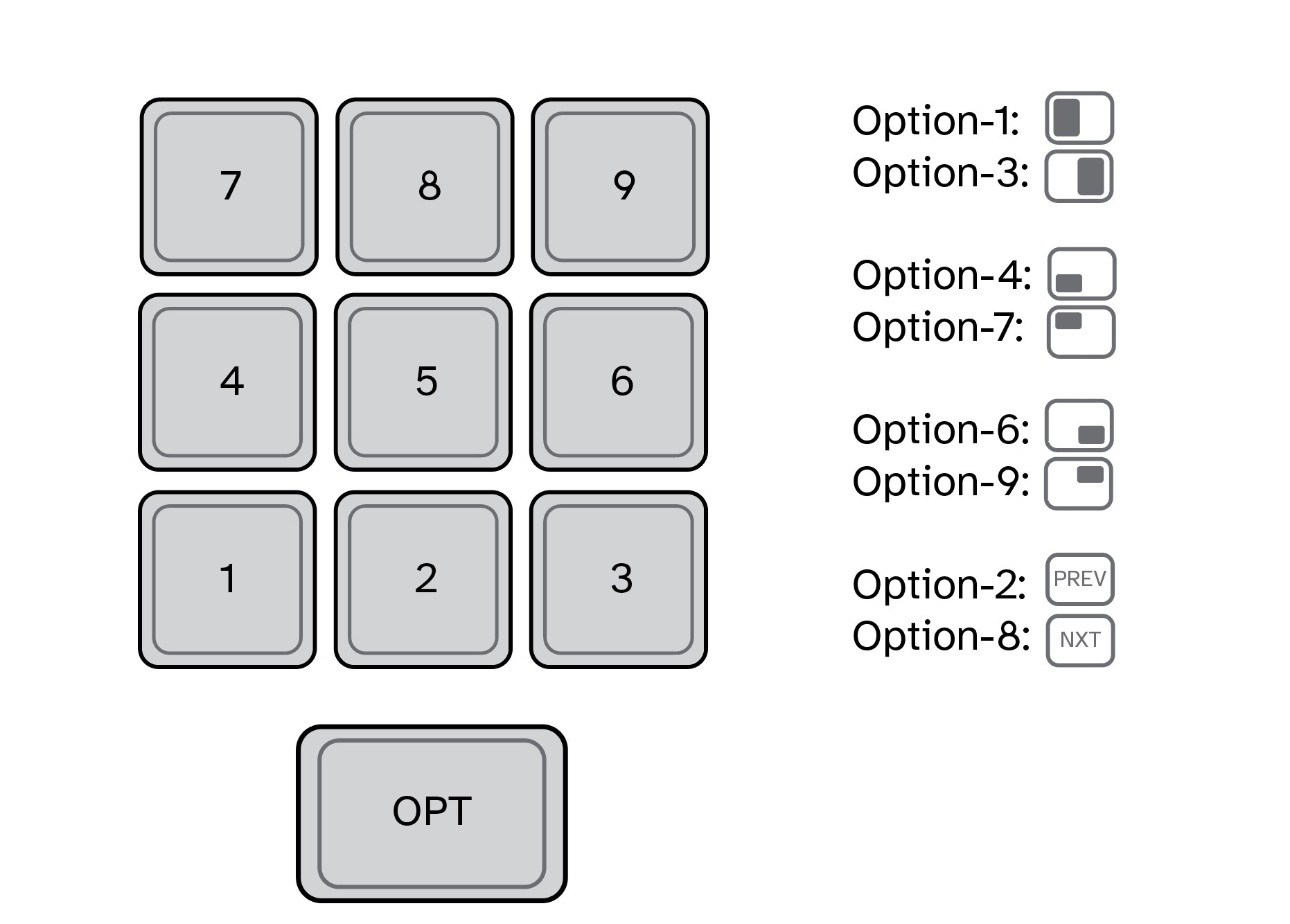
    Numeric keypad for window management.

    I use multiple displays with my MacBook Pro, both at home and at work. To move an active window to the screen on my left, I press Option-2. Pressing this keystroke successively will cycle the window counterclockwise across each of my three displays. Likewise, pressing Option-8 will move an active window to the screen on my right. Option-5 (not shown above) puts the active window in the center.

    I’ve gotten so accustomed to using my keyboard to move windows around my Mac that manually selecting and sizing an active window with my mouse feels downright barbaric

    Alfred is free. The Alfred Powerpack is a paid upgrade (well worth it, in my opinion.) Raycast has free and pro versions, but the free version meets my needs. 

    If you find yourself needing more than what Spotlight gives, you have options.

    -Krishna
  • The Modern Automobile Dashboard is a Mess

    The Modern Automobile Dashboard is a Mess

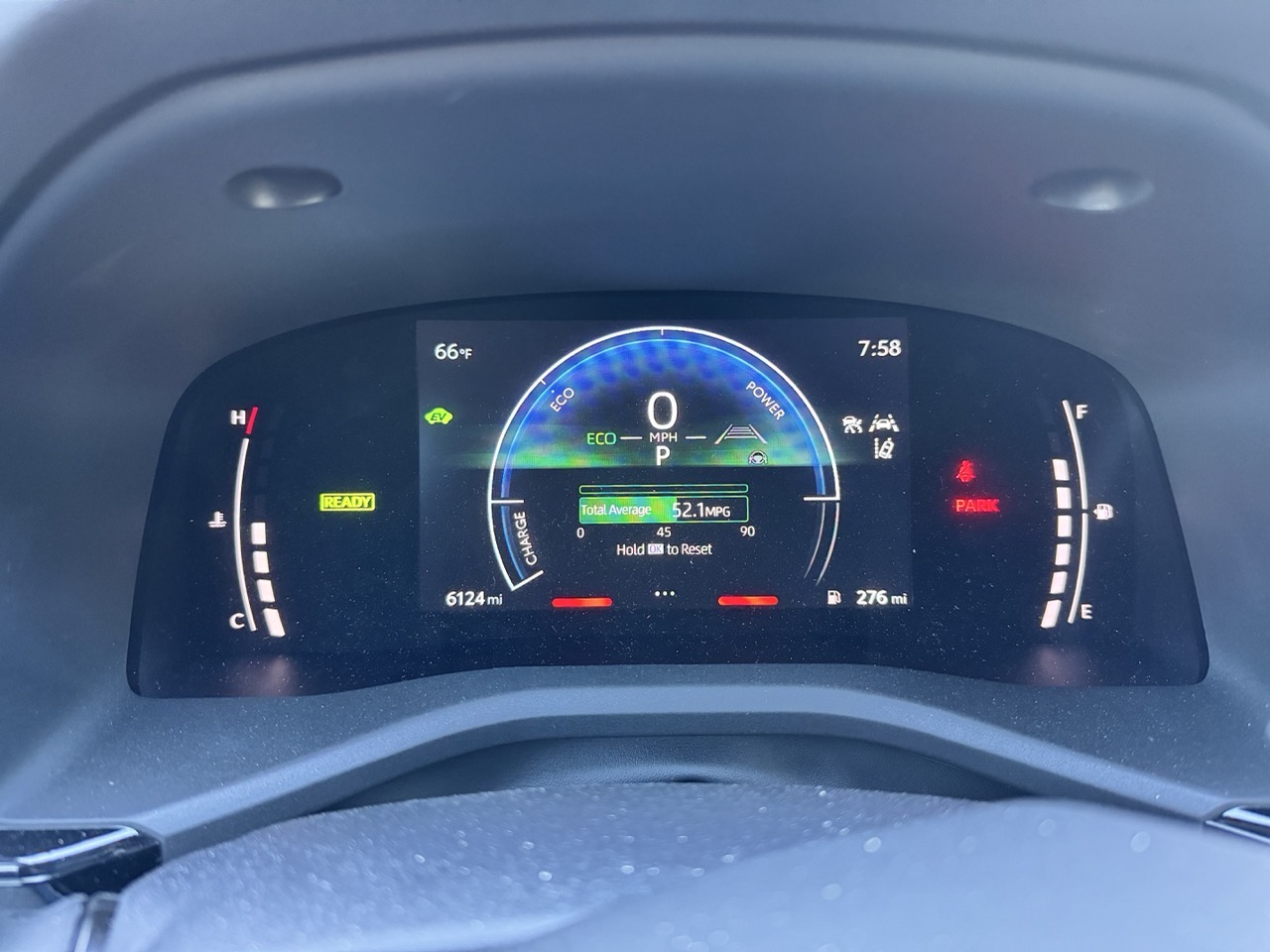
    Look carefully at the image above. It’s from the dashboard of a 2025 Toyota Camry. Littered across the cluster are a cacophony of icons, measurement gauges and more. It’s a mess. Sure, the speedometer, engine temperature and gas guage are useful – but even within a few of those elements, there’s a lot going on. 

    As I drove last week, my car’s dash made a sound. An audible “ding”, quite similar to a smartphone chat notification. I’ve heard this ding appear before, at seemingly random times while on my commute. I have no idea what this “ding” signifies. Not one clue.

    Maybe the “ding” coincided with a visual cue on my dash? I’ll never know. Because the dash cluster has little in the way of hierarchy. Because I’m too focused on driving to glance down to decipher what’s seeking my attention. Or maybe it’s just bad UI/UX.

    And don’t even get me started on the Camry’s propensity to randomly drop its Bluetooth connection to my smartphone. 

    Modern car instrumentation is a minefield of distraction. Give me old fashioned analog buttons, gauges and knobs any day. 

    How did we get here? Why is modern car UI so darn awful?

    -Krishna 

  • My Mac Blogging Stack

    My Mac Blogging Stack

    Now that I’m back to regularly blogging once again, I wanted to document the software tools I use, along with my rationale for their use. My blogging chain is Mac-based, and each of the apps listed below are exclusive to this platform.

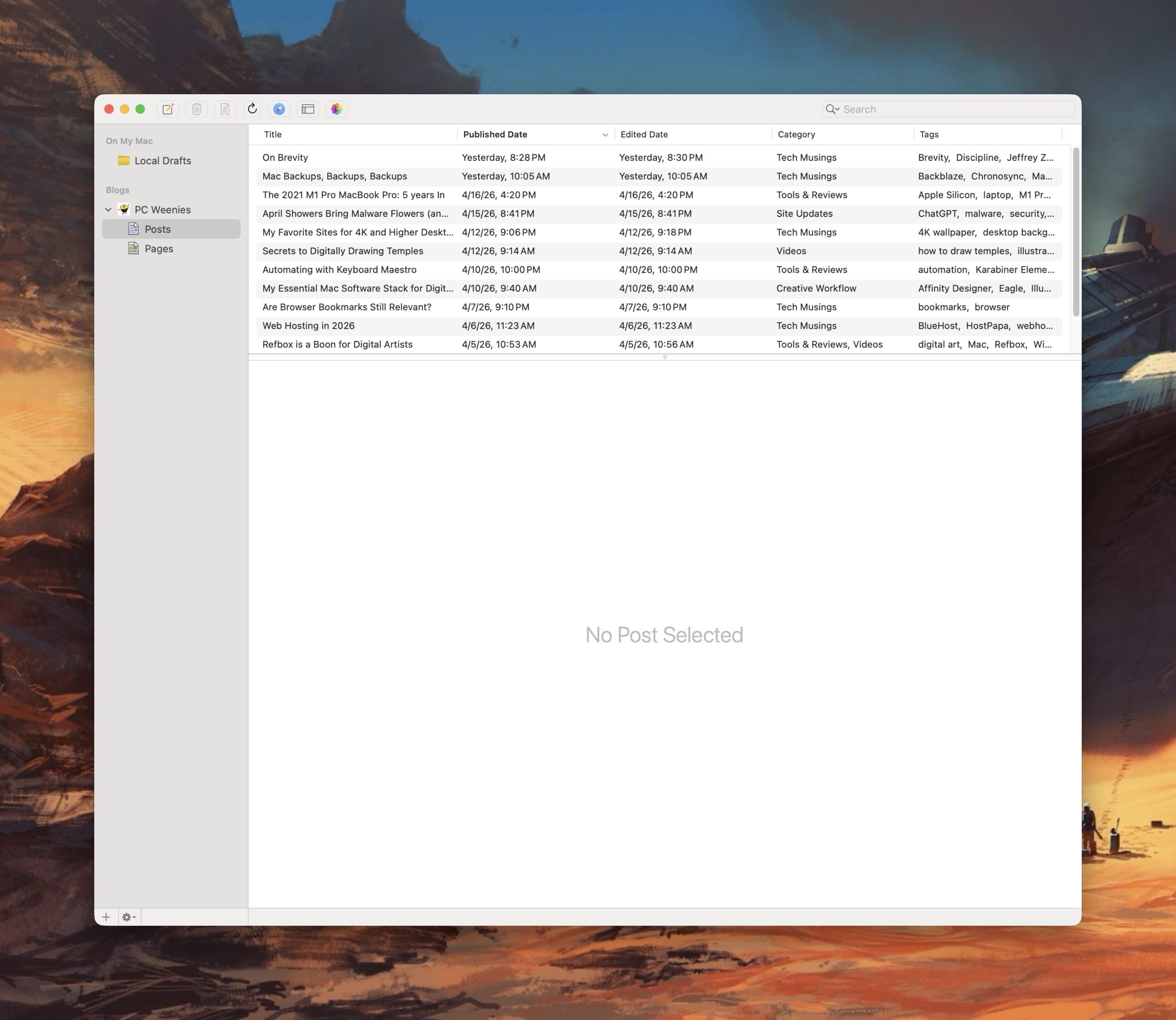
    MarsEdit, by Red Sweater Software, is my preferred tool for writing and publishing posts. Having local back-ups for each and every post is very important to me. MarsEdit offers this feature, and much, much more. The biggest benefit to using the program is that I can draft new posts locally on my Mac, without the need to login to WordPress.

    Every post on this site, with the exception of the first three articles, have been written using MarsEdit. MarsEdit removes the friction associated with posting to WordPress, making the process of drafting new posts something I actually look forward to.

    MarsEdit

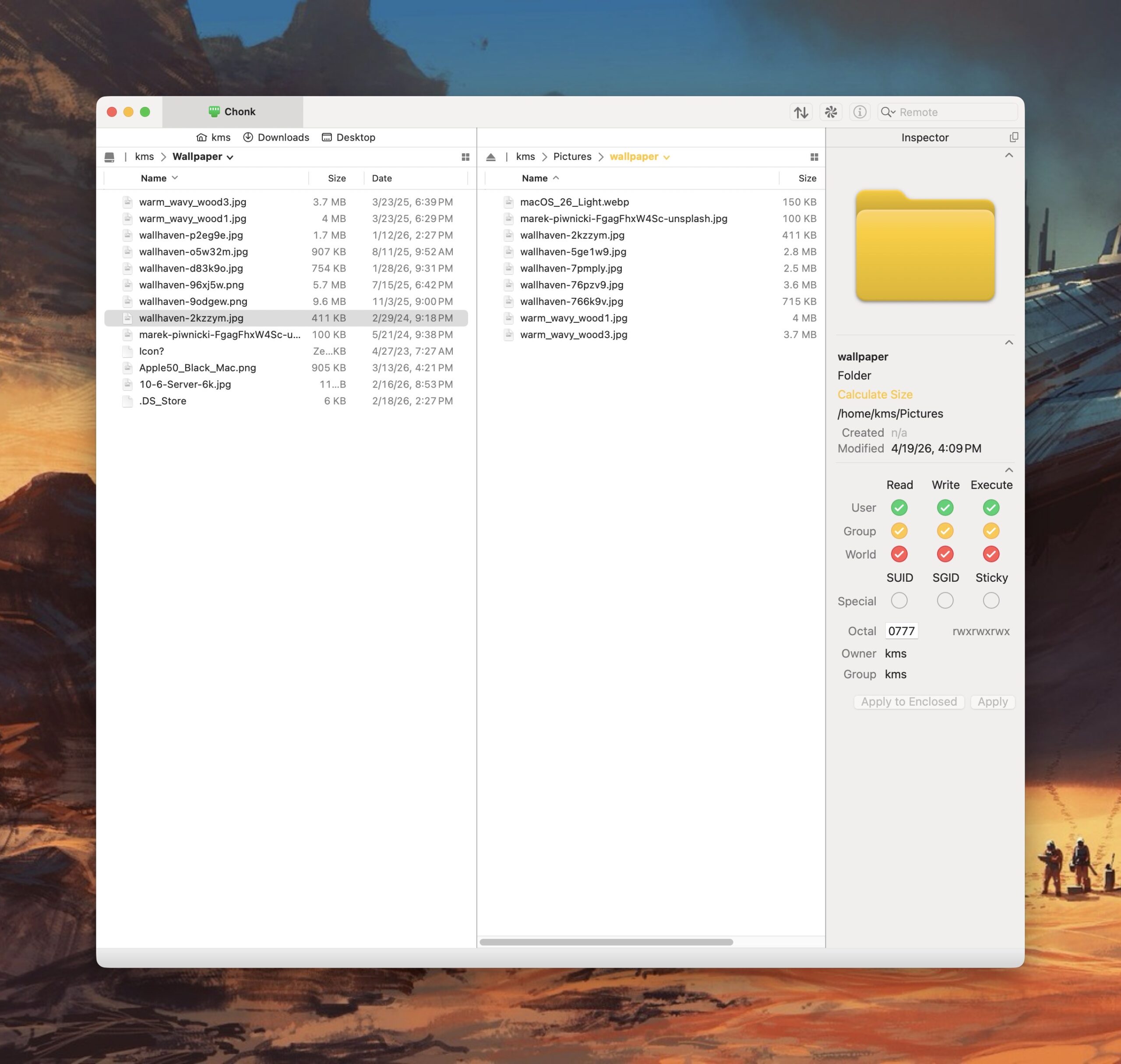
    Transmit, from Panic Software, is a powerful and elegant FTP application for the Mac. I’ve used Transmit for three decades now, starting with its first version, released on classic MacOS. It’s fast and intuitive, making working between local files and servers a breeze. I also use it to quickly shuttle files between my Mac and my Linux boxen on my local network. 

    Transmit

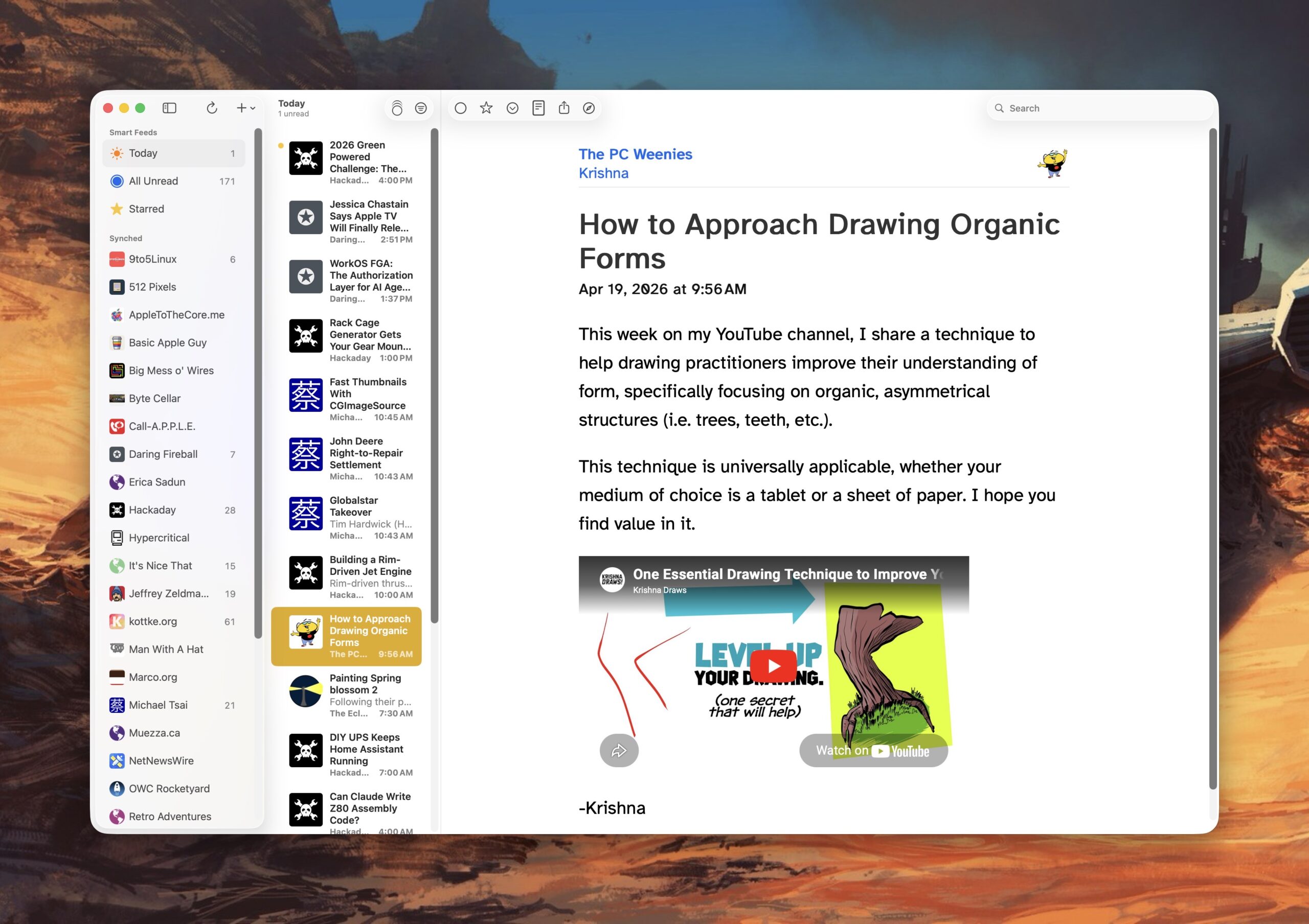
    Reading is just as important as writing. For keeping up with my favorite blogs, I use NetNewsWire, an open source RSS reader for the Mac (and iOS). I have this application running on both Macs and my iPhone. I use iCloud to keep my RSS feeds in sync, so I can always pick up where I left off, regardless of what device I’m using.  NetNewsWire is free, fast, and intuitive (do you see a pattern here?). 

    NetNewsWire

    I also use a custom action to convert HEIC images shared from my iPhone to smaller sized JPEG files I can use with my posts.

    And that’s my Mac blogging stack. 

    -Krishna

  • How to Approach Drawing Organic Forms

    How to Approach Drawing Organic Forms

    This week on my YouTube channel, I share a technique to help drawing practitioners improve their understanding of form, specifically focusing on organic, asymmetrical structures (i.e. trees, teeth, etc.).

    This technique is universally applicable, whether your medium of choice is a tablet or a sheet of paper. I hope you find value in it.

    -Krishna

  • On Brevity

    On Brevity


    Jeffrey Zeldman writes:

    What’s rare—what’s difficult—is knowing when you’ve said enough. Cutting the sentence that’s technically correct but doesn’t earn its place. Trusting the reader. Trusting the idea. Trusting the white space to do work.


    Knowing what to leave out is just as important as what you keep in. Zeldman focuses on brevity within the realm of writing, but the idea is particularly potent to any creative undertaking. 

    Read the rest of his excellent post.


    -Krishna

  • Mac Backups, Backups, Backups

    Mac Backups, Backups, Backups

    “There are two kinds of tech users in the world: Those who have lost data, and those who are about to lose data.”

    I’m paraphrasing a popular idiom here, but I find it to be true nonetheless. If you work with computers, you need a back-up strategy. Computers can be replaced, but the data it stores is one of a kind, whether its personal photos, important documents, creative media etc.

    My back-up system is multi-faceted. It involves having both local back-ups and off-site back-ups. Local back-ups make sense: having more than one copy of data on an attached storage device provides peace of mind. But off-site back-ups are equally important. Should the unthinkable happen, and I lose my home due to a fire or natural disaster, I don’t want my data to go with it.

    Hardware

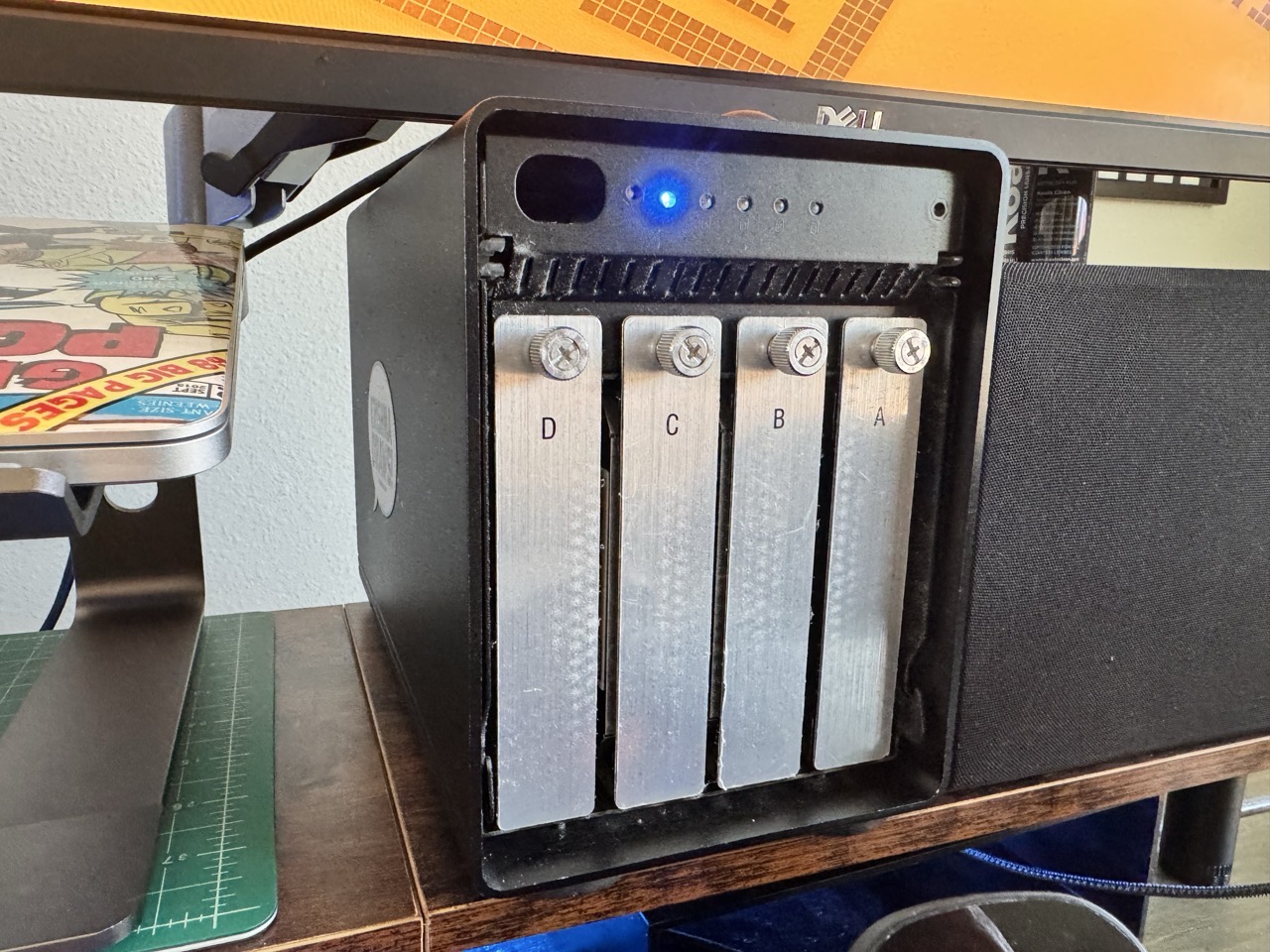
    For context: I have two Macs, a laptop and an M4 Mac mini with 512GB storage. The MacBook Pro is connected to an OWC ThunderBay 4 enclosure, which is populated with four drives.

    I’ll use my Mac mini’s boot drive as an example here, but I apply the same strategy for any attached storage I connect to it. I have a separate 512GB external NVME drive attached to it, which serves as a clone of the internal storage. For every storage device I actively write data to (SOURCE), I have a separate storage device serving as its back-up (CLONE).

    The ThunderBay 4 enclosure contains two SOURCE drives, with two corresponding CLONE drives.

    My advice when buying new storage is to buy in twos. (Buy once, cry once.)

    Software

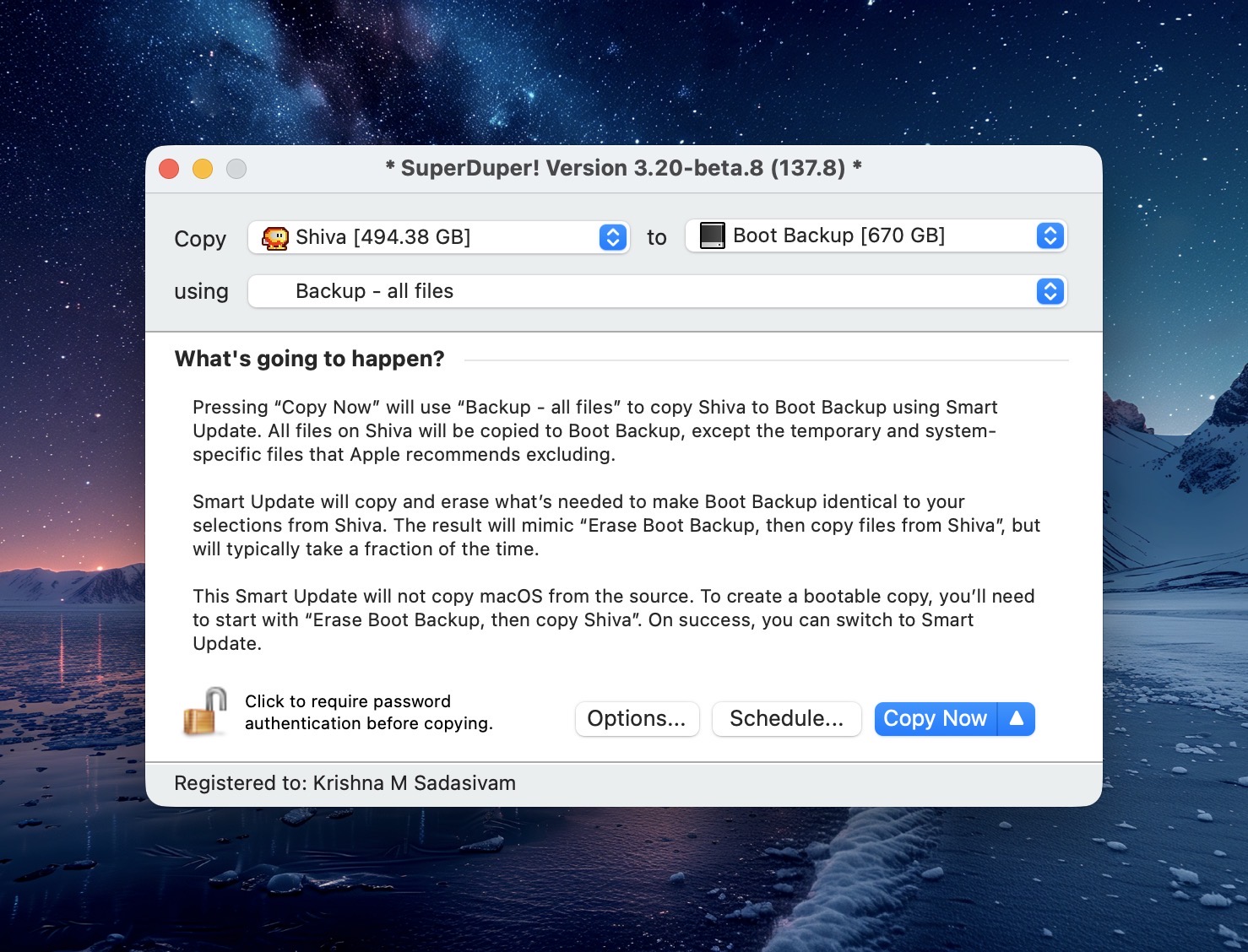
    SuperDuper main window

    For cloned back-ups, I use SuperDuper. It has been my go-to for reliable back-ups for more than a decade. SuperDuper lets me set a specific back-up schedule for each SOURCE drive on my system. At the scheduled time, SuperDuper will launch and make back-ups to the CLONE without my intervention. (From time to time, I will check the integrity of the back-up to make sure that my data is intact. No issues thus far.)

    macOS includes Time Machine, a software back-up solution. I have assigned a separate drive for Time Machine, set to back-up specific files and folders on my MacBook Pro’s internal drive. Time Machine takes snap-shots of these files / folders, allowing me to “go back in time” to revert a file back to an earlier state. I don’t use this often, but it does come handy in the times I need it.

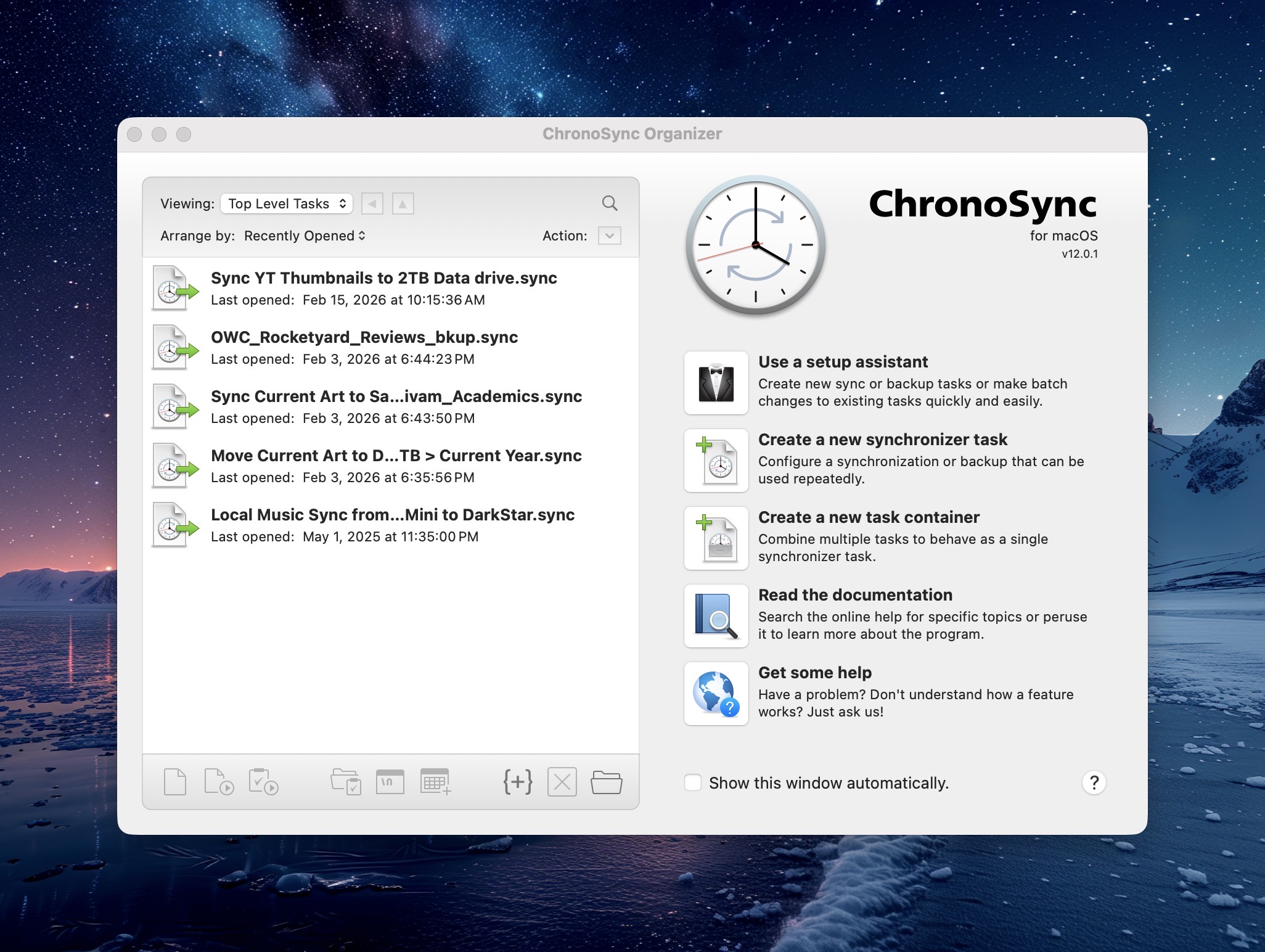
    Chronosync's main window

    In addition to cloned back-ups, I also sync specific folders between my two Macs. This allows me to work on the latest files on either of my Macs. Syncing insures that the same files exist in two places, and for that task I use ChronoSync. Like my cloned back-ups, ChronoSync offers scheduled syncs.

    The Cloud

    For off-site back-ups, I use BackBlaze. There’s a monthly cost ($7US) associated with this, but BackBlaze offers unlimited data back-ups. Should I lose all of my local data, BackBlaze will overnight a drive with all of my data. I hope I never have to take advantage of this, but again – it’s really for my peace of mind.

    Final Thoughts

    Back-ups are important. New computers can be purchased, but your data can’t. Choose wisely.

    -Krishna

  • The 2021 M1 Pro MacBook Pro: 5 years In

    The 2021 M1 Pro MacBook Pro: 5 years In

    Most hardware reviews usually drop after a few days or weeks after a new product release. I view most of these as “first impressions” rather than a review. 

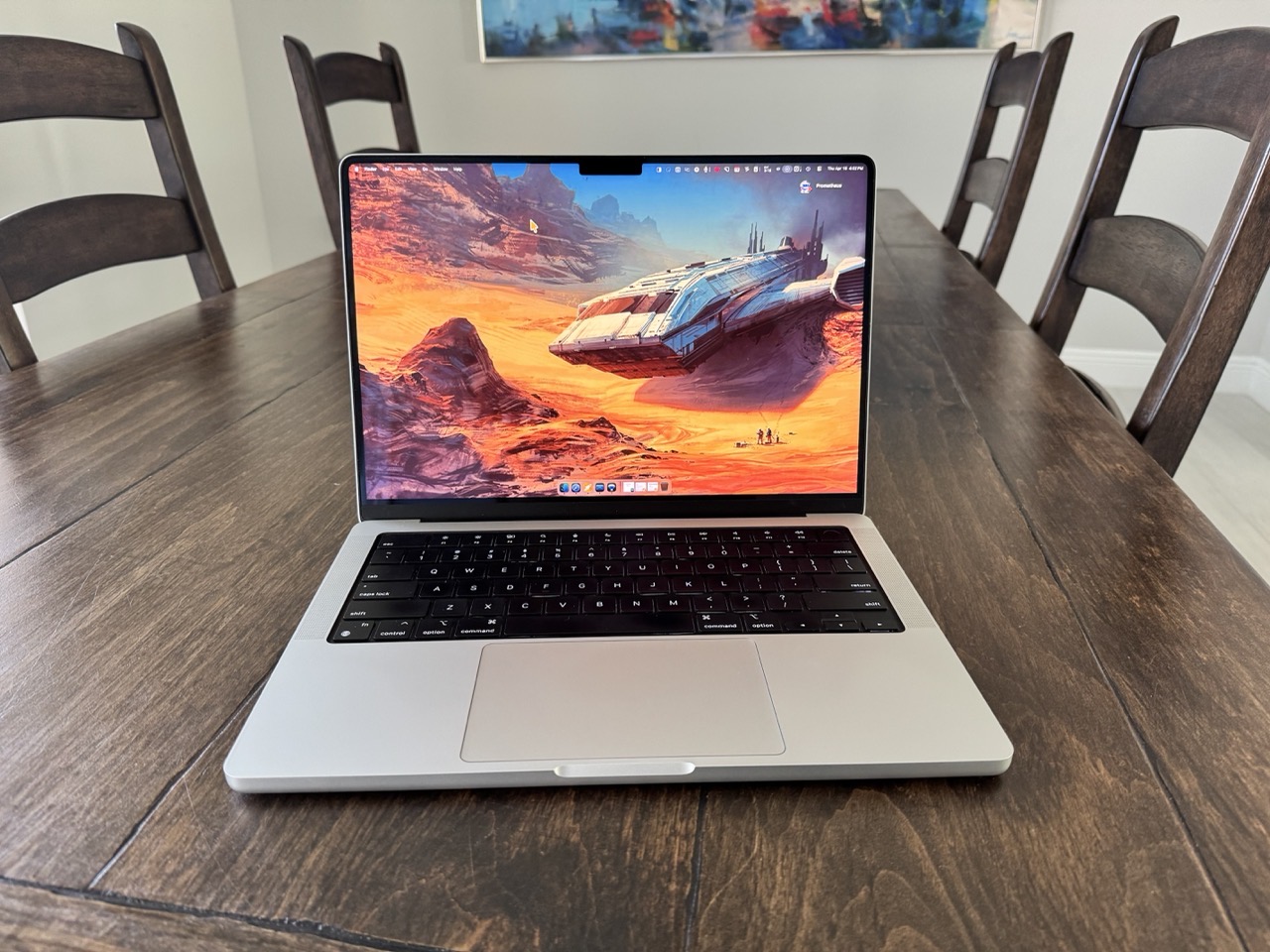
    My review of the late 2021 14” M1 Pro MacBook Pro is being written after nearly five years of daily driving one. 

    This is my sixth Apple laptop. Below are the other Mac laptop models I’ve owned, and when they were purchased new. (I’m coming on almost 3 decades of using Apple laptops exclusively. Yikes!)

    • PowerBook G3 233 (aka Wallstreet) (1997)
    • PowerBook G3 (aka Pismo) (1999)
    • MacBook Pro (2006)
    • MacBook Pro (2008)
    • MacBook Pro 13” (late 2014)

    The specs for my M1 Pro MacBook Pro are: silver, 32GB RAM, 1TB SSD, 8 cores (6 performance, 2 efficiency). I have kept up with my AppleCare coverage. The Mac’s battery currently sits at 81% health (114 cycles). (Apple recommends service when the battery capacity reaches 79%, and my hope is that I can get at least one fresh battery while I still have AppleCare on it.) 


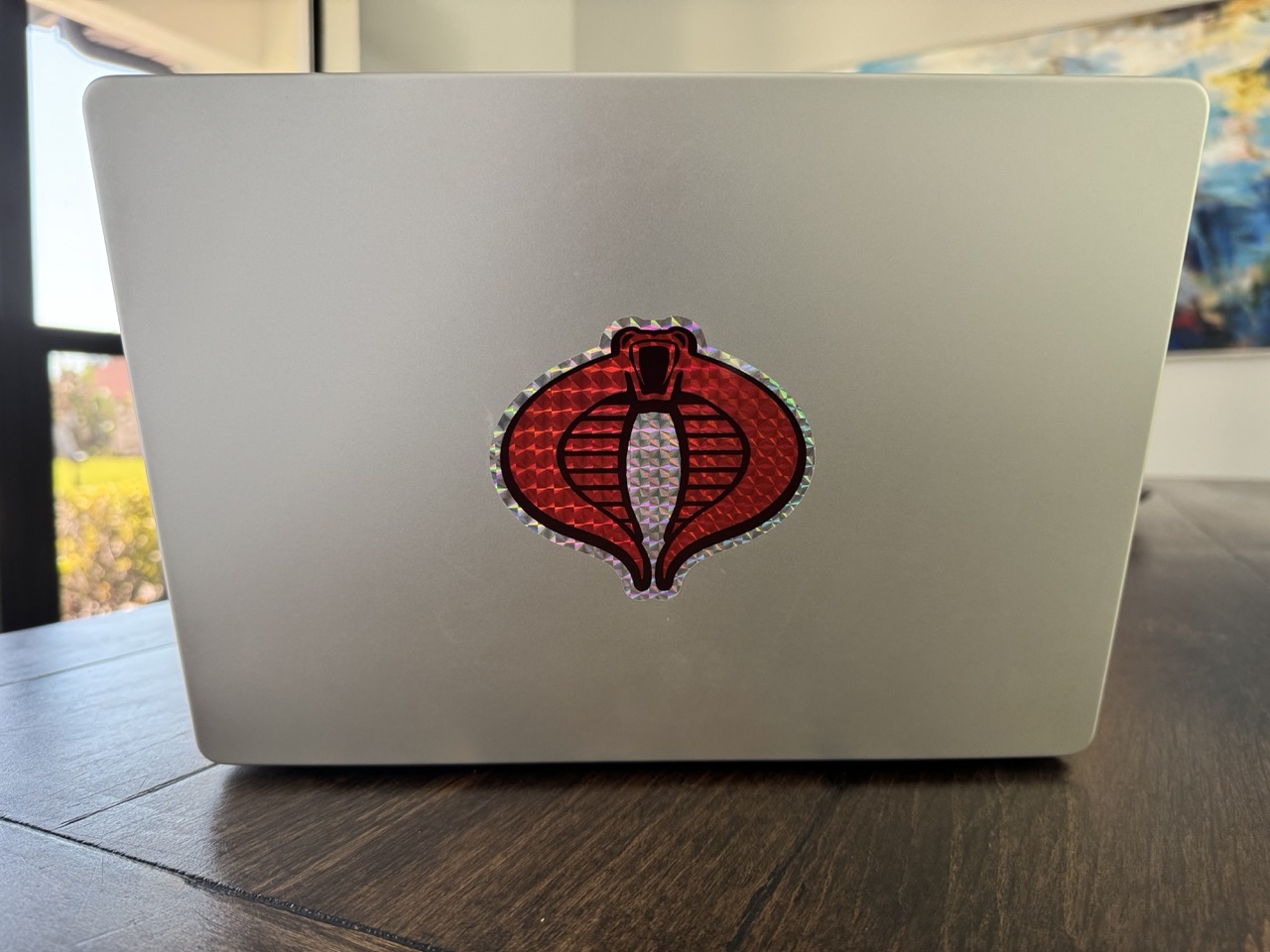
    MBP Cobra sigil.

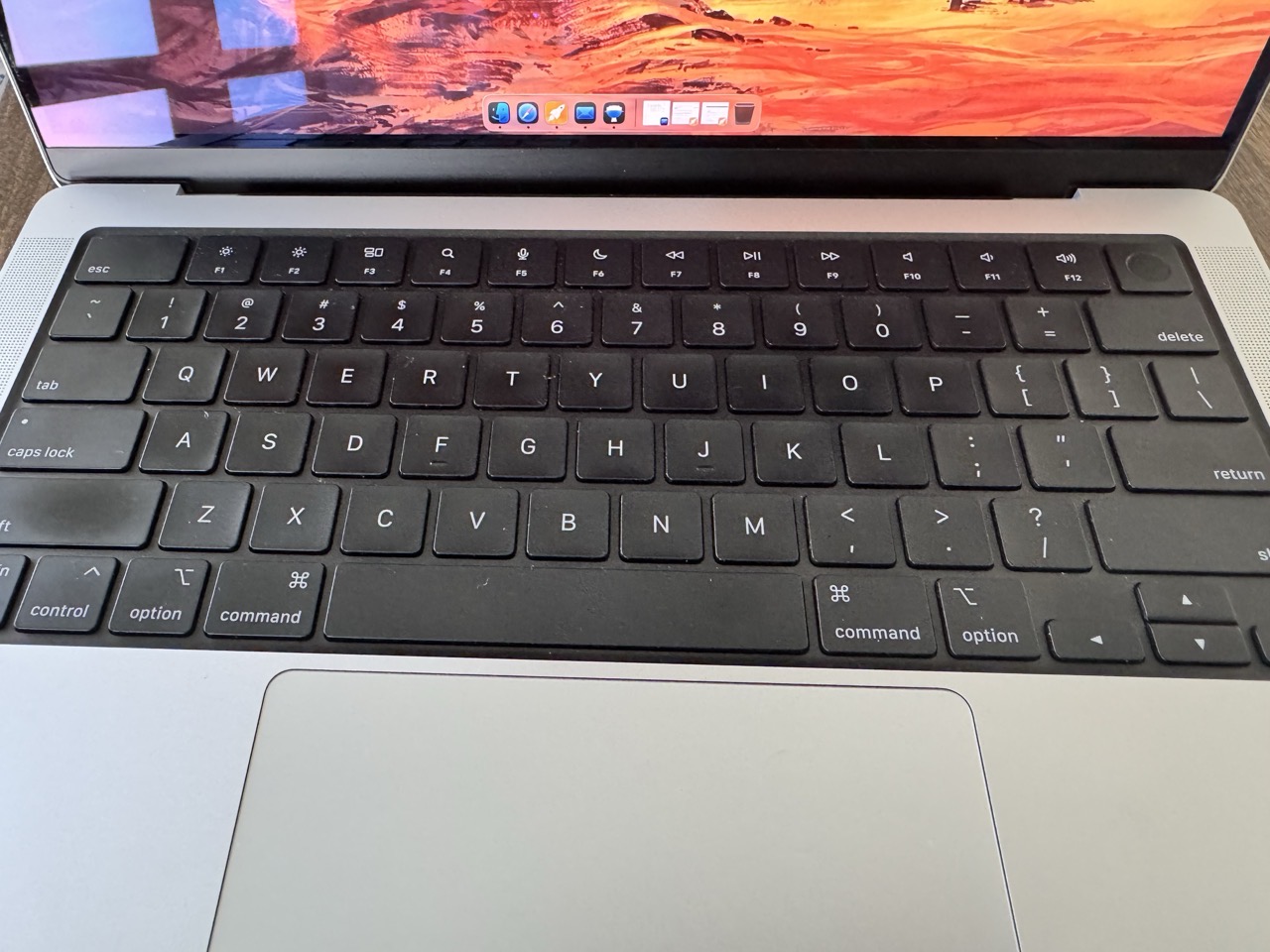
    The only bespoke addition is a well-placed Cobra sticker that adorns the lid, covering the Apple logo. The laptop’s exterior remains free from scratches and dents, while the keycaps exude a slight shine from finger oils and constant use. The laptop’s hinge still functions as well as it did on day one. Similarly, the MacBookPro’s XDR display remains as crisp and vibrant as ever. The weight is noticeable when I tote it around in my backpack, but not pronounced, especially when compared against my work-issued 16” MacBook Pro M3 Max.

    MBP M1Pro Keyboard.

    Early into ownership, I did have a few small issues with my MacBook Pro. The Apple Store ran some tests and determined that the culprit was a faulty battery. Apple replaced the battery with a new one. No problems since.

    All in all, a solid piece of kit. 

    All three Thunderbolt / USB4 ports and the HDMI port see frequent usage, courtesy of USB / Thunderbolt attachments and external displays. The laptop’s MagSafe port, headphone port and CF card remain largely untouched. I typically charge the laptop via one of its Thunderbolt ports.

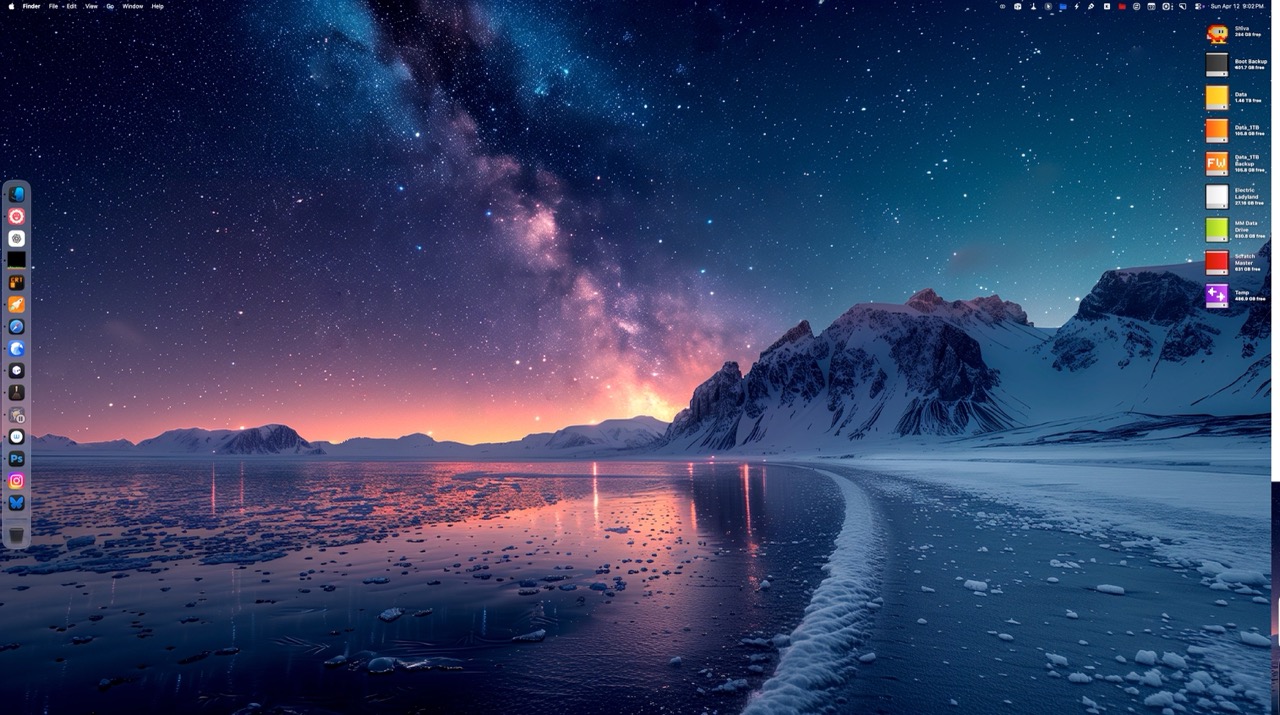
    The internal storage shows 706GB of free space. I have no regrets in overprovisioning the drive, as I use the leftover space as a Scratch Disk for Adobe apps when I’m on the go. The same goes for the RAM configuration; 32GB allows me to comfortably switch between multiple memory-hungry design apps as needed. For my usage, this is the sweet spot.

    My MacBook Pro currently runs macOS Tahoe (26.4.1). I have installed each major version of macOS over top of the previous version. A fresh install is likely long overdue, and will probably happen this summer.

    Subjectively, performance remains surprisingly robust in my day-to-day usage. The machine doesn’t feel “slow”, which is a testament to the M series CPU. Nowadays, I’m averaging 4 – 5 hours on a full battery charge. Not bad for a relatively “old” machine.

    Unlike the previous Mac laptops I’ve owned, I can comfortably use the MBP on my lap. Major props to Apple Silicon.

    While the notch has been a polarizing issue for some, it’s never really been an issue for me. I noticed it when my laptop was new, and then moved along. The only time the notch can be inconvenient is when there’s a slew of menu bar items. (I try to keep these items pared down to only the essentials.) 

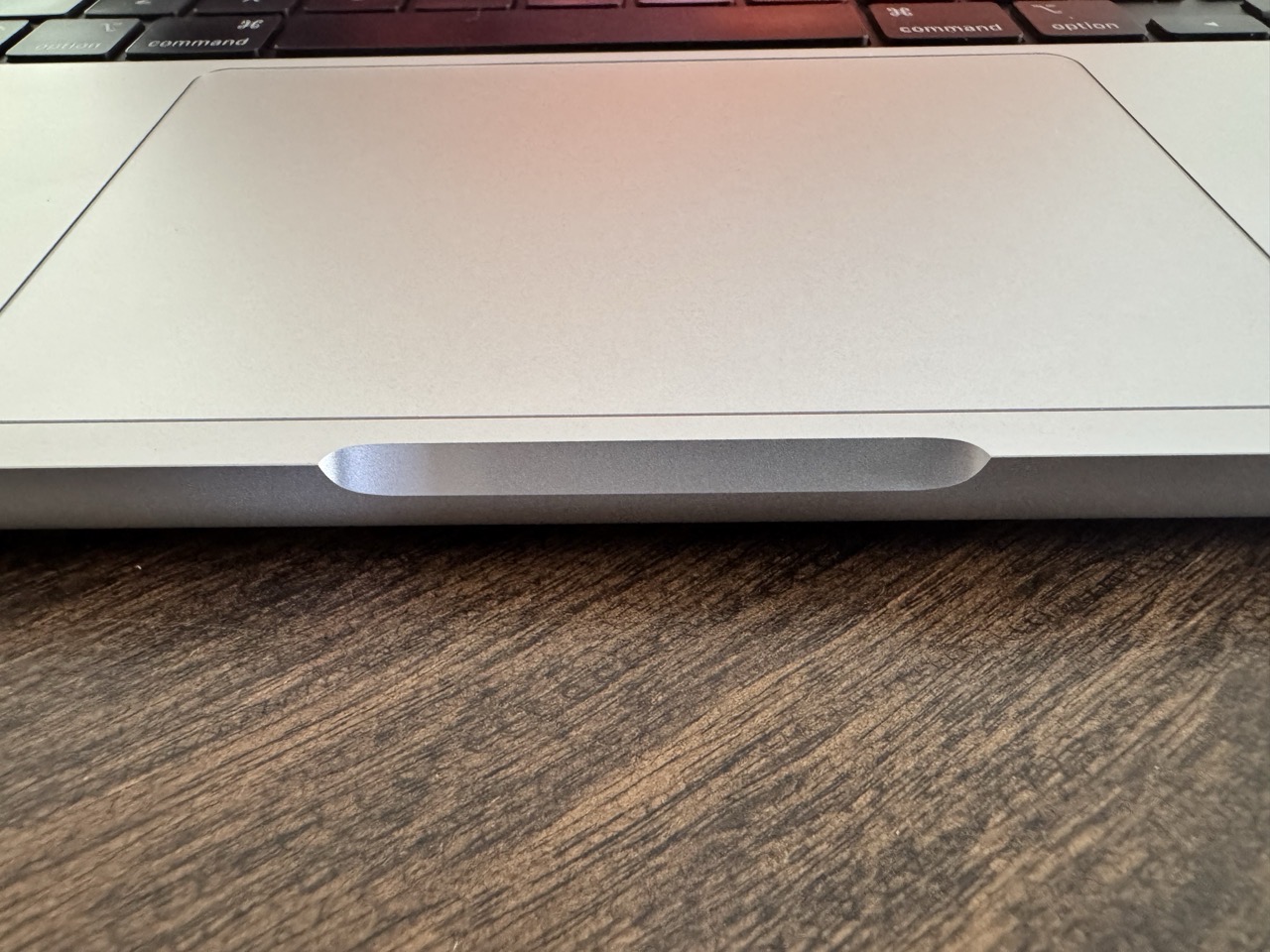
    MBP sharp corners.

    The only real issue I have with the MacBook Pro hardware-wise is the opening betwixt the lid and body. The edges on either side of the opening are sharp! 

    14” M1 Pro MacBook Pro’s go for around $800US on average (as of mid-April 2026) for the base configuration. For the specs of my laptop, the price hovers around $1100 – $1500US. Clearly, better options are available for that price, but it’s comforting to know that the machine still maintains some value, five years on.

    The 14” M1 Pro MacBook Pro has been an excellent laptop. It’s fast, powerful and reliable. And that’s really all I want out of a professional machine.

    -Krishna


  • April Showers Bring Malware Flowers (and How I Fixed My Site with AI)

    April Showers Bring Malware Flowers (and How I Fixed My Site with AI)

    April must be the month of website problems for me. First, it was my portfolio site

    Yesterday, it was this site (again). To their credit, Bluehost reached out via text and email to inform me that pcweenies.com was dispensing malware. 

    This wasn’t a complete surprise, given what had already occurred a few weeks back. I had been observing unusual traffic to my website originating from Japan, courtesy of my site stat counter. The visitors were attempting to access directories and files that I did not have in my root folder. Repeatedly.

    Odd. 

    After returning the phone call, Bluehost informed me that my domain was generating malware, and that removing or deleting files wasn’t going to fix the issue. According to the tech I spoke with, it was a timed attack that would keep resurfacing. But Bluehost could make all my malware problems go away… for a mere $399US

    After being taken aback, I politely declined the offer. In a last ditch effort, Bluehost countered with a price reduction ($309), but it was still far too expensive. But now, I was left to solve the problem on my own.

    Let’s be clear: I’m no WordPress expert. I only know enough to be dangerous.

    The thought of wending through lines of PHP and working within SQL databases fills me with existential dread.

    I have a few friends who are experts at this stuff, but it was 9PM at night, and I wasn’t about to thrust my pressing website problems onto anyone else at that hour.

    So into Mordor I went… armed only with ChatGPT.

    We can debate the merits or demerits of AI, but I was desperate. I needed to solve this problem. NOW.

    I fed ChatGPT the specifics of the malware issue, including the logfile I received from Bluehost.  Patiently, it provided me with clear, step by step instructions on how to methodically troubleshoot the problem. I followed each step, one by one, asking clarifying questions to ChatGPT along the way. In the process, I discovered that my site had an oddly formatted wp-config.bak file and (even more alarming) 6 different FTP accounts of unknown origin. My site had been compromised.

    Following ChatGPT’s instructions, I first made a local backup of my site and corresponding SQL database. Next, I changed every single password related to my website (database, WP login, etc). Then, I removed all offending FTP accounts. I deleted key WP files / folders from the server. Finally, I reinstalled clean WordPress components using a fresh WordPress install.

    After two hours, my site was back up and running. Exhausted by that point, I called it a night. 

    I don’t have a moral to this story. But I will state this: Without the assist from AI, I wouldn’t have been able to solve the problem on my own. 

    -Krishna

  • My Favorite Sites for 4K and Higher Desktop Wallpaper Backgrounds

    My Favorite Sites for 4K and Higher Desktop Wallpaper Backgrounds

    Desktop wallpapers are a terrific way to customize your computer. But great wallpaper sites are like hidden gems. You’ve really gotta look around to find the best ones.

    Good news for you!

    I’ve scoured the web (high and low) to find the absolute best places to find high quality 4K wallpaper, and lived to tell the tale. My recommendations are listed below.

    1. Pexels.com features high quality royalty free images, cleanly categorized, with a leaderboard to quickly find the most viewed creators on the site.

    2. Wallhaven.cc is perfect if your tastes skew towards pop culture. Truthfully, there’s something for everyone here, whether it’s landscapes or manga. What makes this site particularly notable (outside of the sheer volume of wallpapers) is its robust filtering system. Search by subject, resolution, and even color scheme to find your favorites.

    3. unsplash.com is a great place to find drawing reference, but it also serves double duty by serving up top notch 4K wallpapers. Wallpapers are curated by the Unsplash staff, so there’s bound to be something you like.

    4. Freepik.com is another terrific wallpaper resource. The site’s clean layout makes it easy to browse through its offerings. Beware that the site also includes AI generated art. Thankfully, there’s a toggle to exclude AI from your search results.

    5. BasicAppleGuy is an Apple themed blog, with articles, reviews, custom stickers and more. You don’t have to be an Apple aficionado to like what’s here. But if Apple’s your jam, you’ll find many excellent iPhone, iPad, and Mac desktop wallpapers to choose from, created by the site’s owner. Kick in a few bucks into the site’s Tip Jar to let him know you dig what he’s putting down.

    Chances are pretty solid that you’ll likely find your next wallpaper from one of the sites listed above. And, since you asked: My favorite wallpapers are those that feature colorful abstract designs or beautiful landscapes.

    Another reason these sites made the list is for they don’t have: No pop-up ads, no re-directs or any of that other nonsense. Who’s got time for that?

    -Krishna

  • Secrets to Digitally Drawing Temples

    Secrets to Digitally Drawing Temples

    The topic for my latest video tutorial was inspired by a question posed by one of my students earlier this week. Temples and other layered buildings can be daunting to draw, until you understand the underlying volumetric shapes at work.

    For my own illustration work, I take advantage of three core techniques:

    • new layers
    • duplication of layers
    • transforming objects

    “Work smart, not hard.”

    -Krishna