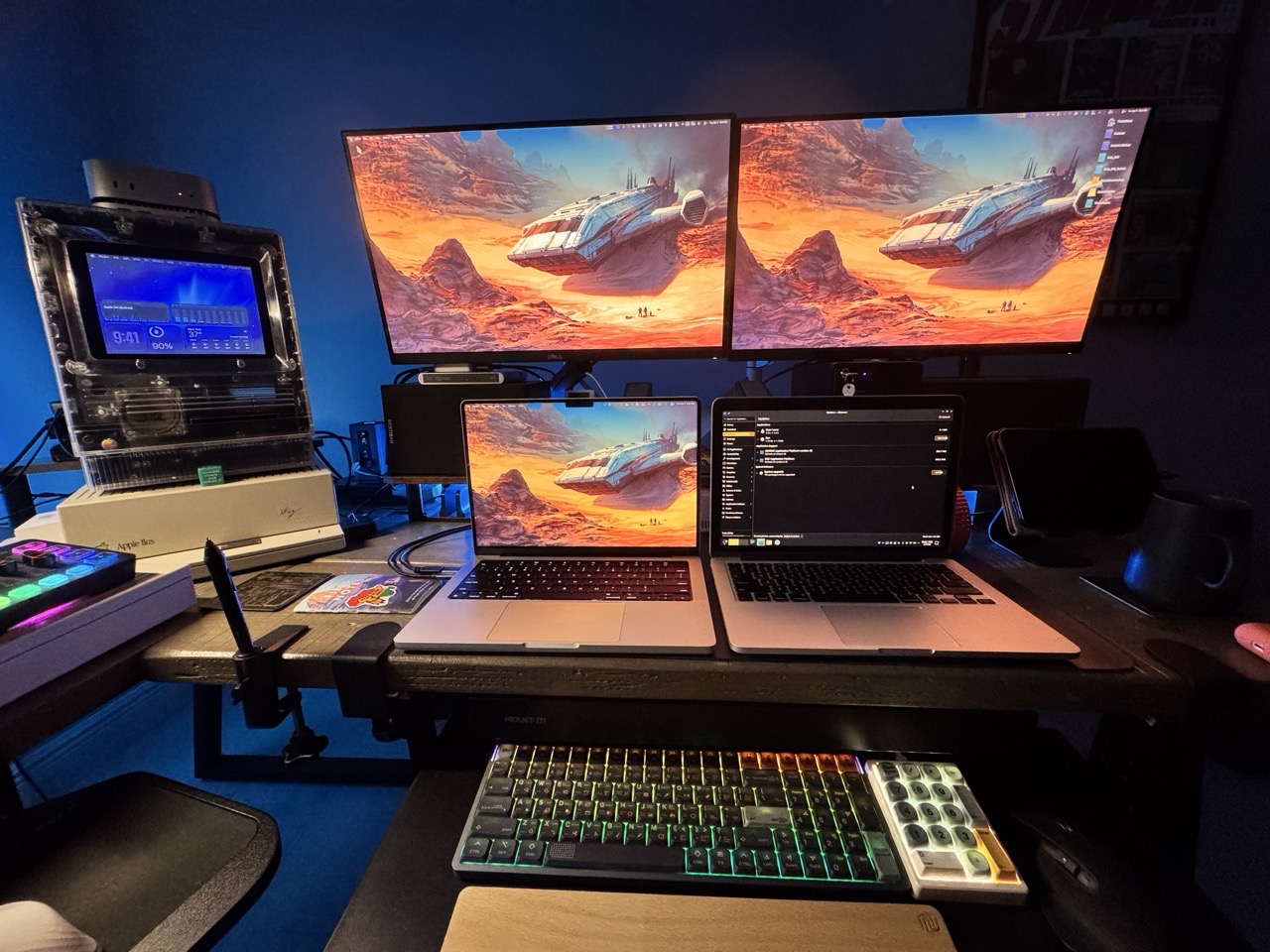
Automation options are plentiful on the Mac. It’s one of the main reasons I prefer using macOS over other platforms. Automating tasks saves me time. With a little upfront work in setting up an automation, I can make tedious or routine tasks go much faster.
Apple includes a few free automation utilities in the form of Shortcuts and Automator. Both are easy to use (no programming knowledge needed). If you’re new to automation, this is where I would start.
But sometimes you want even more power. Thankfully, macOS has a robust set of great third party automation utilities. One of these is Keyboard Maestro. I’ve used this program for a few years now, and have made a few custom automations for my day-to-day tasks. I’m by no means an expert at using Keyboard Maestro, but I know enough to be dangerous.
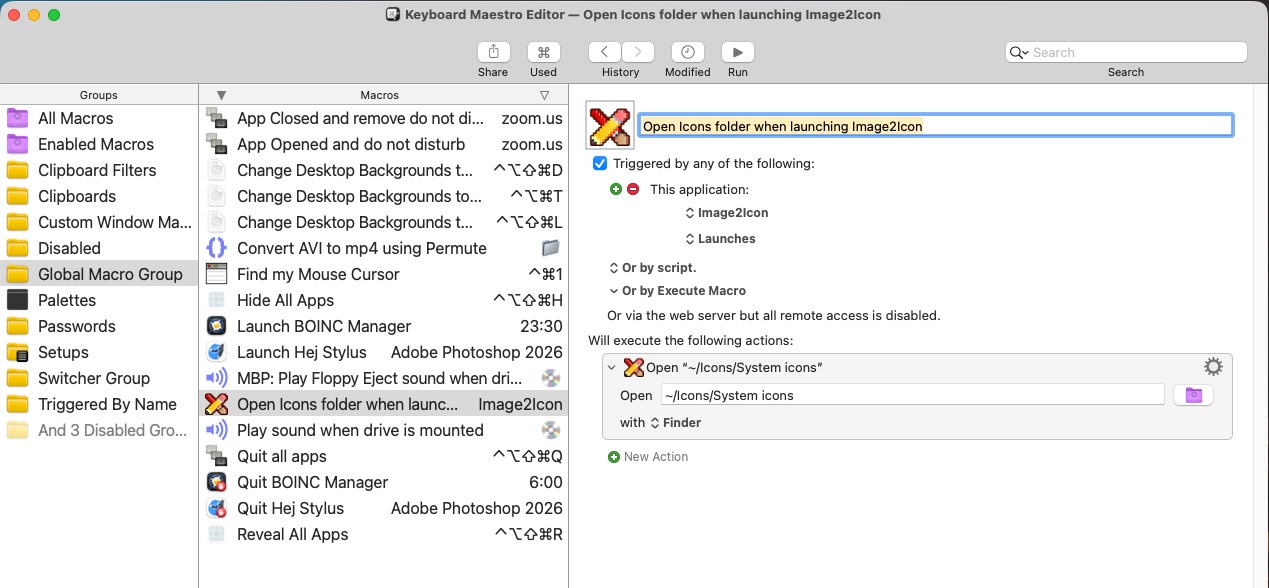
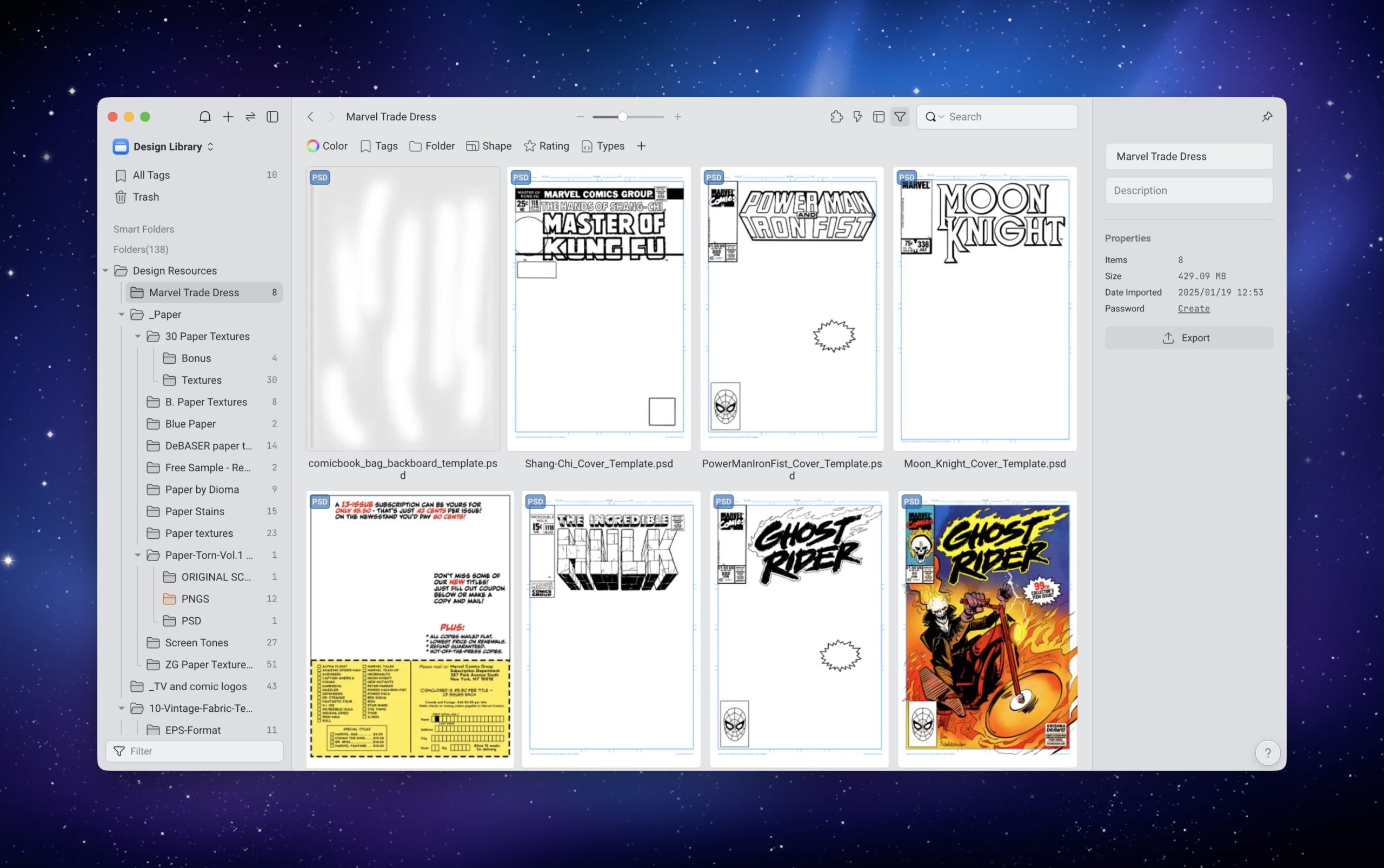
Keyboard Maestro operates on triggers. A trigger is something that will initate an automation to run. A launched application can be one of those triggers. For example, when Keyboard Maestro detects that the Image2Icon app has launched, it will trigger an automation to open my System Icons folder, giving me quick access to my custom Mac icons.
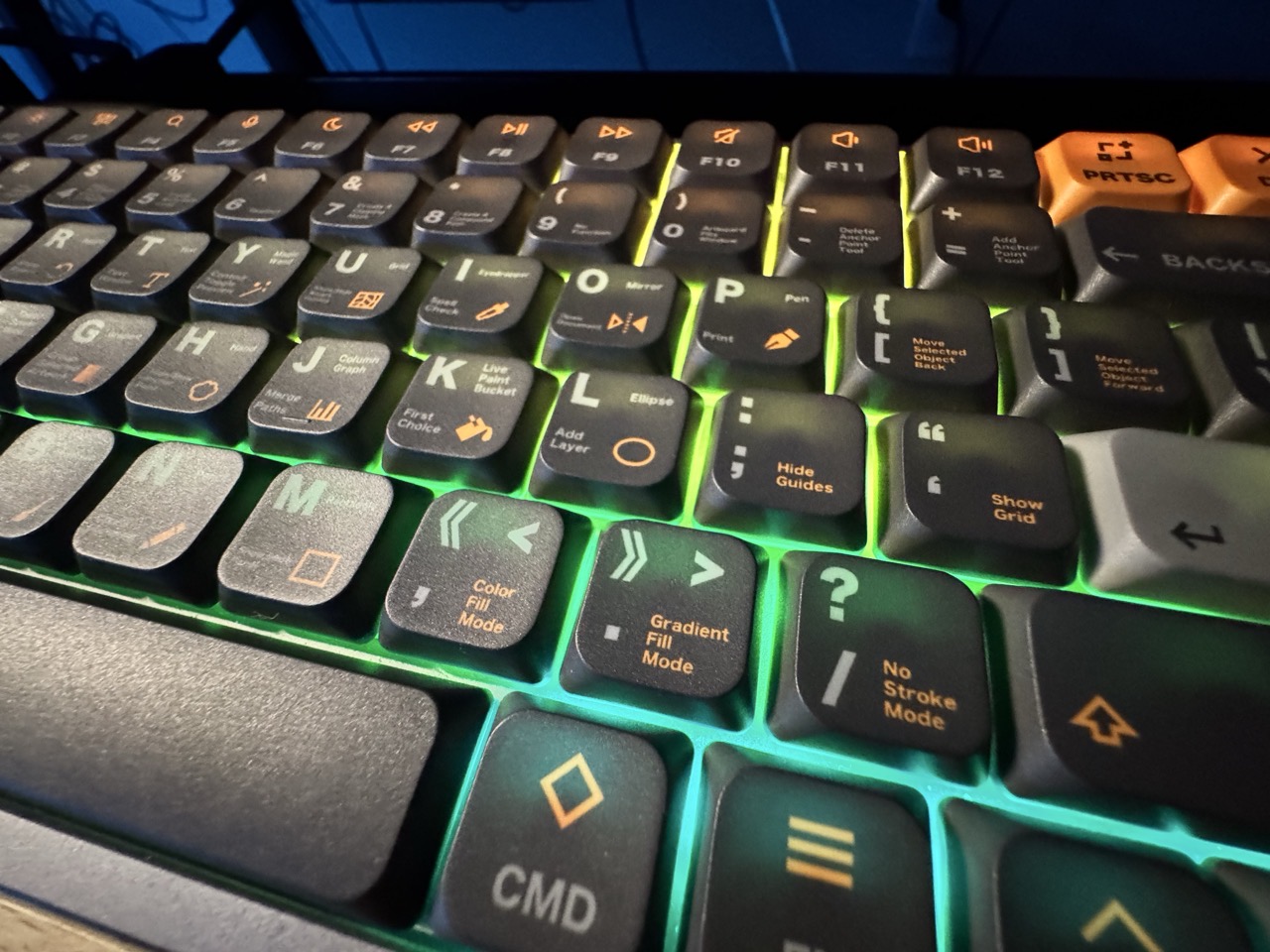
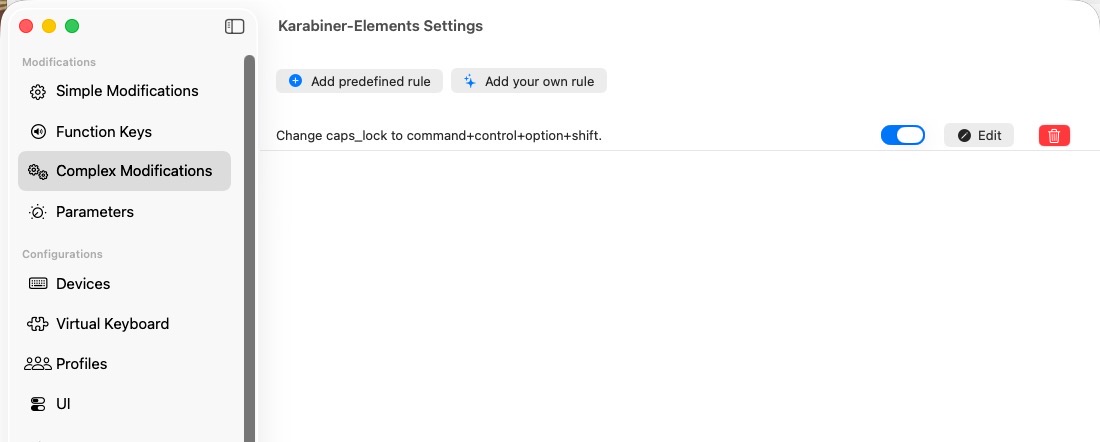
Keyboard shortcuts can also serve as a trigger. When I press Command-Shift-Option-Control D, my Mac’s display changes to what I’ve assigned as a default wallpaper. (Incidentally, I’ve mapped Command-Shift-Option-Control to my Caps Lock key on my keyboard. Pressing Caps Lock is equivalent to pressing all of the above keys at once. I use Karabiner Elements to make this key assignment. See below.)
If the idea of Mac automation intrigues you, read on for a few of my favorite Keyboard Maestro automation routines.
-Krishna