Tag: window management

  • FrugalMac: Window Management with Rectangle

    FrugalMac: Window Management with Rectangle

    Unsurprisingly, macOS’s built-in window management tools are… half-baked. The custom keyboard shortcuts I set previously do not work consistently across all windows. Certain apps, like Safari and the Finder, respond to the aforementioned keyboard shortcuts. Other applications, like the Terminal or Apple Messages, do not.

    This inconsistency quickly became a source of friction when working on my new Mac. So Rectangle, a free and open source window management app, became the first third-party application I installed on my M5 Pro MacBook Pro. 
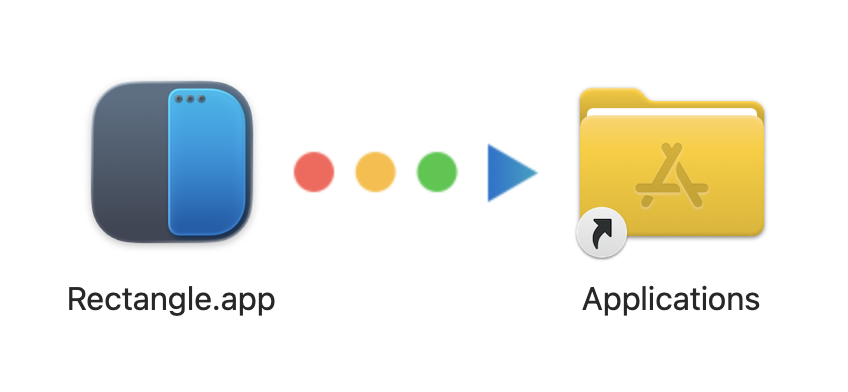
    Rectangle first install.

    On first install, Rectangle detected a potential conflict with macOS tiling – so I disabled the latter in favor of the former. 
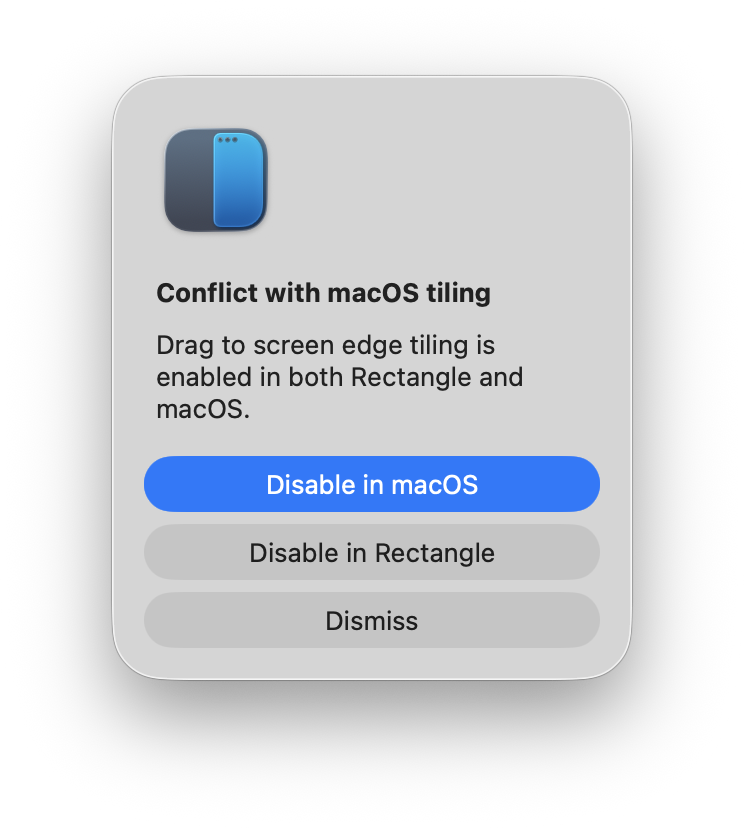
    Disable macOS default window mgmt.

    Next, I modified Rectangle’s custom keyboard shortcuts to match what I’m already familiar with (see below). Unlike macOS, Rectangle includes custom keybindings for moving a window to other connected external displays. (I use this ALL the time.)
    And for those instances where I want to have a window take up most of the display, I’ve configured Option-5 to “Almost Maximize”.
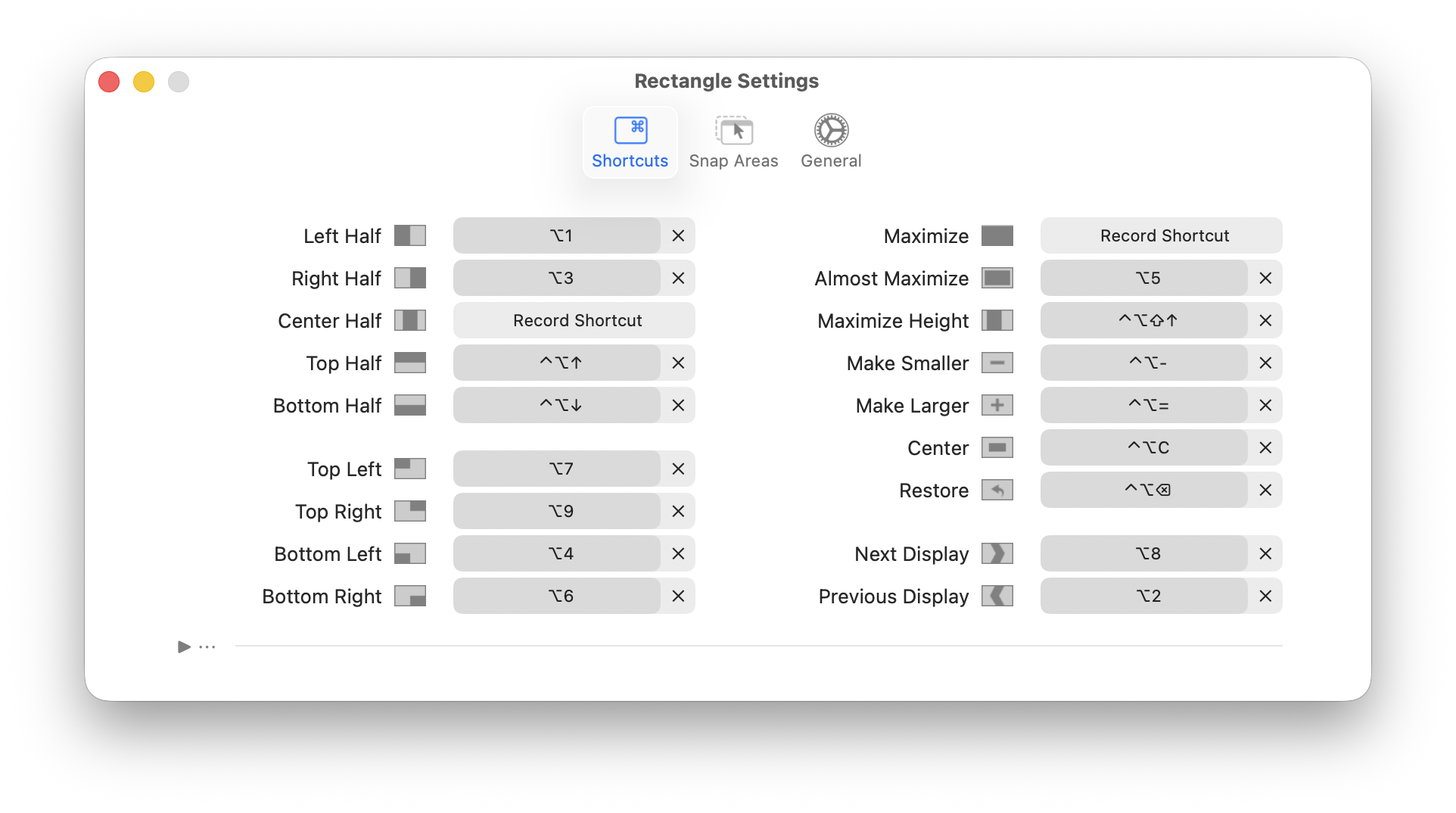
    Rectangle custom key bindings.

    Lastly, I’ve set Rectangle to launch on login. In this way, it will always be active each and every time I start my Mac.
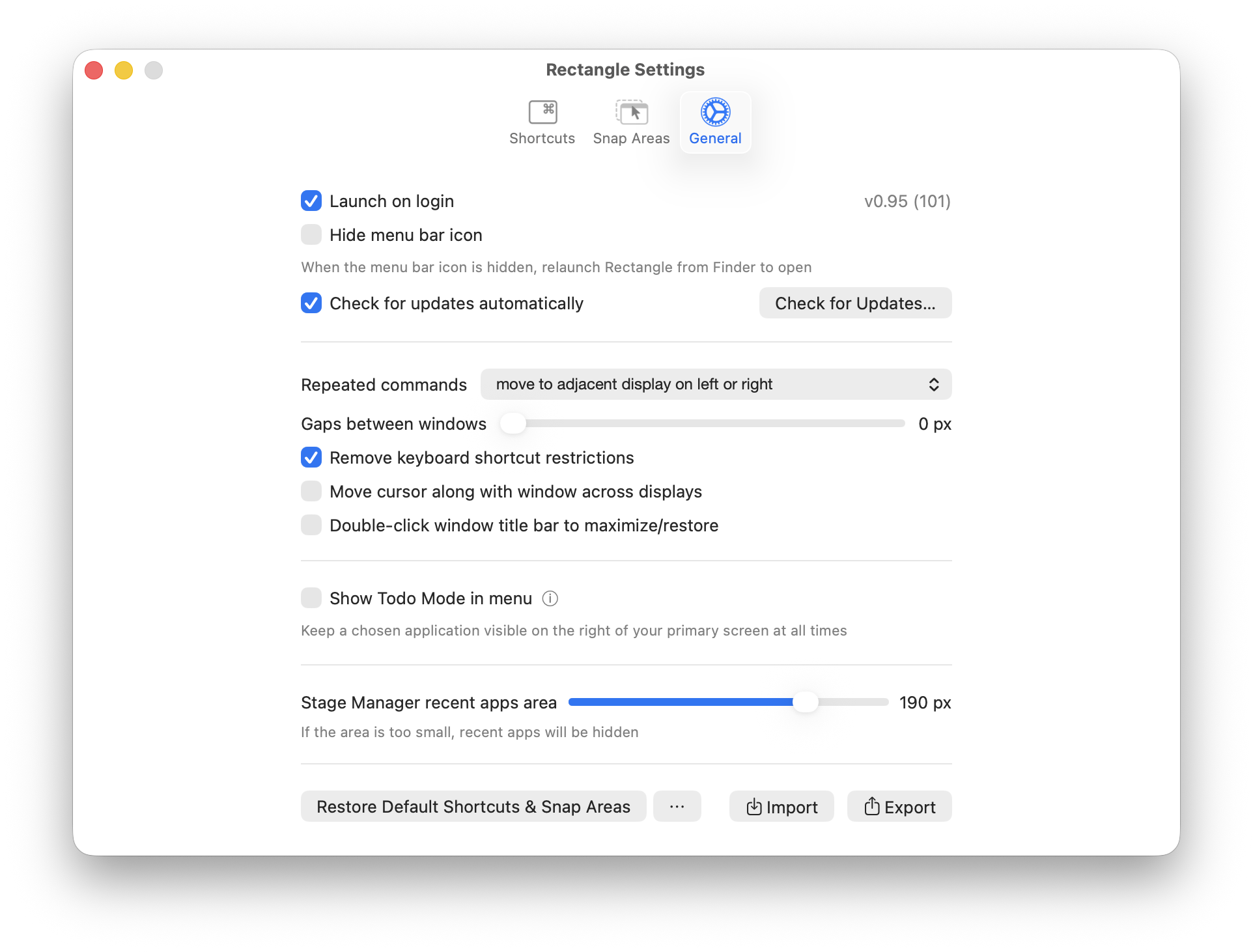
    Rectangle gen settings.

    In my testing, Rectangle is fast and efficient. A Pro version is also available, but for my needs, the free version is perfect

    -Krishna

  • Two Launchers, One Mac

    Two Launchers, One Mac

    Jason Snell’s recent post on reverting back to Launchbar led me to reflect a bit on my own use of Mac launchers. I use two, specifically.

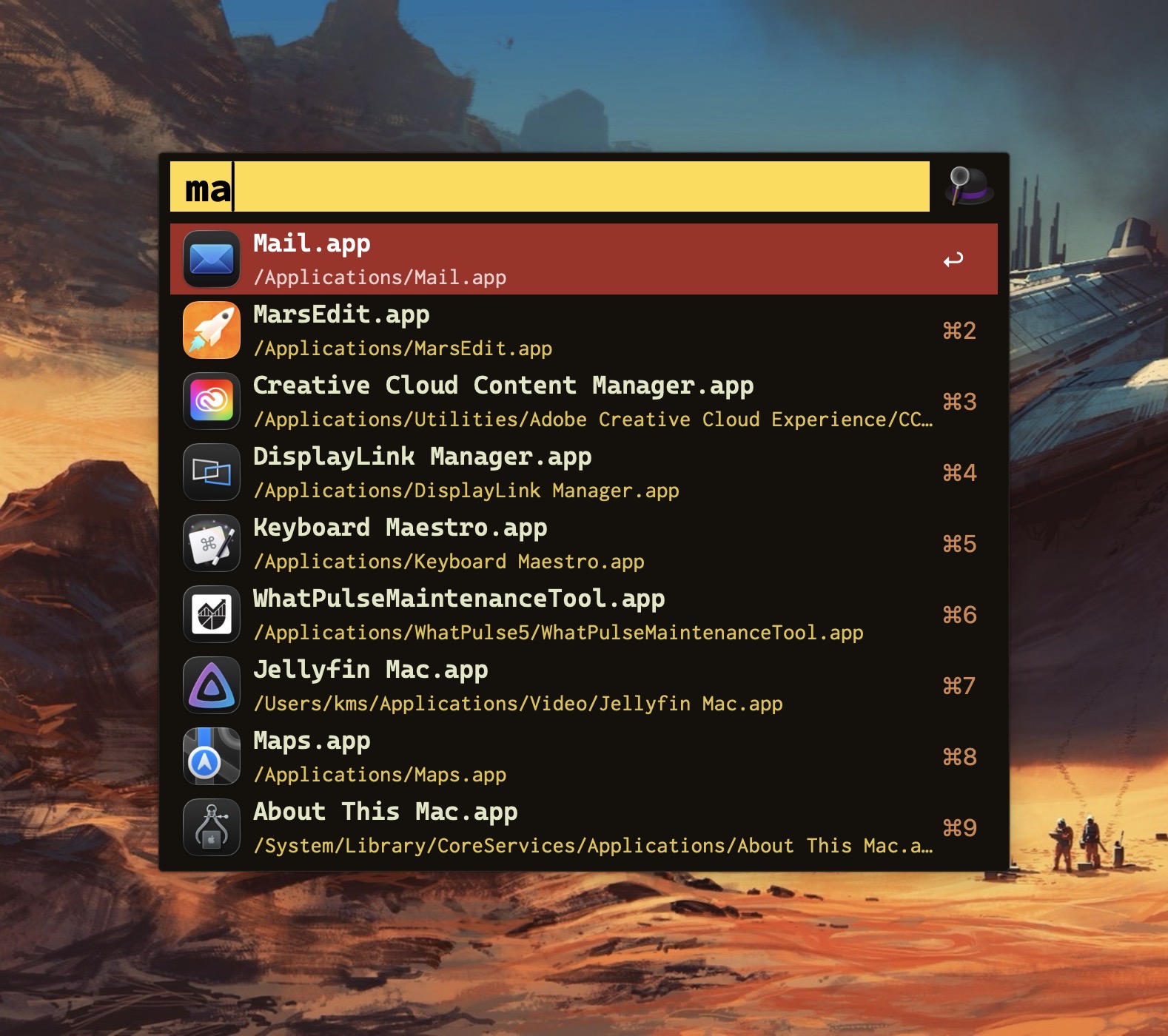
    Alfred app search.

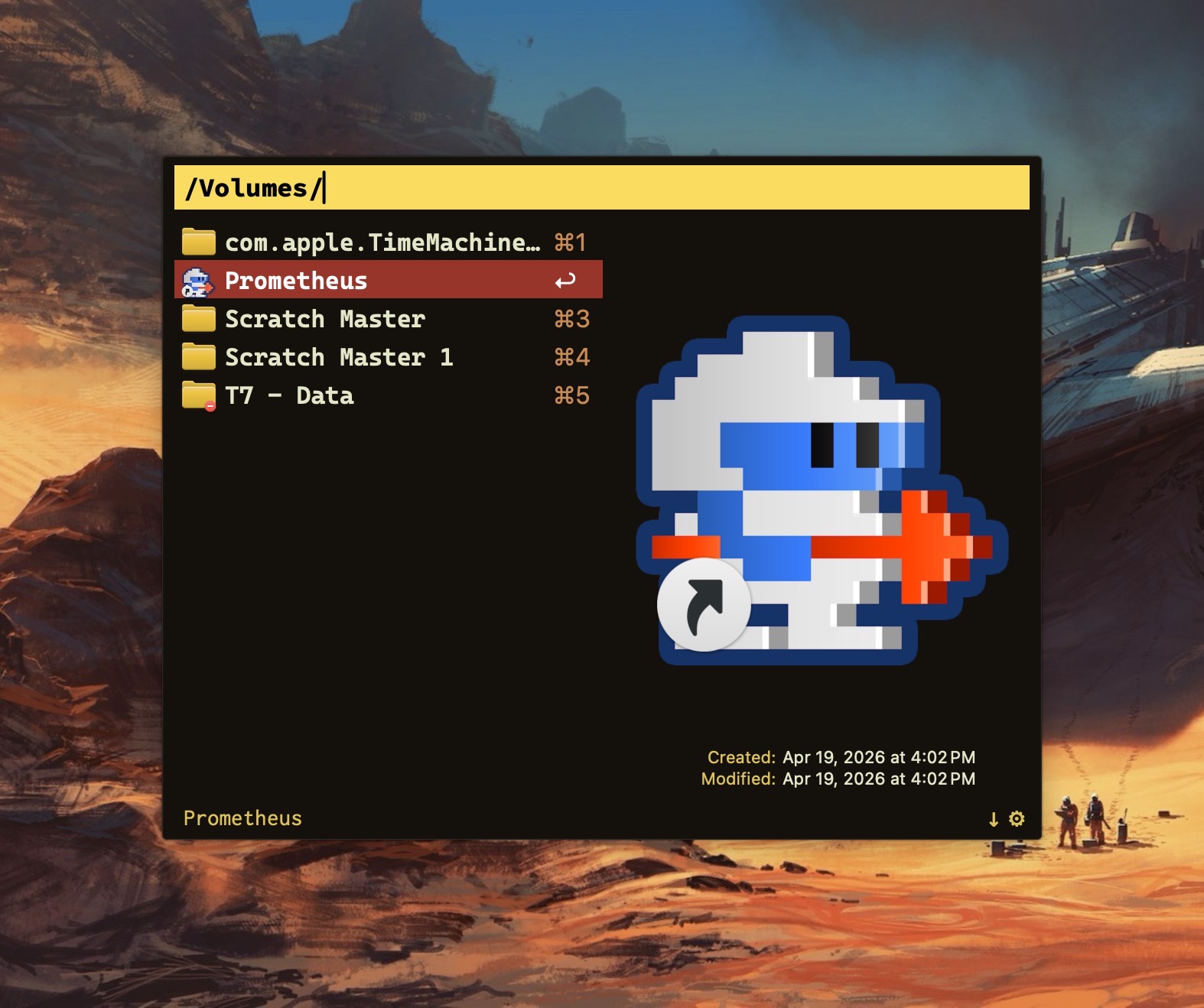
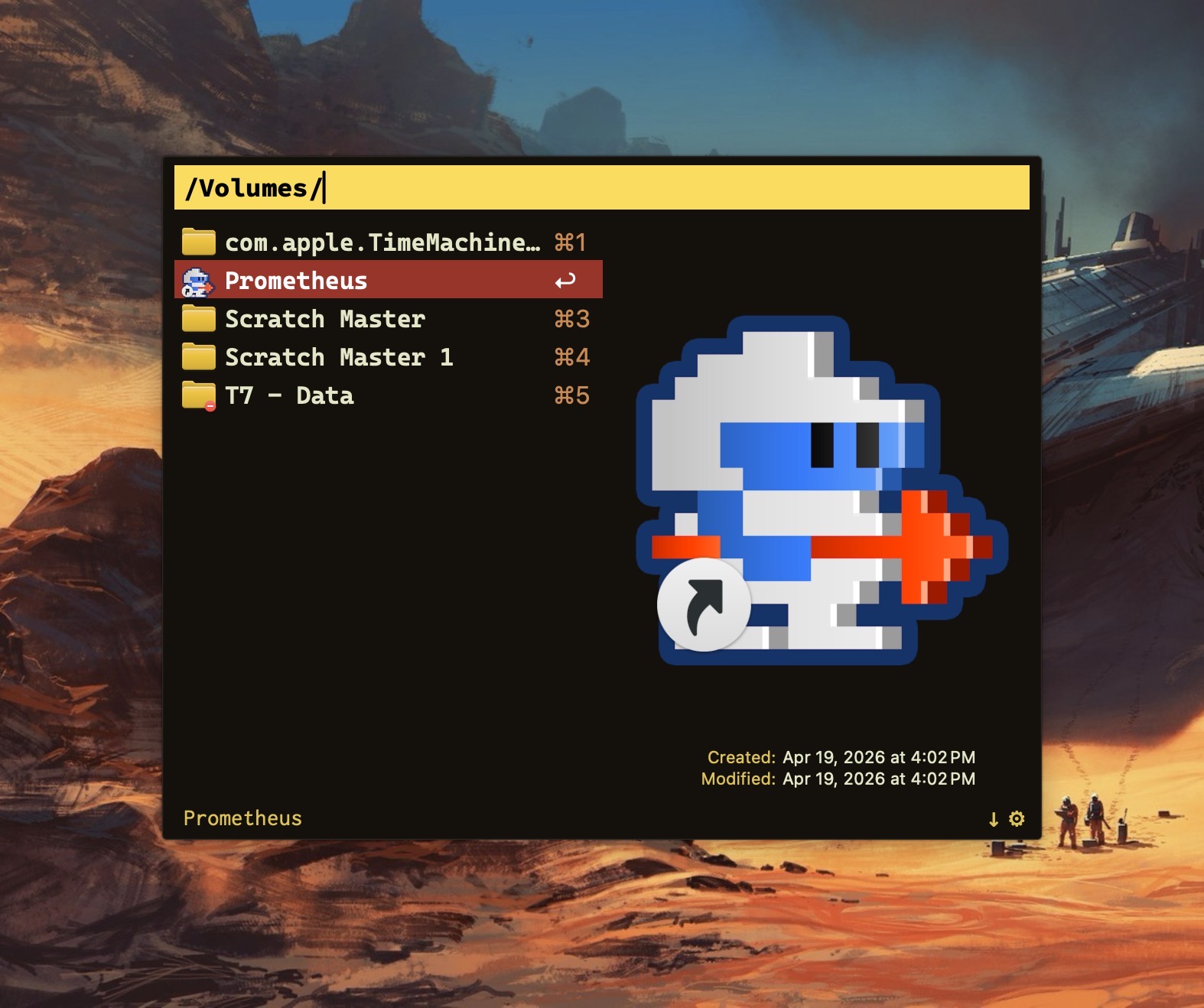
    Alfred file nav.

    My launcher of choice is Alfred, which I use for a variety of tasks: launching apps, file navigation, running terminal commands, searching the web, etc. As a power user, it’s efficient (and, dare I say, liberating) to perform these operations entirely from the keyboard.

    Alfred’s power comes in the form of its extensibility, thanks to the (optional) Alfred Powerpack. Think of the Powerpack as a turbo-charger that integrates seamlessly with Alfred’s main engine. I’ve used Alfred for almost a decade; I can’t imagine sitting at a Mac that doesn’t have it.

    So if Alfred’s the cat’s meow, why use Raycast?

    Simply put: window management.

    Raycast includes several useful window management configurations; each can be assigned a customized hotkey.

    Why not switch from Alfred to Raycast then? Raycast lacks the ability to traverse my Finder files in the same way that Alfred does. 

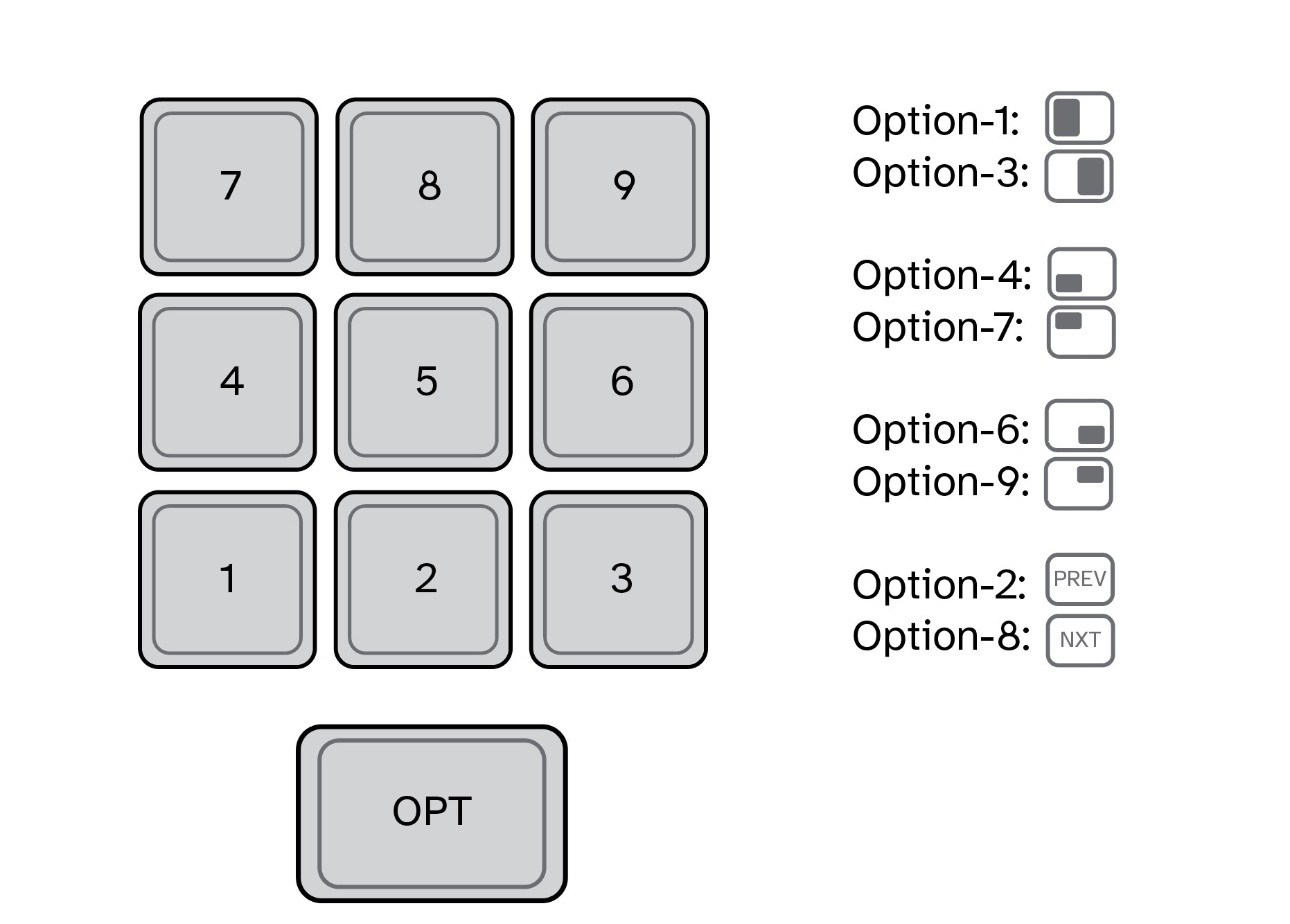
    For visualization purposes, I’ve mapped my custom window management hotkeys to a numeric keypad (see below). They also work fine when used with a standard keyboard.

    In my Raycast configuration, pressing Option-1 moves the active window to take up the left half of my Mac’s display. Option-3 moves the active window to the right half. I use these two hotkeys the most, so they are configured for easy reach. (I use keyboards with built-in numeric keypads.)

    In my view, hotkey assignments are only useful if they’re memorable. The quadrant hotkeys are easy to remember because they are spatially correlated. On a numeric keypad, 4 is in the lower left, 7 is on the upper left, 6 is on the lower right, and 9 is on the upper right.

    Numeric keypad for window management.

    I use multiple displays with my MacBook Pro, both at home and at work. To move an active window to the screen on my left, I press Option-2. Pressing this keystroke successively will cycle the window counterclockwise across each of my three displays. Likewise, pressing Option-8 will move an active window to the screen on my right. Option-5 (not shown above) puts the active window in the center.

    I’ve gotten so accustomed to using my keyboard to move windows around my Mac that manually selecting and sizing an active window with my mouse feels downright barbaric

    Alfred is free. The Alfred Powerpack is a paid upgrade (well worth it, in my opinion.) Raycast has free and pro versions, but the free version meets my needs. 

    If you find yourself needing more than what Spotlight gives, you have options.

    -Krishna