Category: Tech Musings

  • What I Want from macOS in WWDC 2026

    What I Want from macOS in WWDC 2026

    A few days ago on the Rocket Yard blog, I pontificated on features and fixes I’d like Apple to include in macOS 27. My hopes are not high, particularly due to the rumors swirling around Apple’s intent to deeply embrace AI integration within their numerous operating systems. Nevertheless, my wish list may resonate with other Mac users. 

    At this moment in time, macOS 26.5 seems fine, in terms of its overall stability in my day-to-day use. I’ve tested it on both the Mac mini M4 and the M1 Pro MacBook Pro. If you’ve been avoiding Tahoe, now may be the time to give it a spin.

    With the M5 Pro MacBook Pro, I’m hoping to establish a clear Tahoe baseline. Some of the smaller annoyances I’m experiencing with macOS Tahoe on my M1 Pro model may stem from years of accumulated cruft.

    -Krishna

  • How Custom Stickers Help Me Keep Tabs on My Tech

    How Custom Stickers Help Me Keep Tabs on My Tech

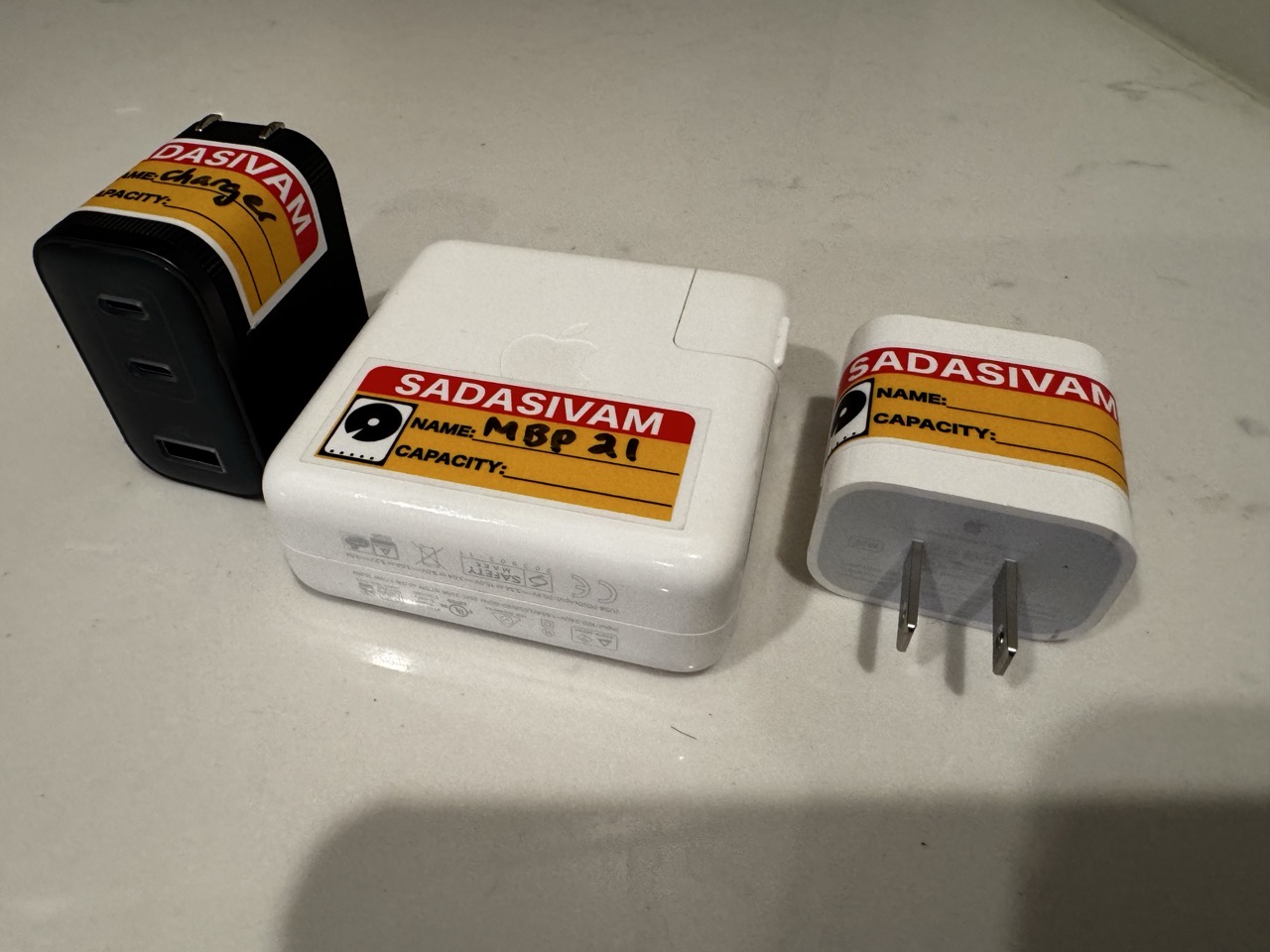
    Chargers labeled.

    How do you identify and label your tech accessories?

    For me, it’s through the use of custom designed sticker labels. I created my stickers in Photoshop and used a print-to-order company to print a spool of them. I use my custom sticker labels on just about every tech gadget I carry: smartphone cases, external storage devices (hard drives, SSDs, etc.) and portable accessories, such as USB chargers. 

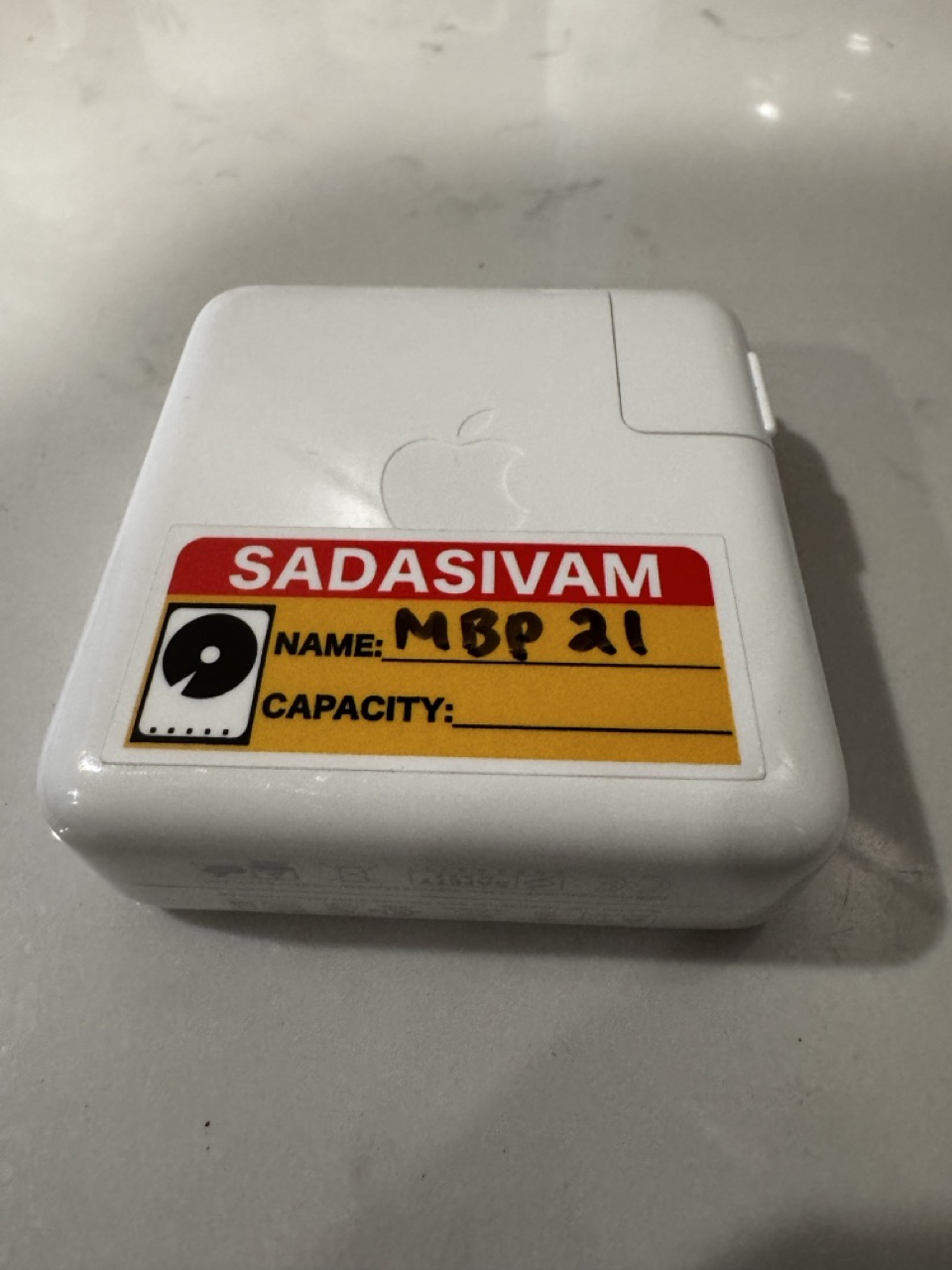
    My sticker labels were designed intentionally. Each label measures approximately 2” wide by 3/4” tall. The labels are orange and red and include my last name, with blank lines reserved for Name and Capacity. For convenience, the stickers can be written on with a Sharpie marker. This makes it easy to annotate information, like a storage device’s volume name and storage capacity. 

    Since I travel back and forth between work and home, having labels on my devices allows me to quickly identify them. The stickers were designed to stand out visually, making it less likely that I’ll forget my devices when I pack up and go.

    I also use my sticker labels for any gadget that comes with a large power brick. I never have to guess which power brick goes with which device.

    -Krishna

  • Apple Doesn’t Want You to Uninstall Software

    Apple Doesn’t Want You to Uninstall Software

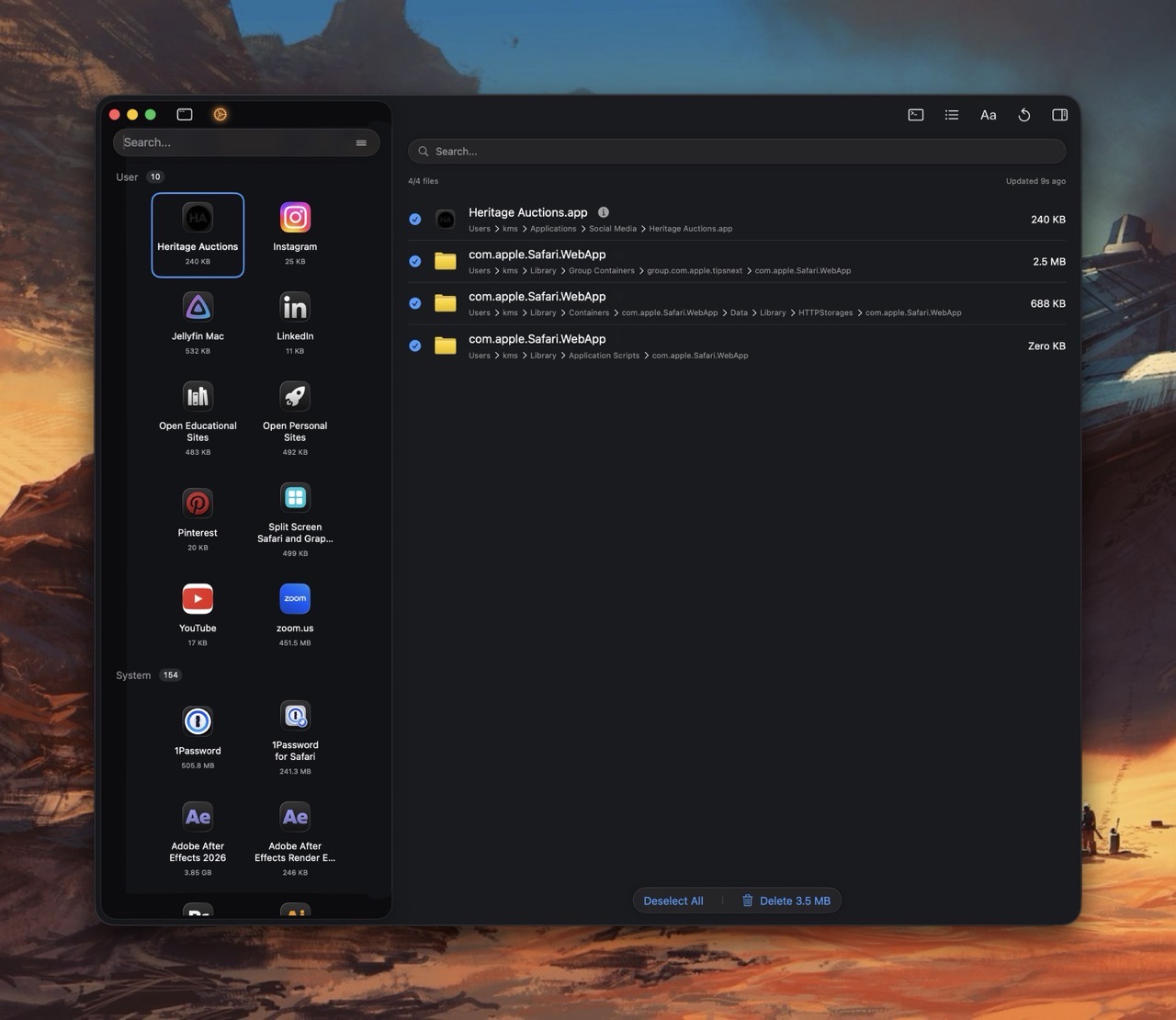
    If you use a Mac for any period of time, you will slowly accumulate a raft of applications. But what happens when you want to remove an app you no longer need or use? In this scenario, users are often left to discover third party uninstallers, such as Pearcleaner, CleanMyMac or AppCleaner. Reviews across the Internet have been mixed, with regard to their effectiveness at removing all traces of a given app. (Personally speaking: I’ve used all three, and haven’t had any issues.)

    But it brings me to my main point: Why doesn’t Apple include its own uninstaller app?

    In the year of 2026, the exercise of removing apps is left to the user. And it’s not as simple as dragging an application into the Trash.

    How very un-Apple like.

    -Krishna

  • Floppy Disks on a Modern Mac… with a Twist

    Floppy Disks on a Modern Mac… with a Twist

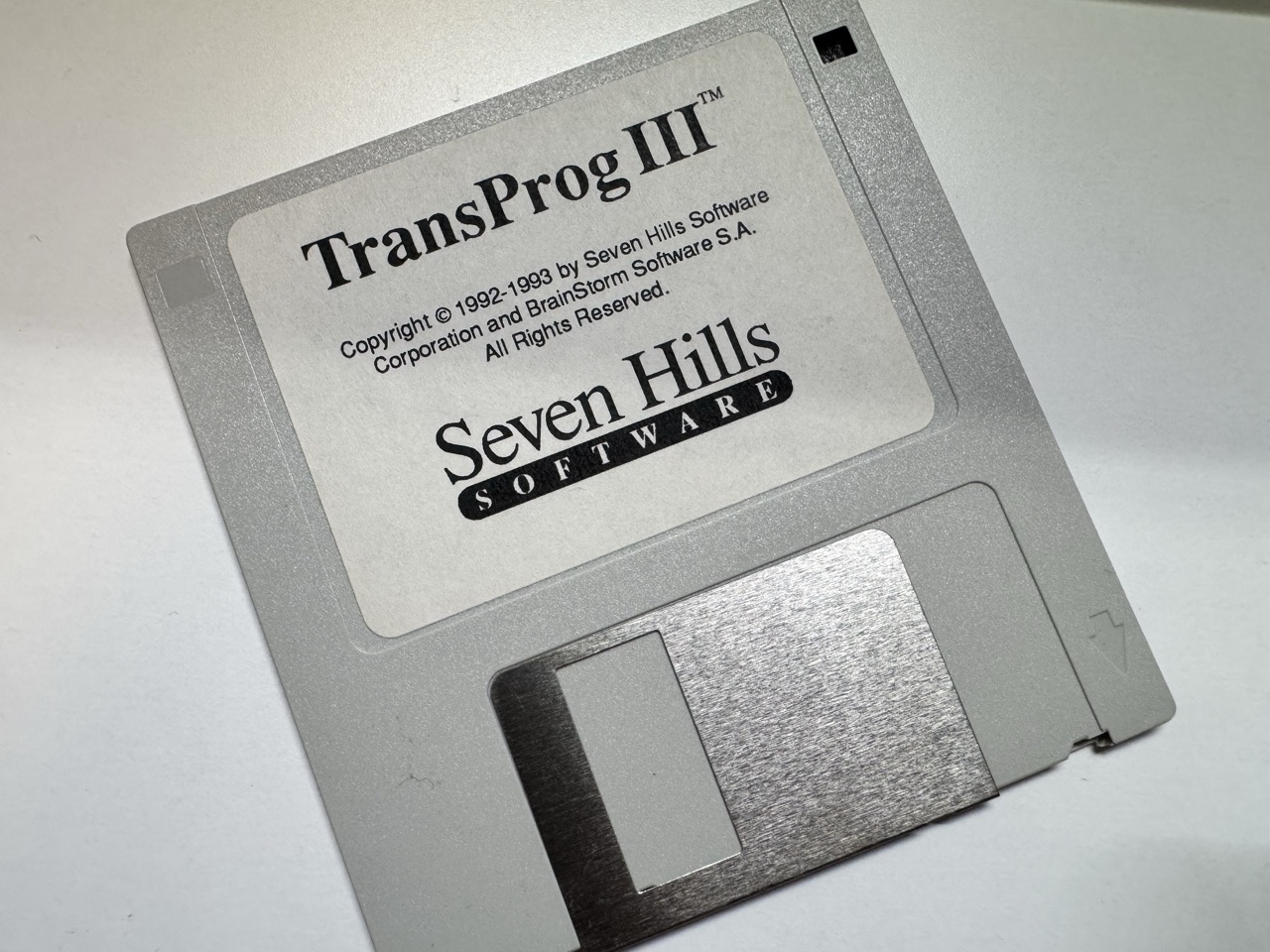
    Remember when software could fit entirely on one floppy disk?

    If you used a computer in the late 80’s, this was the norm. Hard drives were a luxury for many of us, so the almighty floppy disk was our only means to load programs and games. For context: my first computer, an Apple IIGS, came with one external 3.5″ 800K drive and one external 5.25″ (140K) drive. For computers of that era, it was commonplace to insert a disk, power on the computer, and wait anywhere from 30 seconds to a minute for an application to load. (We were more patient back then.)

    I seriously doubt that anyone still yearns for the days of using floppy disks. But being forced to use floppies had a profound impact on developers from that era. They had to squeeze a lot of capabilities within a seemingly paltry amount of storage.

    With gigabytes and terabytes of data being the norm nowadays, developers have no incentive to create fully optimized applications. As a result, modern software is mostly bloatware, getting larger and larger in size with each new release. (I’m looking at you Adobe, Microsoft, and Apple.)

    The mindset of shipping something small, fast, native, and single-purpose is largely lost upon most modern developers. But one guy is doing something about it. Matt Sephton created a clever macOS screensaver called Fits on a Floppy, which thoroughly embraces the mindset of late 80’s development: speed and efficiency, in an almost meta way.

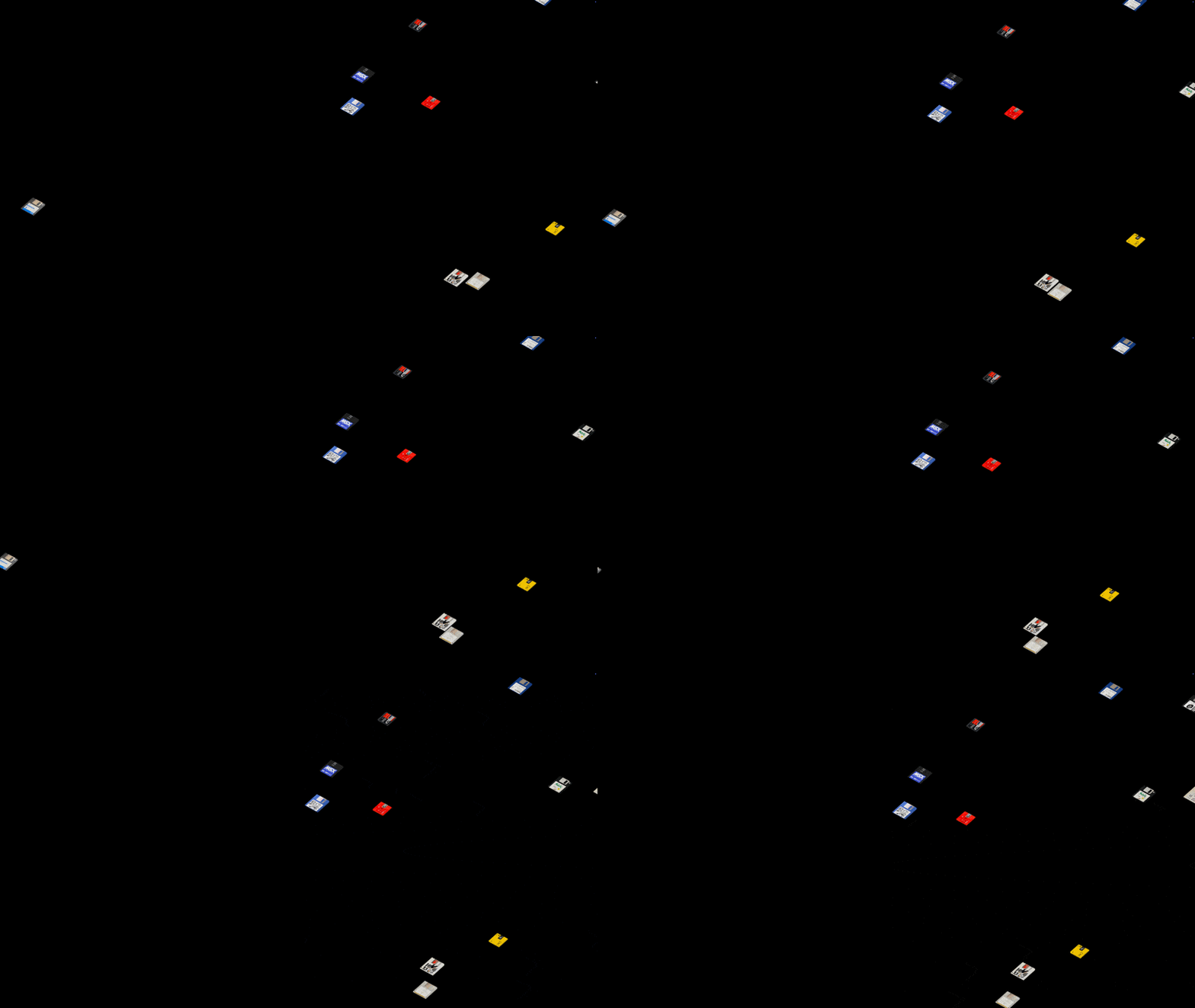
    Fits on a Floppy.

    Fits on a Floppy is like After Dark’s Flying Toasters screensaver, if the toasters were replaced with a variety of 3.5″, 5.25″ and floppy disks. And if you’re feeling fancy, you can also toss in a few miniDiscs into the mix.

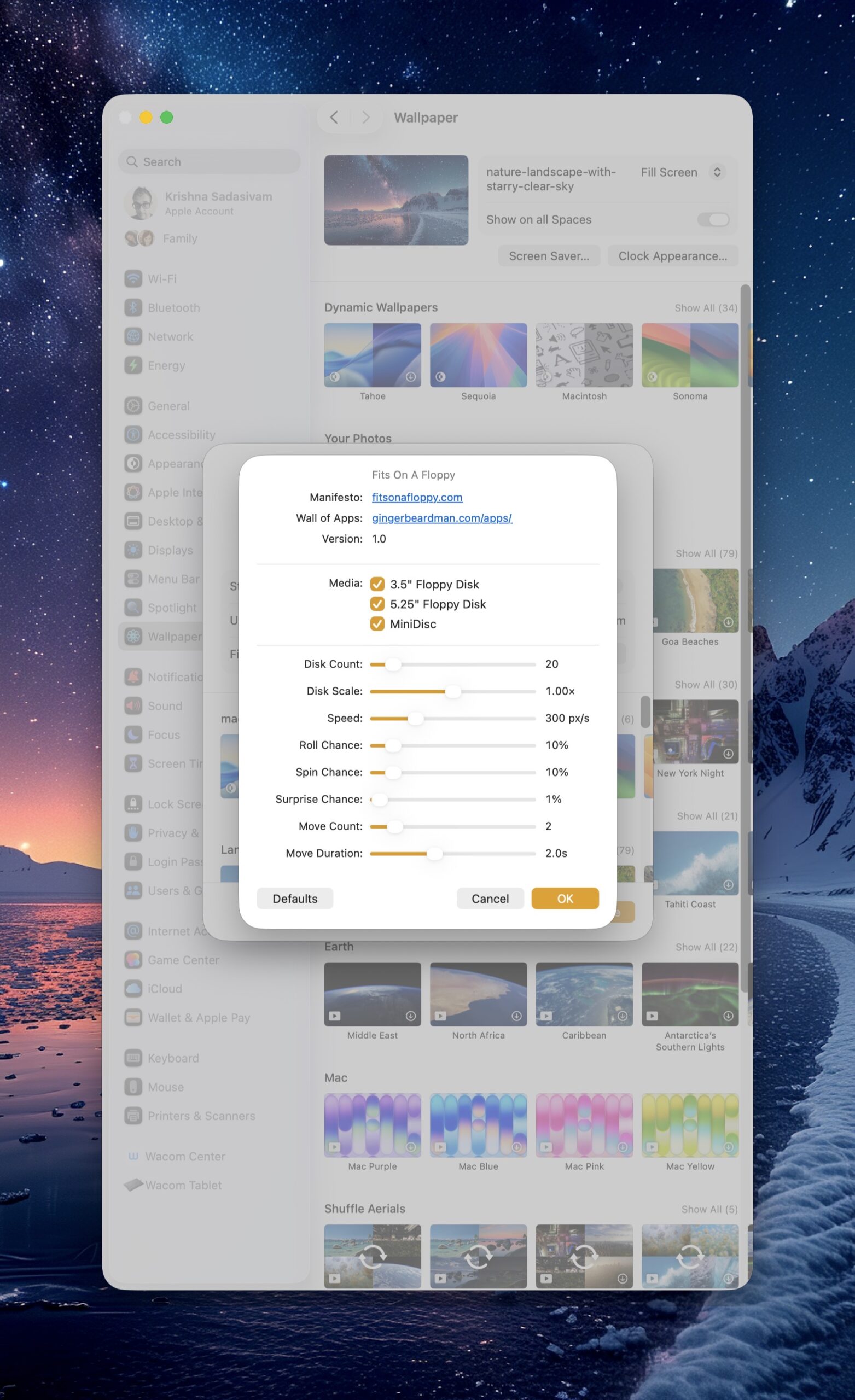
    What I really appreciate about this screensaver is the attention to detail. Each and every disk that floats by is adorned with its own custom disk label. Watching the screensaver for a few minutes filled me with a wave of nostalgia. Fits on a Floppy isn’t bare-bones, it comes with several customization options – such as Disk Count, Disk Scale, Speed and more.

    Fits on a floppy options.

    Fits on a Floppy, true to its namesake, fits inside a 1.44MB disk. (I wouldn’t expect anything less.) It’s also free, so what are you waiting for? And while you’re at it, check out the rest of Matt’s apps.

    -Krishna

  • The Modern Web as Super Villains

    The Modern Web as Super Villains

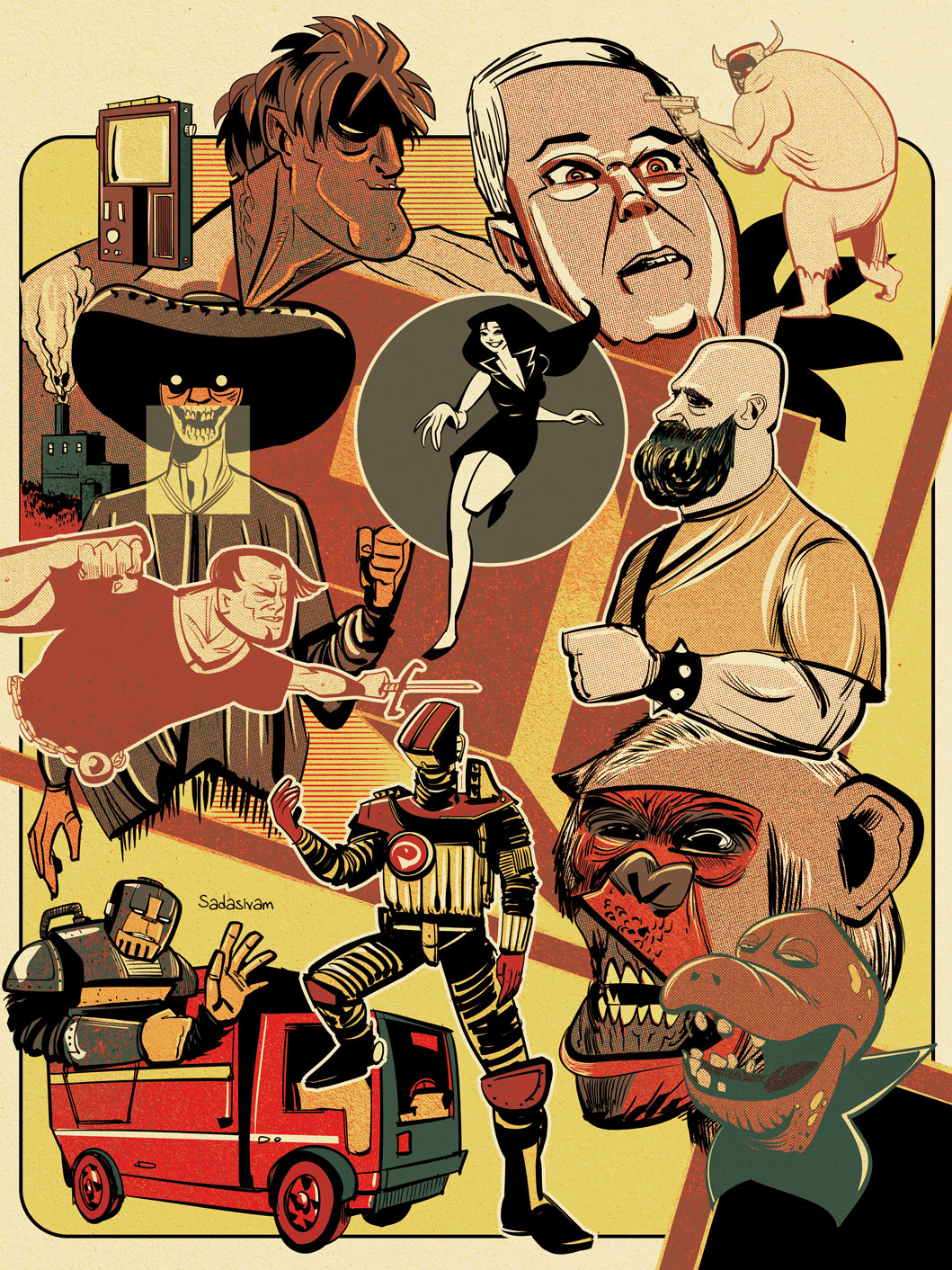
    Creative Director Tyler Sticka brilliantly reimagines the modern web experience as a Rogues’ Gallery of evil doers. These antagonists make the Joker or Doc Ock seem tepid by comparison.

    When did the web get so… bad? And, more importantly, why are we still putting up with it?

    -Krishna

  • Long-term Notes on MacBook Pro Battery Usage

    Long-term Notes on MacBook Pro Battery Usage

    From time to time, I lurk on the r/macbookpro reddit group. Chief among the main worries of new MacBook Pro owners are battery life and battery cycles. These folks seem extraordinarily concerned about the battery cycle count, to the point of anxiety. 

    To them, I would say:

    Batteries are a consumable item – they will degrade over time. Don’t worry about battery cycles or charging. Just relax and use your MacBook Pro as you normally would.

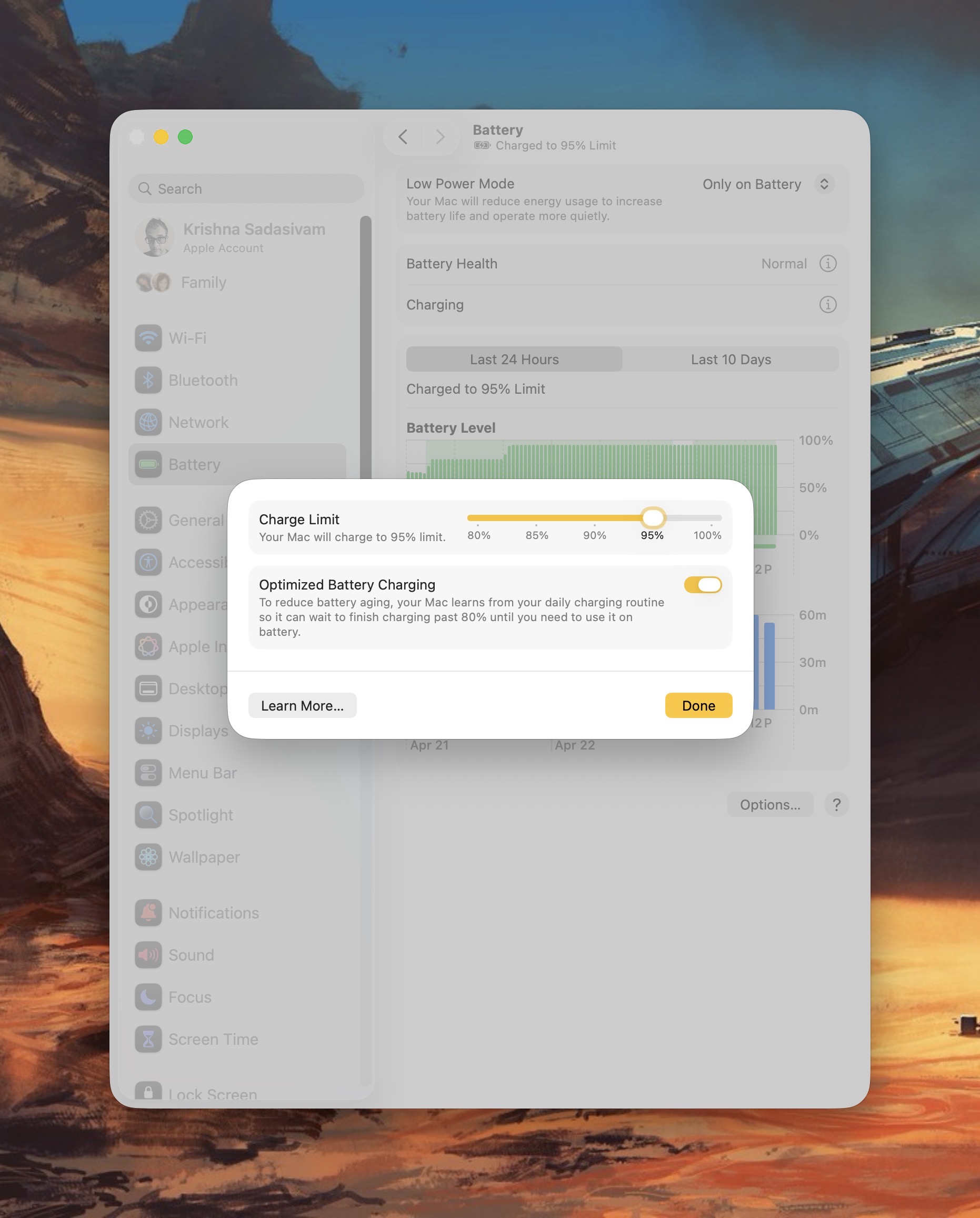
    If you want to optimize your battery’s health, macOS Tahoe provides a new option to set your battery’s charge limit. I have mine set to charge up to 95% of the full charge limit. But, truthfully, I never even remotely cared about charge limit before. 

    MBP battery charging limit.

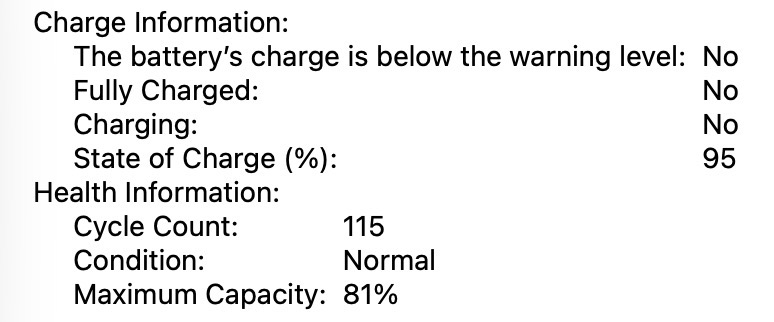
    After five years of extensive use, my M1 Pro MacBook Pro has 81% charging capacity. The battery’s cycle count is 115, and its condition is reported as normal.

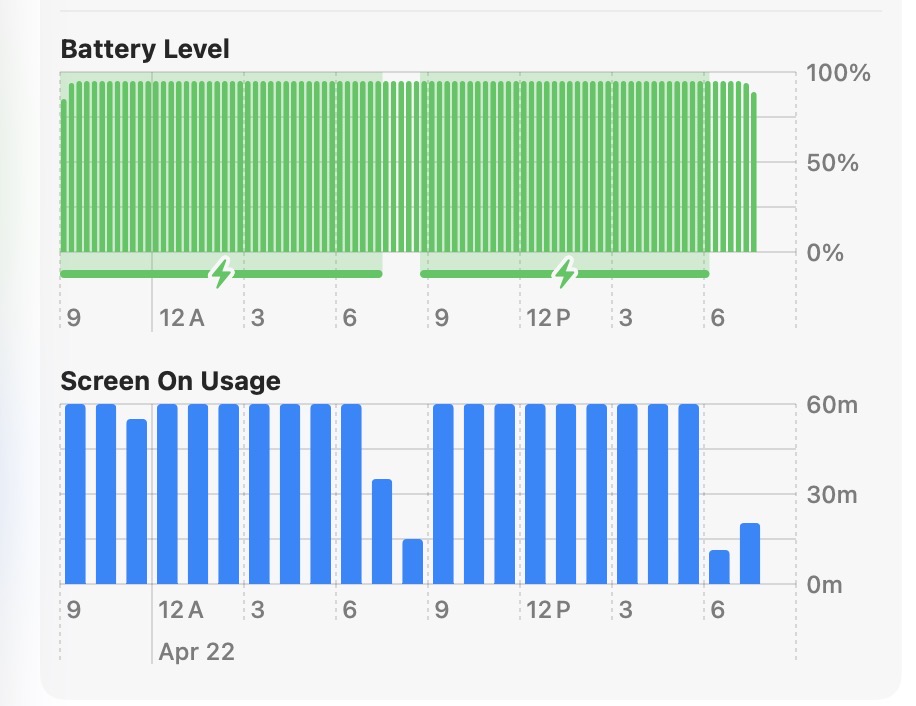
    While my MacBook Pro remains plugged in 80% of the time, I’m not afraid to run the MBP on battery juice when I’m out and about. It’s not uncommon for me to run my Mac’s battery completely down to the point where I have to plug it in. When it happens, I don’t worry about it. (The battery still lasts about 4 to 5 hours on one charge. Pretty impressive for a five year old laptop, all things considered.)

    Battery cycles M1 Pro MacbookPro.

    Bottom line: Don’t worry about your Mac’s battery cycle count. Just use it like you normally would. 

    It’s fine.

    -Krishna

  • The Modern Automobile Dashboard is a Mess

    The Modern Automobile Dashboard is a Mess

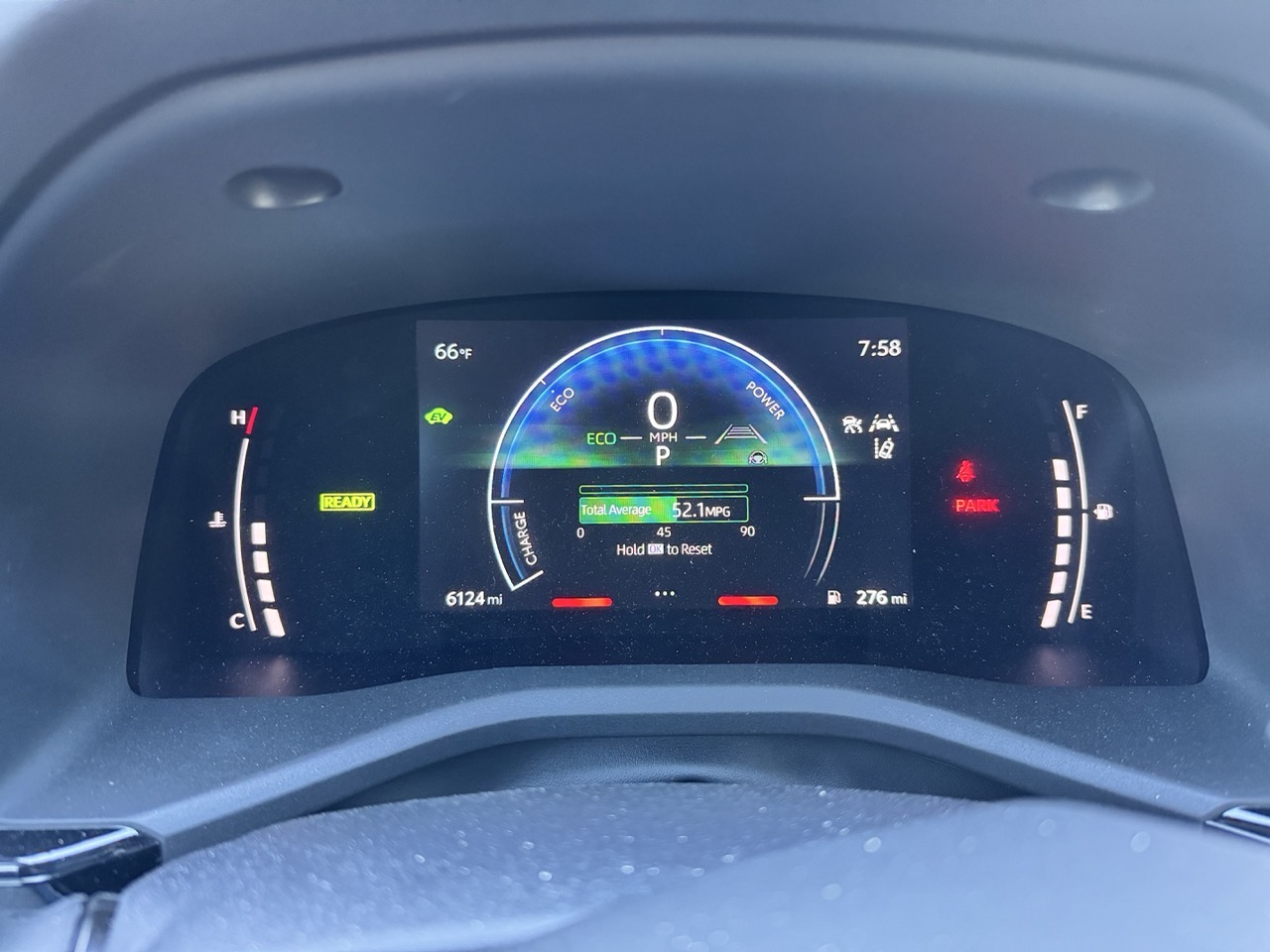
    Look carefully at the image above. It’s from the dashboard of a 2025 Toyota Camry. Littered across the cluster are a cacophony of icons, measurement gauges and more. It’s a mess. Sure, the speedometer, engine temperature and gas guage are useful – but even within a few of those elements, there’s a lot going on. 

    As I drove last week, my car’s dash made a sound. An audible “ding”, quite similar to a smartphone chat notification. I’ve heard this ding appear before, at seemingly random times while on my commute. I have no idea what this “ding” signifies. Not one clue.

    Maybe the “ding” coincided with a visual cue on my dash? I’ll never know. Because the dash cluster has little in the way of hierarchy. Because I’m too focused on driving to glance down to decipher what’s seeking my attention. Or maybe it’s just bad UI/UX.

    And don’t even get me started on the Camry’s propensity to randomly drop its Bluetooth connection to my smartphone. 

    Modern car instrumentation is a minefield of distraction. Give me old fashioned analog buttons, gauges and knobs any day. 

    How did we get here? Why is modern car UI so darn awful?

    -Krishna 

  • On Brevity

    On Brevity


    Jeffrey Zeldman writes:

    What’s rare—what’s difficult—is knowing when you’ve said enough. Cutting the sentence that’s technically correct but doesn’t earn its place. Trusting the reader. Trusting the idea. Trusting the white space to do work.


    Knowing what to leave out is just as important as what you keep in. Zeldman focuses on brevity within the realm of writing, but the idea is particularly potent to any creative undertaking. 

    Read the rest of his excellent post.


    -Krishna

  • Mac Backups, Backups, Backups

    Mac Backups, Backups, Backups

    “There are two kinds of tech users in the world: Those who have lost data, and those who are about to lose data.”

    I’m paraphrasing a popular idiom here, but I find it to be true nonetheless. If you work with computers, you need a back-up strategy. Computers can be replaced, but the data it stores is one of a kind, whether its personal photos, important documents, creative media etc.

    My back-up system is multi-faceted. It involves having both local back-ups and off-site back-ups. Local back-ups make sense: having more than one copy of data on an attached storage device provides peace of mind. But off-site back-ups are equally important. Should the unthinkable happen, and I lose my home due to a fire or natural disaster, I don’t want my data to go with it.

    Hardware

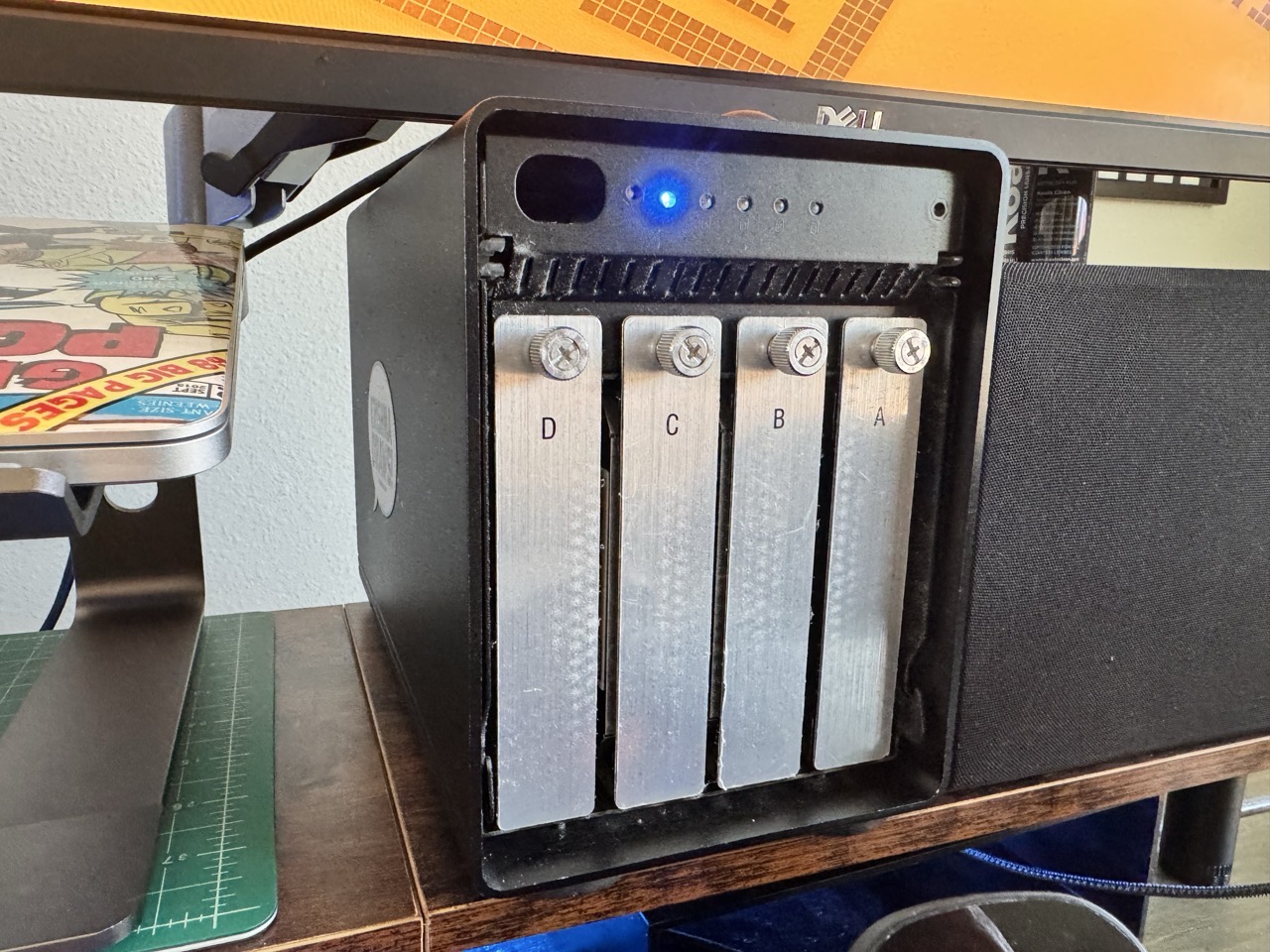
    For context: I have two Macs, a laptop and an M4 Mac mini with 512GB storage. The MacBook Pro is connected to an OWC ThunderBay 4 enclosure, which is populated with four drives.

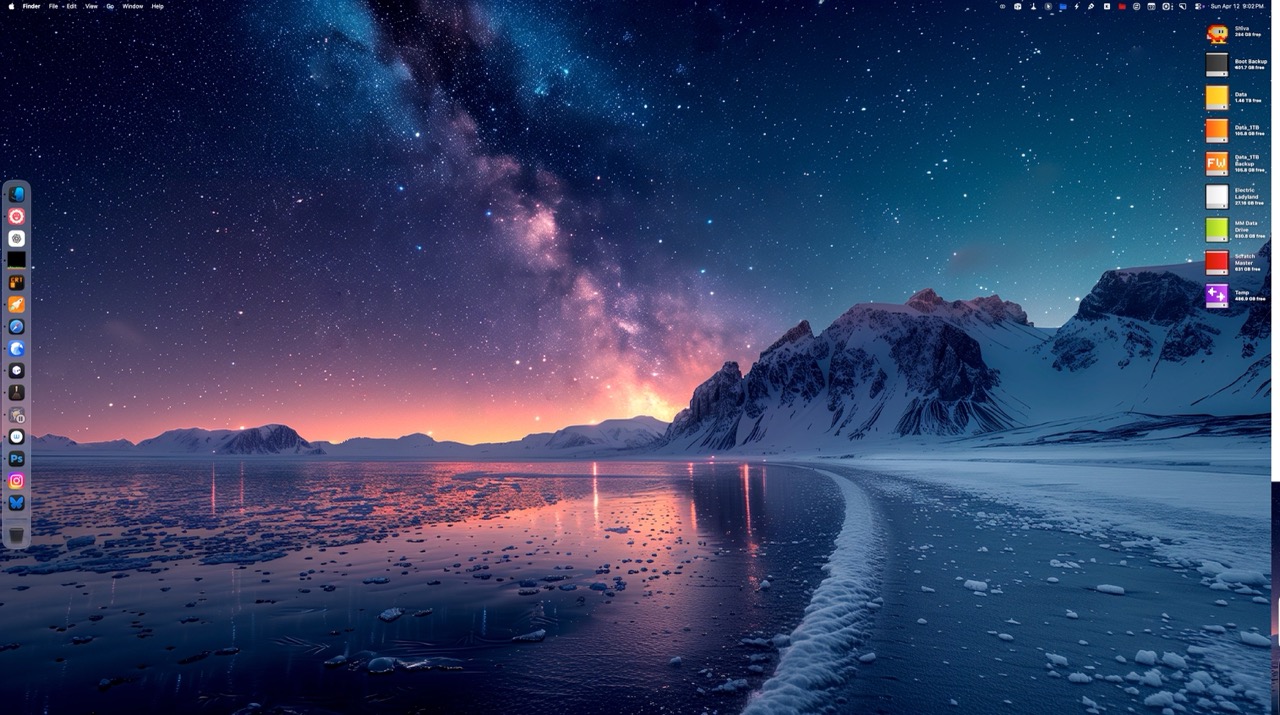
    I’ll use my Mac mini’s boot drive as an example here, but I apply the same strategy for any attached storage I connect to it. I have a separate 512GB external NVME drive attached to it, which serves as a clone of the internal storage. For every storage device I actively write data to (SOURCE), I have a separate storage device serving as its back-up (CLONE).

    The ThunderBay 4 enclosure contains two SOURCE drives, with two corresponding CLONE drives.

    My advice when buying new storage is to buy in twos. (Buy once, cry once.)

    Software
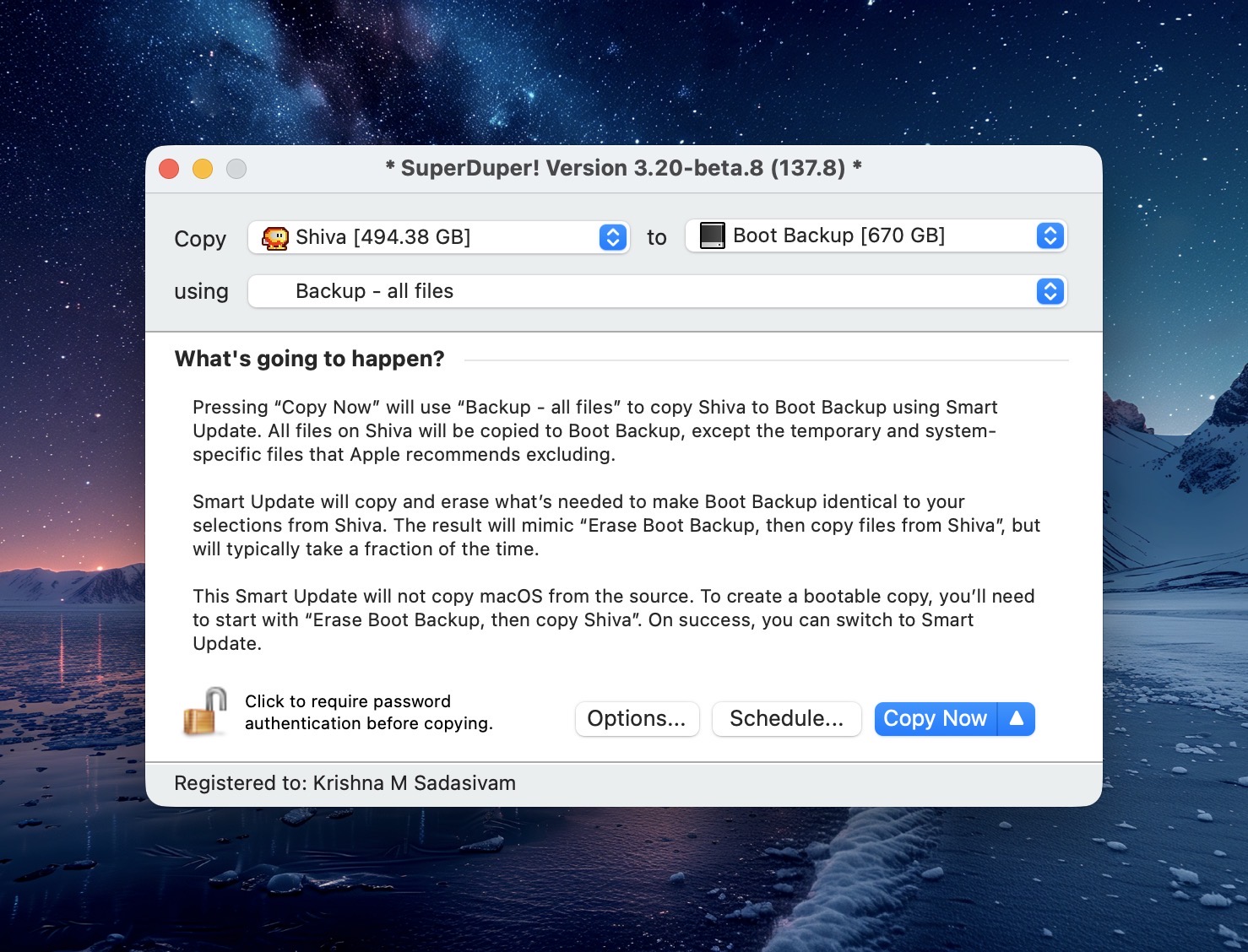
    SuperDuper main window

    For cloned back-ups, I use SuperDuper. It has been my go-to for reliable back-ups for more than a decade. SuperDuper lets me set a specific back-up schedule for each SOURCE drive on my system. At the scheduled time, SuperDuper will launch and make back-ups to the CLONE without my intervention. (From time to time, I will check the integrity of the back-up to make sure that my data is intact. No issues thus far.)

    macOS includes Time Machine, a software back-up solution. I have assigned a separate drive for Time Machine, set to back-up specific files and folders on my MacBook Pro’s internal drive. Time Machine takes snap-shots of these files / folders, allowing me to “go back in time” to revert a file back to an earlier state. I don’t use this often, but it does come handy in the times I need it.
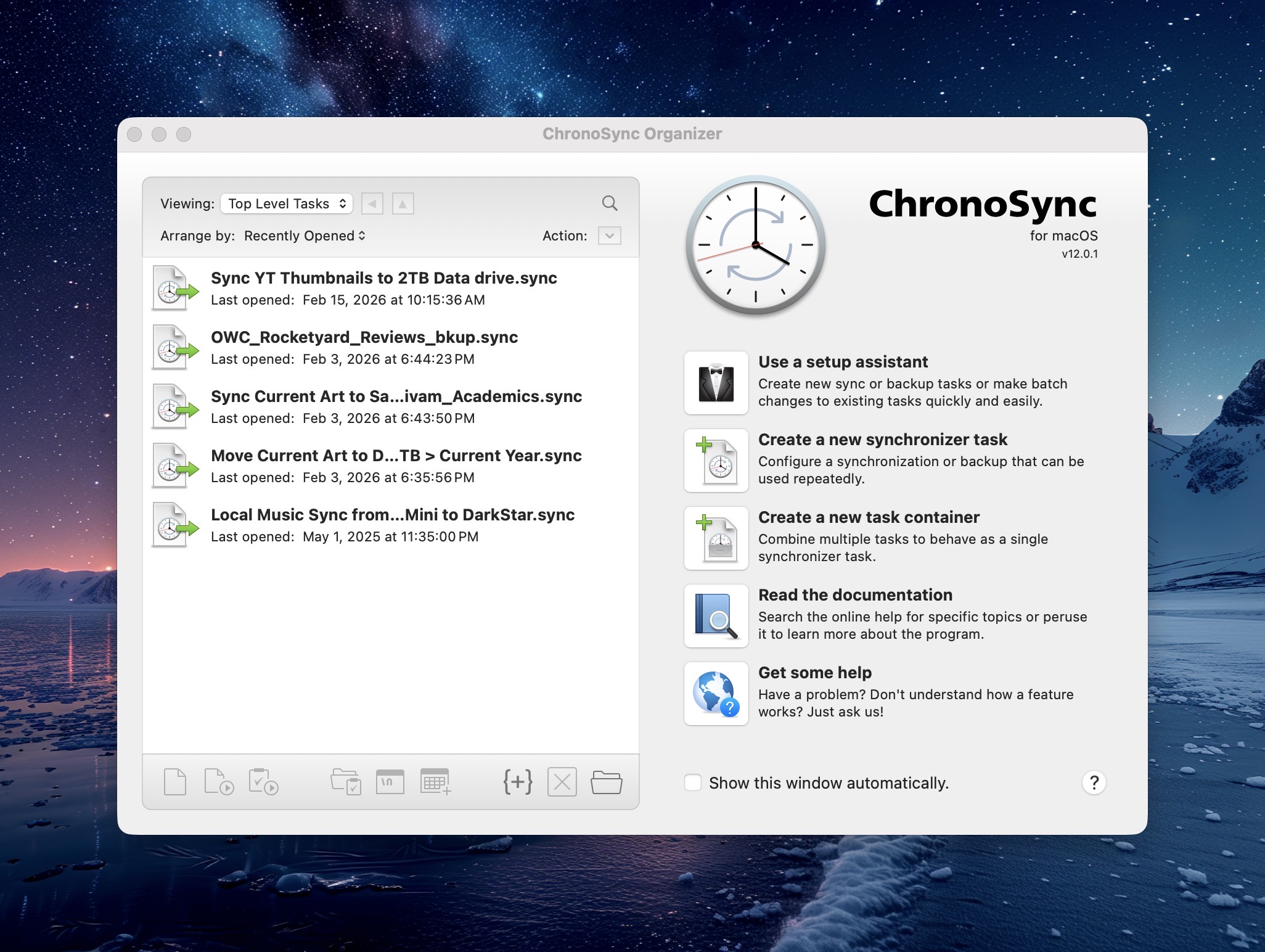
    Chronosync's main window

    In addition to cloned back-ups, I also sync specific folders between my two Macs. This allows me to work on the latest files on either of my Macs. Syncing insures that the same files exist in two places, and for that task I use ChronoSync. Like my cloned back-ups, ChronoSync offers scheduled syncs.

    The Cloud

    For off-site back-ups, I use BackBlaze. There’s a monthly cost ($7US) associated with this, but BackBlaze offers unlimited data back-ups. Should I lose all of my local data, BackBlaze will overnight a drive with all of my data. I hope I never have to take advantage of this, but again – it’s really for my peace of mind.

    Final Thoughts

    Back-ups are important. New computers can be purchased, but your data can’t. Choose wisely.

    -Krishna

  • My Favorite Sites for 4K and Higher Desktop Wallpaper Backgrounds

    My Favorite Sites for 4K and Higher Desktop Wallpaper Backgrounds

    Desktop wallpapers are a terrific way to customize your computer. But great wallpaper sites are like hidden gems. You’ve really gotta look around to find the best ones.

    Good news for you!

    I’ve scoured the web (high and low) to find the absolute best places to find high quality 4K wallpaper, and lived to tell the tale. My recommendations are listed below.

    1. Pexels.com features high quality royalty free images, cleanly categorized, with a leaderboard to quickly find the most viewed creators on the site.

    2. Wallhaven.cc is perfect if your tastes skew towards pop culture. Truthfully, there’s something for everyone here, whether it’s landscapes or manga. What makes this site particularly notable (outside of the sheer volume of wallpapers) is its robust filtering system. Search by subject, resolution, and even color scheme to find your favorites.

    3. unsplash.com is a great place to find drawing reference, but it also serves double duty by serving up top notch 4K wallpapers. Wallpapers are curated by the Unsplash staff, so there’s bound to be something you like.

    4. Freepik.com is another terrific wallpaper resource. The site’s clean layout makes it easy to browse through its offerings. Beware that the site also includes AI generated art. Thankfully, there’s a toggle to exclude AI from your search results.

    5. BasicAppleGuy is an Apple themed blog, with articles, reviews, custom stickers and more. You don’t have to be an Apple aficionado to like what’s here. But if Apple’s your jam, you’ll find many excellent iPhone, iPad, and Mac desktop wallpapers to choose from, created by the site’s owner. Kick in a few bucks into the site’s Tip Jar to let him know you dig what he’s putting down.

    Chances are pretty solid that you’ll likely find your next wallpaper from one of the sites listed above. And, since you asked: My favorite wallpapers are those that feature colorful abstract designs or beautiful landscapes.

    Another reason these sites made the list is for they don’t have: No pop-up ads, no re-directs or any of that other nonsense. Who’s got time for that?

    -Krishna