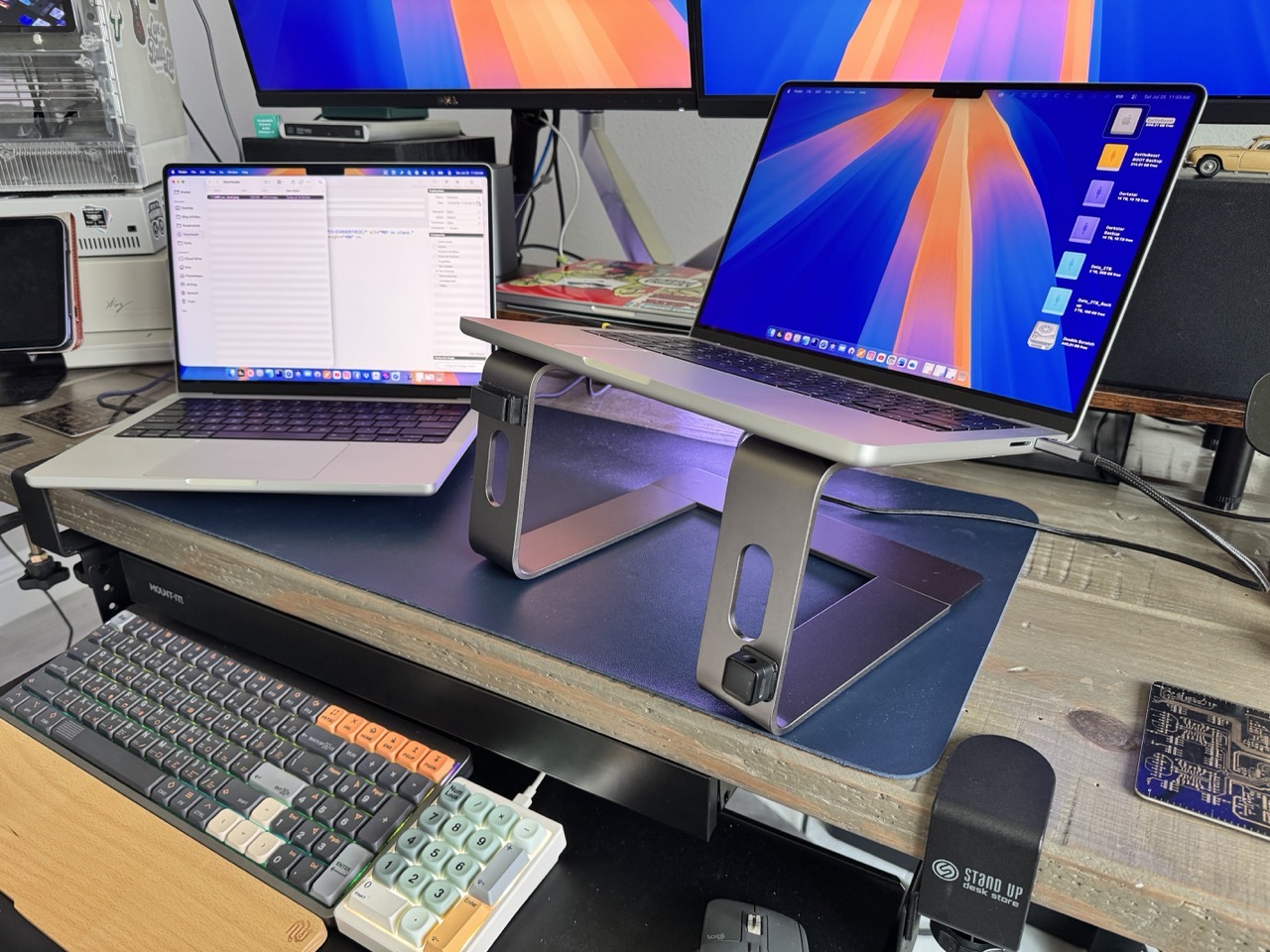
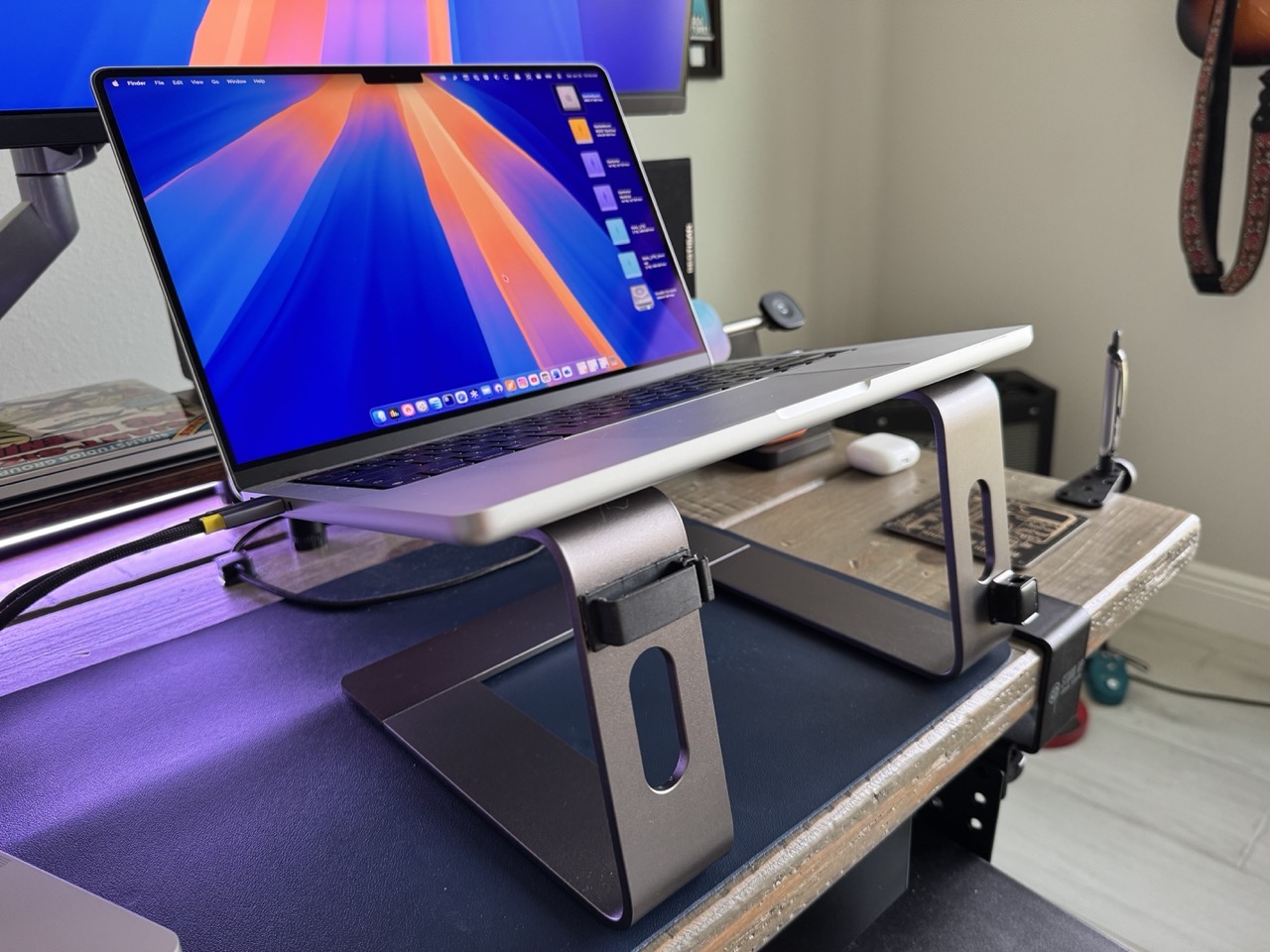
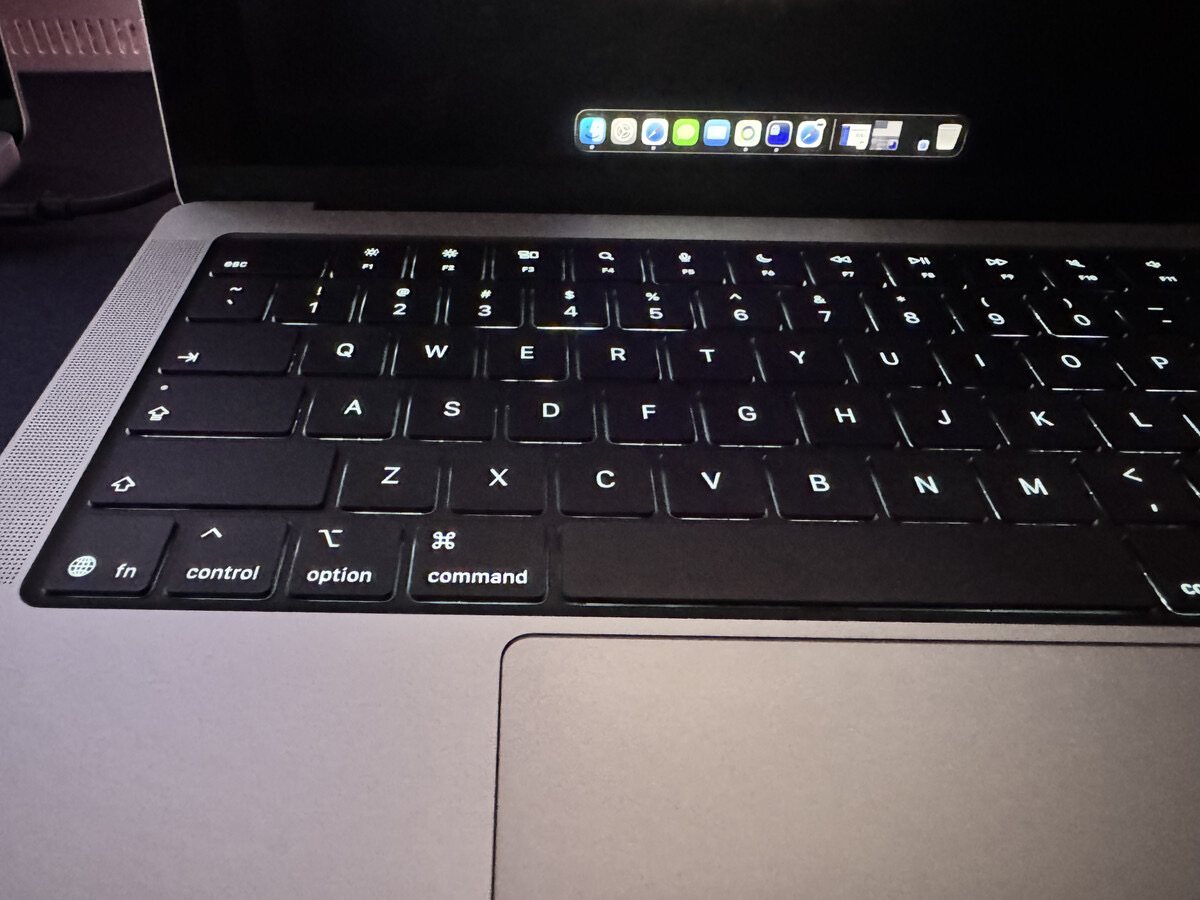
Case in point: my laptop stand. Used conventionally, it elevates my laptop’s screen, but it also partially obscures the external display behind it. But if I flip the stand around, the laptop screen remains elevated, with the added benefit of providing me with full visibility to the display behind it.
A sobering fact: There’s not much you can do on a modern computer without the Internet.
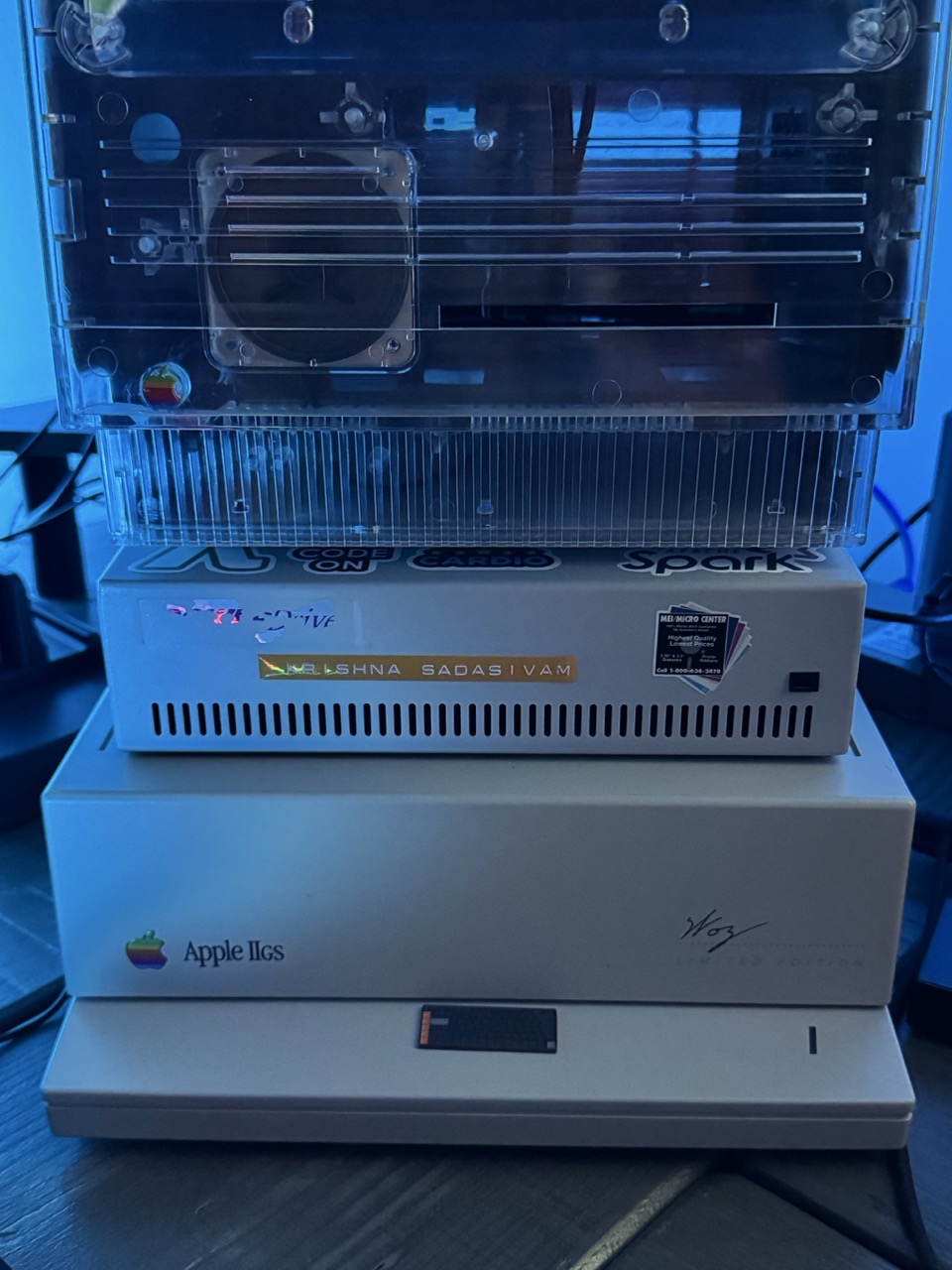
But there was a time when that didn’t matter. My first computer was an Apple IIGS. It came with a display, CPU, keyboard and a 3.5” and 5.25” floppy drive. I remember spending countless hours messing about on this wonderful little computer – exploring the file system, running AppleWorks, and playing a few games. All without any network connectivity whatsoever.
A few short years later, I remember begging my dad to purchase an Applied Engineering Datalink 2400 baud modem for my IIGS. With this device, I could connect to online services like GEnie or one of the many local bullitenboards in our town. GEnie was expensive ($6US per hour), so I used it sparingly. (I remember it took the better part of 40 minutes to download a Breakout clone.)
I spent hours hopping from one BBS to another, all for the price of tying up our family’s phone line. “I’m on the modem!” was a common refrain I’d yell when my mom or dad tried to use our landline. I’m sure it was annoying for them, because within a few months they succumbed and purchased a dedicated phone line for my computer shenanigans
I’m writing this post on my MacBook Pro. Our neighborhood has had no power or Internet for the past few hours, thanks to a thunderstorm. As I sit and type this, I feel a sense of solitude.
So while there’s not much I can do with a modern computer when the Internet’s down, I don’t seem to really mind.
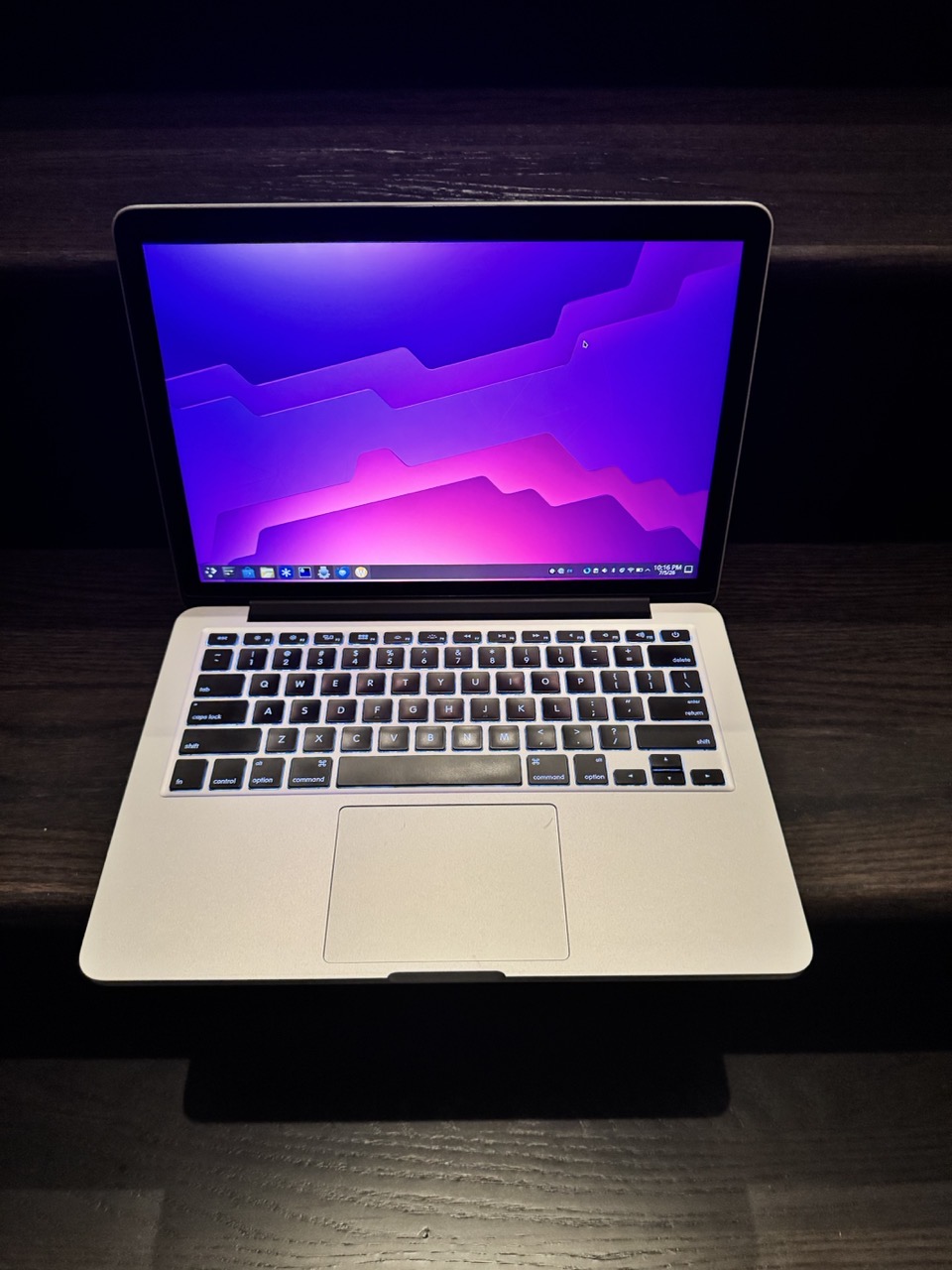
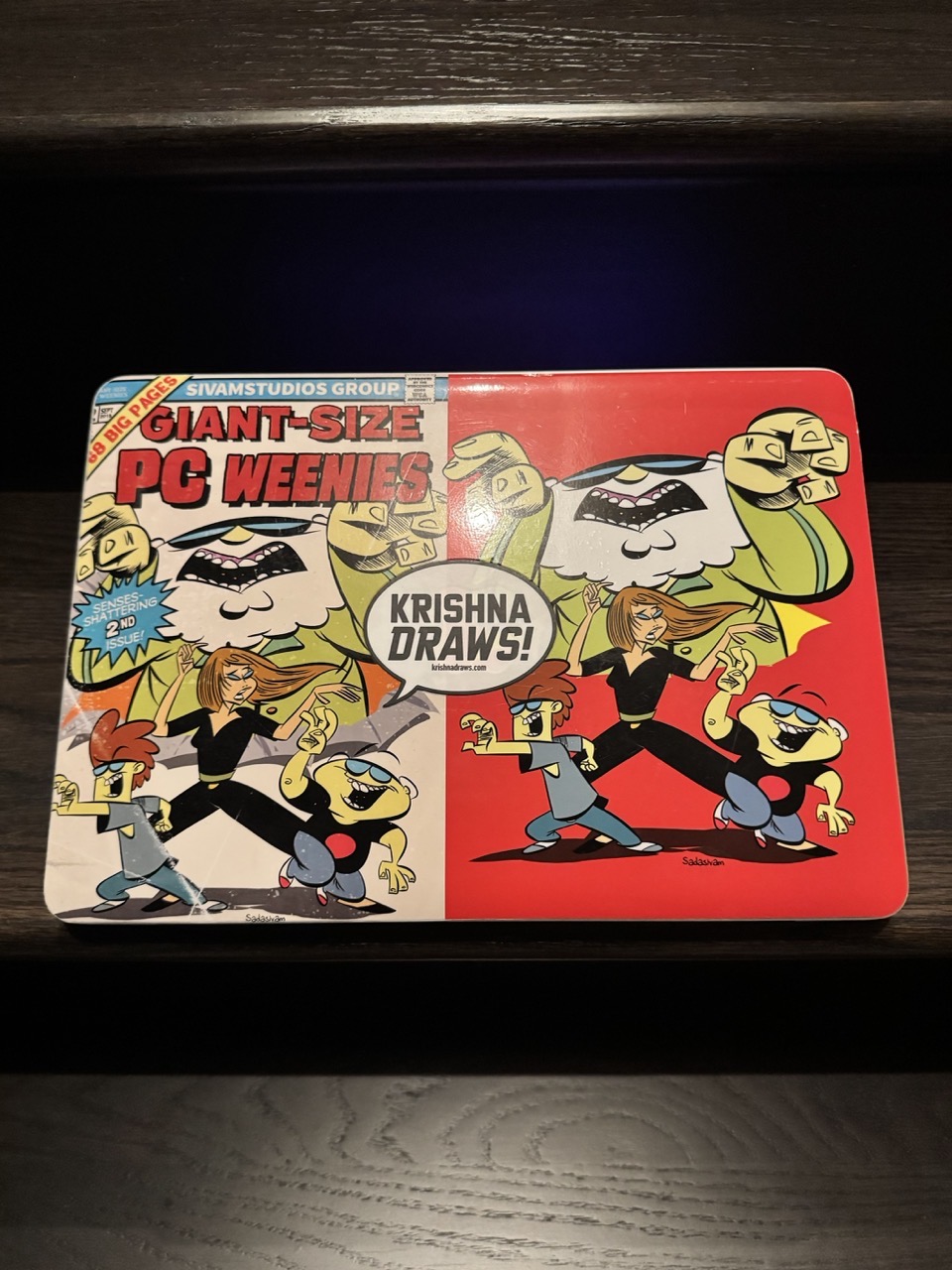
In 2014, I purchased a 13” MacBook Pro with 8GB of RAM and 256GB of storage. The machine served as my main computer for my academic work. After 6 years of regular use, I passed the laptop down to my daughter.
Due to the Covid pandemic, her middle school classes were being taught completely online. She needed a computer for her coursework. By this point, the MacBook Pro was still operational, but showing its age. Surfing the web while simultaneously streaming from a webcam would cause the machine’s fans to spin up loudly while thrashing the overall performance.
After limping along with her Mac for a few years, my wife and I bought her a M3 MacBook Air, with 16GB of RAM and 1TB of storage. At this point, the 2014 MacBook Pro was back in my hands. While its battery was completely shot, it still worked. I couldn’t bring myself to get rid of it.
After some searching online, I discovered that this machine could run Linux. In 2022, I replaced the battery with a new one and popped out the paltry 256GB storage for a 1TB Samsung NVME stick.
Two observations here:
1) the total cost for the new battery and NVME stick was less than $100US.
2) This Mac laptop was the last of its kind to have upgradeable storage.
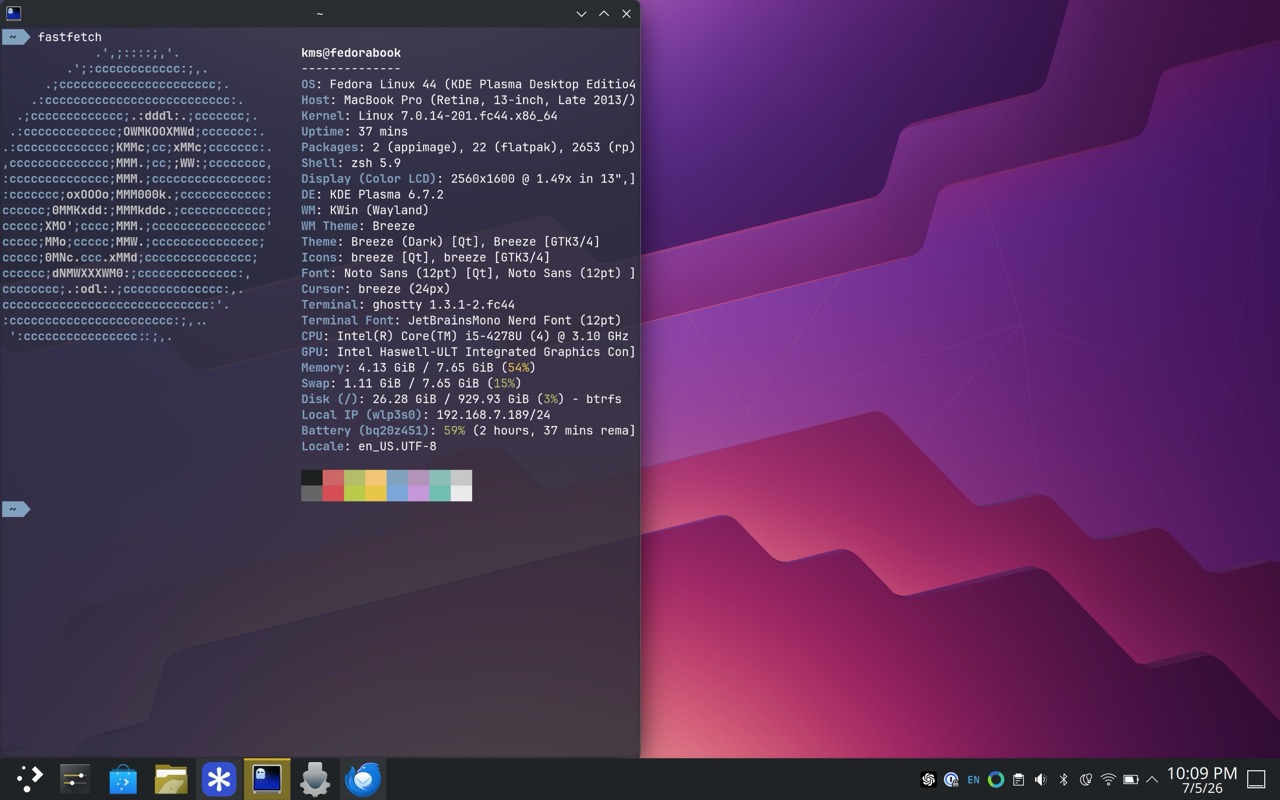
After experimenting with various distros, including Ubuntu and popOS, I made the move to Fedora. As a Linux machine, this MacBook Pro feels much more performant. It’s still somewhat underpowered, with the fans kicking in when loading a modern webpage. But it’s more than serviceable as a “couch surfing” machine.
I settled on Fedora KDE Plasma because it has wider support from the Linux community and its less “fiddly” compared to something like popOS. I use this machine for web browsing and answering email.
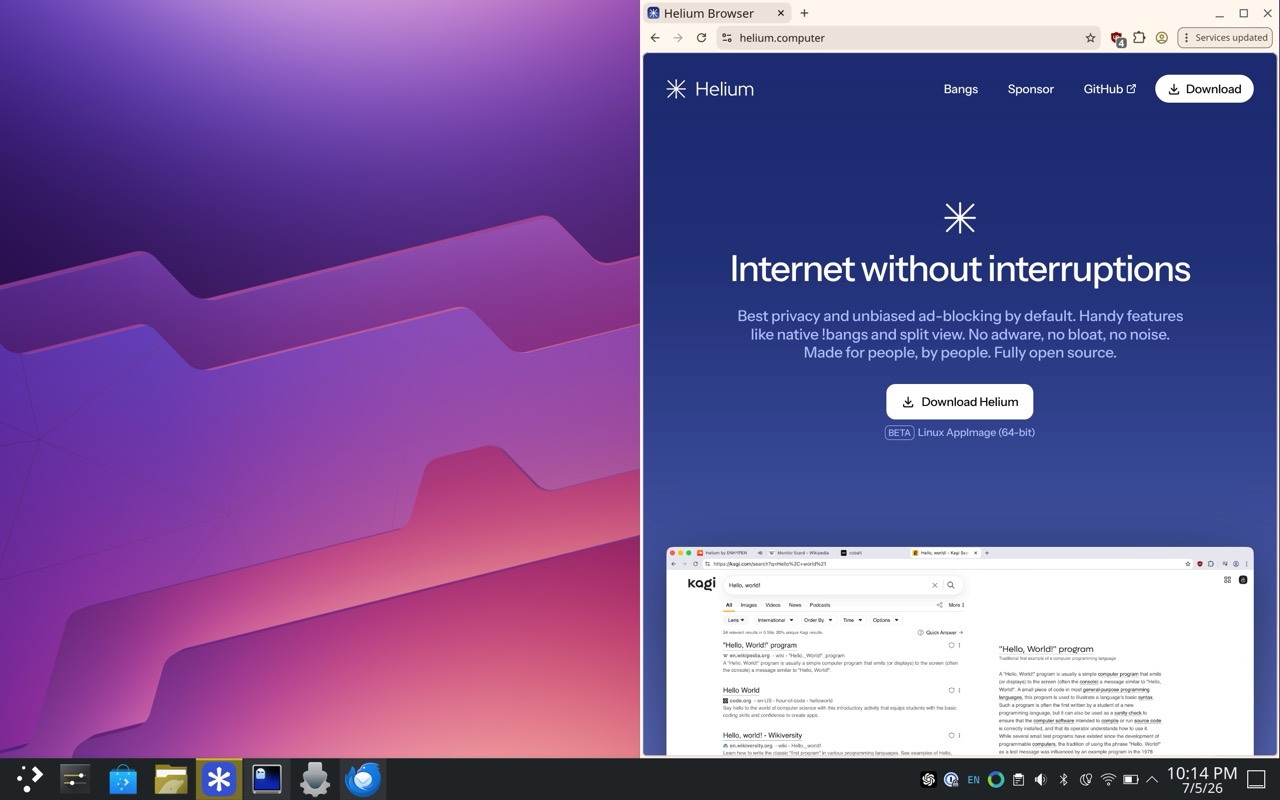
For web browsing, I use Helium. It’s privacy focused, Chrome-based, and light-weight.
Ghostty is my preferred terminal of choice, and that’s what I’ve installed on this device.
For email, I use Thunderbird. My experiences with Thunderbird have been hit or miss over the last few years. But now that its main underpinnings have been modernized, I feel it’s moving in the right direction.
While I still remain firmly entrenched in the Apple ecosystem, I’m pleased with how Linux has improved over the years. In my opinion, it’s a great option for anyone who has an old Intel Mac collecting dust.
I’ve had a long-standing beef with macOS, going all the way back to the very first version of Mac OS X. It may be minor to some; to others, it may even be a non-issue. But for me, it’s pretty big.
In a nutshell, here’s my issue:
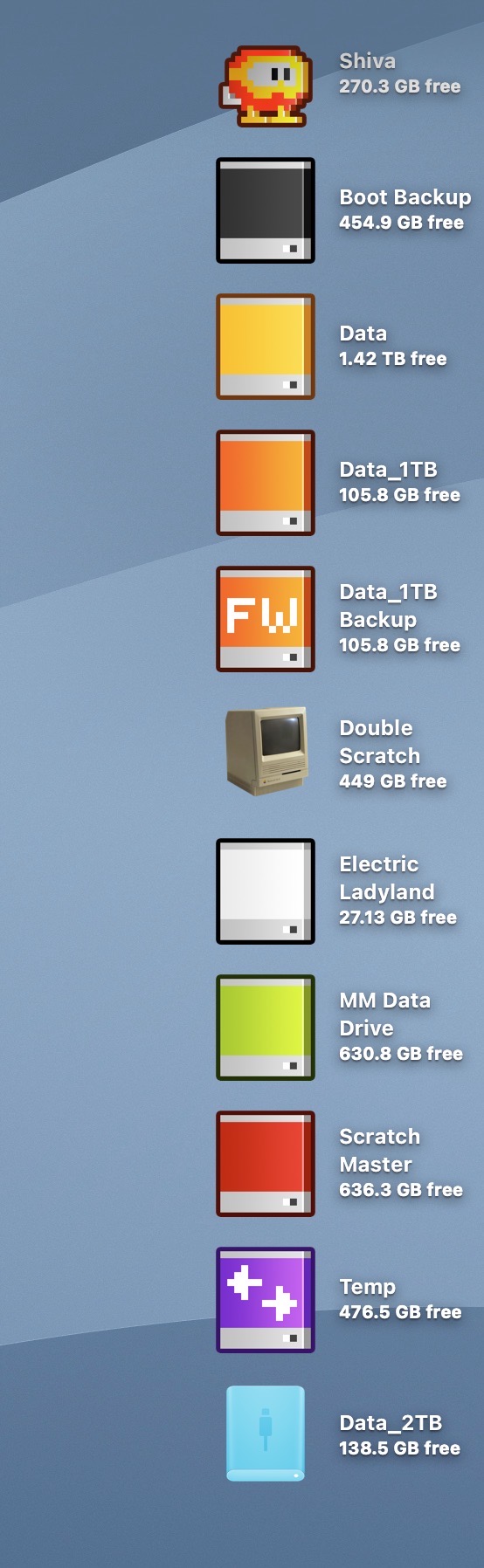
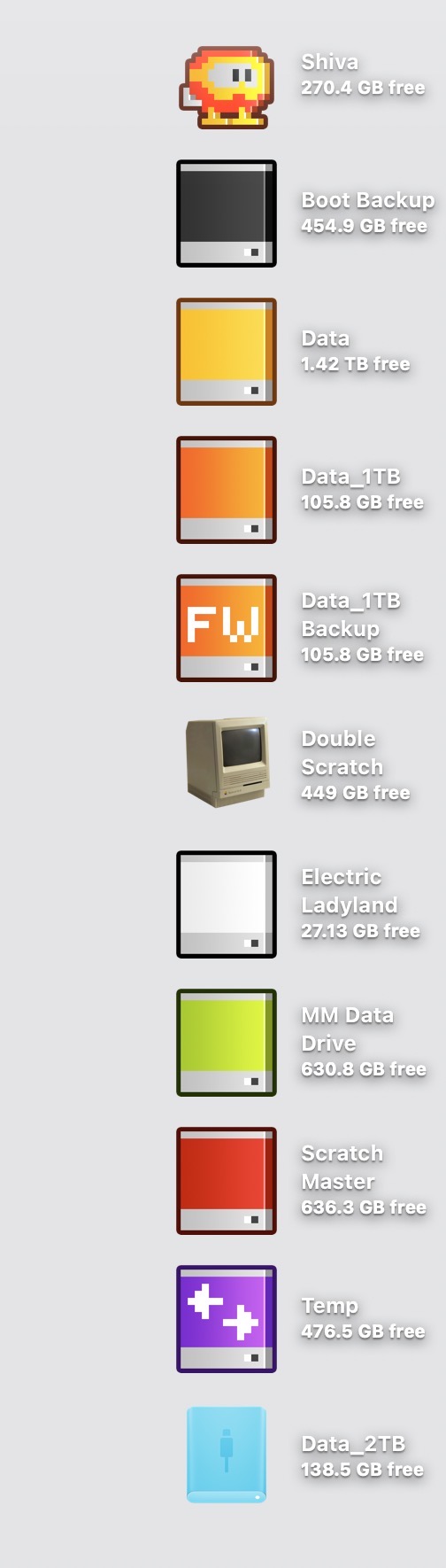
The text that accompanies each icon on the Mac Desktop is very difficult to read when placed atop a light-hued background wallpaper. The text, rendered in white, is accompanied by a subtle drop shadow. On a medium or dark background wallpaper, this drop shadow creates the illusion of depth. But when this style is paired with a light-hued wallpaper, the text becomes much more difficult to read.
Exhibit A: a mid-value wallpaper in macOS Tahoe:
Exhibit B: a light-value wallpaper in macOS Tahoe:
It wasn’t always this way.
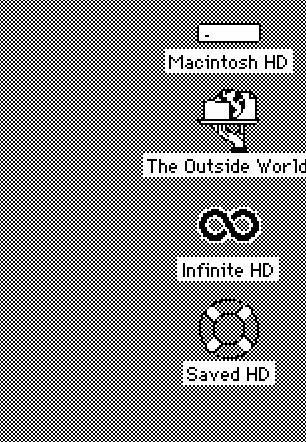
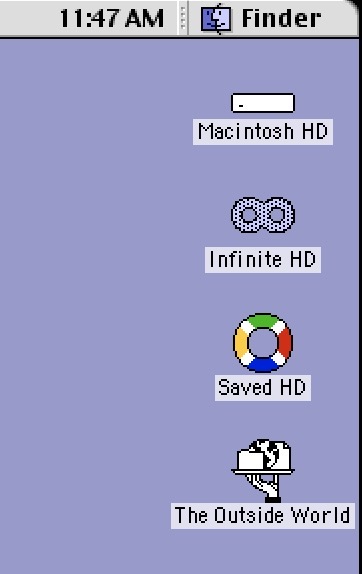
In classic Mac OS, each icon had accompanying black text with a white background strip behind it. This approach ensured clear readability, independent of whatever wallpaper was chosen.
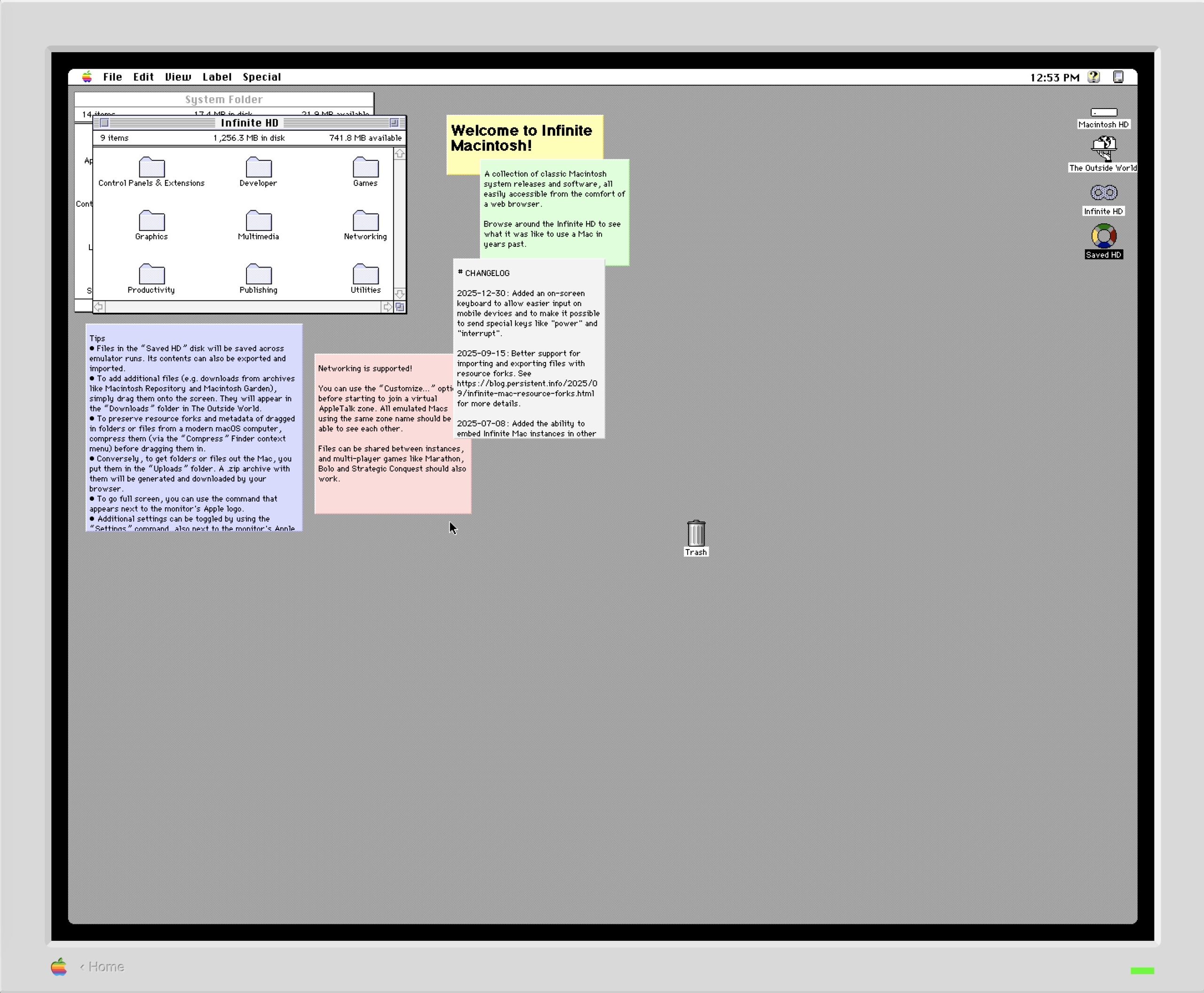
Exhibit C: The Mac Desktop (macOS 7.5):
Exhibit D: The Mac Desktop (macOS 9):
Every version of macOS (including the forthcoming macOS Golden Gate) still provides no option to change the color of the text accompanying Desktop icons. It would be nice if Apple Intelligence could be employed to detect the value of the wallpaper background and automatically adjust the text color. In this setup, light backgrounds would automatically shift the icon text to black, and vice versa.
I’ve filed a feedback form on this issue before macOS Tahoe shipped last year, but have yet to receive a response from Apple.
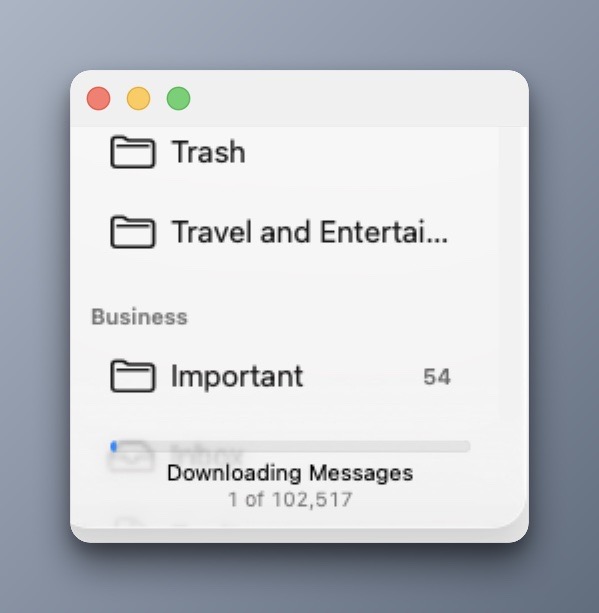
The reality is I have threee-mail accounts, each with its own purpose. The first is dubbed Business for tasks related to my writing / design side hustle. The next account is dubbed Personal, as a catch all for personal correspondence, bills, onlineshopping, etc. Finally, the last e-mail account is Academics, for my academic / work related correspondence. Two are G-mail based, and one is (shudder!) Outlook. But, before i continue, I must state the obvious:
No two people handle e-mail the same way.
So there will be a lot of “this is how I do it” sprinkled across this post. There may be better methods and approaches out there, but this is what has been manageable for me. I’m not even the closest at being an expert at dealing with e-mail, but I know enough to be dangerous.
Before setting up my e-mail client (Apple Mail), I wanted to get my e-mail accounts in proper order. That meant taking a closer look at how I categorize and file my e-mails. Moving to a new computer requires some tidying up, so as to avoid dealing with the same mess in the new location.
G-mail does not use folders, but my brain does, and so I have specific labels (which I’m referring to as folders) set up for organizing e-mails. But before we go on, we need to think about the function of e-mail.
There are two types of e-mails, in my view.
1) Those that need to be acted on or retained for an upcoming task.
2) Those that are important enough to keep, for future reference.
Everything else is just noise. That being stated, I have accrued almost three decades of email. It would take more than a year to prune what I no longer need.
Instead, to preserve what’s left of my sanity, I created a label / folder called Cold Storage, for each of my G-mail accounts. Cold Storage is where my e-mail folders go when they must be kept, but not actively needed. It’s like the Archive folder, but feels more intentional because I’m designating its function. (Besides: the Archive label can’t be renamed.)
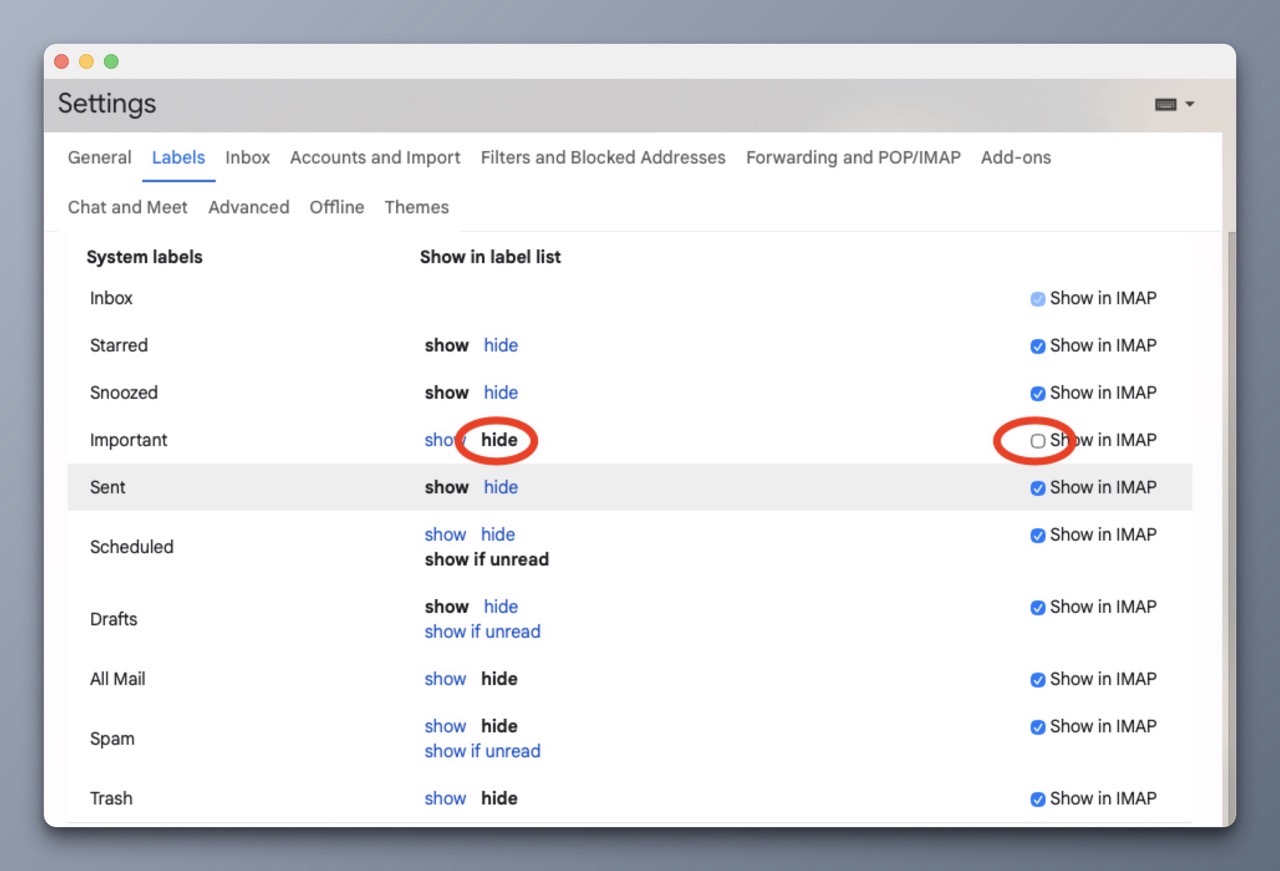
G-mail’s Important label seems ineffectual to me, because it considers ALL incoming emails as being “important”. I prefer hiding the Important Gmail label.
To hide labels in G-mail:
1) Open G-mail in your web browser.
2) Click on the Gear icon in the top-right corner and select See all Settings.
3. Click the Labels tab at the top of the page.
4. Hide the labels you no longer need / wish to see.
I have also unchecked “show in IMAP” so I never have to see the Important folder in Apple Mail across all my devices.
For my Personal account, I’ve designated a label called To Do where I toss emails related to upcoming tasks / activities that will be acted upon in the near future.
Before I close, I want to mention that I will be sticking with Apple Mail. Not because it’s great (it’s not). It’s just the only one that I can tolerate. I’ve looked at the other options within this space, and I’ve found them to be either too clunky, have limitations or require a paid subscription. Sometimes, it’s all three.
Color me gun shy, but my experience using paid third party email clients has been less than stellar. Not because they aren’t good – it’s just that the support and longevity just aren’t there. (See: Claris Emailer, Eudora, PowerMail, and Airmail)
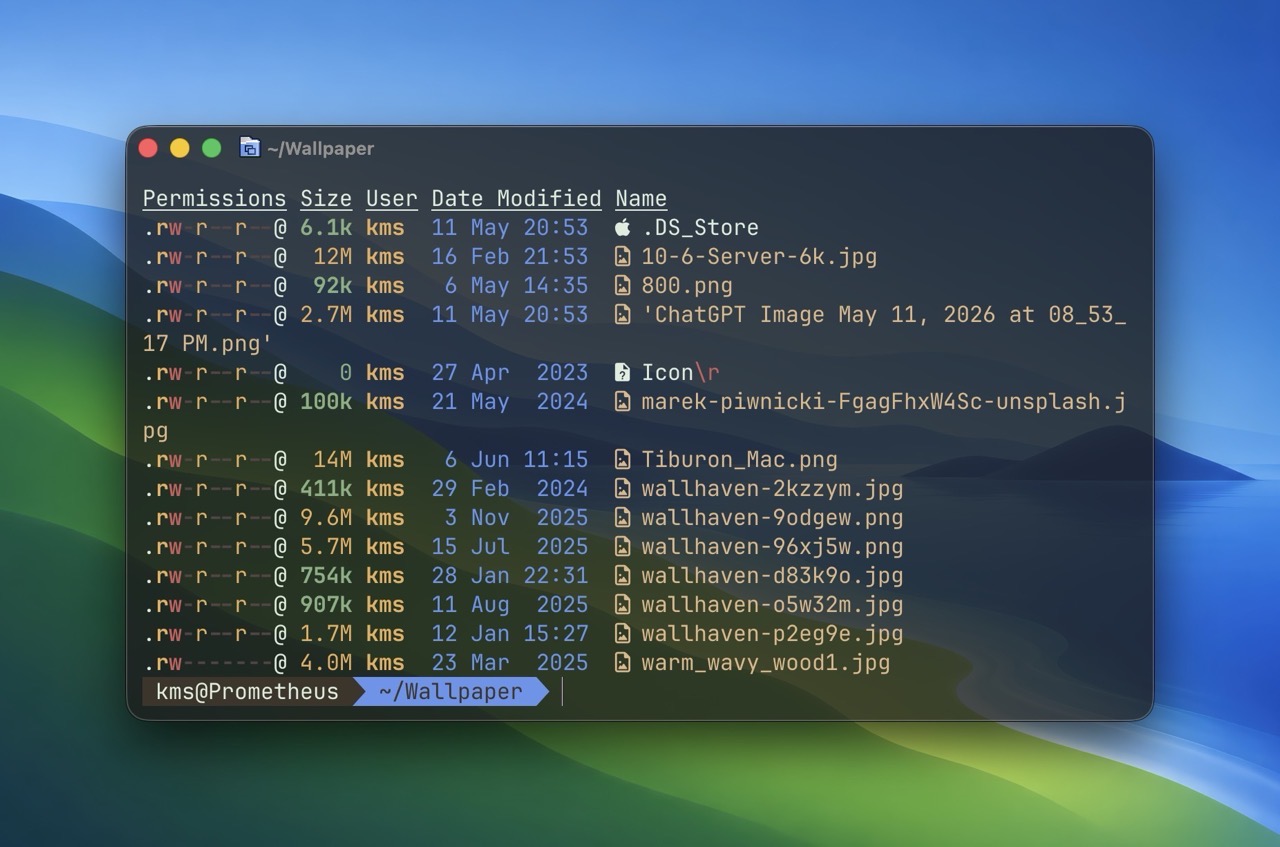
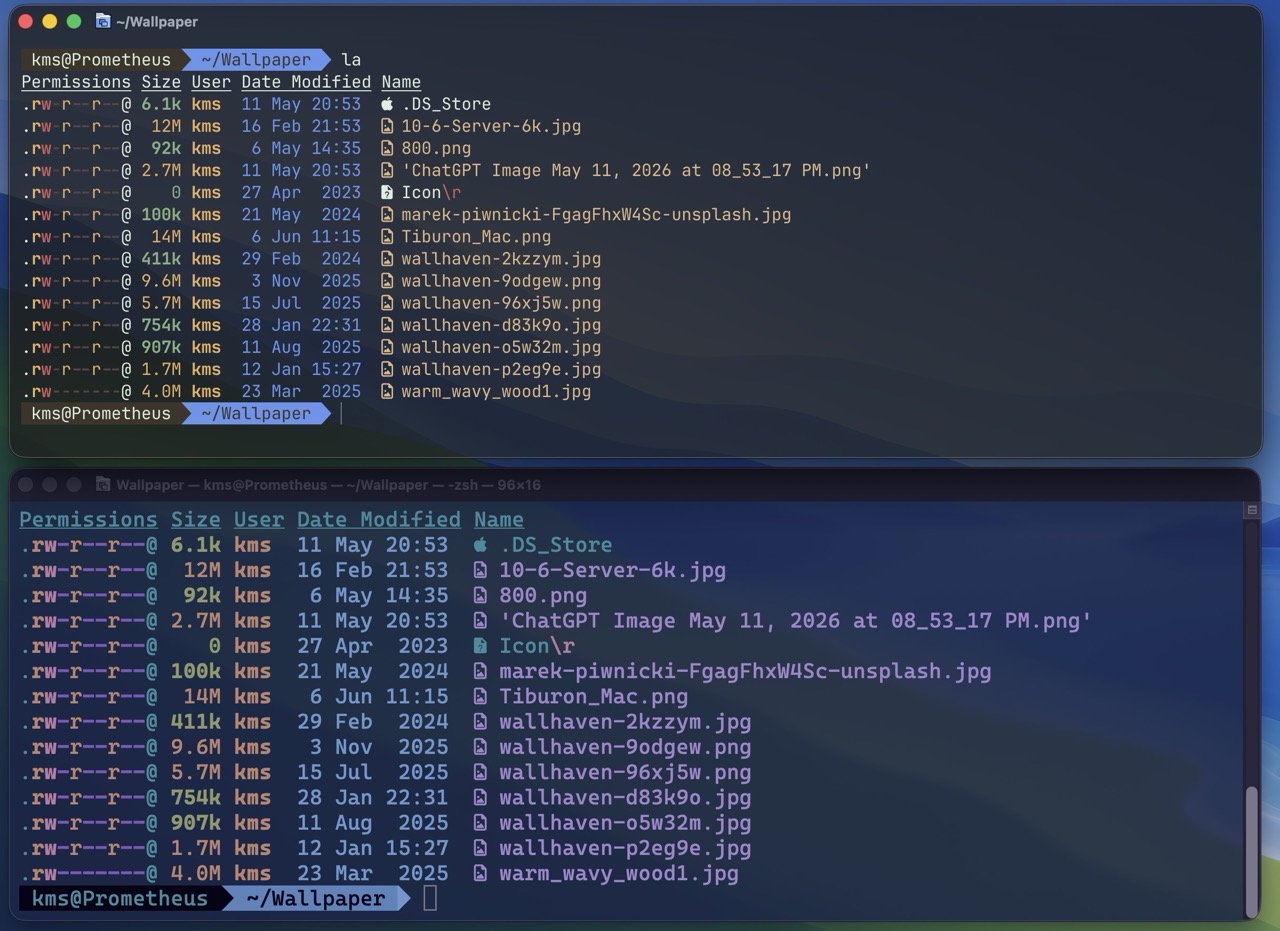
For those who are interested, my latest post for OWC Rocket Yard shares more detail about Ghostty, a modern terminal replacement for macOS. I have Ghostty installed on all three of my Macs, and working within its environment has been a delight. So much so that I can’t fathom the thought of using Apple’s staid Terminal app.
The image below shows a comparison between Ghostty (top) vs Apple’s Terminal (bottom). Notice how sharp and crisp the text appears in Ghostty, compared to Terminal. Unlike the Terminal, Ghostty does a great job of displaying content within smaller window sizes.
I wanted to share two fantastic resources that I came across recently that will be helpful for Mac users.
First up is Glenn Fleishman’s Apple Specs Database which lets you search technical specifications by model — iPhone, iPad, Mac, Apple Watch, and more. But the really interesting feature that I haven’t seen elsewhere is search by spec. Simply select a specific spec and see every Apple product model that includes it, along with its release date and more. Wild!
Alongside hardware, the Apple Specs Database includes a tab for searching OS features across macOS, iOS, iPadOS, tvOS and visionOS. So if you’re curious to know what key features were introduced in macOS 11 Big Sur, you can see them at a glance.
Next up is the Mac Cable Bandwidth Calculator, found on the RetinaDesk website. This site lets you select your input signal (4K, 1440p, etc.), resolution, refresh rate and more and provides a list of compatible cables that can carry that signal. The “Try a Scenario” option includes selections like 4K Gaming on a Mac, 8K 60Hz, etc. so you can get a feel for the types of cables that will work best for your setup.
WWDC 2026 is upon the world in less than a week. Amidst all of the usual kerfuffle that surrounds the event, I remain solely fixated on what Apple will bring to macOS. Like others, I’ve written about what I hope to see in macOS 27, but for this post, I’m going to share what I think Apple will actually announce.
A user option to set a cohesive visual appearance across all Apple devices from the Mac. For example, if I want every Apple device to have the same wallpaper, accent color, etc. I can set it once and it will apply itself across all Apple devices.
Related to the above, the ability to have the same wallpaper generatively scale and resize across Apple devices. Set once, see everywhere.
The ability to toggle Widgets and Desktop icons ON or OFF from the Control Center.
A built-in icon / wallpaper generator using Image Playground, that will feed into the above unified appearance prediction.
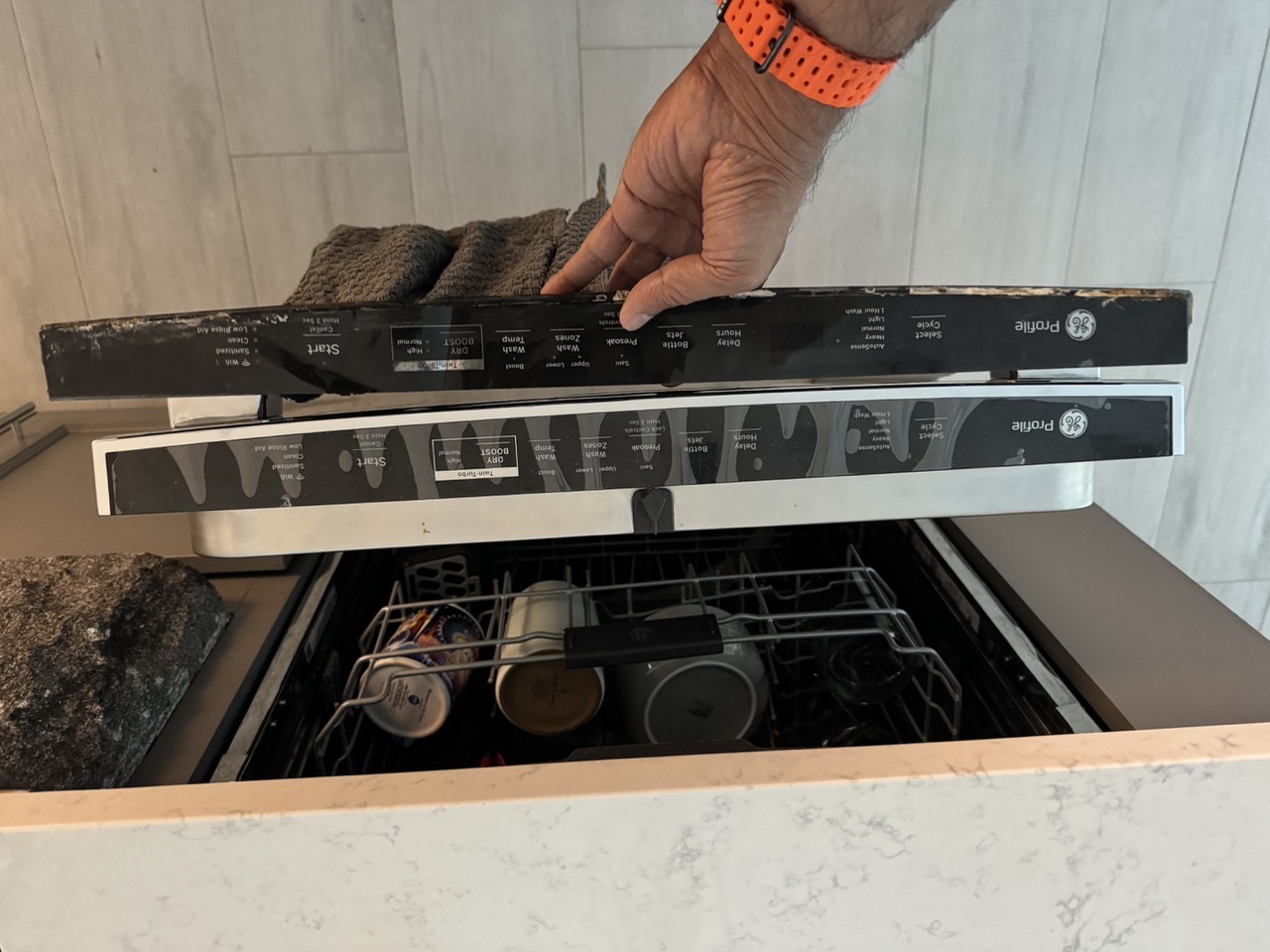
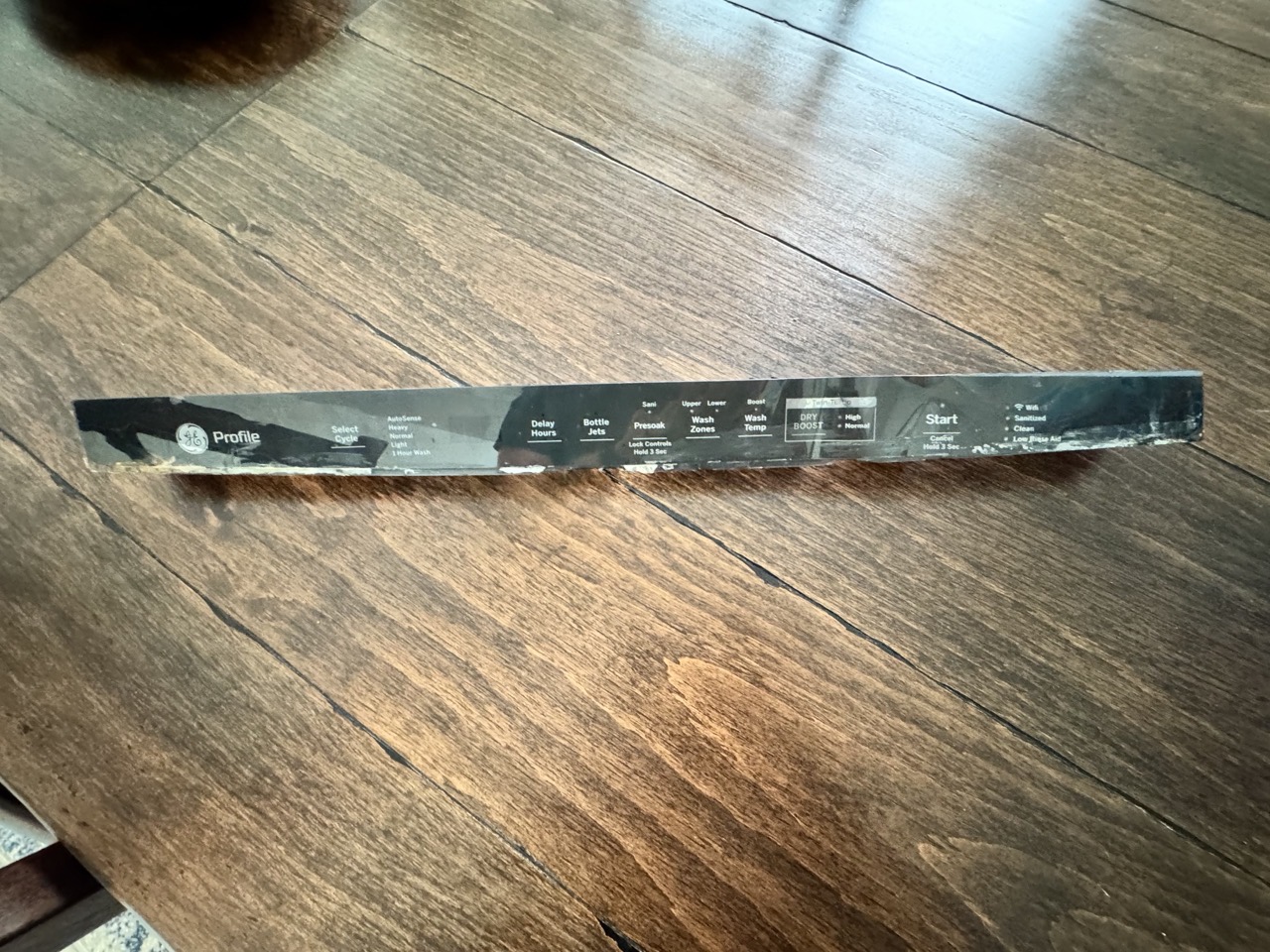
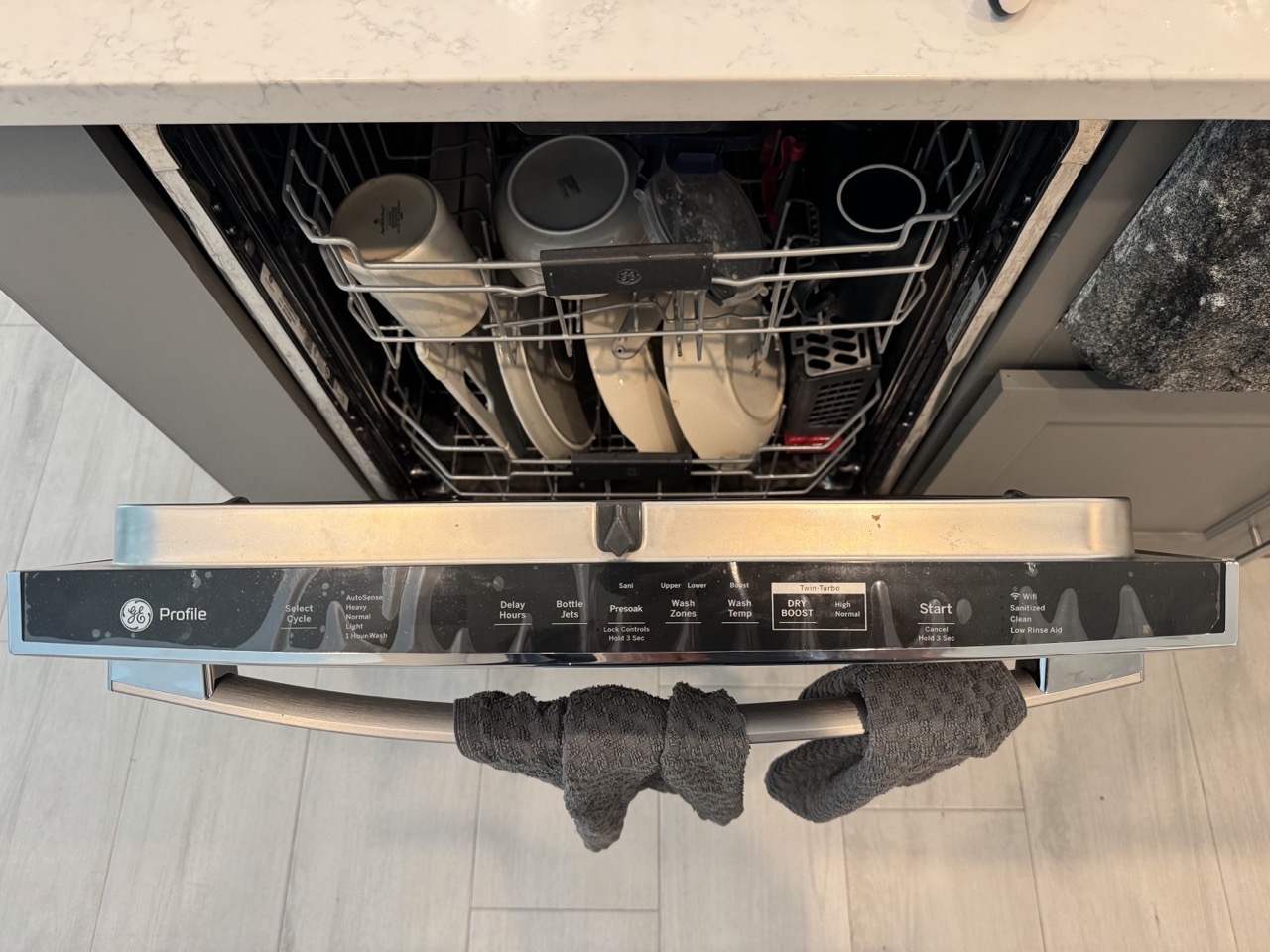
Yesterday, I took apart my GE Profile dishwasher for the first time ever to replace a worn and damaged control panel. This panel serves as the touch interface to control the dish washer. Here’s what it looked like. The entire outer trim was gone. While functional, the plastic laminate was badly bent, twisted and coming apart. It was an eye sore.
I watched several YouTube videos to better understand the installation process. To replace the control board, I had to first remove the dish washer door from the unit, and then separate the inner door from the outer door. (More on that in a bit.) Feeling somewhat confident, I ordered a replacement OEM part from iFixit, for about $200US.
The part arrived within a week, and was an exact replacement.
I have never taken apart my dish washer before, but I’ve tinkered with all manner of tech, so I felt up to the challenge.
The most difficult part was removing the inner door from the outer door. Not because it was difficult, but because each video i watched failedtomention that two screws on either side of the inner door had to be removed.
The whole process took me about six hours – and two of those hours were spent trying to separate the inner door from the outer door. Having gone through the process once, I feel that I can easily perform the entire task in under an hour. While I had the dishwasher apart, I addressed a pair of rusty hinges that connect the door to the dishwasher frame.
I learned a lot by performing this repair. There were some easy wins, some difficult struggles, and moments where I wanted to give up and call a repairman. But ultimately, I persevered and completed the install. Looking at a new dishwasher panel that I installed felt immensely satisfying.
Being able to purchase a part to fix things is important. If I bought it, I want to be able to fix it. This is the crux of “the right to repair” movement. All manufacturers should take notice.
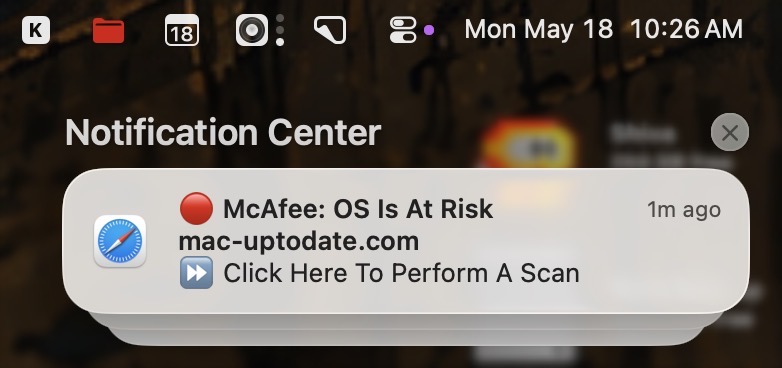
A few weeks ago, as I was working on my Mac mini, I received a rather odd notification, warning that my Mac was at risk for malware. The notification included a link to perform a scan. Of course, I knew better and did not click the link. But I can easily see a less tech savvy user clicking the notification in a moment of panic.
As a rule, I tend to be very cautious when it comes to browsing sites on the Internet. One self-imposed security measure involves avoiding unscrupulous websites. As such, I was perplexed at how such a notification could have come about. Thankfully, the issue was resolved quickly. I documented my troubleshooting steps in the hopes that others can avoid getting tricked into installing malware.