Tag: SuperDuper

  • FrugalMac: On the Topic of Backups

    FrugalMac: On the Topic of Backups

    Backups are important. As I’ve often stated to my design students: “There are two types of computer users in the world: Those who have lost data and those who are about to lose data.”

    I’ll leave the sermonizing to others on why backups are important. For my own needs, having backup data is not merely an option: it’s essential.

    My Mac backup tool of choice has always been SuperDuper, by Shirt Pocket Software. I’ve been using it for longer than I remember. It’s served my needs throughout its tenure. I didn’t mind its somewhat dated looks, but lately it’s been giving me some issues, and I decided it was time to investigate other players in this space.

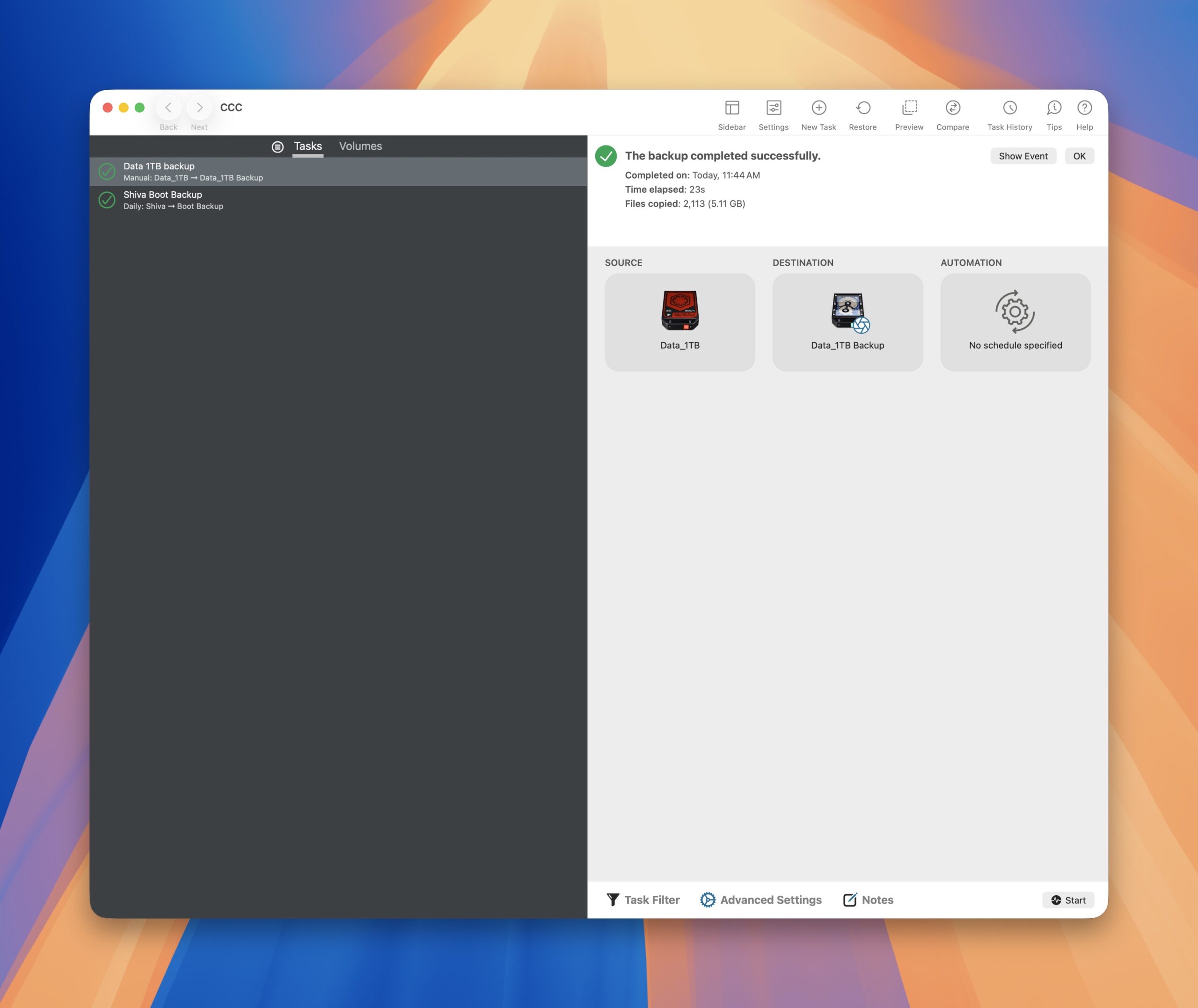
    SuperDuper’s main competitor is Carbon Copy Cloner (CCC, for short), by Bombich Software. Before committing, I downloaded the program (currently at version 7.15) and took advantage of its free 30 day trial. I won’t go through an exhaustive list of its features, but I was very impressed with how easy it was to get up and running. CCC’s on-boarding is excellent. Even though I consider myself to be a Mac power user, I was impressed by how easy and intuitive it was to set up a new backup task with Carbon Copy Cloner.

    Within a day of using it, I purchased a license.

    This isn’t to say that SuperDuper is bad. It’s not. I just want more than what SuperDuper can give me. Without making this a full-blown review, I wanted to highlight a few Carbon Copy Cloner features that won me over.

    1. Tool tips are on by default during the on-boarding, and provide step-by-step guidance.
    2. CCC feels fresh and sports a modern macOS look. Commonly used features are easily accessible without having to hunt for them.
    3. CCC lets users customize drive icons from within the app. I didn’t expect this, but I was delighted the feature exists.
    4. CCC speaks “user friendly” – you don’t have to be a geek to understand it.
    5. Awesome customer service. I emailed a question to Bombich Software and received a courteous, informative reply.

    Right-clicking on a source or destination drive shows the connectivity chain of a storage device. A small, but nice touch.
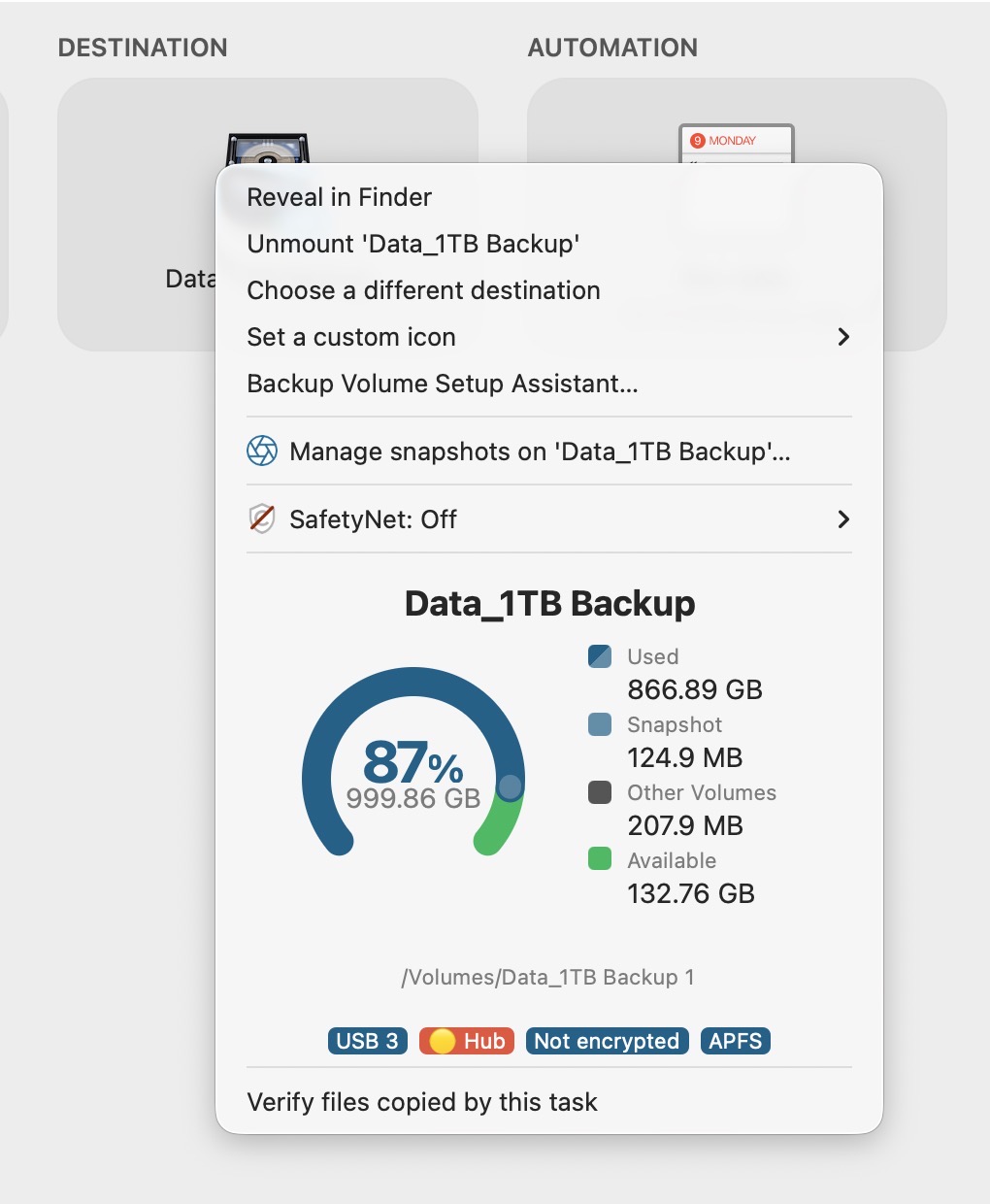
    CCC drive settings.

    Status updates are shown in CCC’s menu bar. At a glance, I can check when a backup task was last run, and whether or not the backup was successful.
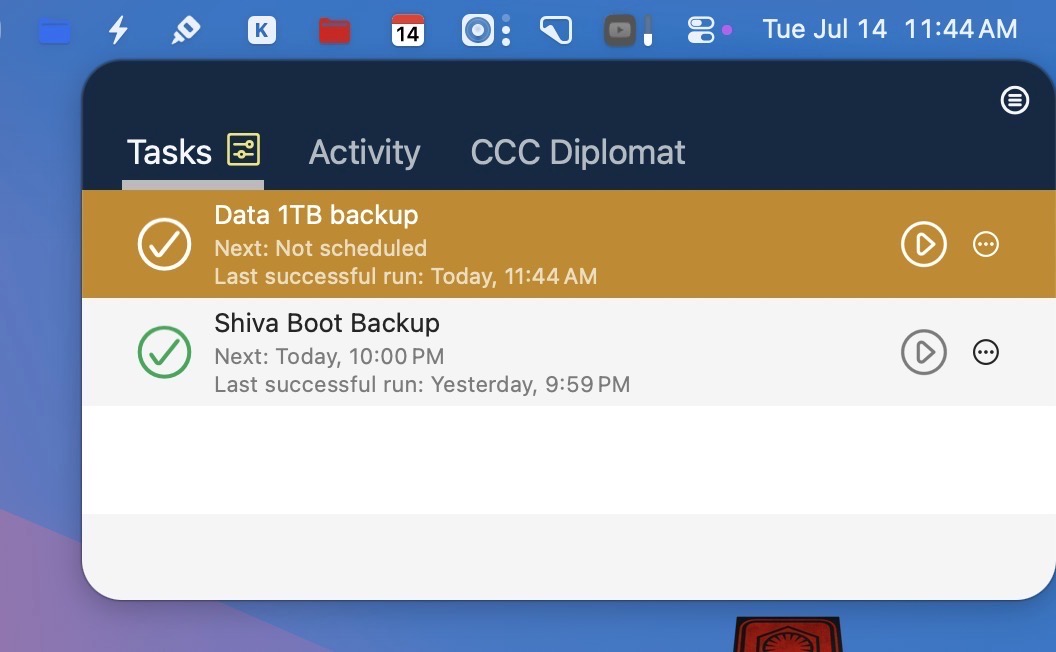
    CCC menu items Large.

    And that’s just scratching the surface of what the program can really do. As a SuperDuper user for many years, Carbon Copy Cloner won me over with its meticulous attention to detail and ease of use. As such, it rightfully earns its place in my FrugalMac build.

    -Krishna
  • Mac Backups, Backups, Backups

    Mac Backups, Backups, Backups

    “There are two kinds of tech users in the world: Those who have lost data, and those who are about to lose data.”

    I’m paraphrasing a popular idiom here, but I find it to be true nonetheless. If you work with computers, you need a back-up strategy. Computers can be replaced, but the data it stores is one of a kind, whether its personal photos, important documents, creative media etc.

    My back-up system is multi-faceted. It involves having both local back-ups and off-site back-ups. Local back-ups make sense: having more than one copy of data on an attached storage device provides peace of mind. But off-site back-ups are equally important. Should the unthinkable happen, and I lose my home due to a fire or natural disaster, I don’t want my data to go with it.

    Hardware

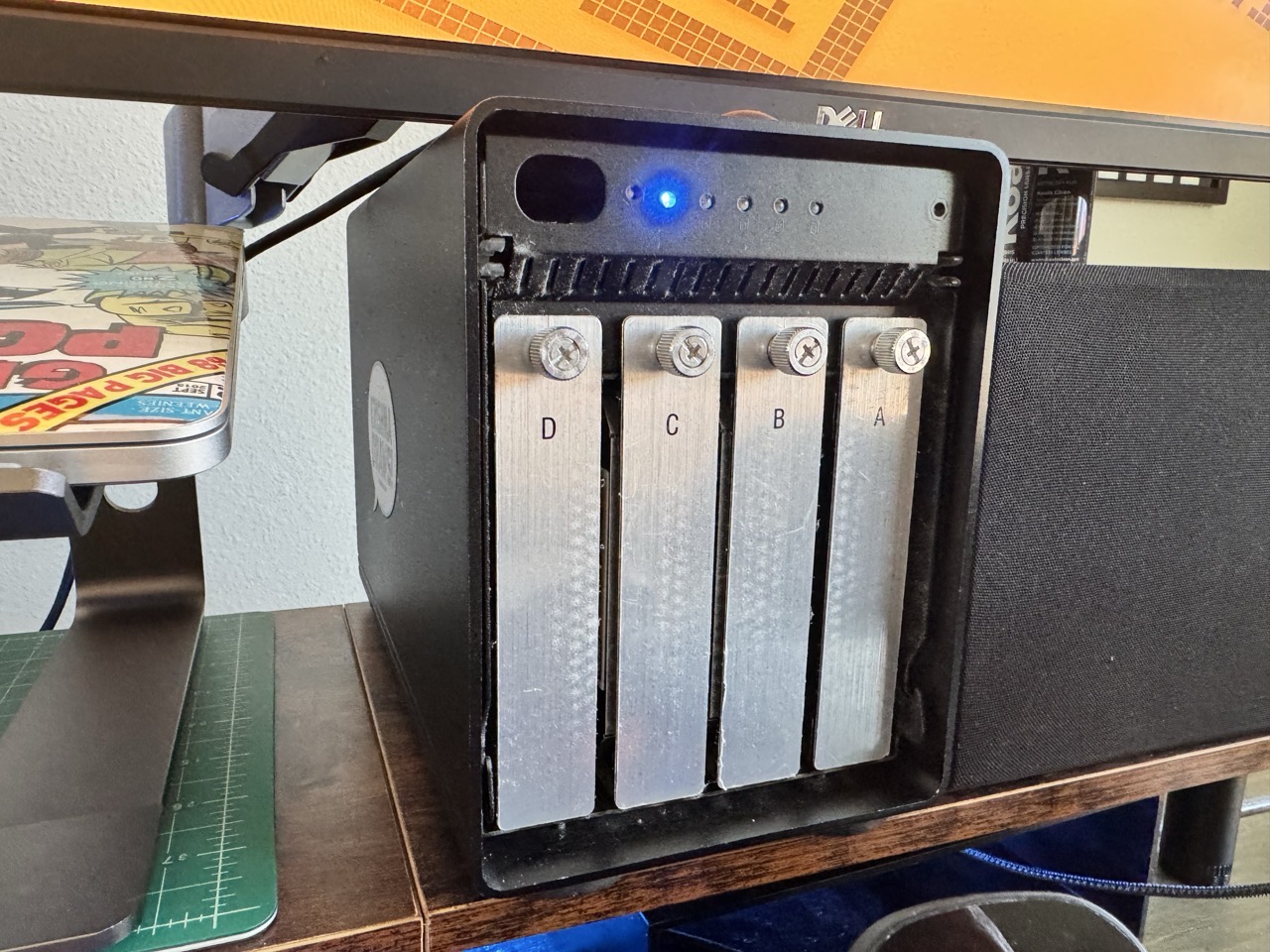
    For context: I have two Macs, a laptop and an M4 Mac mini with 512GB storage. The MacBook Pro is connected to an OWC ThunderBay 4 enclosure, which is populated with four drives.

    I’ll use my Mac mini’s boot drive as an example here, but I apply the same strategy for any attached storage I connect to it. I have a separate 512GB external NVME drive attached to it, which serves as a clone of the internal storage. For every storage device I actively write data to (SOURCE), I have a separate storage device serving as its back-up (CLONE).

    The ThunderBay 4 enclosure contains two SOURCE drives, with two corresponding CLONE drives.

    My advice when buying new storage is to buy in twos. (Buy once, cry once.)

    Software

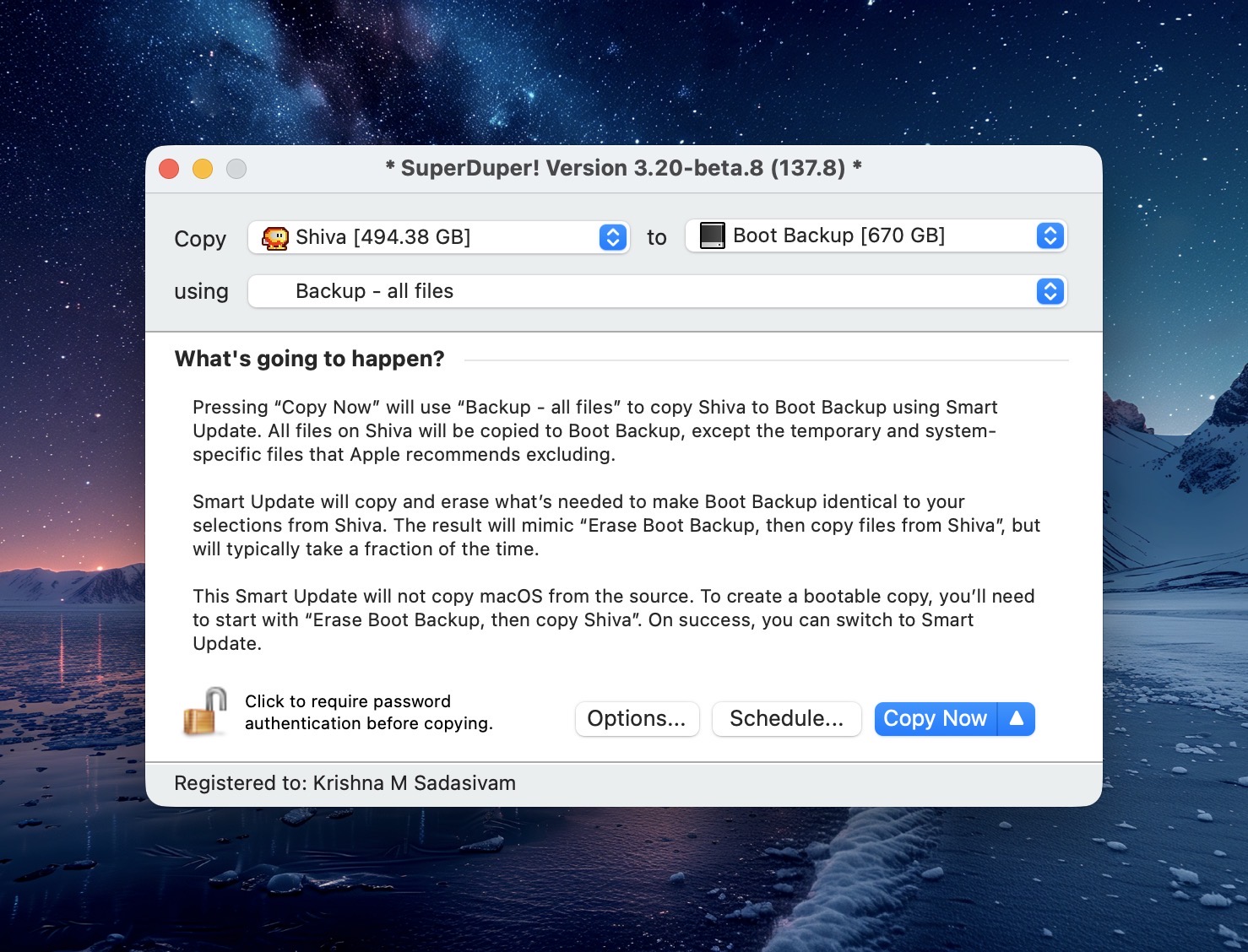
    SuperDuper main window

    For cloned back-ups, I use SuperDuper. It has been my go-to for reliable back-ups for more than a decade. SuperDuper lets me set a specific back-up schedule for each SOURCE drive on my system. At the scheduled time, SuperDuper will launch and make back-ups to the CLONE without my intervention. (From time to time, I will check the integrity of the back-up to make sure that my data is intact. No issues thus far.)

    macOS includes Time Machine, a software back-up solution. I have assigned a separate drive for Time Machine, set to back-up specific files and folders on my MacBook Pro’s internal drive. Time Machine takes snap-shots of these files / folders, allowing me to “go back in time” to revert a file back to an earlier state. I don’t use this often, but it does come handy in the times I need it.

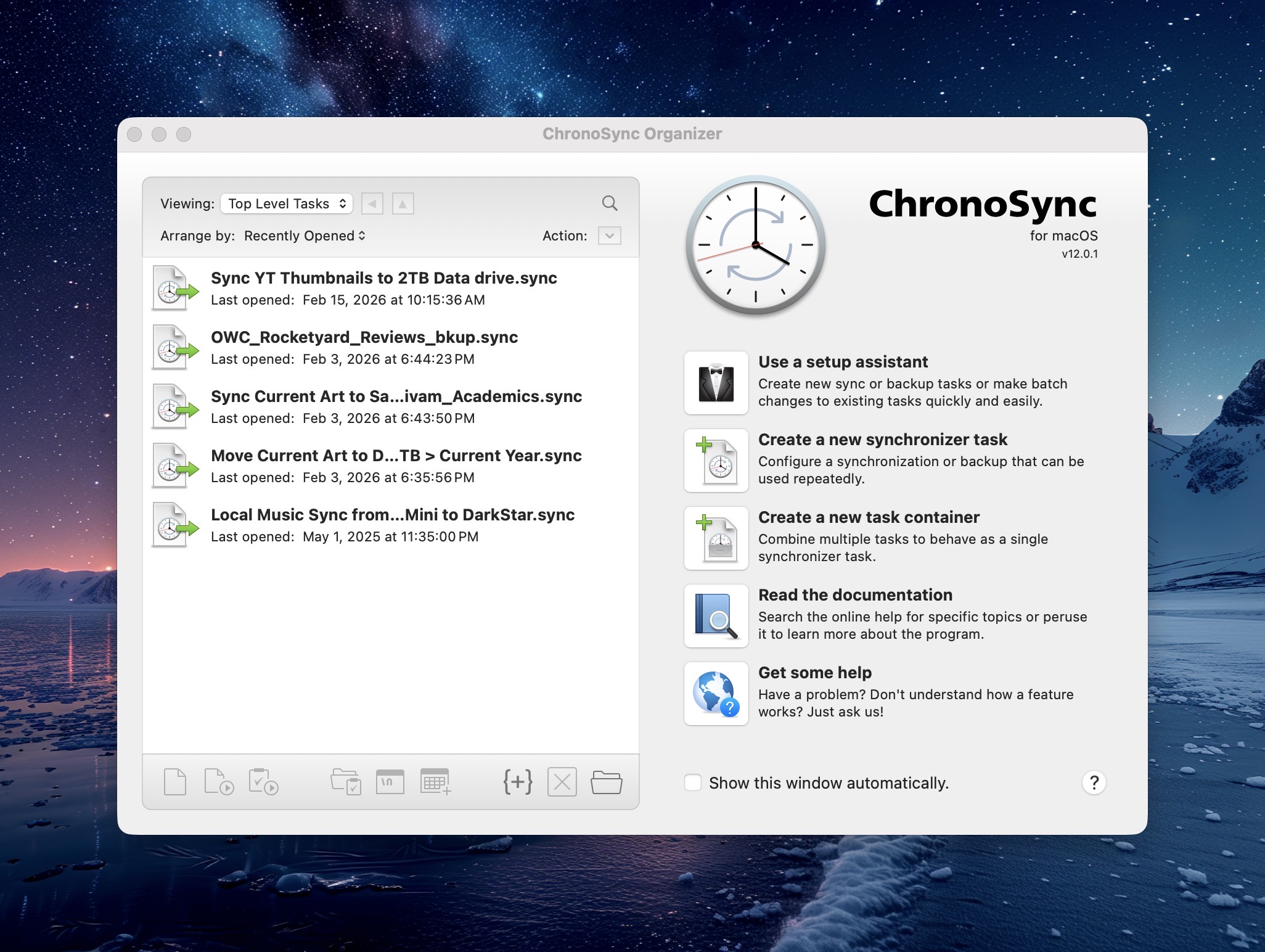
    Chronosync's main window

    In addition to cloned back-ups, I also sync specific folders between my two Macs. This allows me to work on the latest files on either of my Macs. Syncing insures that the same files exist in two places, and for that task I use ChronoSync. Like my cloned back-ups, ChronoSync offers scheduled syncs.

    The Cloud

    For off-site back-ups, I use BackBlaze. There’s a monthly cost ($7US) associated with this, but BackBlaze offers unlimited data back-ups. Should I lose all of my local data, BackBlaze will overnight a drive with all of my data. I hope I never have to take advantage of this, but again – it’s really for my peace of mind.

    Final Thoughts

    Back-ups are important. New computers can be purchased, but your data can’t. Choose wisely.

    -Krishna