I absolutely despise e-mail.
There. I’ve said it. That’s the post.
(Sigh. If only that were so.)
The reality is I have three e-mail accounts, each with its own purpose. The first is dubbed Business for tasks related to my writing / design side hustle. The next account is dubbed Personal, as a catch all for personal correspondence, bills, online shopping, etc. Finally, the last e-mail account is Academics, for my academic / work related correspondence. Two are G-mail based, and one is (shudder!) Outlook. But, before i continue, I must state the obvious:
No two people handle e-mail the same way.
So there will be a lot of “this is how I do it” sprinkled across this post. There may be better methods and approaches out there, but this is what has been manageable for me. I’m not even the closest at being an expert at dealing with e-mail, but I know enough to be dangerous.
Before setting up my e-mail client (Apple Mail), I wanted to get my e-mail accounts in proper order. That meant taking a closer look at how I categorize and file my e-mails. Moving to a new computer requires some tidying up, so as to avoid dealing with the same mess in the new location.
G-mail does not use folders, but my brain does, and so I have specific labels (which I’m referring to as folders) set up for organizing e-mails. But before we go on, we need to think about the function of e-mail.
There are two types of e-mails, in my view.
1) Those that need to be acted on or retained for an upcoming task.
2) Those that are important enough to keep, for future reference.
Everything else is just noise. That being stated, I have accrued almost three decades of email. It would take more than a year to prune what I no longer need.
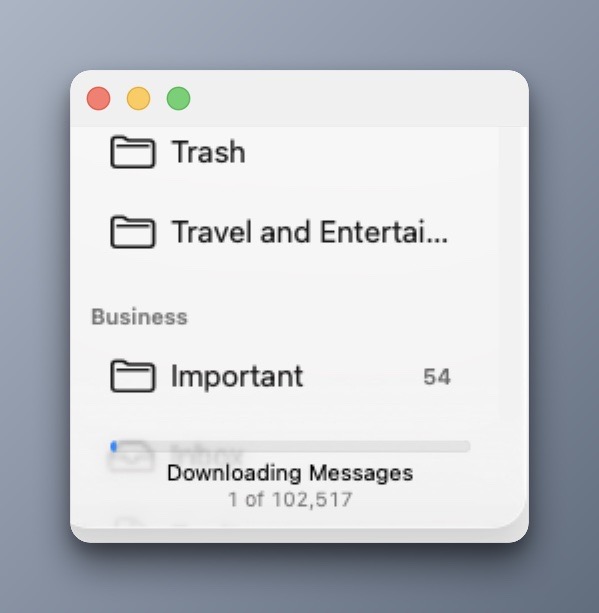
Instead, to preserve what’s left of my sanity, I created a label / folder called Cold Storage, for each of my G-mail accounts. Cold Storage is where my e-mail folders go when they must be kept, but not actively needed. It’s like the Archive folder, but feels more intentional because I’m designating its function. (Besides: the Archive label can’t be renamed.)
G-mail’s Important label seems ineffectual to me, because it considers ALL incoming emails as being “important”. I prefer hiding the Important Gmail label.
To hide labels in G-mail:
1) Open G-mail in your web browser.
2) Click on the Gear icon in the top-right corner and select See all Settings.
3. Click the Labels tab at the top of the page.
4. Hide the labels you no longer need / wish to see.
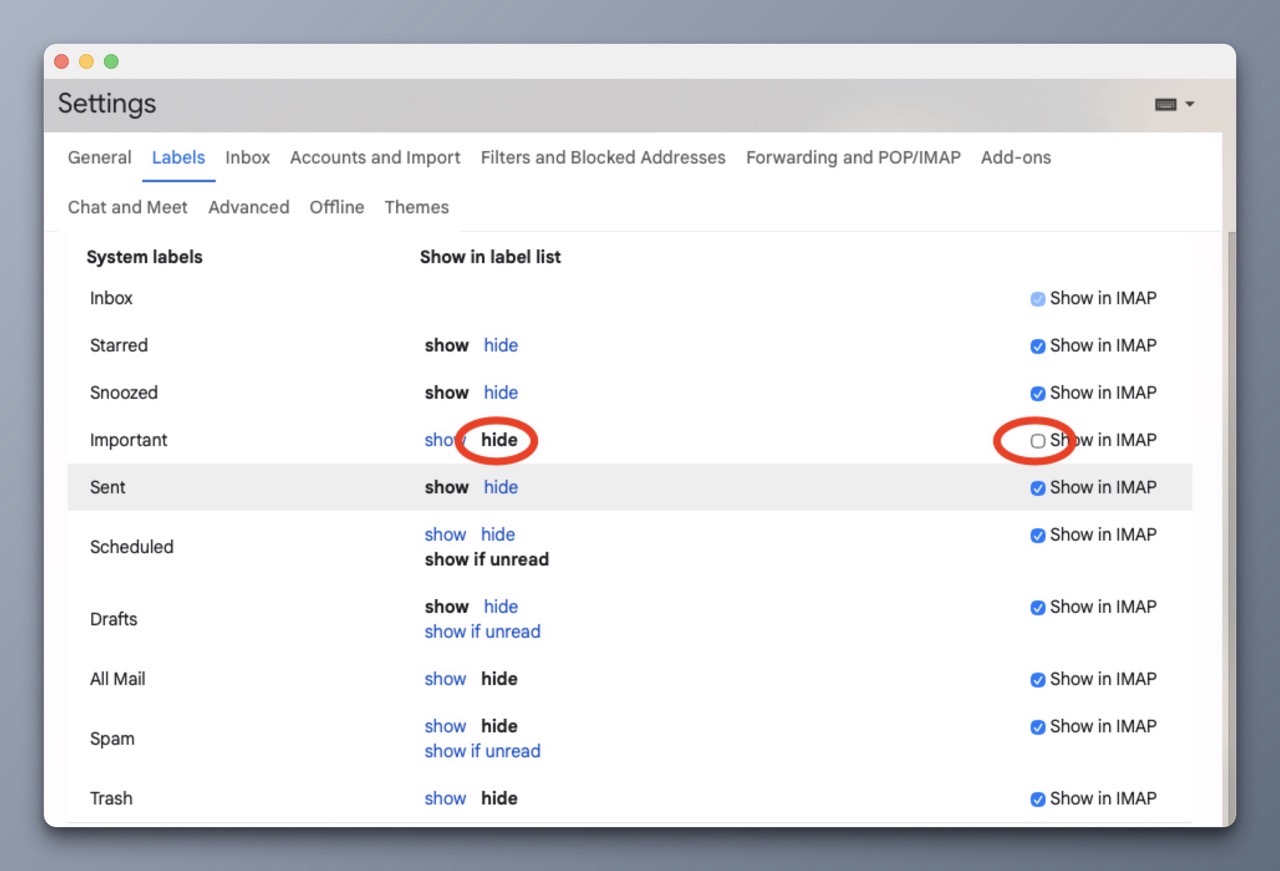
I have also unchecked “show in IMAP” so I never have to see the Important folder in Apple Mail across all my devices.
For my Personal account, I’ve designated a label called To Do where I toss emails related to upcoming tasks / activities that will be acted upon in the near future.
Before I close, I want to mention that I will be sticking with Apple Mail. Not because it’s great (it’s not). It’s just the only one that I can tolerate. I’ve looked at the other options within this space, and I’ve found them to be either too clunky, have limitations or require a paid subscription. Sometimes, it’s all three.
Color me gun shy, but my experience using paid third party email clients has been less than stellar. Not because they aren’t good – it’s just that the support and longevity just aren’t there. (See: Claris Emailer, Eudora, PowerMail, and Airmail)
Next up: My Apple Mail settings.
-Krishna