Tag: customizing macOS

  • FrugalMac: Window Management with Rectangle

    FrugalMac: Window Management with Rectangle

    Unsurprisingly, macOS’s built-in window management tools are… half-baked. The custom keyboard shortcuts I set previously do not work consistently across all windows. Certain apps, like Safari and the Finder, respond to the aforementioned keyboard shortcuts. Other applications, like the Terminal or Apple Messages, do not.

    This inconsistency quickly became a source of friction when working on my new Mac. So Rectangle, a free and open source window management app, became the first third-party application I installed on my M5 Pro MacBook Pro. 

    Rectangle first install.

    On first install, Rectangle detected a potential conflict with macOS tiling – so I disabled the latter in favor of the former. 
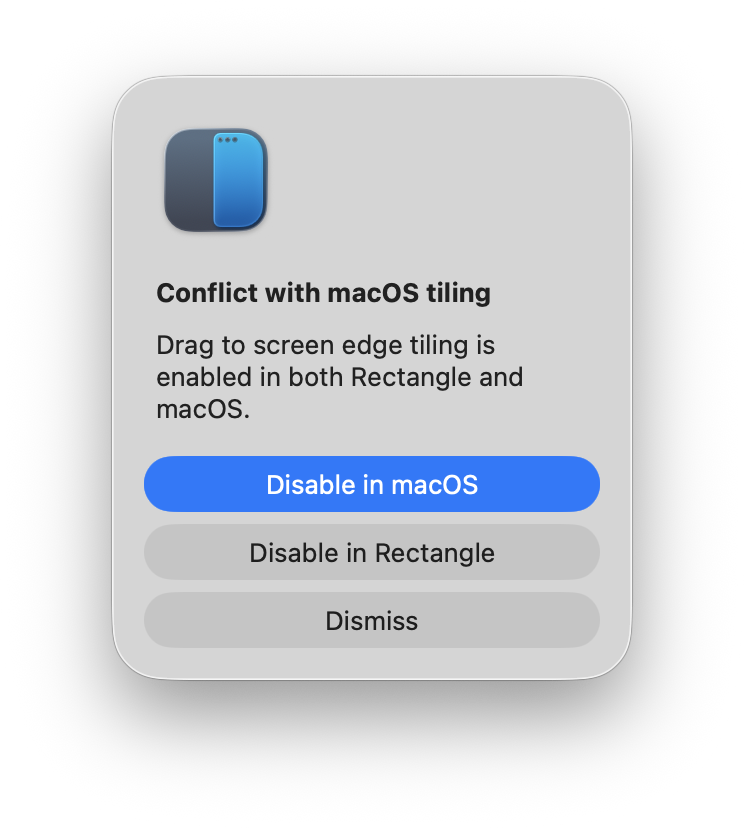
    Disable macOS default window mgmt.

    Next, I modified Rectangle’s custom keyboard shortcuts to match what I’m already familiar with (see below). Unlike macOS, Rectangle includes custom keybindings for moving a window to other connected external displays. (I use this ALL the time.)
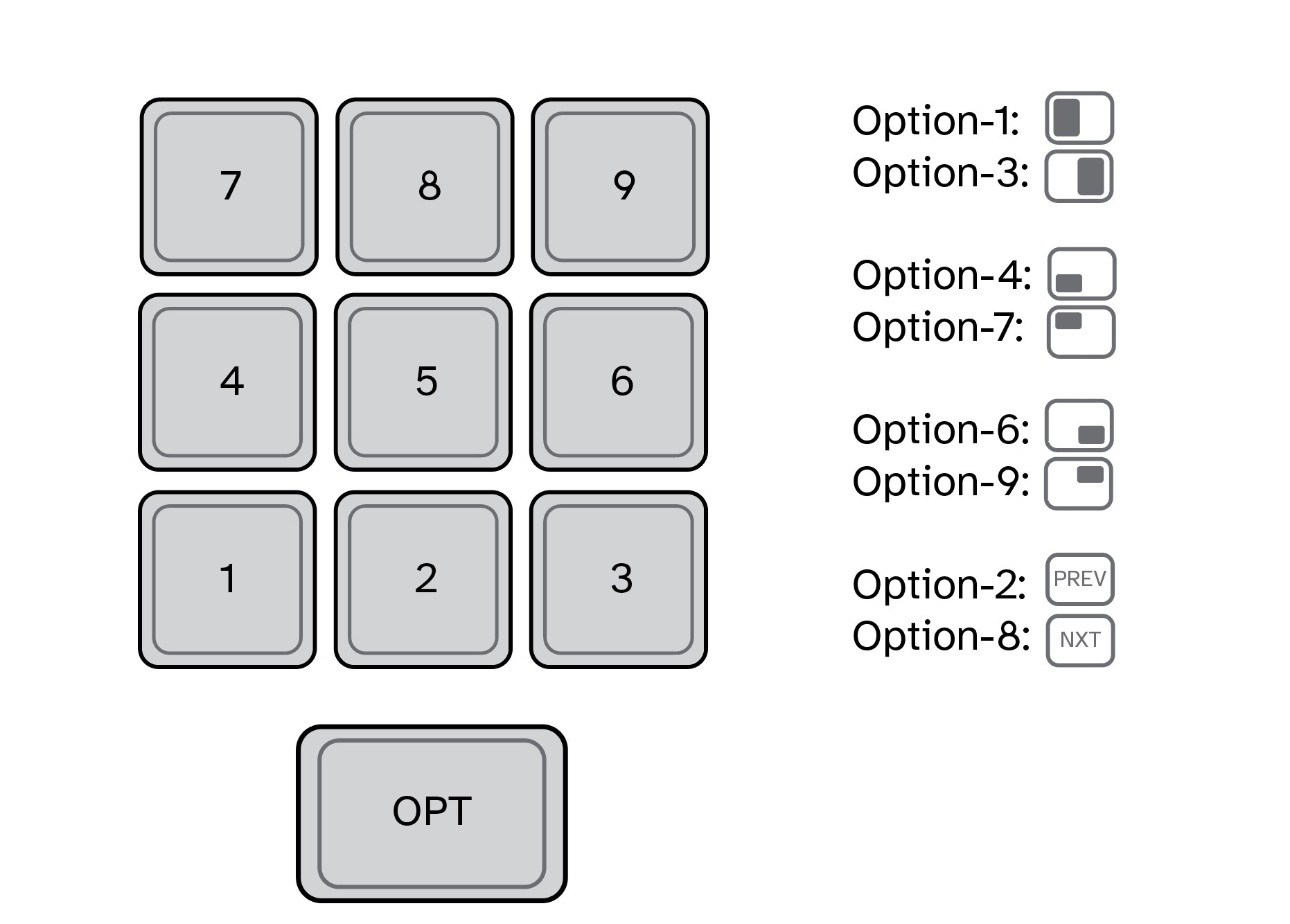
    And for those instances where I want to have a window take up most of the display, I’ve configured Option-5 to “Almost Maximize”.
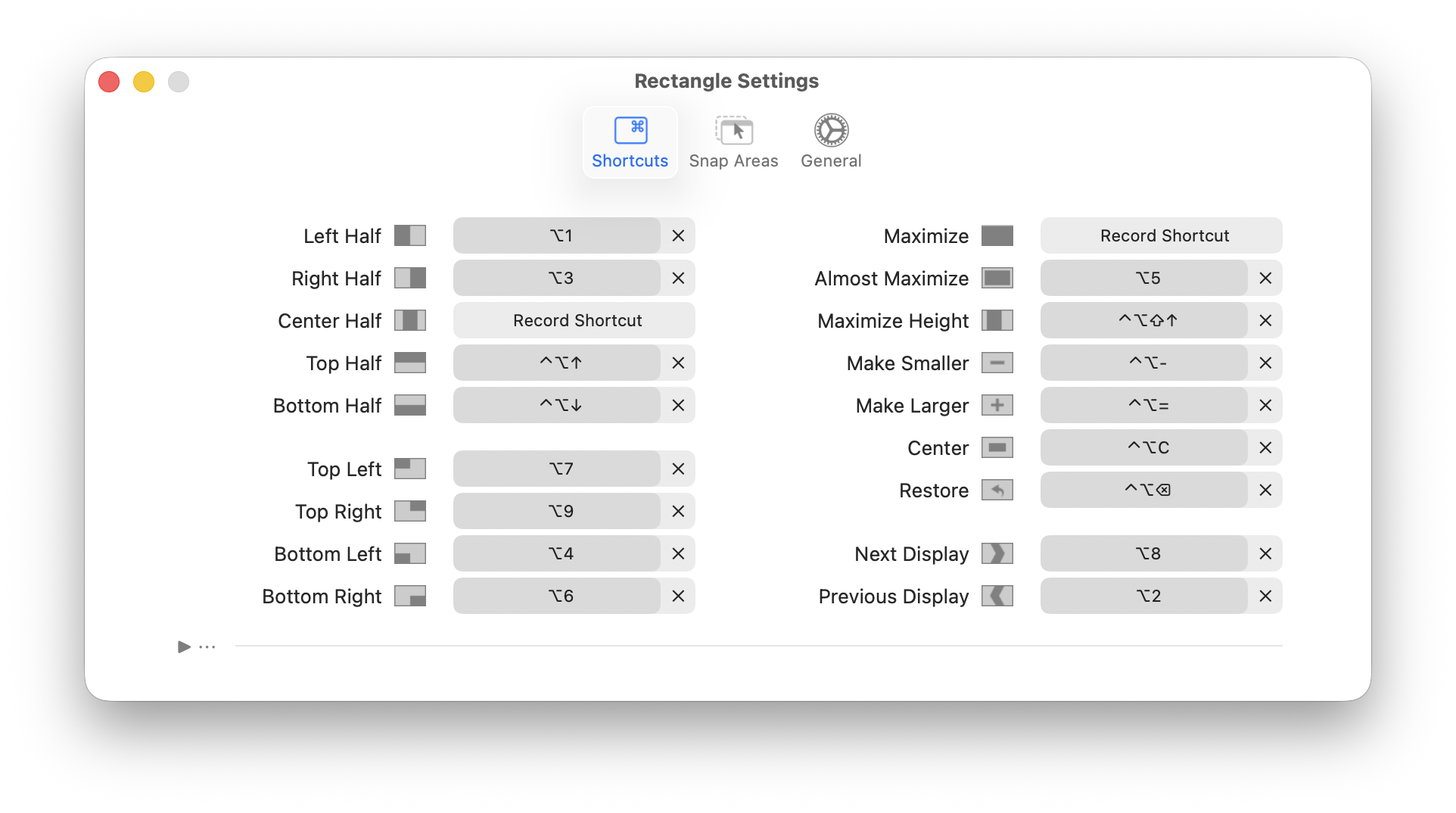
    Rectangle custom key bindings.

    Lastly, I’ve set Rectangle to launch on login. In this way, it will always be active each and every time I start my Mac.
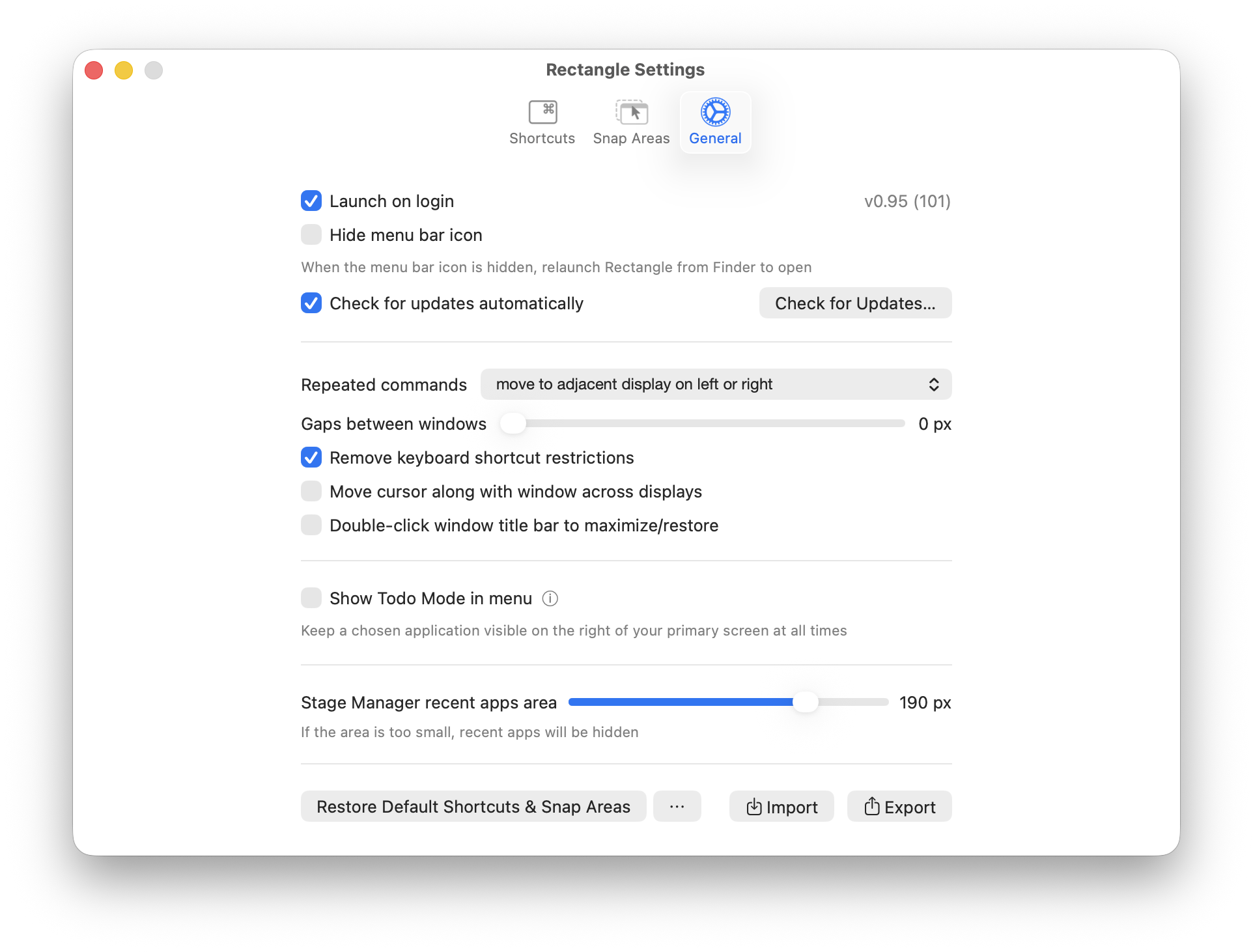
    Rectangle gen settings.

    In my testing, Rectangle is fast and efficient. A Pro version is also available, but for my needs, the free version is perfect

    -Krishna

  • FrugalMac: AirDrop and File-Sharing

    FrugalMac: AirDrop and File-Sharing

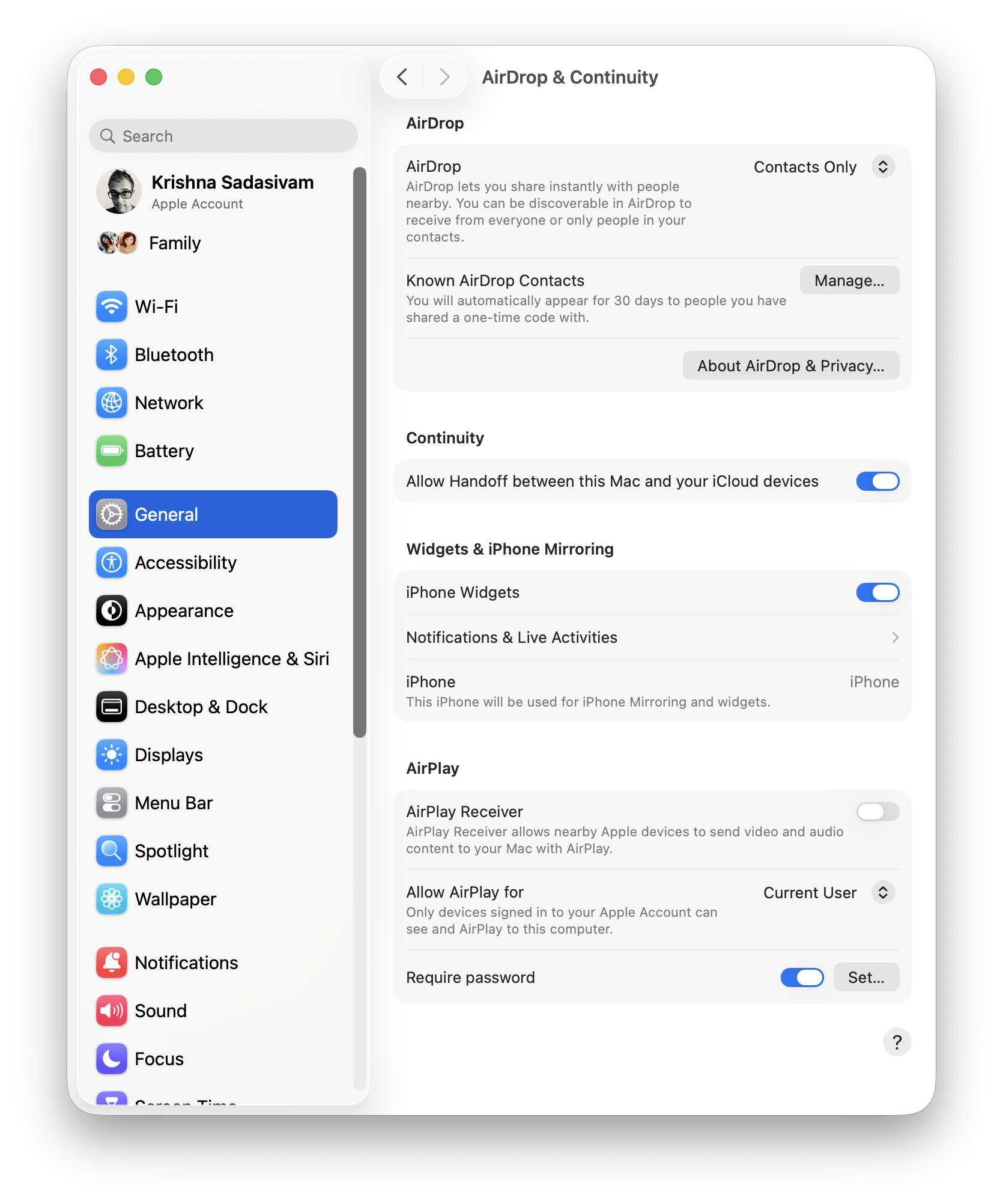
    The last two major settings I’m interested as part of setup is AirDrop and File Sharing. In AirDrop, I’ve turned AirPlay Receiver OFF as I have no intent or interest in having my other devices send over video and audio.

    Airdrop settings.

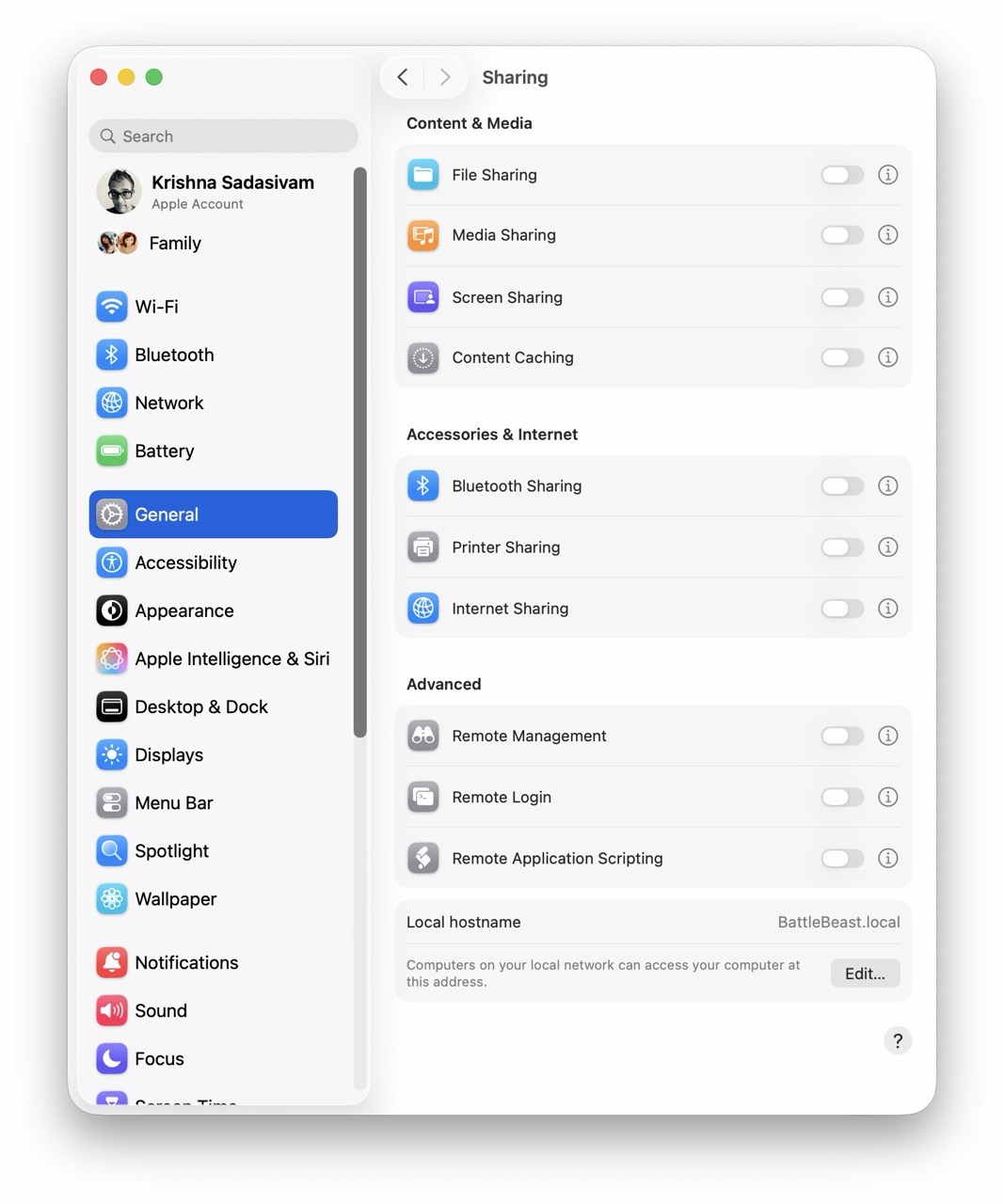
    Under Sharing, I’ve turned File Sharing OFF. I prefer to have it turned on ONLY when I have a need to share files between my Macs. The plan is to implement a script (like I did in Alfred) to toggle File Sharing without having to visit System Settings each time. 

    MacOS file sharing settings.

    And that basically concludes my macOS System Settings setup for FrugalMac. The FrugalMac series will continue, as I examine the third party applications I’ll need to make the most of using my new Mac.

    -Krishna

  • FrugalMac: Fixing the Finder Windows

    FrugalMac: Fixing the Finder Windows

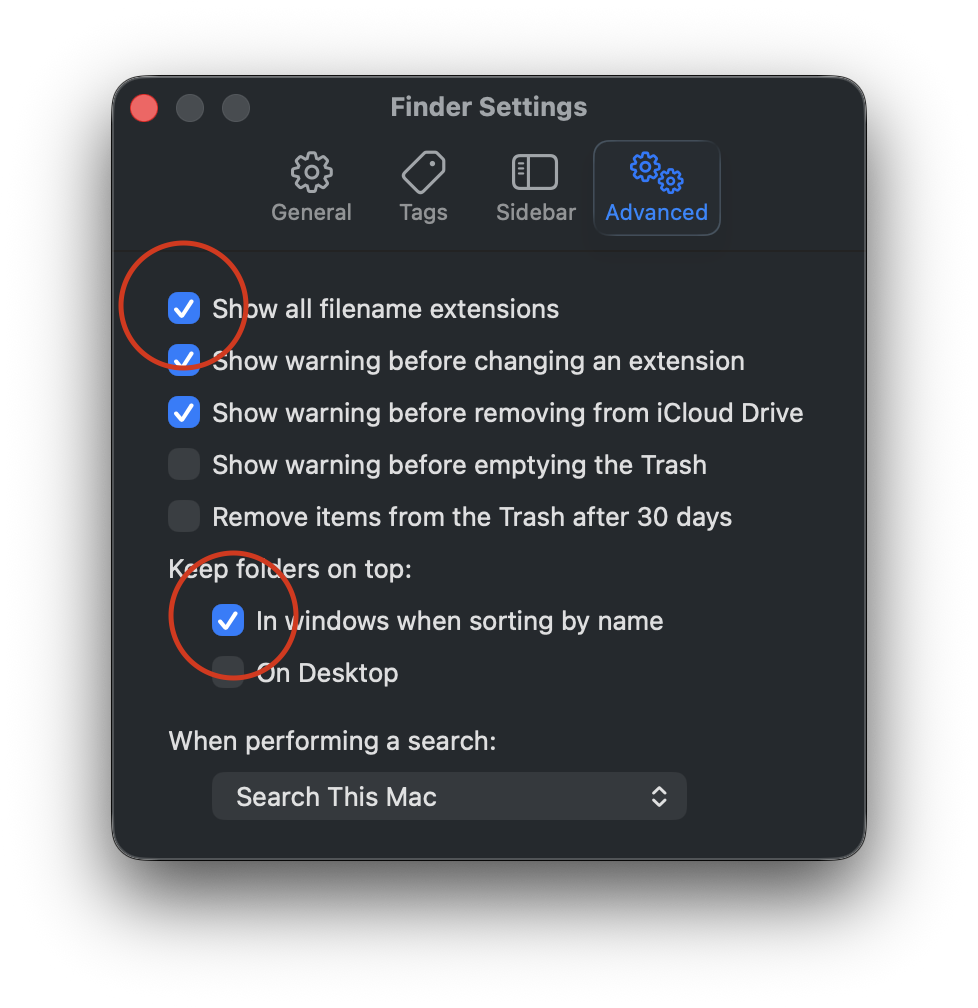
    Perhaps the title is a bit hyperbolic. I’m not fixing the Finder’s windows, I’m configuring them to work best for me. But first, let’s go to Finder Settings > Advanced and turn on Filename Extensions and Keep folders on top.  I routinely share files between different platforms, so having visible file name extensions are a must. I also like to keep my Folders separated from my files.

    Finder settings file extensions.

    Next, let’s go to View > Show View Options, where I will increase the text size and sort items by name.

    Desktop text size.

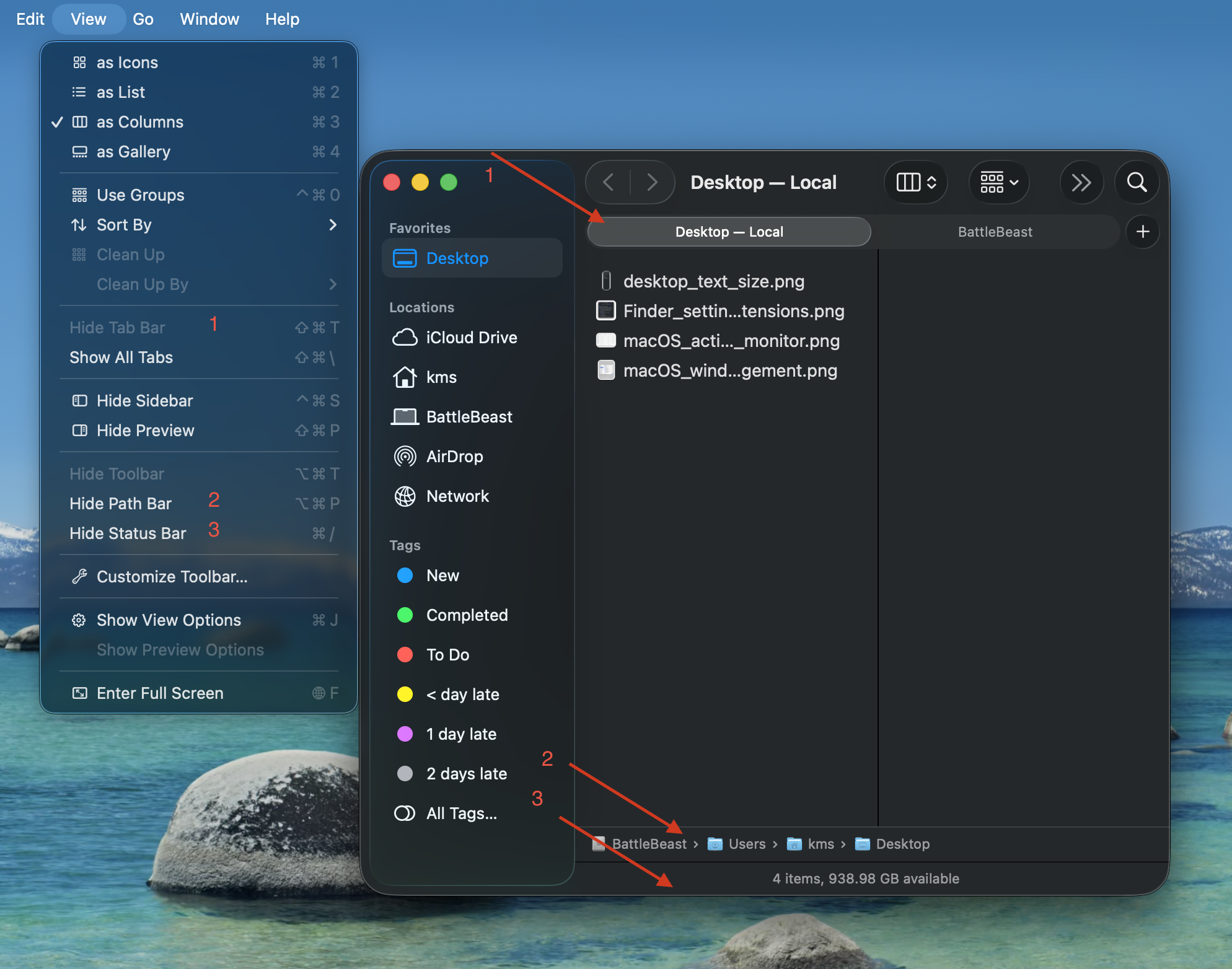
    Now let’s move to the Finder window settings. I have “Show Tab Bar”, “Show Path Bar” and “Show Status Bar” active. The first option will let me quickly move between two different Finder locations in one window. The second option will show a breadcrumb trail of where I’m at within the file structure. The third option gives me an item count and overall remaining space. Of the three options, I feel that “Show Path Bar” should be the default setting from Apple, because it makes the most sense.

    Finder window settings.

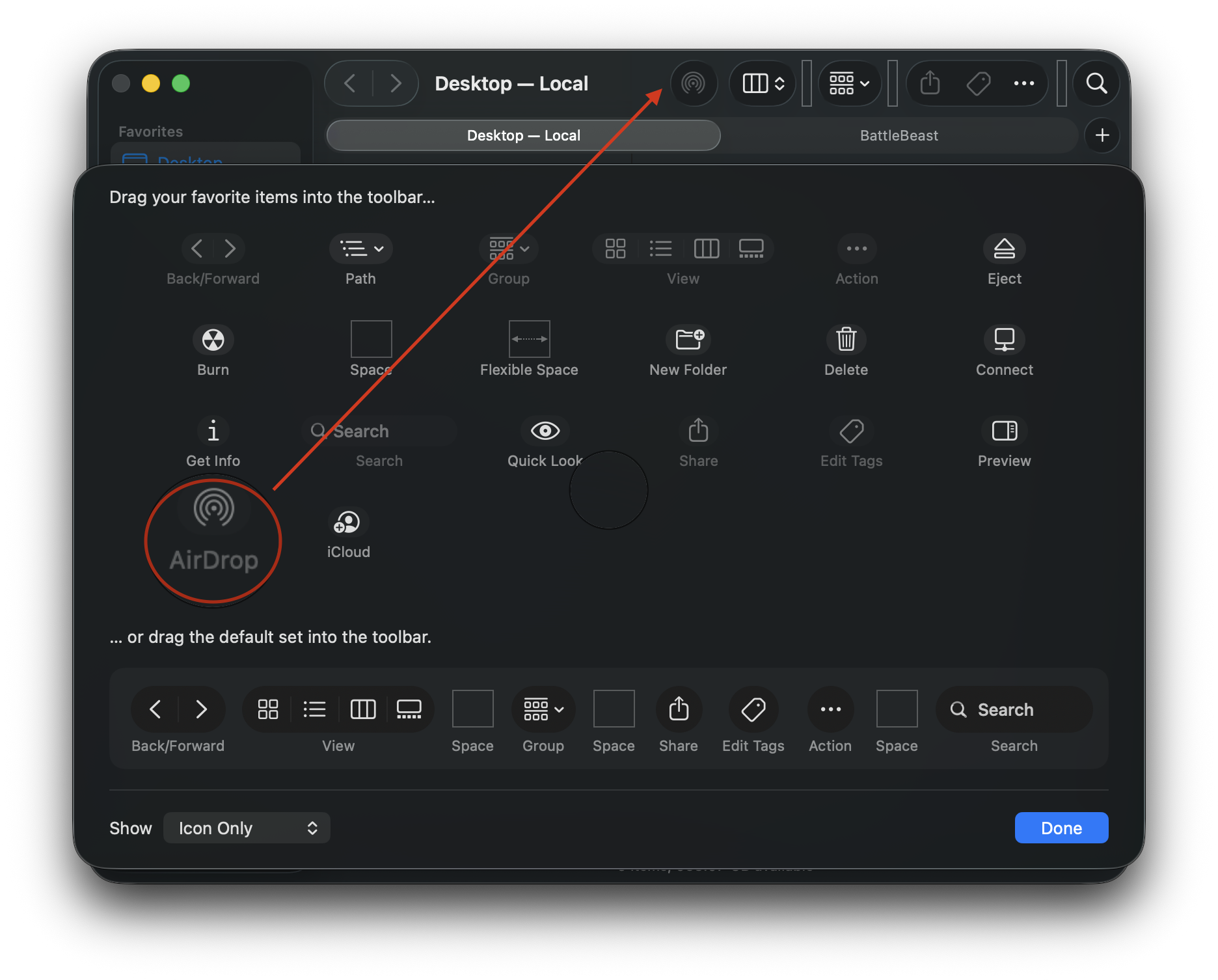
    To configure the Finder window’s toolbar, go to View > Customize Toolbar. I keep the default settings, with the exception of adding AirDrop. Dragging the AirDrop icon into the toolbar gives me quick access for sharing files and folders from each and every Finder window.

    Finally, the Finder is somewhat useable

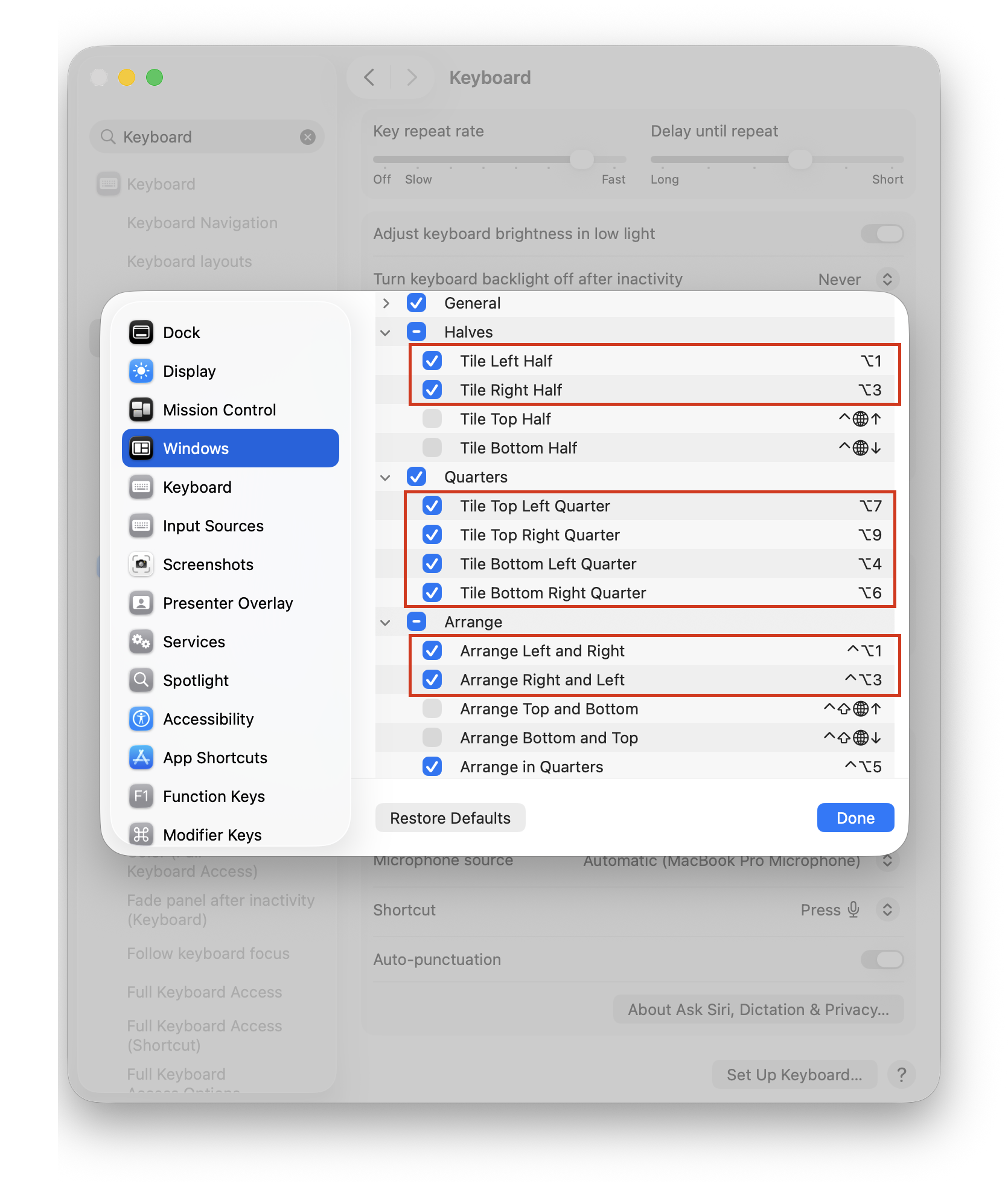
    One more thing… let’s configure useful hotkeys to make the window management experience less painful. In System Settings, search for Keyboard Shortcuts. Then, scroll down to Windows. Below are my custom hotkeys, replacing Apple’s defaults. These are the same hotkeys I’ve used when managing windows with Raycast. The Arrange section lets me switch / flip windows from left to right or vice versa.

    (Alas, macOS does not include any built-in option for moving a window to a different display via hotkey. This is a hole that I will have to remedy with third party window management software.)

    MacOS window management.

    Incidentally, I have yet to add any new piece of software to this Mac. My FrugalMac approach is to work with what I have first. When I run into limitations that go beyond the scope of what the vanilla macOS experience provides, I will investigate appropriate third party solutions. 

    -Krishna