In my last post, I prepared my G-mail accounts for use with Apple Mail. Today, as promised, I’m sharing my Apple Mail settings along with some accompanying rationale.
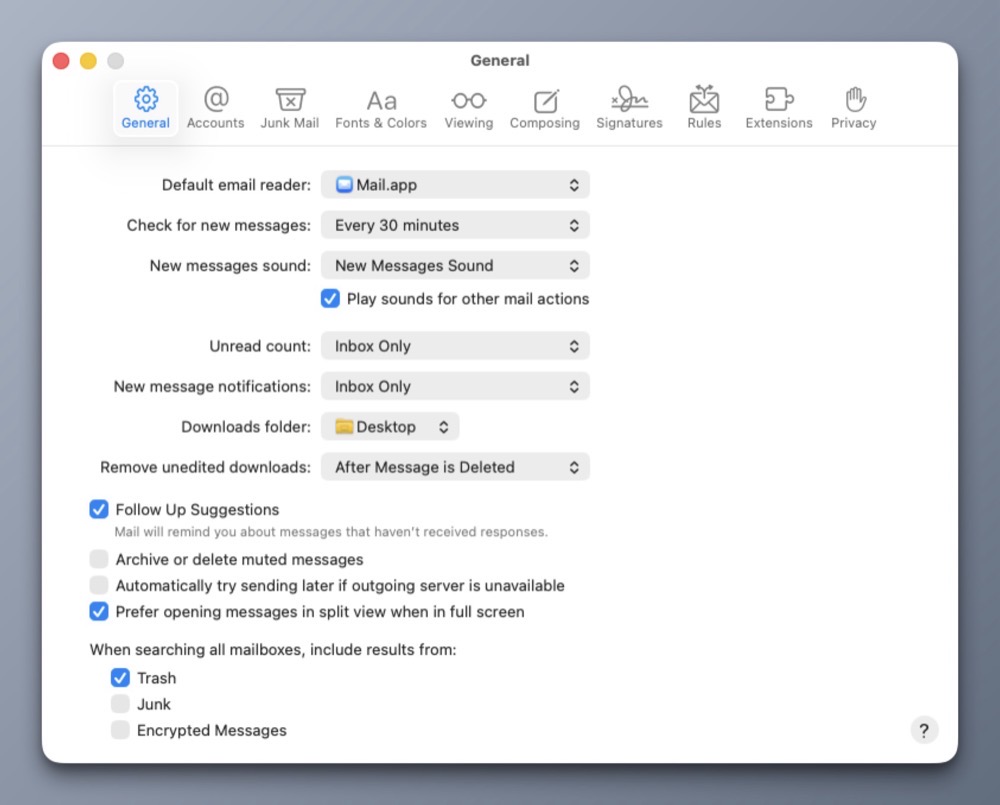
In the General tab, I’ve made three changes.
1) Fetch new email every 30 minutes from both G-mail accounts. For me, any value less than 30 minutes feels masochistic.
2) Downloadable content will appear on my Desktop. This saves me a trip to the Downloads folder.
3) Follow-up suggestions are checked ON so I can be reminded when I haven’t received a response.
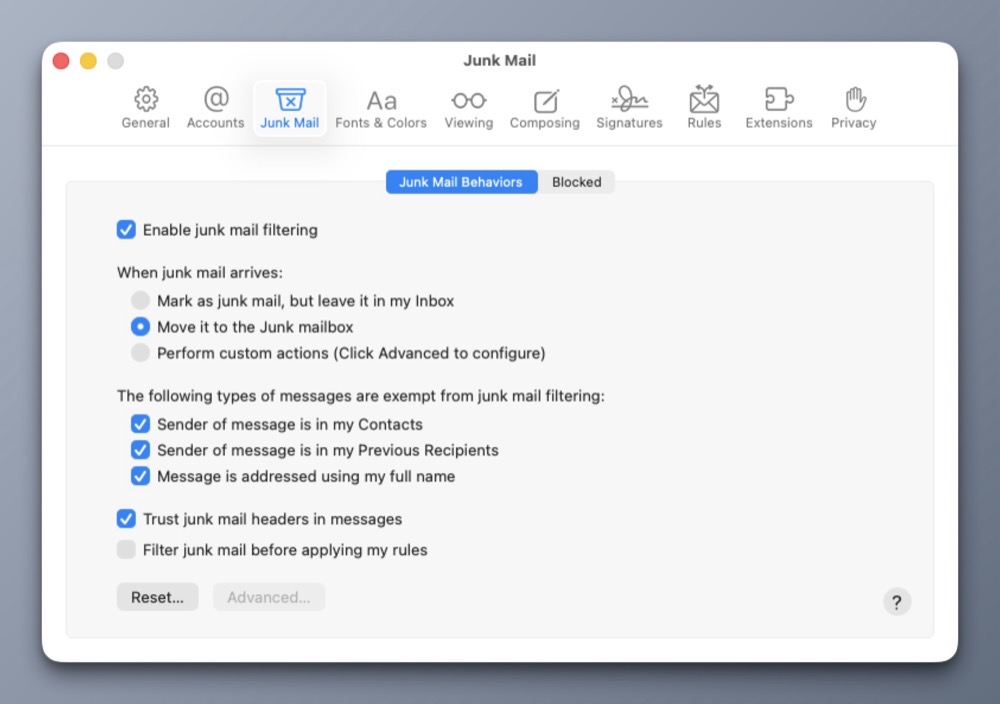
Moving to the Junk Mail tab, I have Junk Mail filtering ON with all default settings. It seems to work OK.
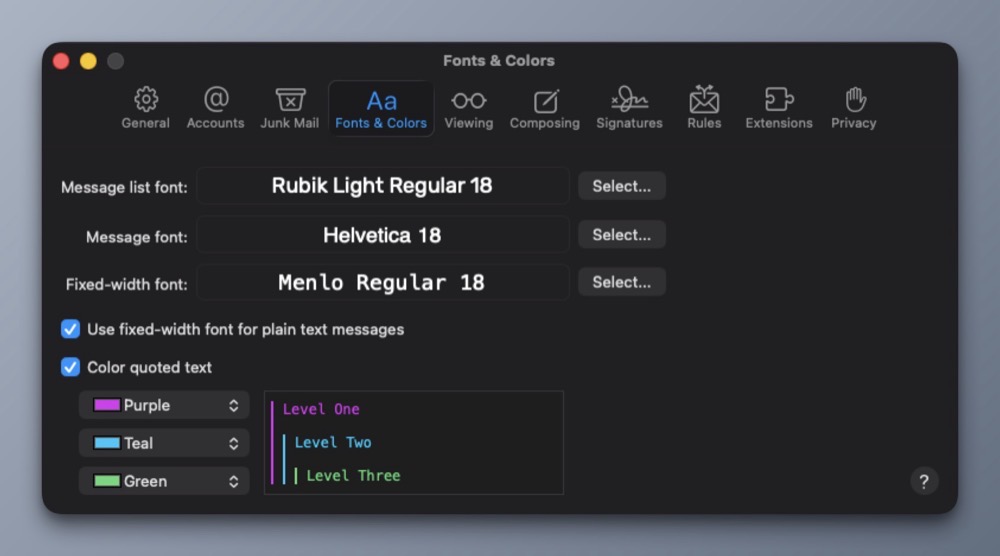
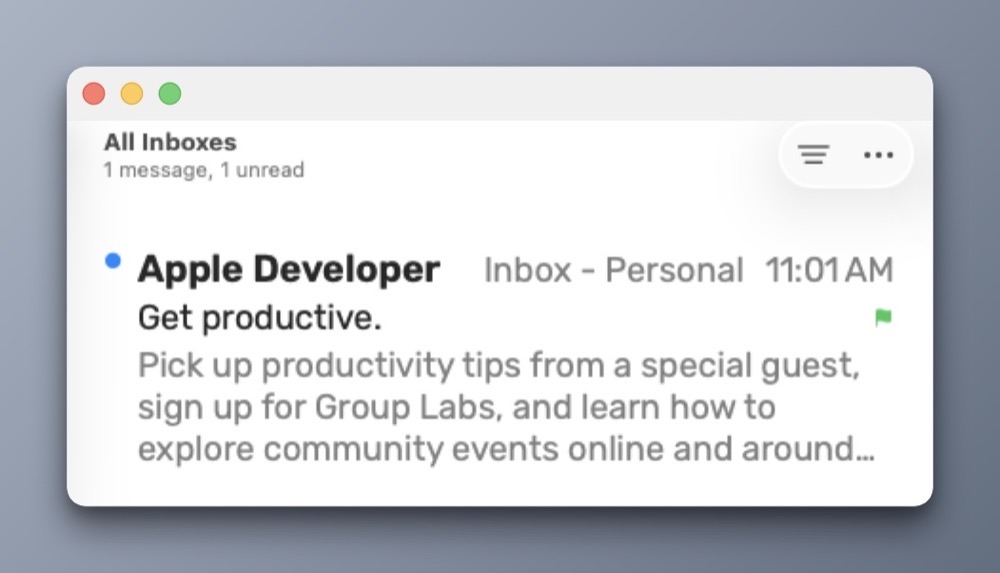
For Fonts and Colors, I prefer Rubik Light Regular as my message list font. It’s a clean sans serif typeface that’s easy on my eyes. And speaking of eyes, I’ve bumped the point sizes to 18 to minimize eye strain.
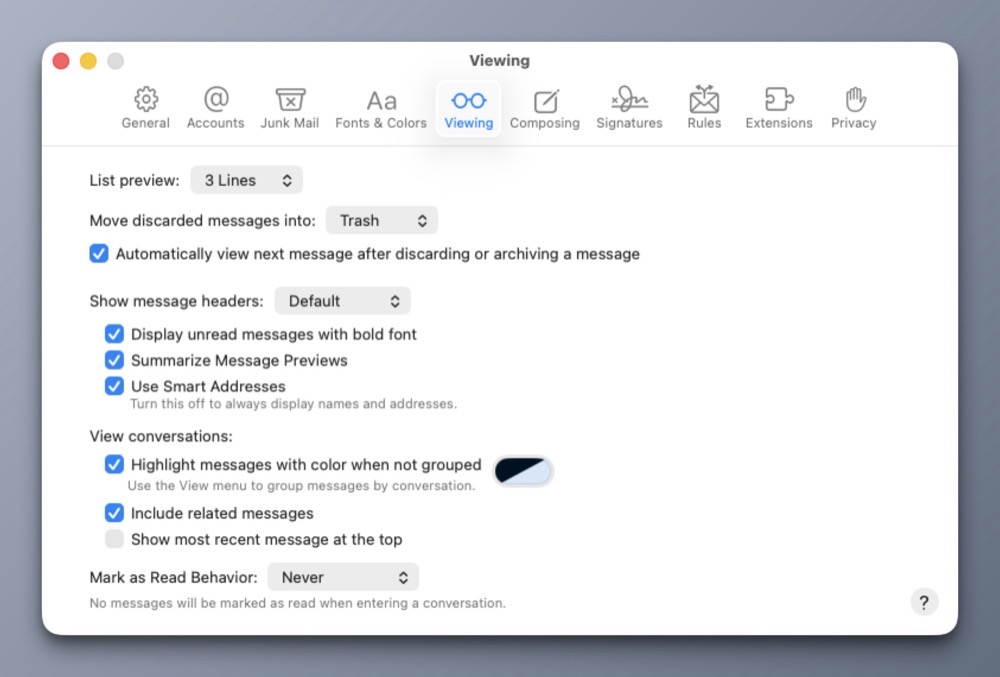
For Viewing, I prefer 3 preview lines for each email. I’ve also turned on Smart Addresses.
Below is a visual example of what the above settings look like when an email arrives in my InBox.
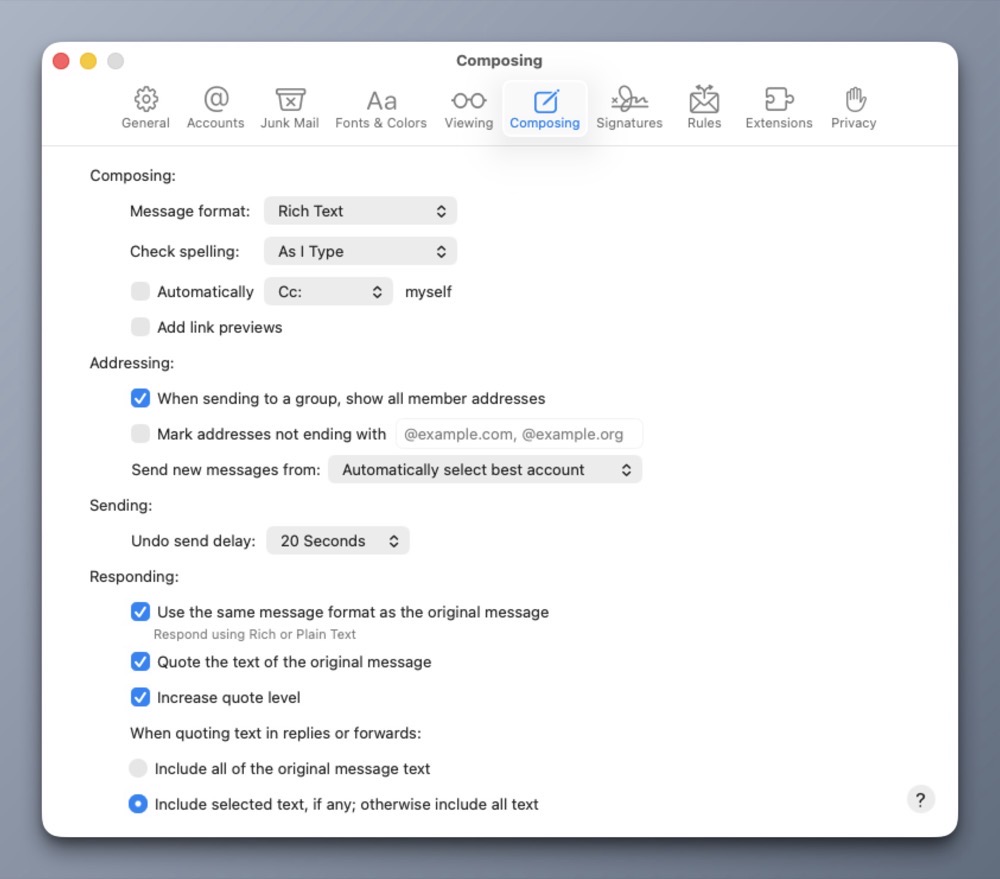
In the Composing tab, I’ve set the message format to Rich Text, keeping all other settings at their defaults.
Within the Signatures tab, I have custom text signatures set for each of my accounts, and the signature is placed above the quoted text, because I’m not an animal. I have yet to configure the Rules tab with custom settings, but I did delete the Apple provided rule.
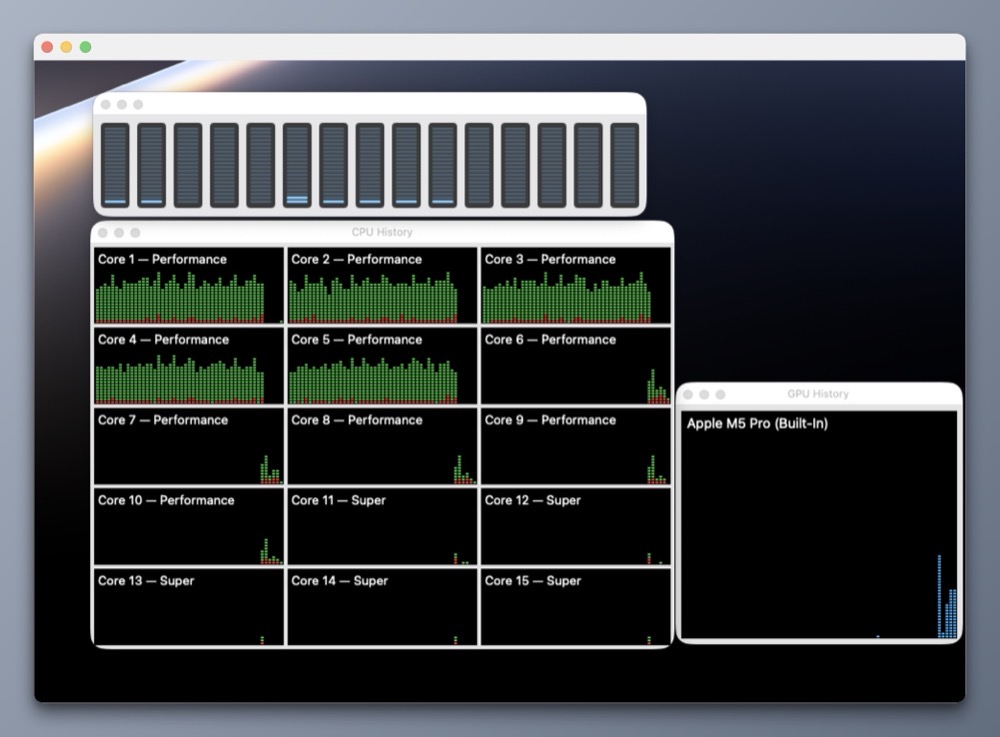
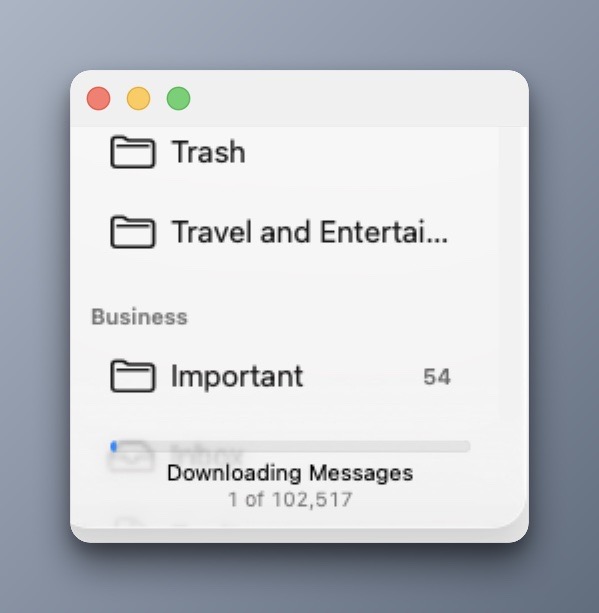
As a footnote, it took several hours to import my email into Apple Mail, even with the task utilizing five full cores of my laptop’s M5 Pro CPU.
The reality is I have threee-mail accounts, each with its own purpose. The first is dubbed Business for tasks related to my writing / design side hustle. The next account is dubbed Personal, as a catch all for personal correspondence, bills, onlineshopping, etc. Finally, the last e-mail account is Academics, for my academic / work related correspondence. Two are G-mail based, and one is (shudder!) Outlook. But, before i continue, I must state the obvious:
No two people handle e-mail the same way.
So there will be a lot of “this is how I do it” sprinkled across this post. There may be better methods and approaches out there, but this is what has been manageable for me. I’m not even the closest at being an expert at dealing with e-mail, but I know enough to be dangerous.
Before setting up my e-mail client (Apple Mail), I wanted to get my e-mail accounts in proper order. That meant taking a closer look at how I categorize and file my e-mails. Moving to a new computer requires some tidying up, so as to avoid dealing with the same mess in the new location.
G-mail does not use folders, but my brain does, and so I have specific labels (which I’m referring to as folders) set up for organizing e-mails. But before we go on, we need to think about the function of e-mail.
There are two types of e-mails, in my view.
1) Those that need to be acted on or retained for an upcoming task.
2) Those that are important enough to keep, for future reference.
Everything else is just noise. That being stated, I have accrued almost three decades of email. It would take more than a year to prune what I no longer need.
Instead, to preserve what’s left of my sanity, I created a label / folder called Cold Storage, for each of my G-mail accounts. Cold Storage is where my e-mail folders go when they must be kept, but not actively needed. It’s like the Archive folder, but feels more intentional because I’m designating its function. (Besides: the Archive label can’t be renamed.)
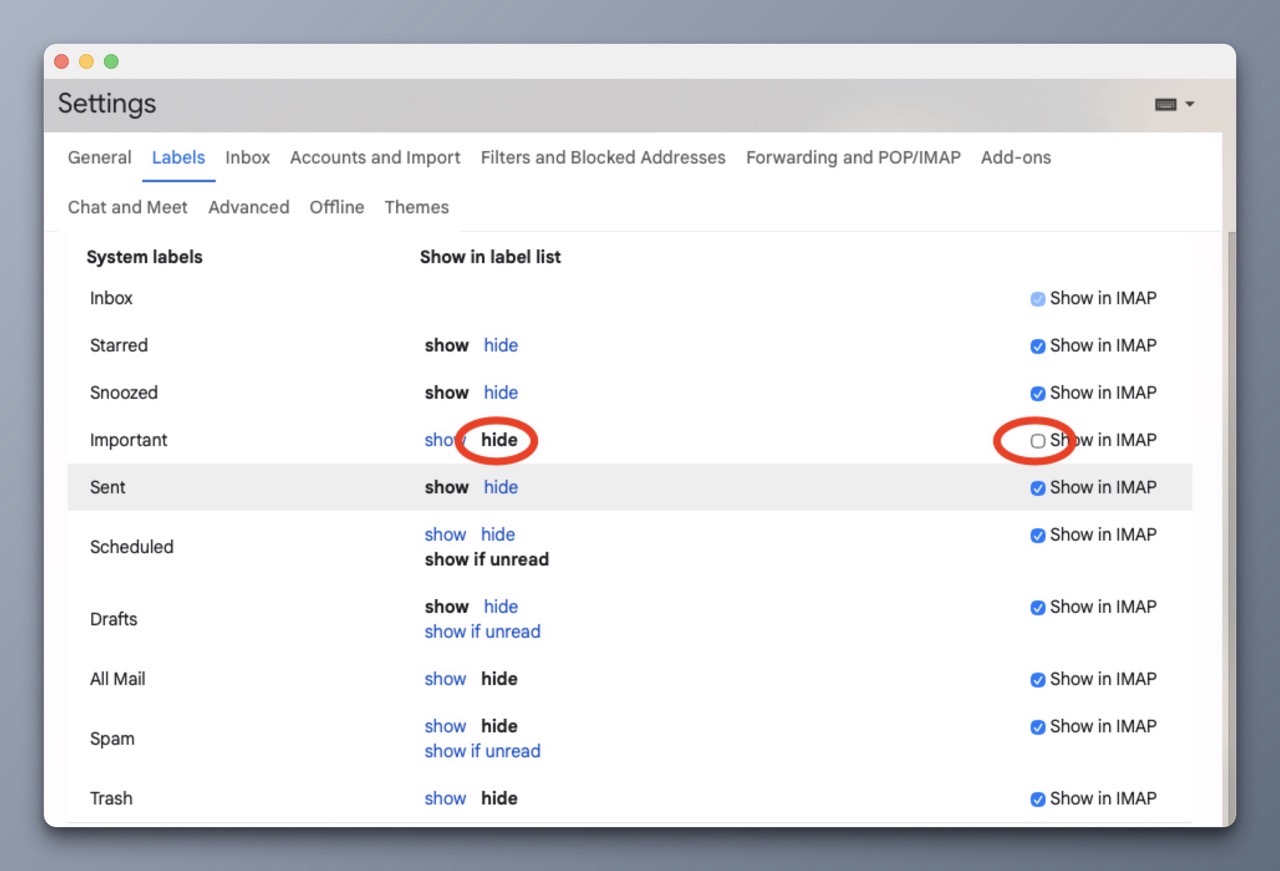
G-mail’s Important label seems ineffectual to me, because it considers ALL incoming emails as being “important”. I prefer hiding the Important Gmail label.
To hide labels in G-mail:
1) Open G-mail in your web browser.
2) Click on the Gear icon in the top-right corner and select See all Settings.
3. Click the Labels tab at the top of the page.
4. Hide the labels you no longer need / wish to see.
I have also unchecked “show in IMAP” so I never have to see the Important folder in Apple Mail across all my devices.
For my Personal account, I’ve designated a label called To Do where I toss emails related to upcoming tasks / activities that will be acted upon in the near future.
Before I close, I want to mention that I will be sticking with Apple Mail. Not because it’s great (it’s not). It’s just the only one that I can tolerate. I’ve looked at the other options within this space, and I’ve found them to be either too clunky, have limitations or require a paid subscription. Sometimes, it’s all three.
Color me gun shy, but my experience using paid third party email clients has been less than stellar. Not because they aren’t good – it’s just that the support and longevity just aren’t there. (See: Claris Emailer, Eudora, PowerMail, and Airmail)