As a long-time Mac user, macOS’s customization options have slowly improved. (More customizing options are still needed.) Let’s start with some basic appearance tweaks, found within Settings > Appearance.
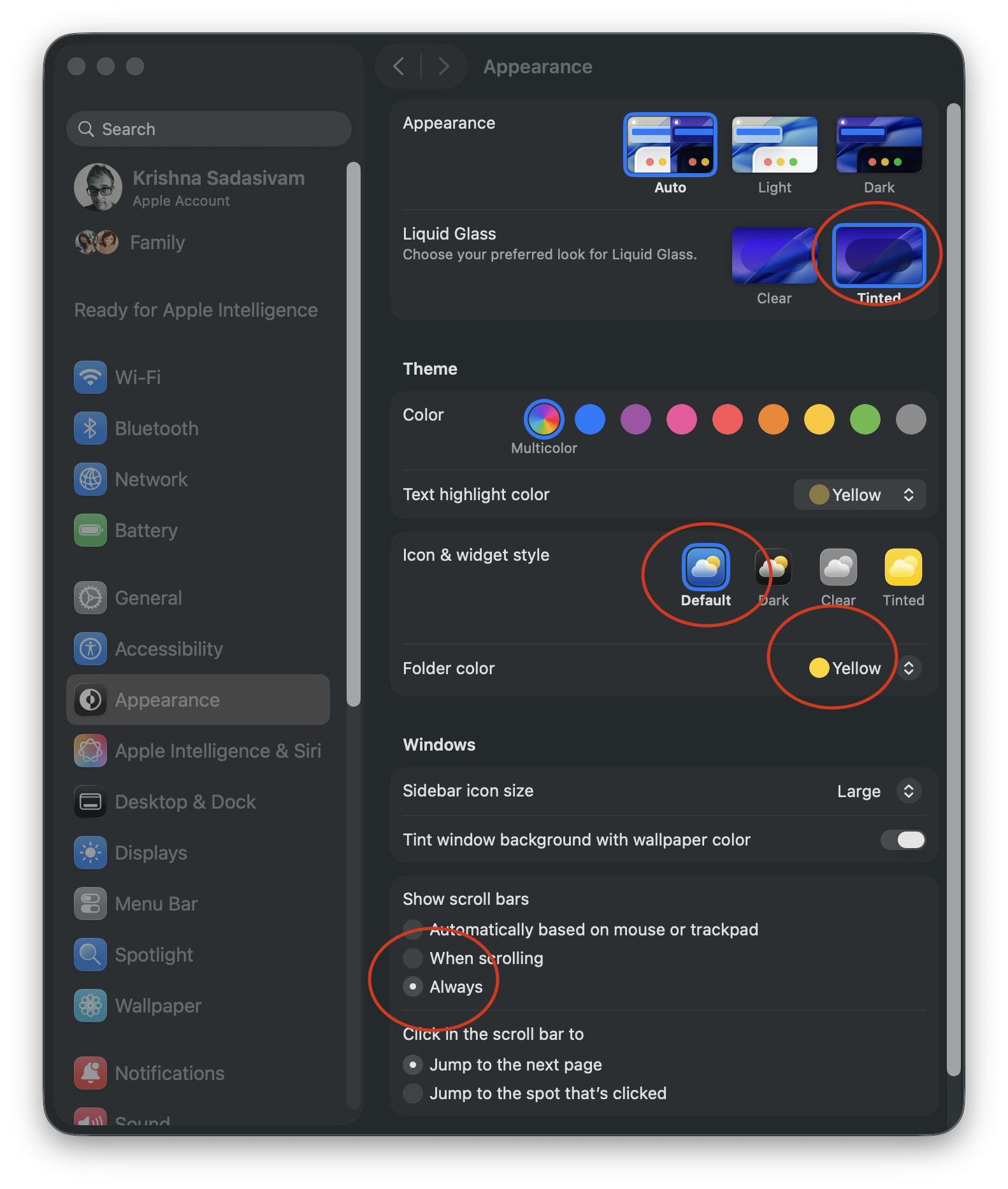
From the top, I’ve chosen Auto to have my Mac change from light to dark mode, based on time of day.
However you feel about Liquid Glass, it can’t be replaced in macOS 26. The Tinted option is what I prefer, to improve contrast. I’m sticking with the Default Icon and widget style because, for me, color distinction is critical for quick icon identification.
I’ve set my default folder color to yellow, while scroll bars are set to Always. I’m not a fan of Tahoe’s thick scroll bars, but having them always visible lets me know that more options are available if I scroll. While I’m here, I will make the sidebar icon size Large.
I hope that one day soon that users will have the ability to influence more window color options beyond light and dark variants. (I’m not holding my breath.)
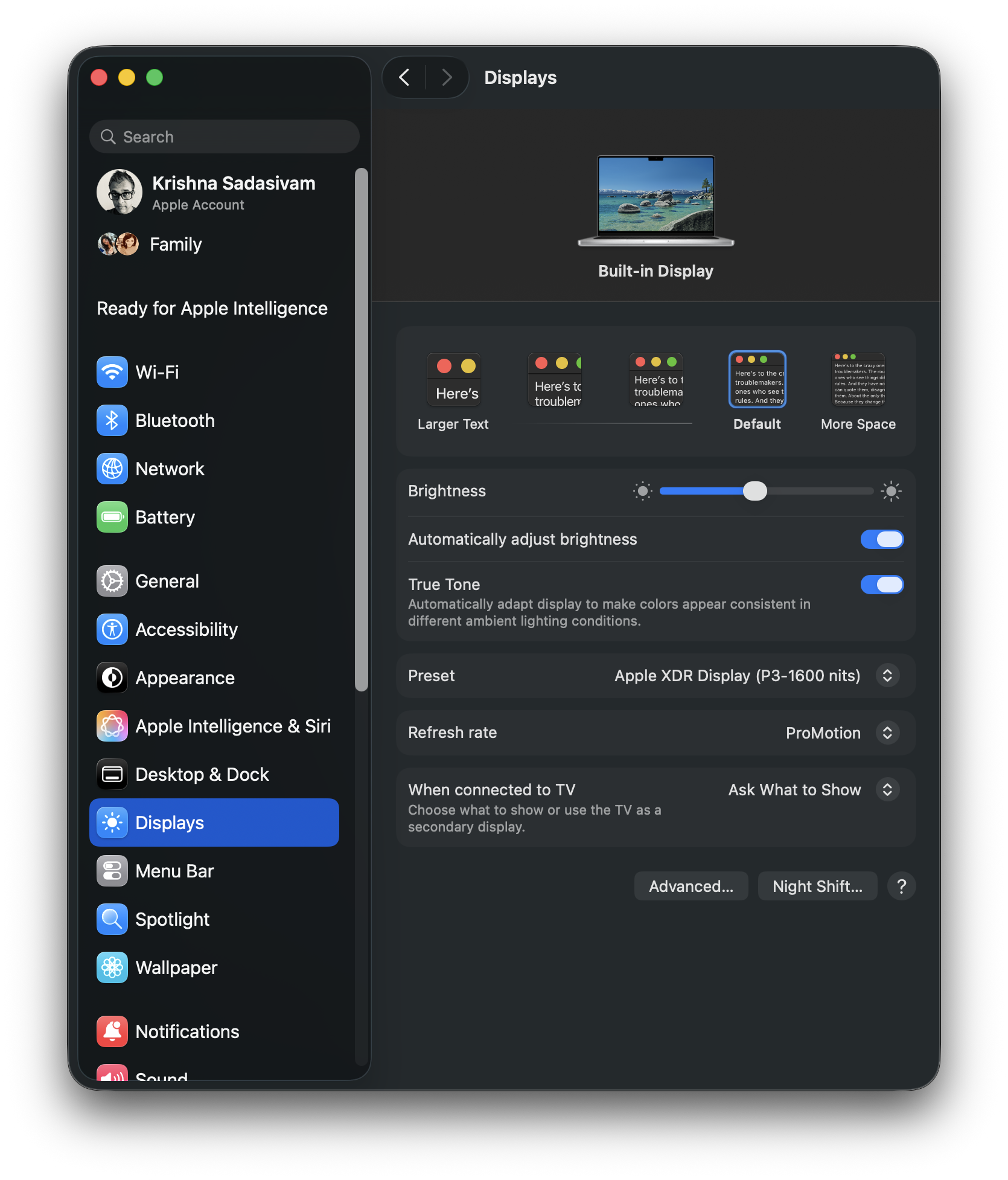
Onto System Settings > Displays, where I have kept most of the default settings. Clicking the Advanced button reveals additional options for showing specific screen resolutions.
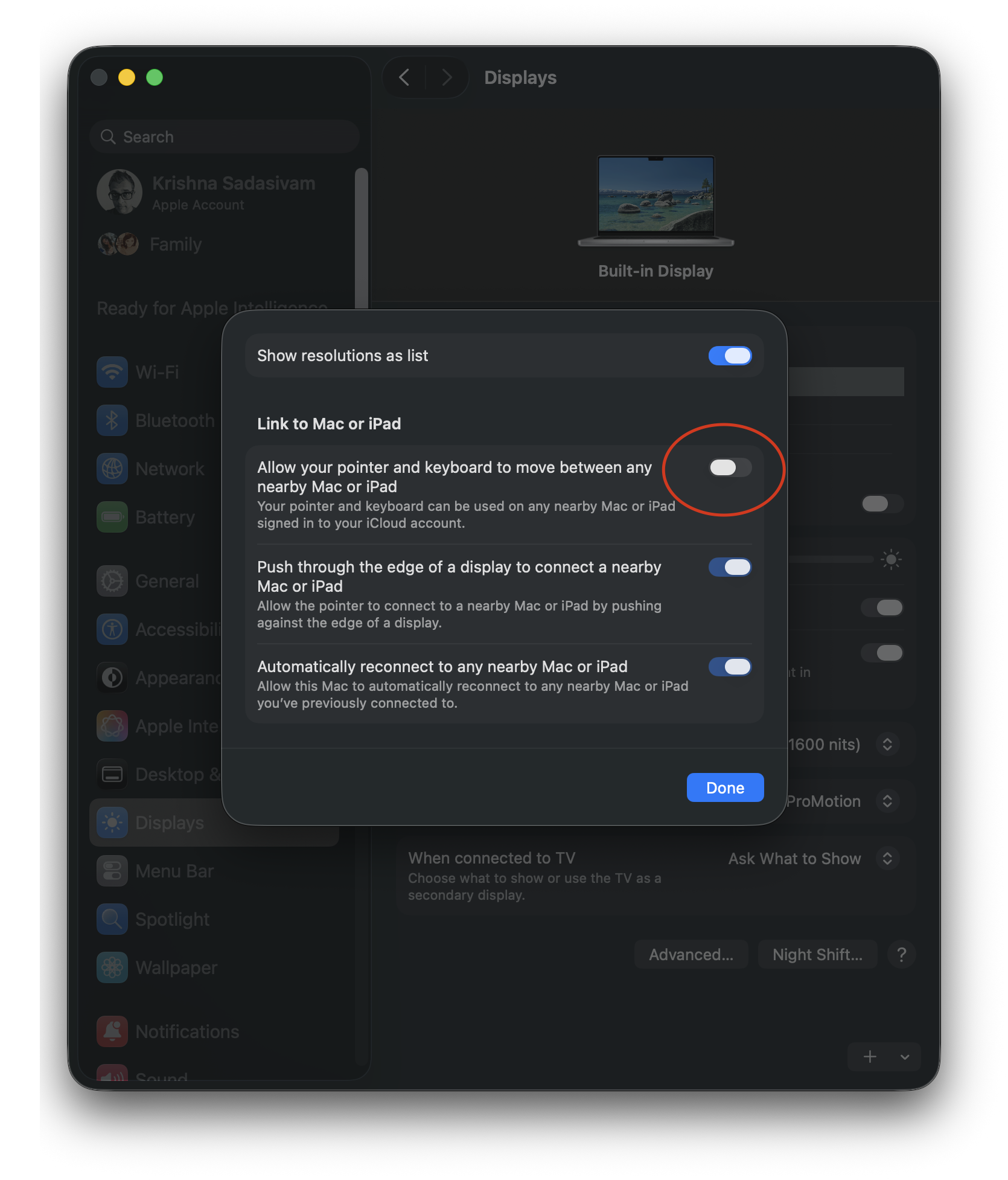
Show resolutions as list is ON, and “Allow your pointer and keyboard to move between any nearby Mac or iPad” is turned OFF. Bizarely, the remaining two options cannot be toggled OFF.
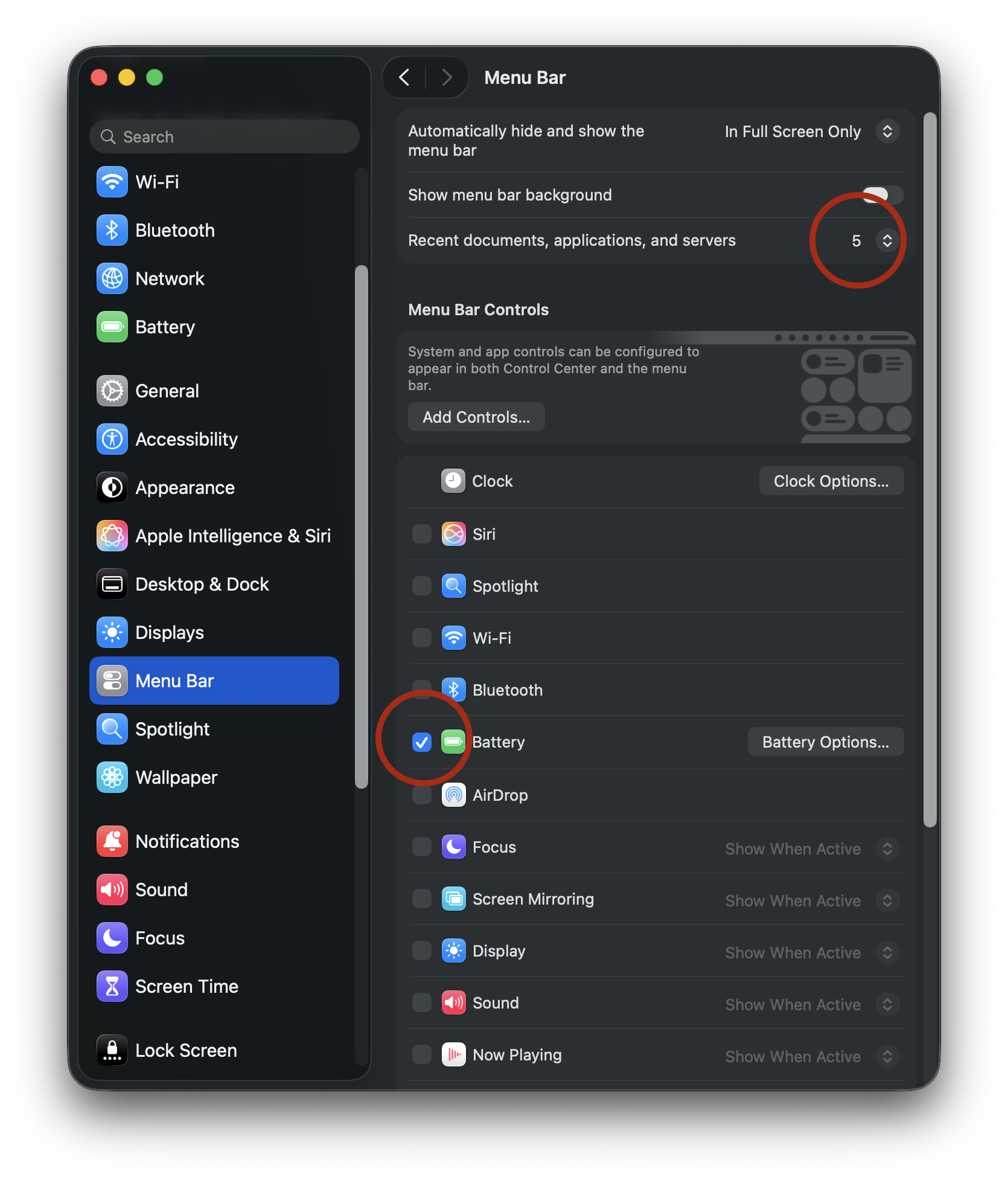
For System Settings > Menu Bar, I limit the number of recent documents, apps etc. to 5 instead of 10. I’ve also turned off all menu bar controls, save for Battery. (Some of the menu bar options that are OFF, such as Wi-Fi and Bluetooth, will be placed in Control Center.)
Wallpaper and screensaver settings will change later, but for now, I’ve selected a simple time-based wallpaper (Earth > Middle East), only because I like the contrast between the dark background and the icons on my Desktop.
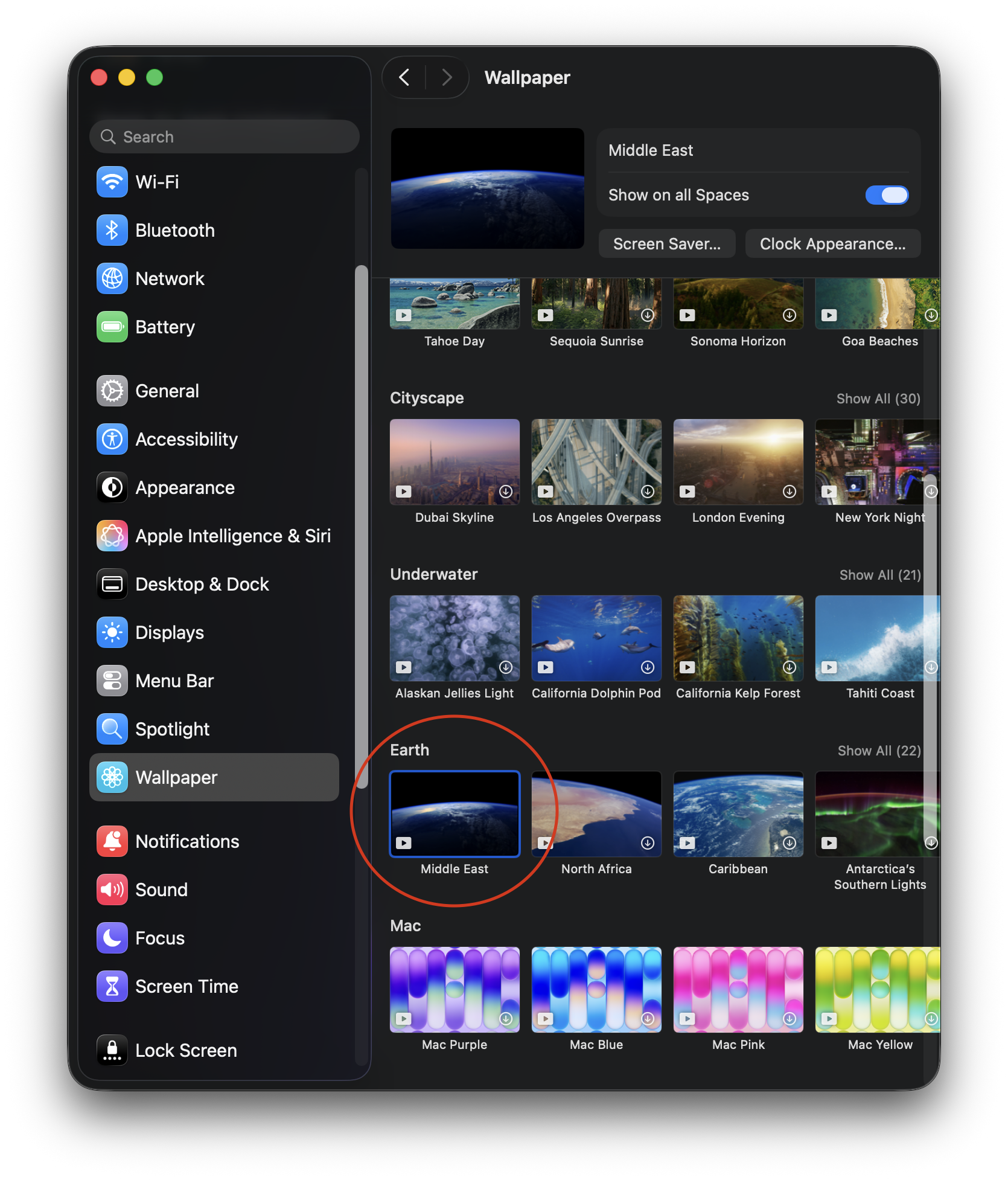
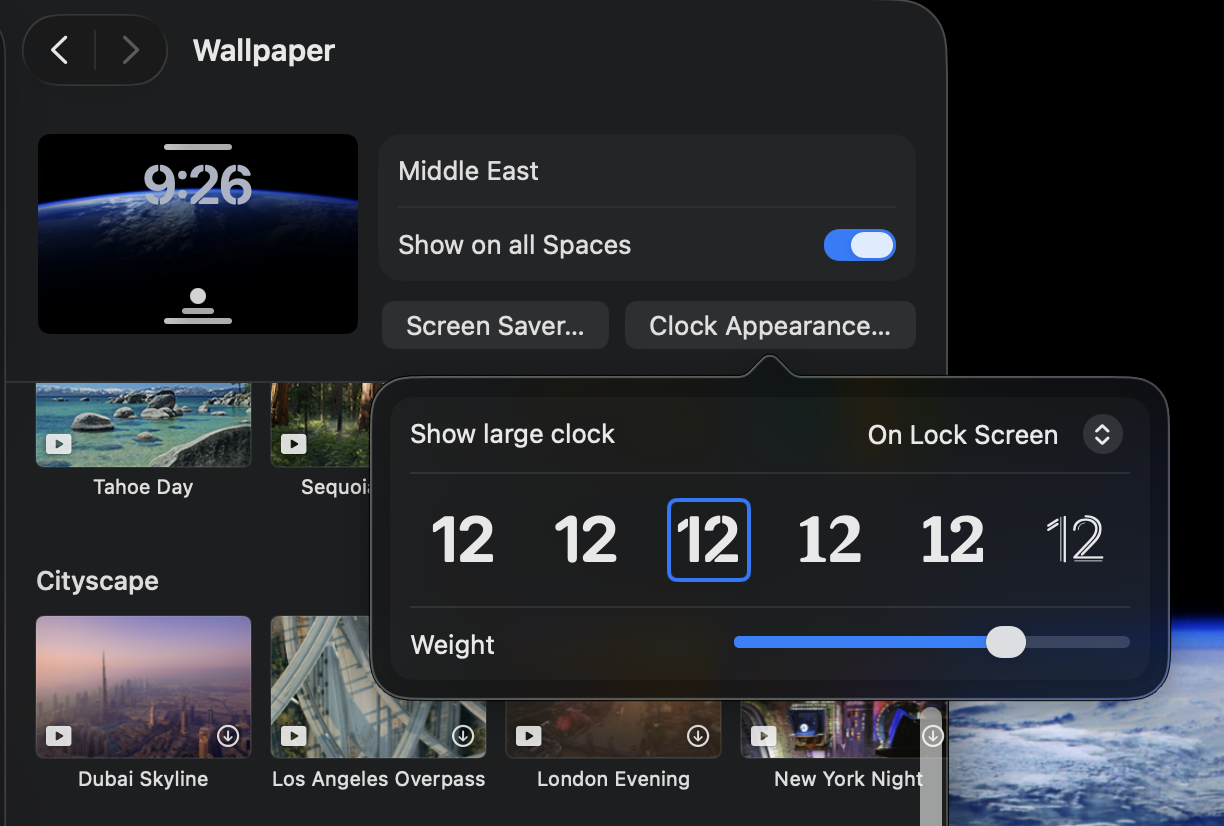
The same wallpaper will be used for the screensaver. When my Mac is locked, the screensaver will display an animated wallpaper, with a large floating clock in the top center. Clicking on the Screen Saver button provides options for customizing the Clock appearance.
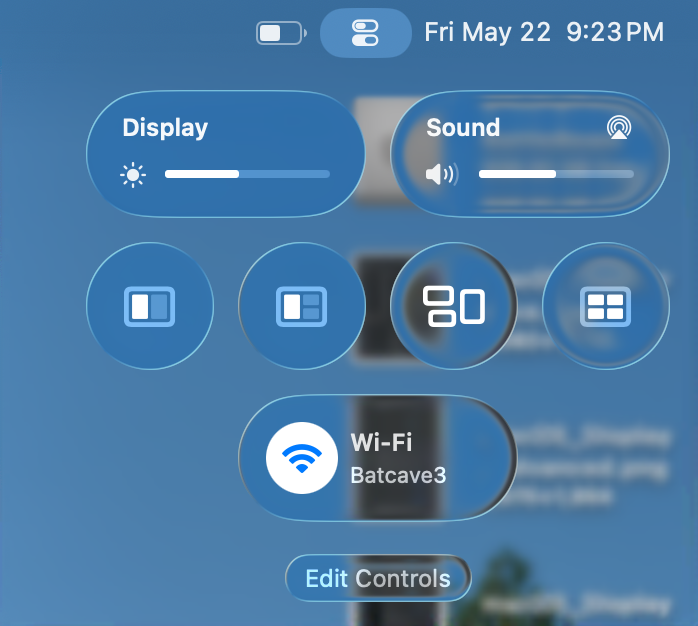
Finally, I’ll configure Control Center, by first removing everything and adding the settings I actually find useful: Display, Sound, window management (including Mission Control) and Wi-Fi. Even if you are configuring your Mac differently than mine, the idea is that the decisions are made with intention and purpose.
Next up: Notifications, Sound, Focus and Screen Time.
-Krishna