
From the Archives features select blog posts that I recovered from the original PCW website. Every effort has been made to preserve the original article as is. Some minor updates are included, as needed. Links that no longer work have been removed.
originally published: November 11, 2016
When I first saw the Wacom Cintiq 27QHD model a year ago, I was instantly smitten. Last week, I ordered one for myself. It’s been in the studio for a week now, and by all accounts, the Cintiq 27QHD is everything I expected it to be. But, I’m getting ahead of myself…
As of this writing, there are numerous offerings in the tablet monitor space from Huion, Yiynova, Microsoft and even Apple’s own iPad Pro. Long time readers will note that I have been using a Yiynova MSP19u for nearly 4 years. This post will attempt to address why I made the switch to the Cintiq 27QHD, and also why I picked this model over other competitive offerings (including Wacom’s recently announced Cintiq Pro and Cintiq Mobile Studio models).
Let’s start at the top.
Let me be clear: Yiynova makes a good product for its price point, but it has certain limitations that users need to be aware of. The first is the limited viewing angle, which makes any work involving color more challenging. The second limitation is the 1440 x 900 screen size. This wasn’t so much of an issue for me, because I made use of a second display. The third is the limited driver support, especially on the Windows side. (Note: Yiynova released updated Windows drivers last month.) These limitations were not deal breakers for me, but given the volume of work that I’ve been doing over the past year, I was ready for an upgrade.
Last month, Microsoft announced its Surface Studio device. While my initial reaction was very positive, I’ve tempered my attitude over the past few weeks as I’ve learned more about the device. While the Surface Studio’s 4K screen is no doubt very impressive, the device has only 1024 levels of pressure sensitivity. Both the Yiynova and Cintiq offer double the amount. Furthermore, the Surface Studio stylus requires a battery. Again, this wasn’t a deal breaker for me, because I’ve been using a battery operated stylus with my Yiynova with no issues whatsoever.
For me, the biggest deal breakers in considering the Surface Studio was
1) the price ($3000US)
2) the expense in purchasing Windows equivalent versions of the Mac software I already own.
In addition to the software, I would also have to reinvest time in rebuilding my automation tools from scratch on the Windows side. The time and inconvenience of finding and using programs that offer similar features to Automator and Keyboard Maestro on the Windows side wasn’t worth it to me.
Before I dropped coin on the Cintiq 27QHD, I was also considering the newly announced Cintiq Pro 16 model. It retails for $1500 and offers a 4K screen with 8,192 levels of pressure sensitivity – with virtually no parallax between the stylus and the screen. While the extra screen resolution and increased pressure sensitivity are tempting, I wanted a bigger unit to work on. The 16″ screen would be similar to the size of my current Yiynova tablet. The Cintiq Pro 16 doesn’t ship until February 2017, and I needed to make a purchase before the end of the year, so I had to rule that model out. New models also tend to have bugs or problems. As of this writing, the Cintiq 27QHD has been around for almost two years, so any kinks should have hopefully been worked out by now.
I believe I’ve made the best decision for me. The Cintiq 27QHD is a visually arresting piece of kit. It comes with a very useful and programmable remote that you can assign keys to and the color range is stunning. Drawing on its textured surface is very pleasant and smooth – in comparison, it’s head and shoulders above drawing on the Yiynova’s glass screen.
Before installing the Cintiq, I first removed the Yiynova and its accompanying software drivers.
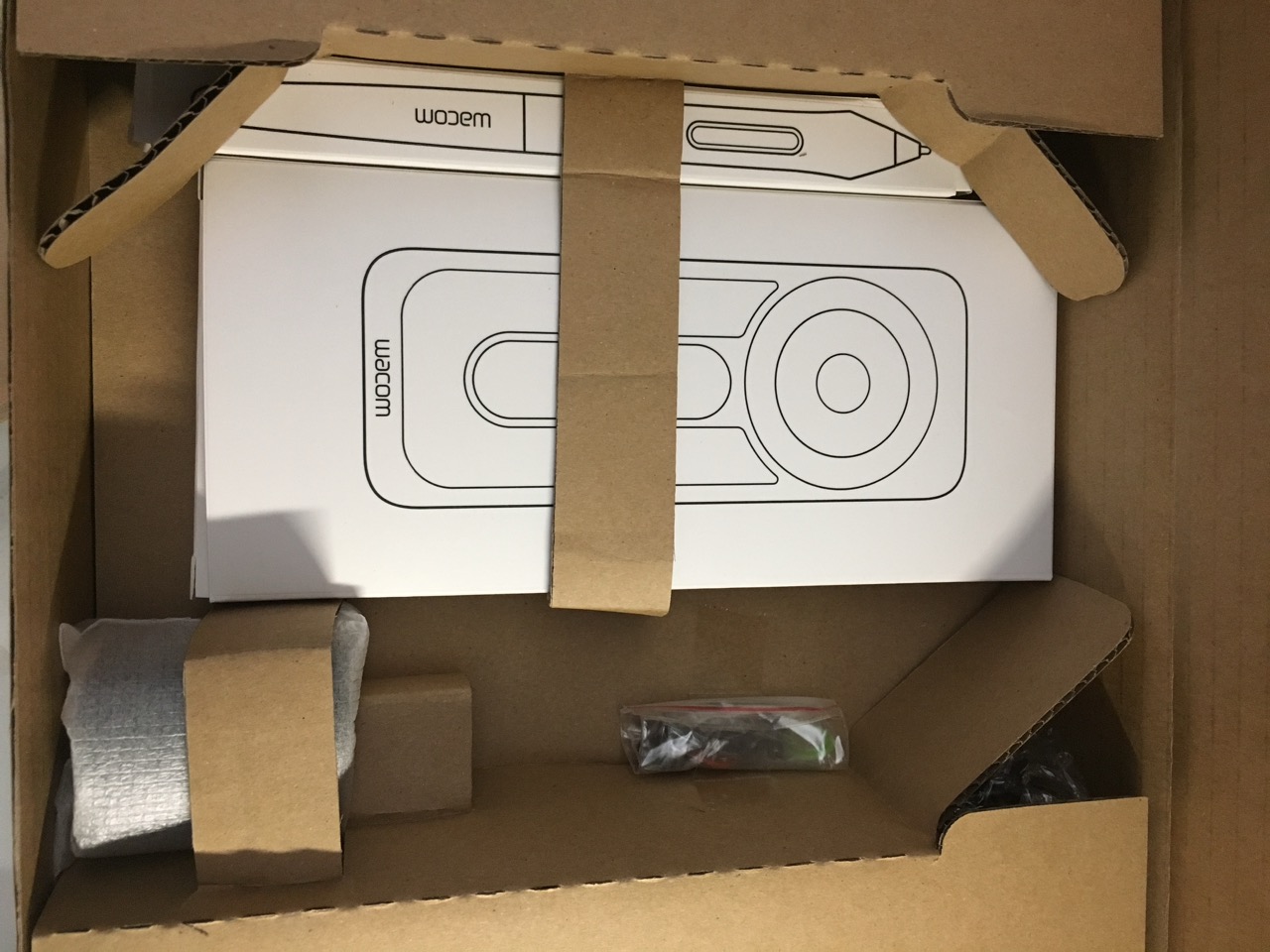
Below are some photos of the unboxing. Wacom, in this regard, does an exceptional job. The Cintiq 27QHD comes double-boxed and superbly packed.
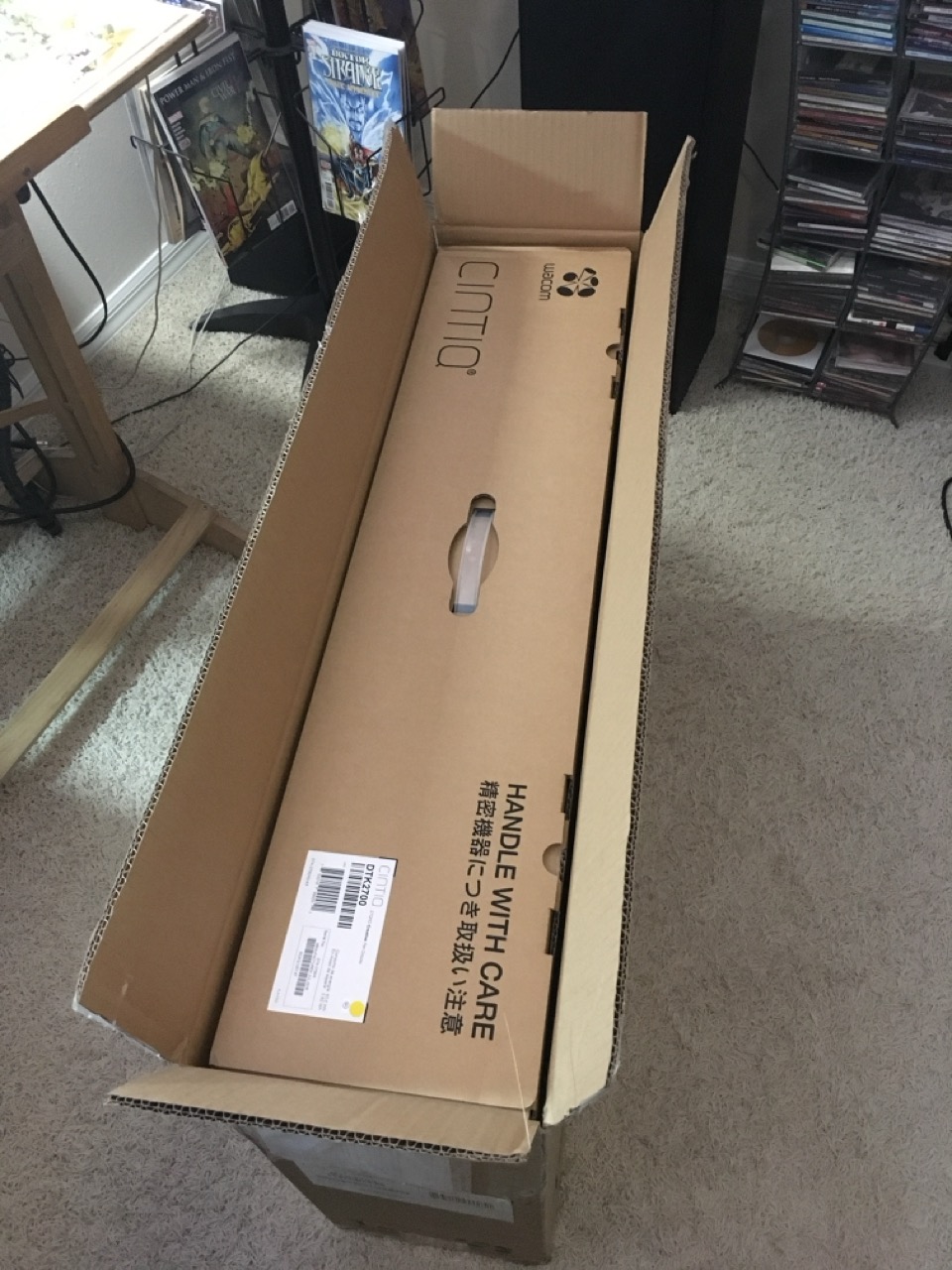
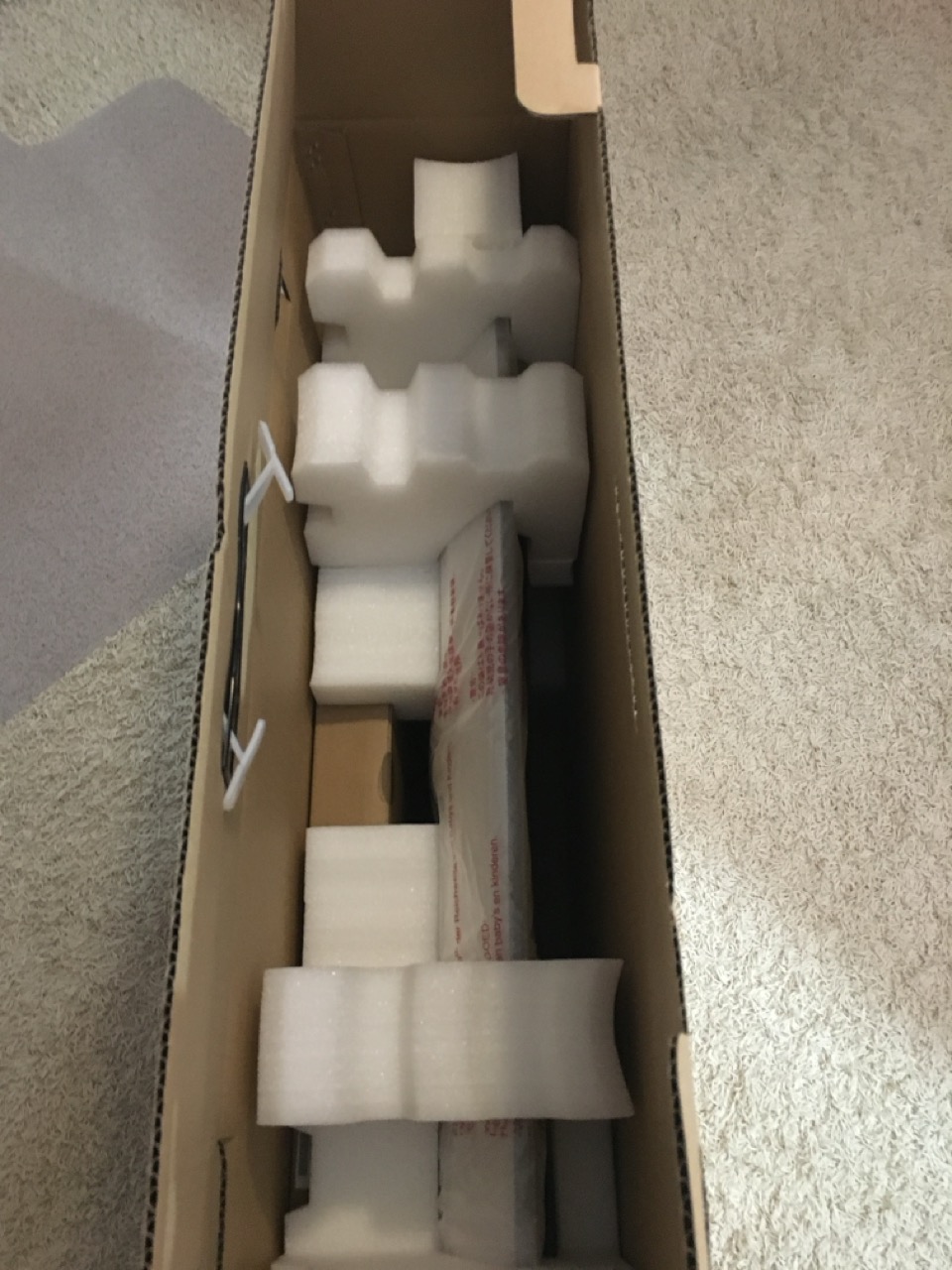
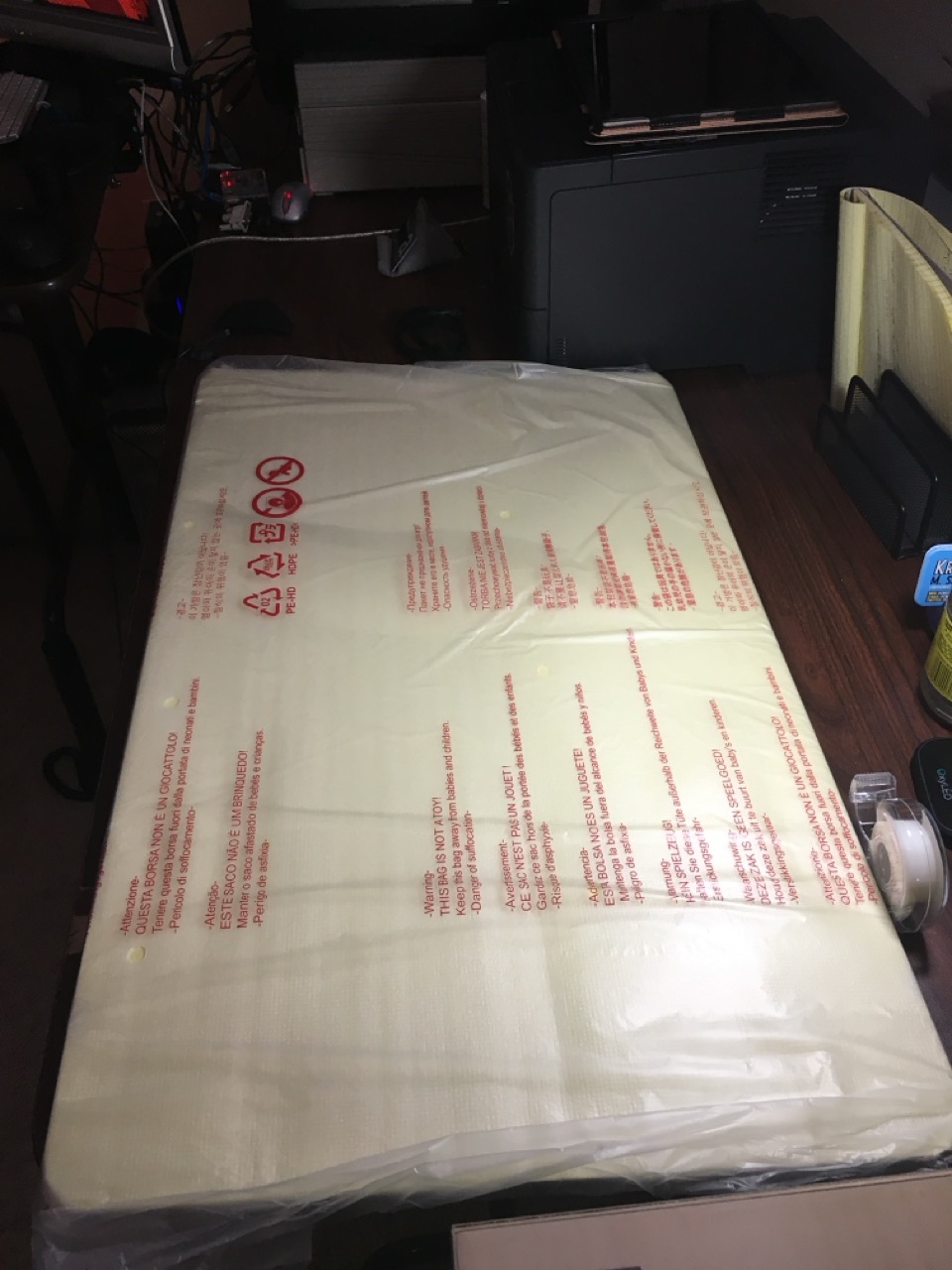
The screen is protected by no less than 4 layers of plastic covering.
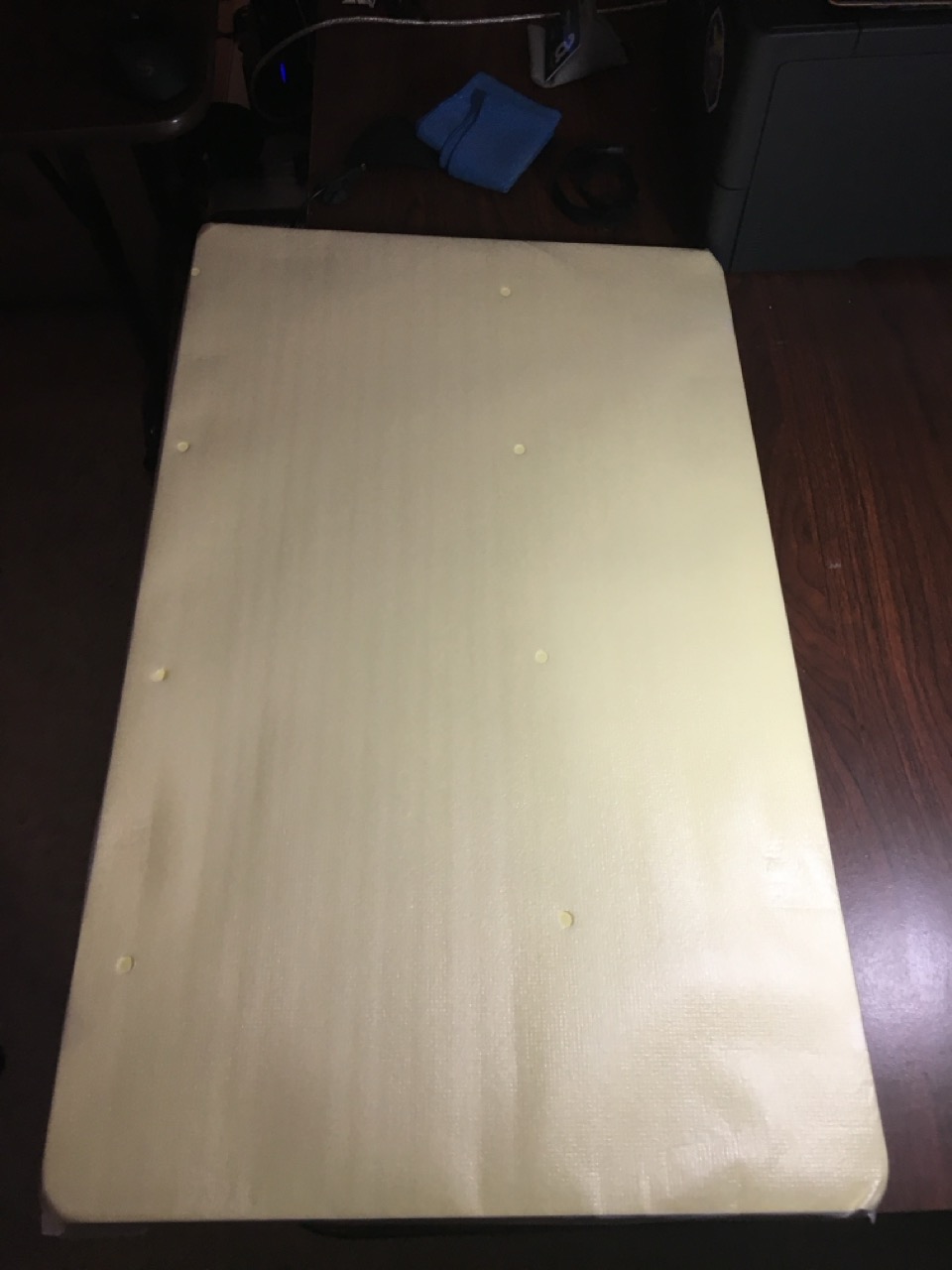
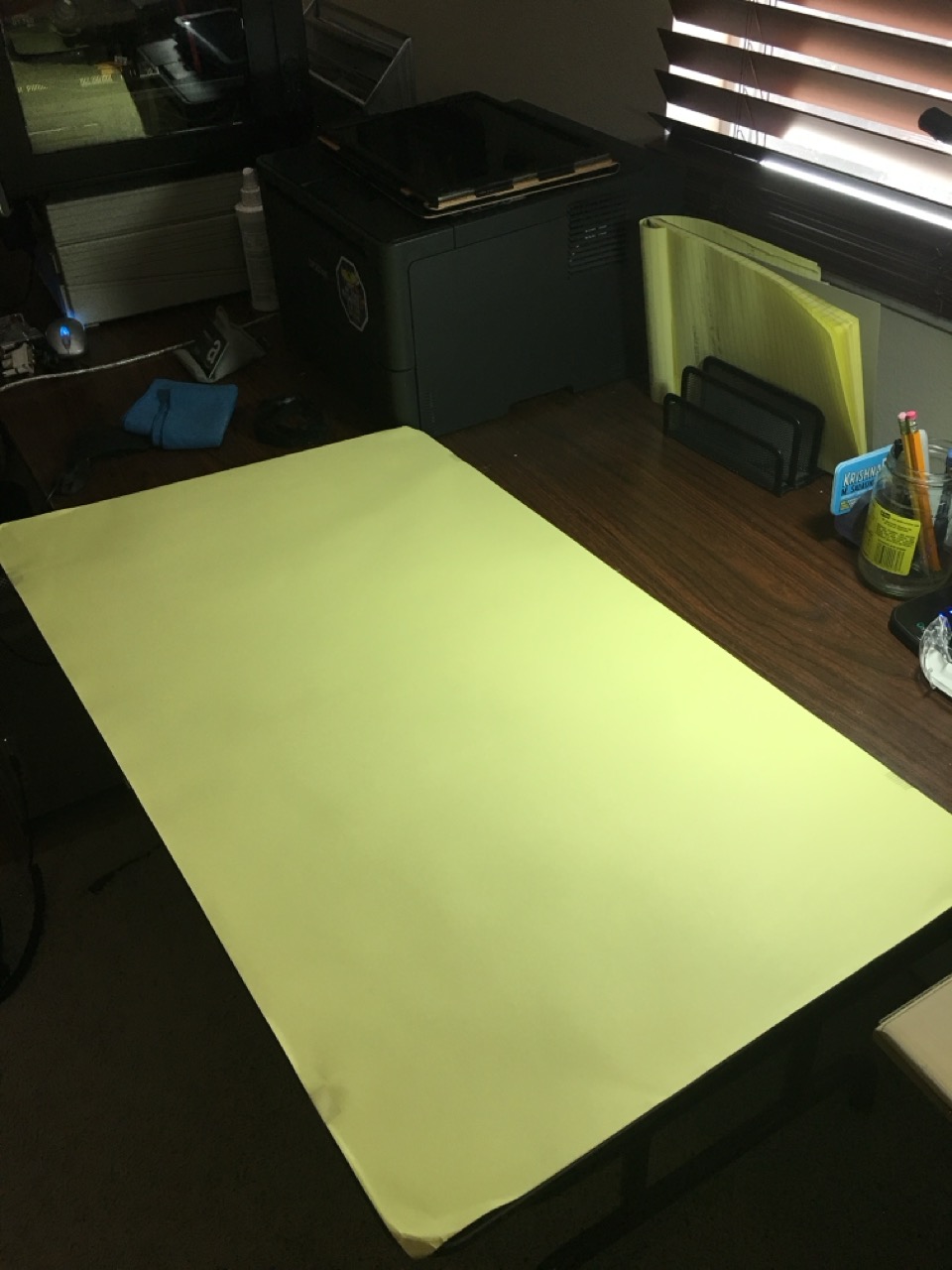
The bottom of the Cintiq 27QHD contains the ports to plug the device to both power and your computer…
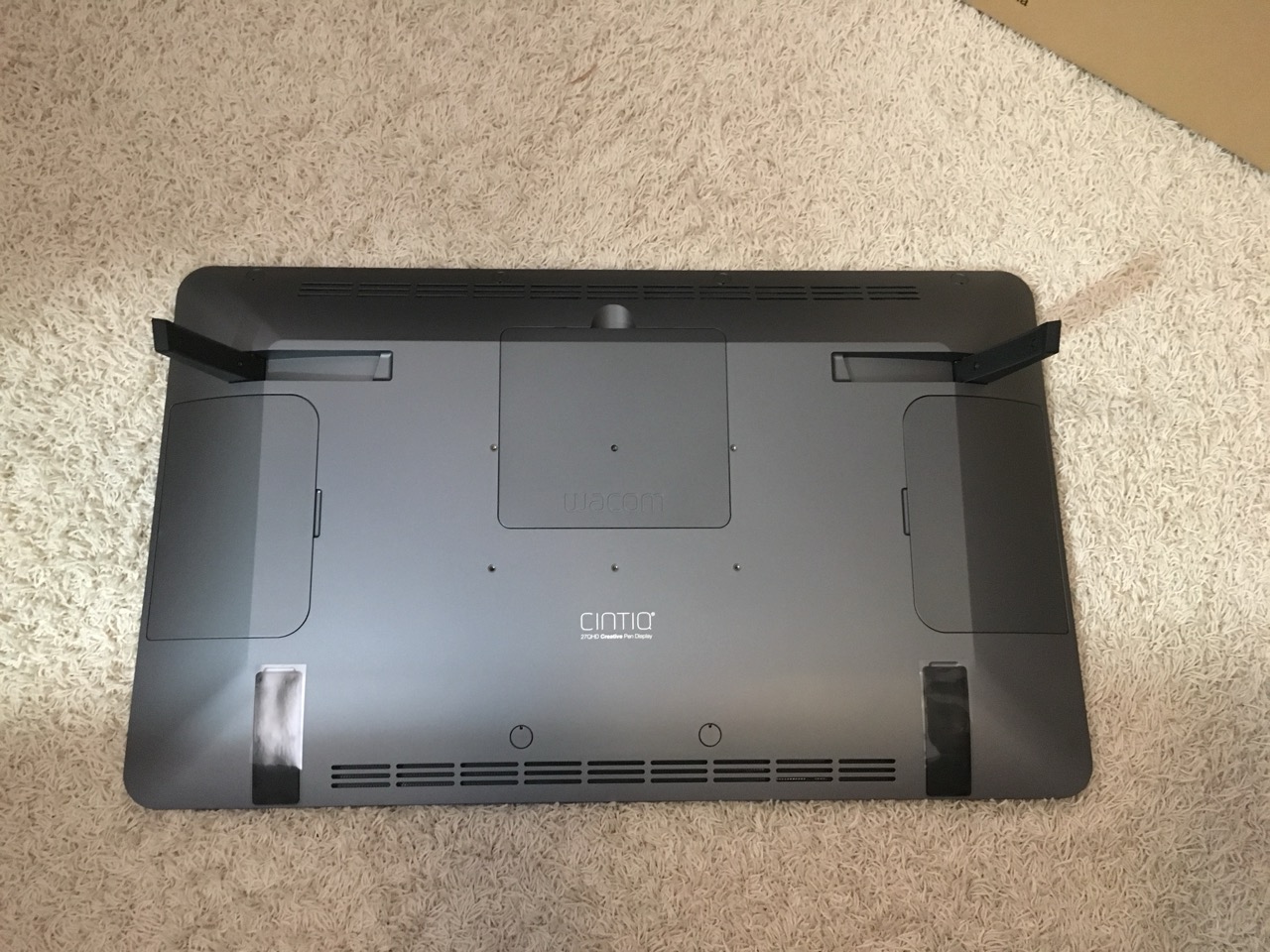
…while each side of the unit contains 2 conveniently located USB 3.0 ports.
The included pen stylus and remote control both exude quality and craftsmanship. The remote has a magnetic backing that lets you keep it on the display while you are working.
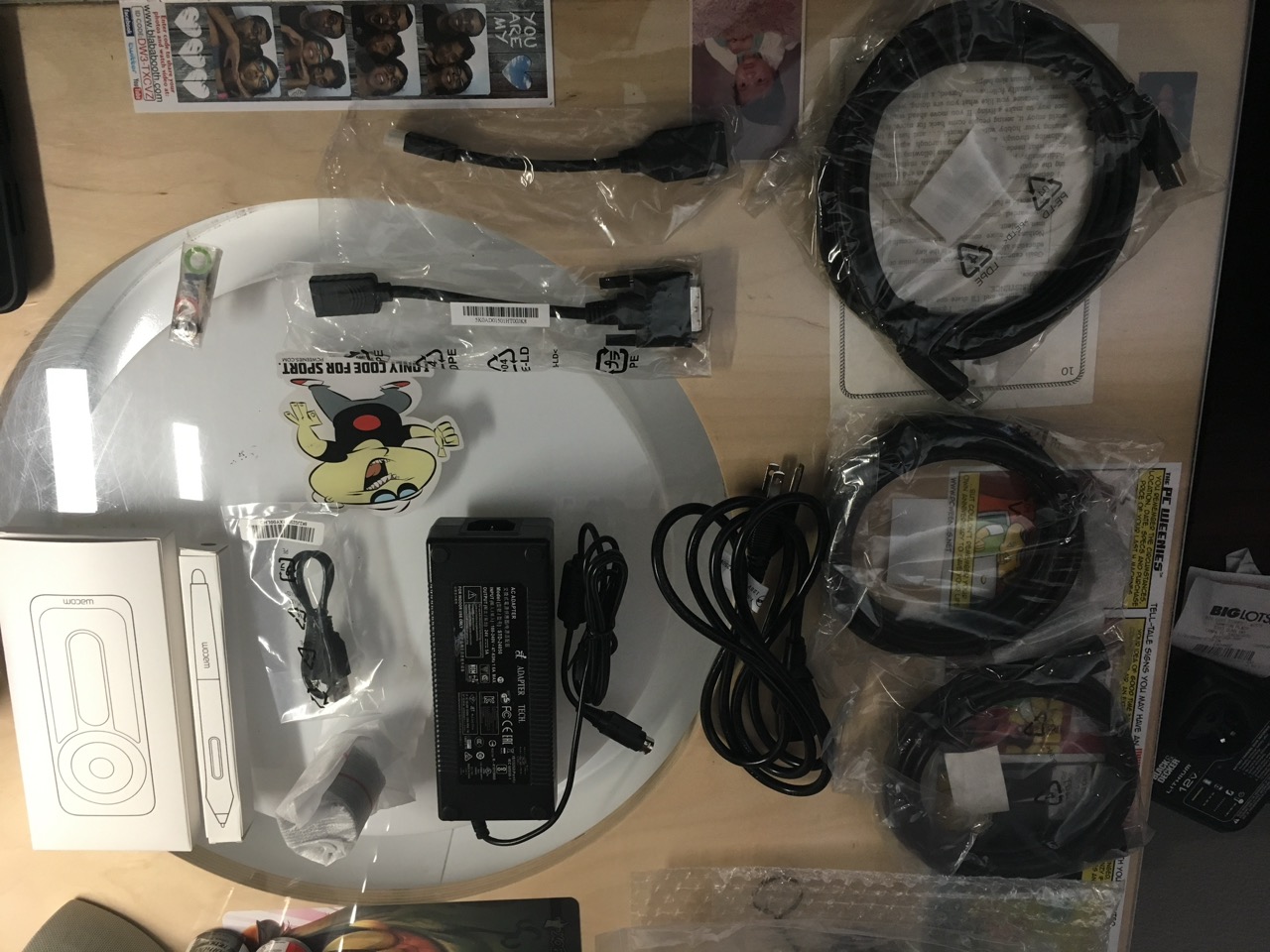
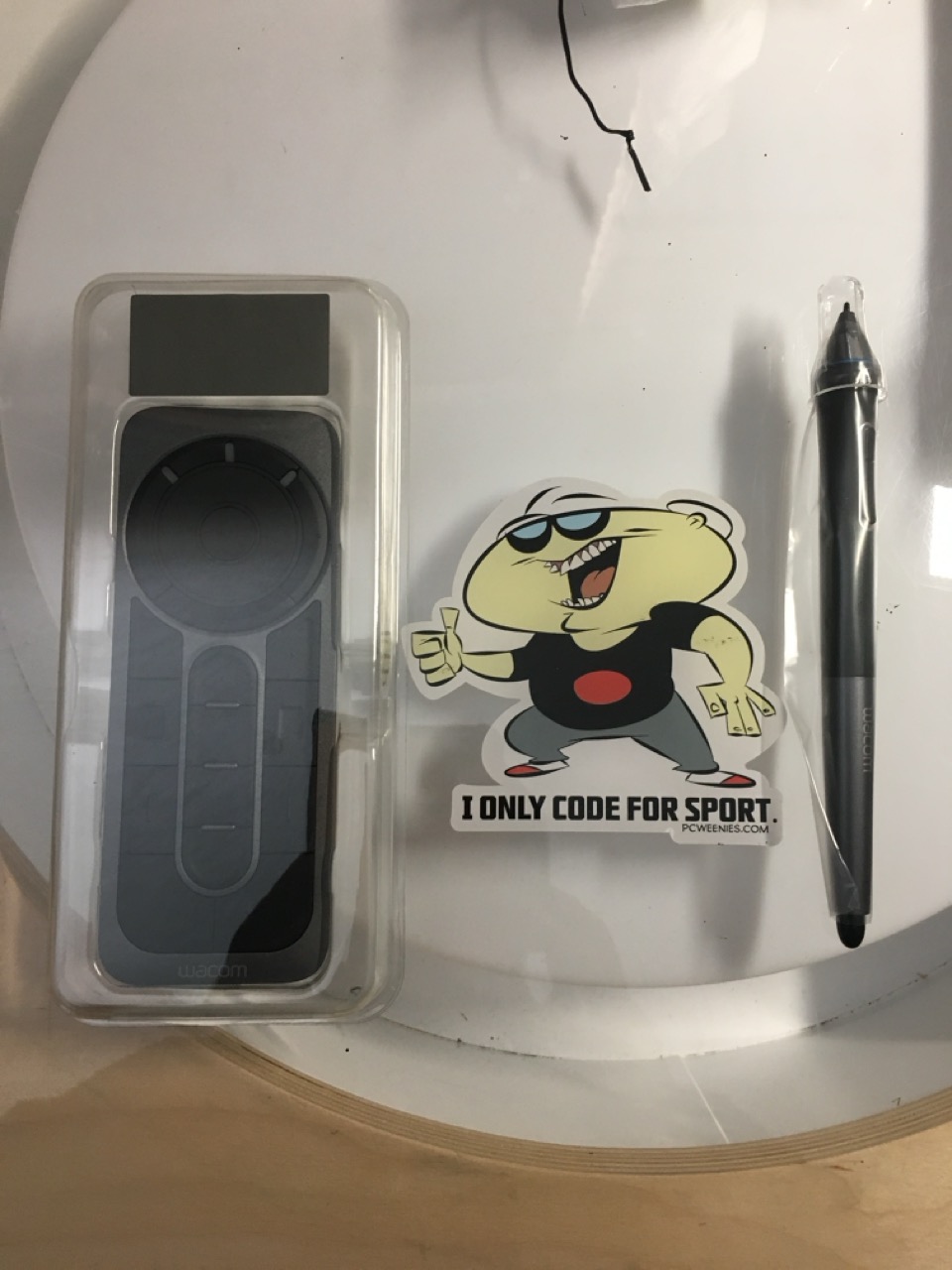
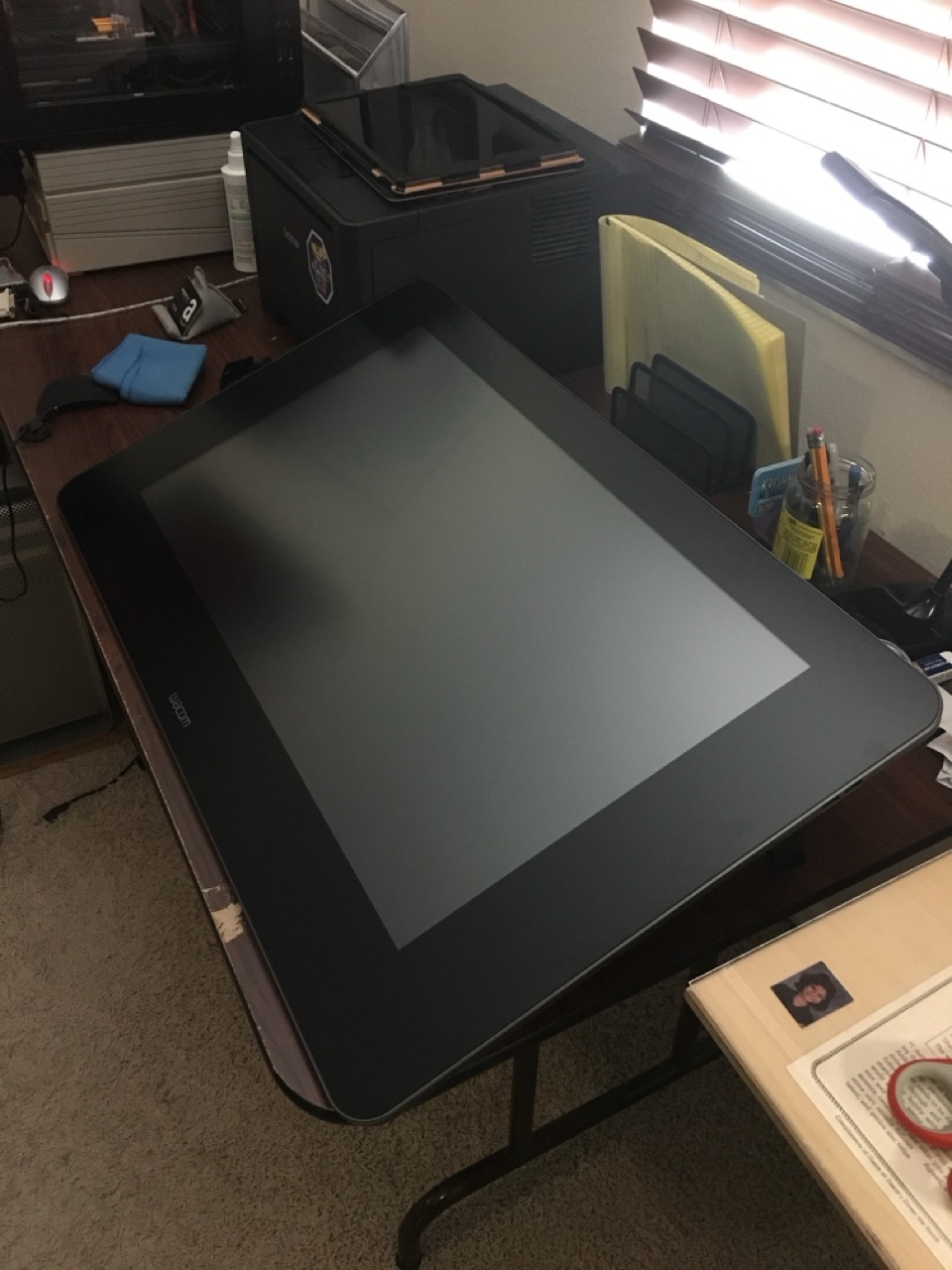
The Cintiq 27QHD is HUGE. Make sure you have a large enough desk to accommodate it.
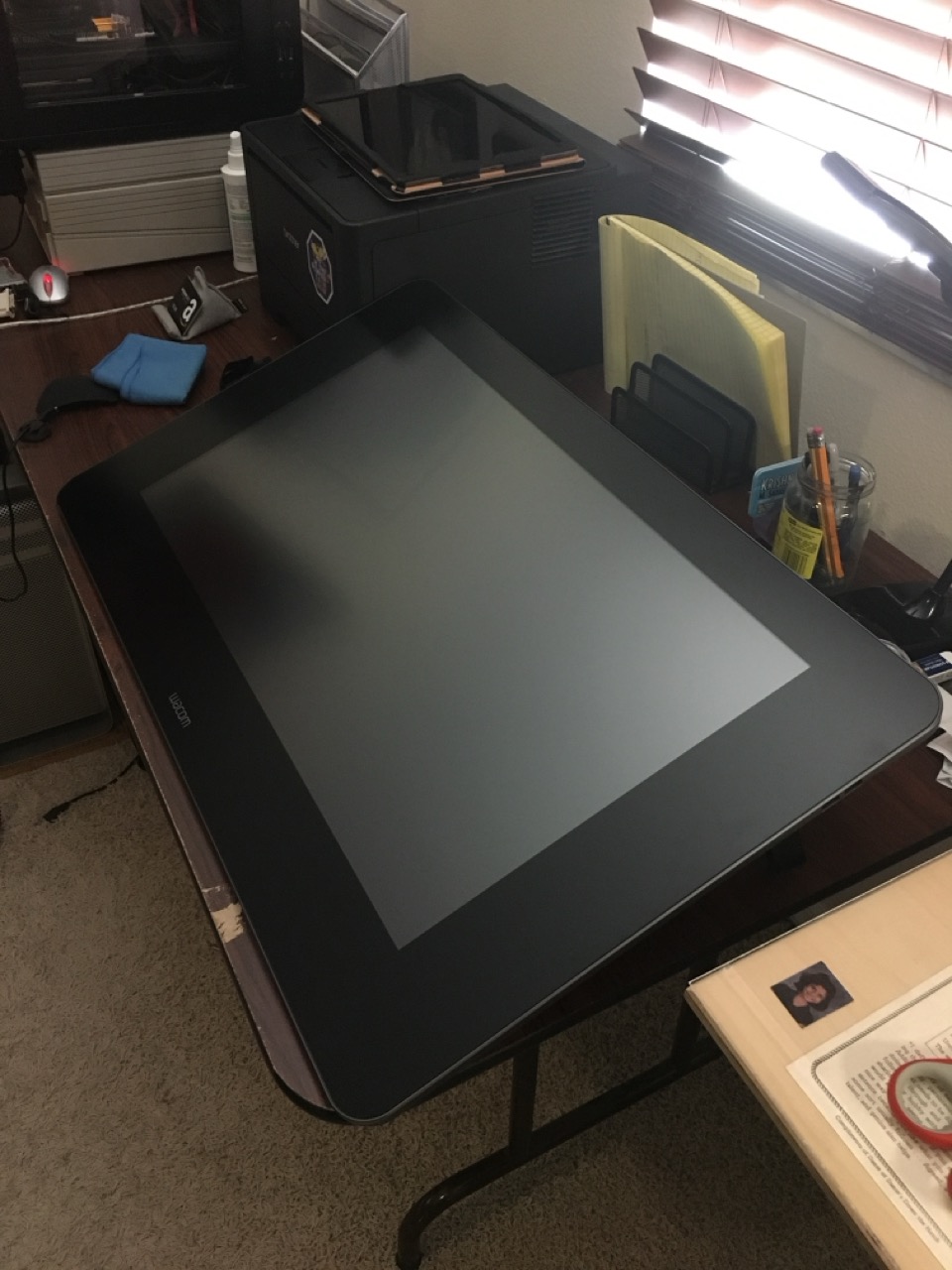
I’m using the Cintiq with an HDMI to DVI adapter cable, which gives a screen resolution of 1920 x 1080. Computers equipped with DisplayPort cards or ports can get the native 2560 x 1440 pixel resolution. At some point, I’m going to upgrade my video card to take advantage of this. When I first powered on the Cintiq, I ran an online pixel checker to test the Cintiq for dead pixels. Thankfully, my unit passed with flying colors (ahem!).
To connect the Cintiq 27QHD to a mounting arm requires the additional purchase of a VESA plate adapter. I purchased an Atdec AC-AP-2010 adaptor plate and it works beautifully with it. Using the adaptor plate, you can take a 100mm x 100mm VESA connection and mount it to devices with a 200mm x 200mm mounting surface. Even with the mounting plate, the AmazonBasics Single Monitor Display Mounting arm I’m currently using with my Cintiq 27QHD is not strong enough to fully elevate and support the unit. I’m hoping to address that problem soon, so I can comfortably position my Cintiq where I want while I’m working.
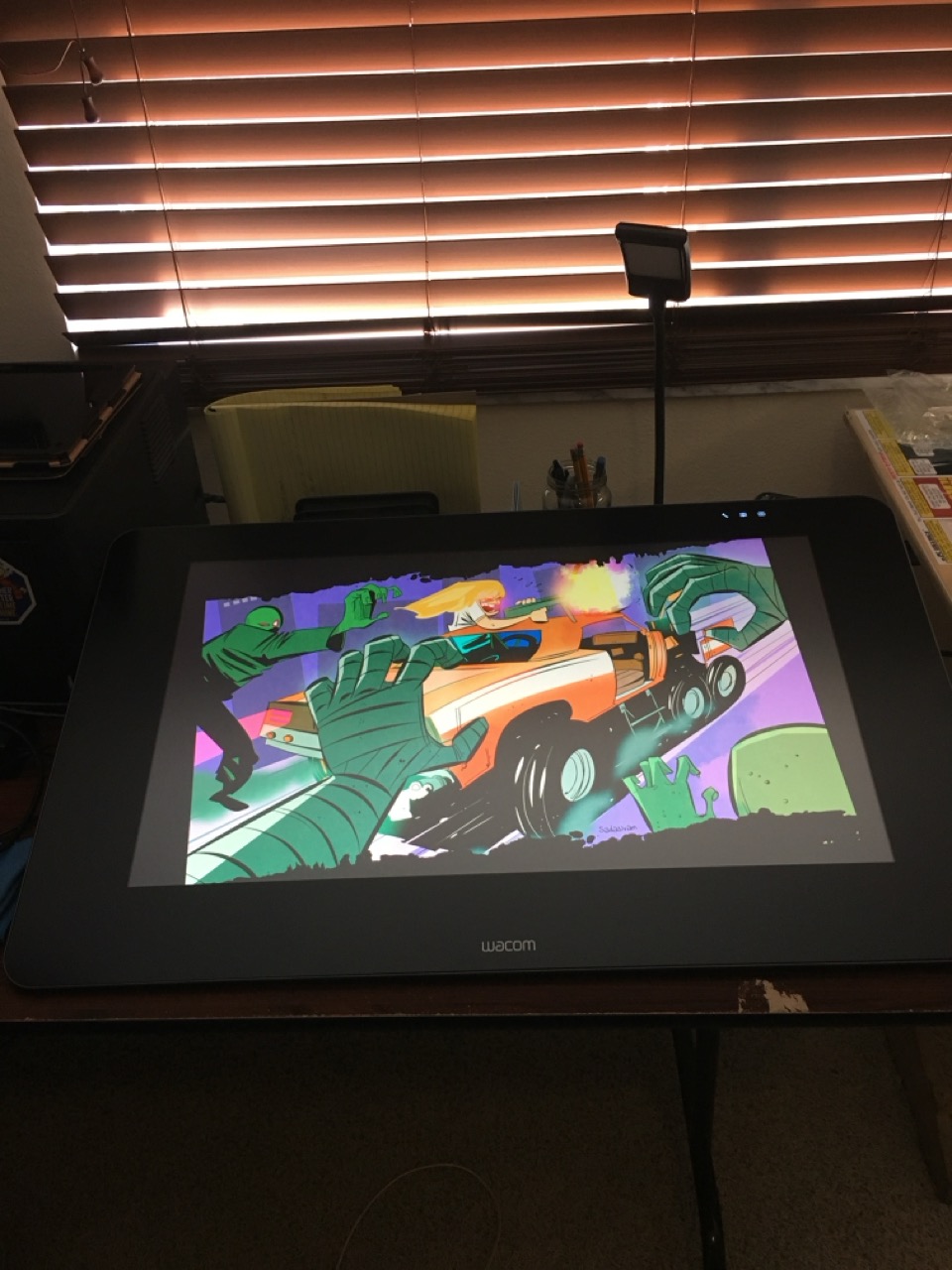
Here’s the Cintiq integrated into my current desk setup.
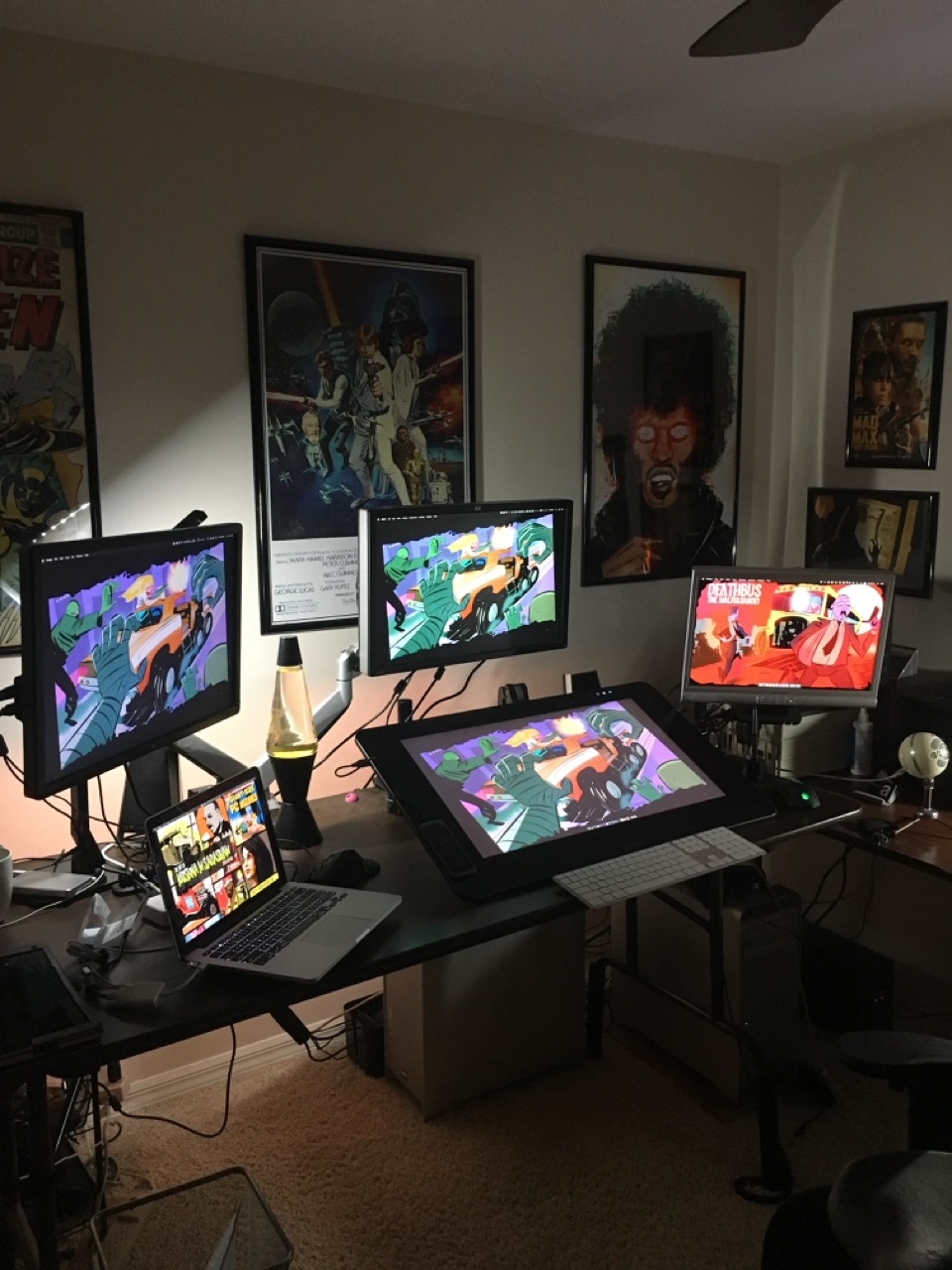
And here’s the first illustration I made with my new toy:

In summary, I absolutely love drawing and working with the Wacom Cintiq 27QHD. It’s a complete game-changer for me. I hope to get many, many useful years out of it.
April 2026 Update:
It’s been almost ten years since I wrote that post, and I’m still using the very same Cintiq. I have had only one issue with the Cintiq (a faulty panel). Thankfully, the device was still under warranty and Wacom fixed the issue. I did have to pack and ship the Cintiq back to them at my own expense. (I’m glad I kept the original box.)
The Cintiq has served me well. I don’t use the ExpressKeys, preferring keyboard shortcuts instead. The stylus is durable and has withstood numerous drops from my desk.
Over the years, its display panel has lost a little of its brightness. And while it’s certainly not as crisp as panels found in modern displays, it still gets the job done. Given its age, Wacom recently dropped driver support for the 27QHD; older drivers still work under macOS Tahoe.