No matter how much memory you have on your computer, it seems that Photoshop always wants more. And when Photoshop exhausts all available RAM on your machine, it uses your computer’s internal storage. This can become an issue of your computer’s internal boot drive is almost full. The less space you have on your boot drive, the more performance degradation will occur, culiminating in the dreaded “Scratch Disk is Full” dialog.
To prepare against this inevitability, I strongly recommend having a dedicated Scratch Disk connected to your computer. A Scratch Disk acts as temporary virtual memory that can be used to store, read and write project data. Instead of writing this data to my Mac’s internal drive, Photoshop will write to an external storage device connected to my Mac. The sole purpose of this drive is to act as a Scratch Disk. For the type of work that I do, a 512GB SSD more than suffices.
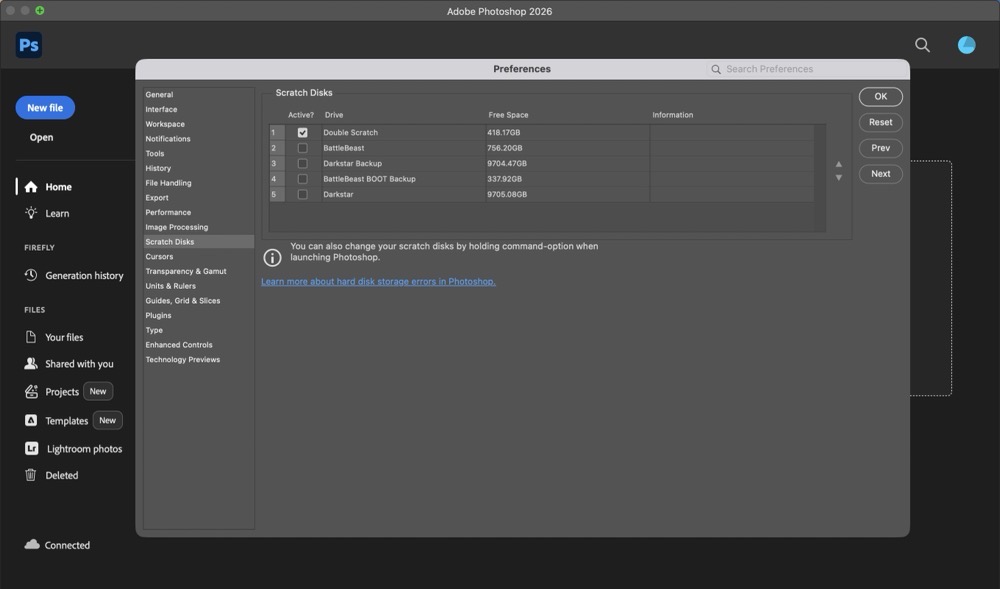
Most Adobe applications include the option to assign a dedicated Scratch Disk, so the very same storage device I’m already using for Photoshop can serve as a scratch disk for Illustrator, Premiere, After Effects etc. Visit your Photoshop > Settings > Scratch Disks tab to assign your Scratch Disk. If need be, more than one scratch disk can be assigned. This can be helpful if you’re working with really, really large or complex files. If Photoshop can’t find your dedicated scratch disk (because its unplugged, etc.), it will use your computer’s internal drive.
The second key setting I recommend adjusting is under Photoshop > Settings > Performance. You’ll want to adjust these settings based on your intended use case. I typically work with files that are 9” x 12” at 600ppi. The largest size canvas I work with is 24” x 36”. As such, I have provisioned Photoshop to use half of my system’s memory. For History and Cache, I opted for the “Web / UI Design” option, electing to have 20 History States instead of 50. (History states refer to the number of Undos available.) The larger the number, the more the RAM usage.
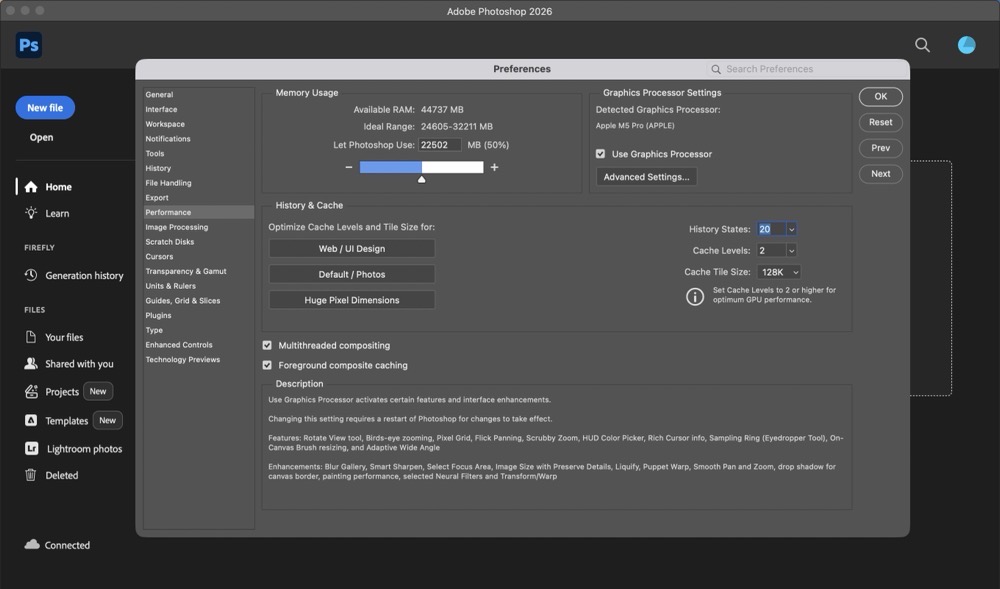
Your mileage (and settings) may vary. But it’s important to be aware of these factors as they can play a dramatic role in how Photoshop performs.
-Krishna