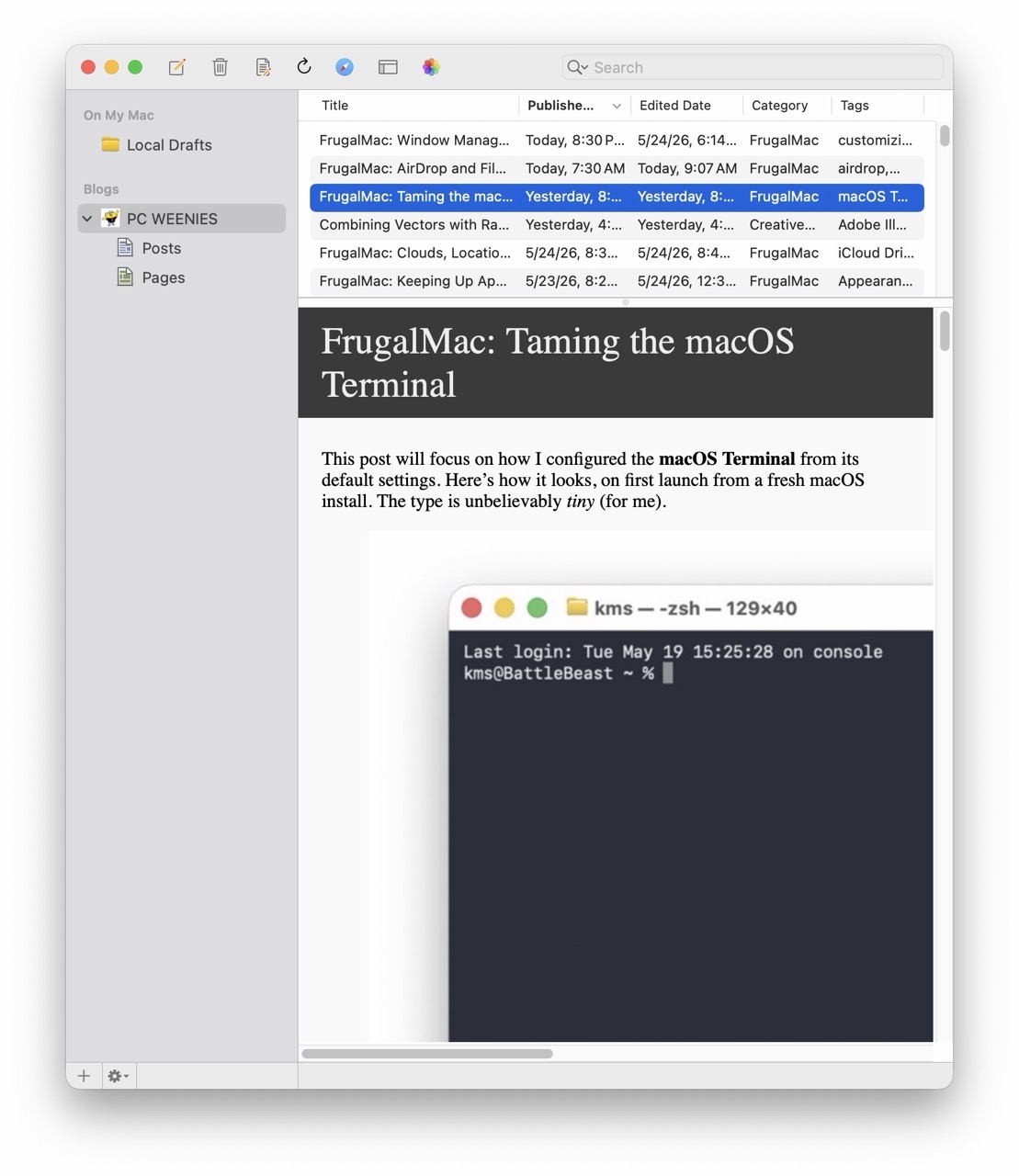
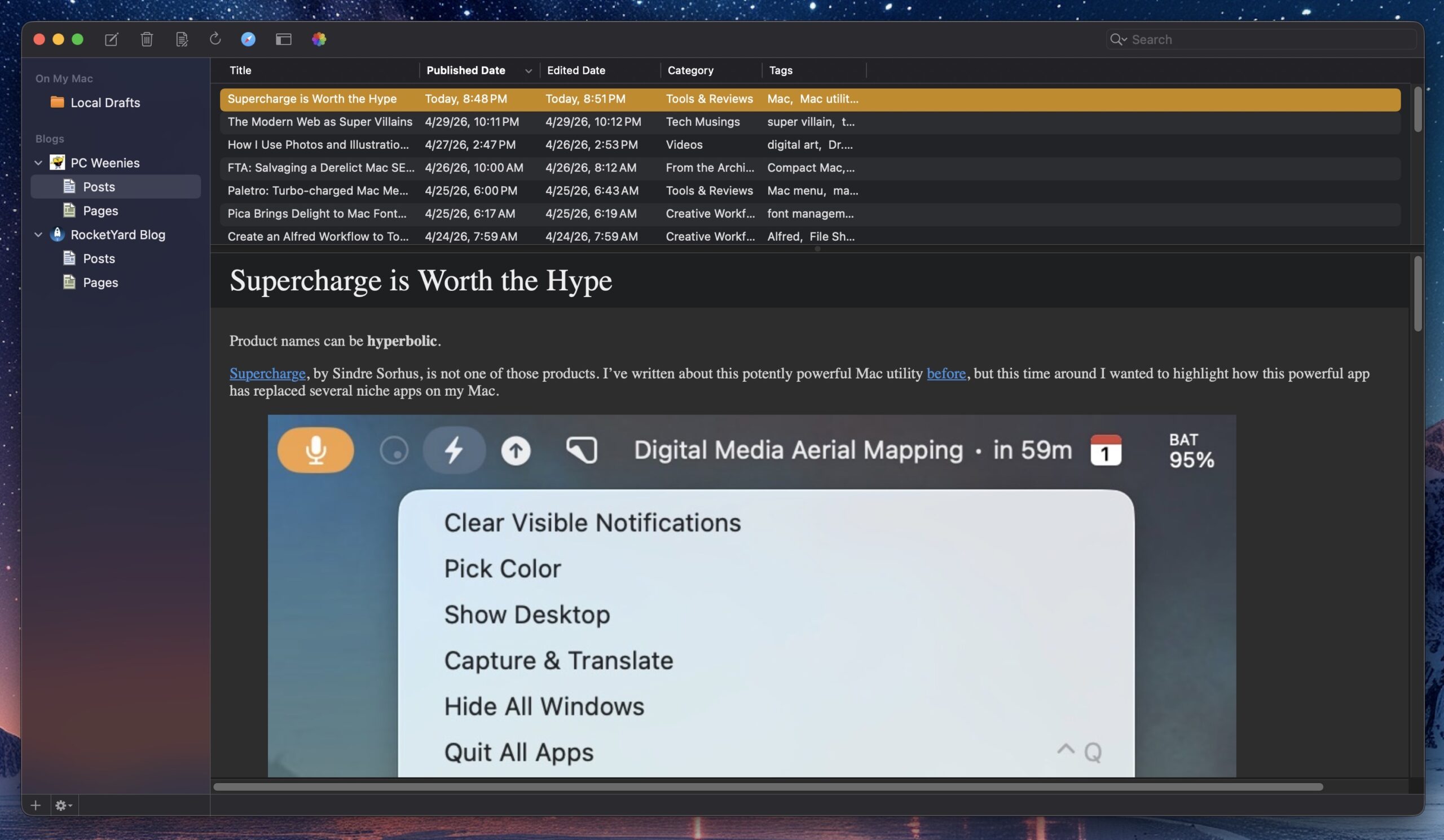
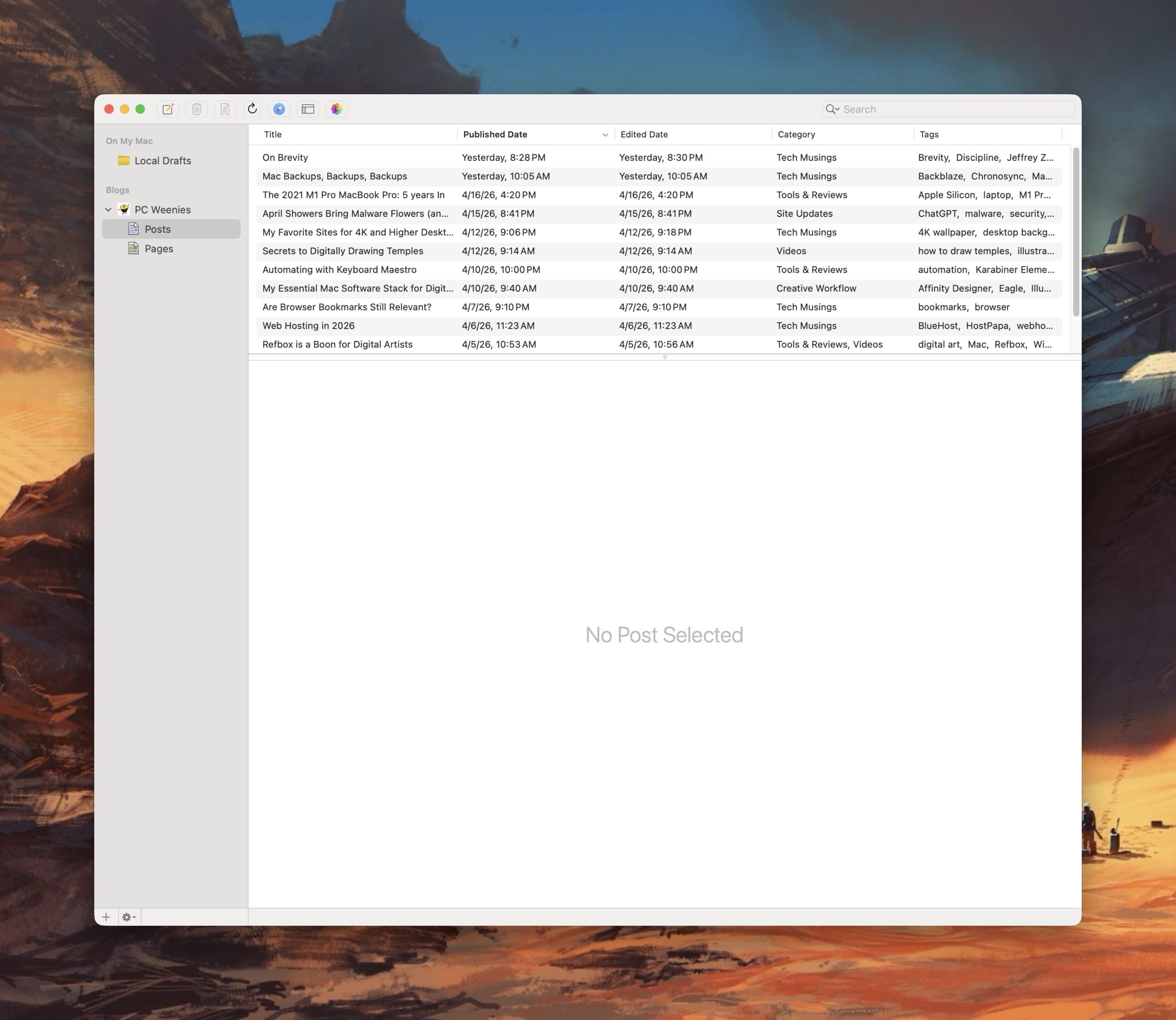
A few weeks ago, I wrote about my Mac blogging software stack. I use MarsEdit to write my posts. This week on the RocketYard blog, I take a deeper dive into MarsEdit’s offerings and why I prefer using it over the built-in WordPress editor.
-Krishna

A few weeks ago, I wrote about my Mac blogging software stack. I use MarsEdit to write my posts. This week on the RocketYard blog, I take a deeper dive into MarsEdit’s offerings and why I prefer using it over the built-in WordPress editor.
-Krishna

Now that I’m back to regularly blogging once again, I wanted to document the software tools I use, along with my rationale for their use. My blogging chain is Mac-based, and each of the apps listed below are exclusive to this platform.
MarsEdit, by Red Sweater Software, is my preferred tool for writing and publishing posts. Having local back-ups for each and every post is very important to me. MarsEdit offers this feature, and much, much more. The biggest benefit to using the program is that I can draft new posts locally on my Mac, without the need to login to WordPress.
Every post on this site, with the exception of the first three articles, have been written using MarsEdit. MarsEdit removes the friction associated with posting to WordPress, making the process of drafting new posts something I actually look forward to.

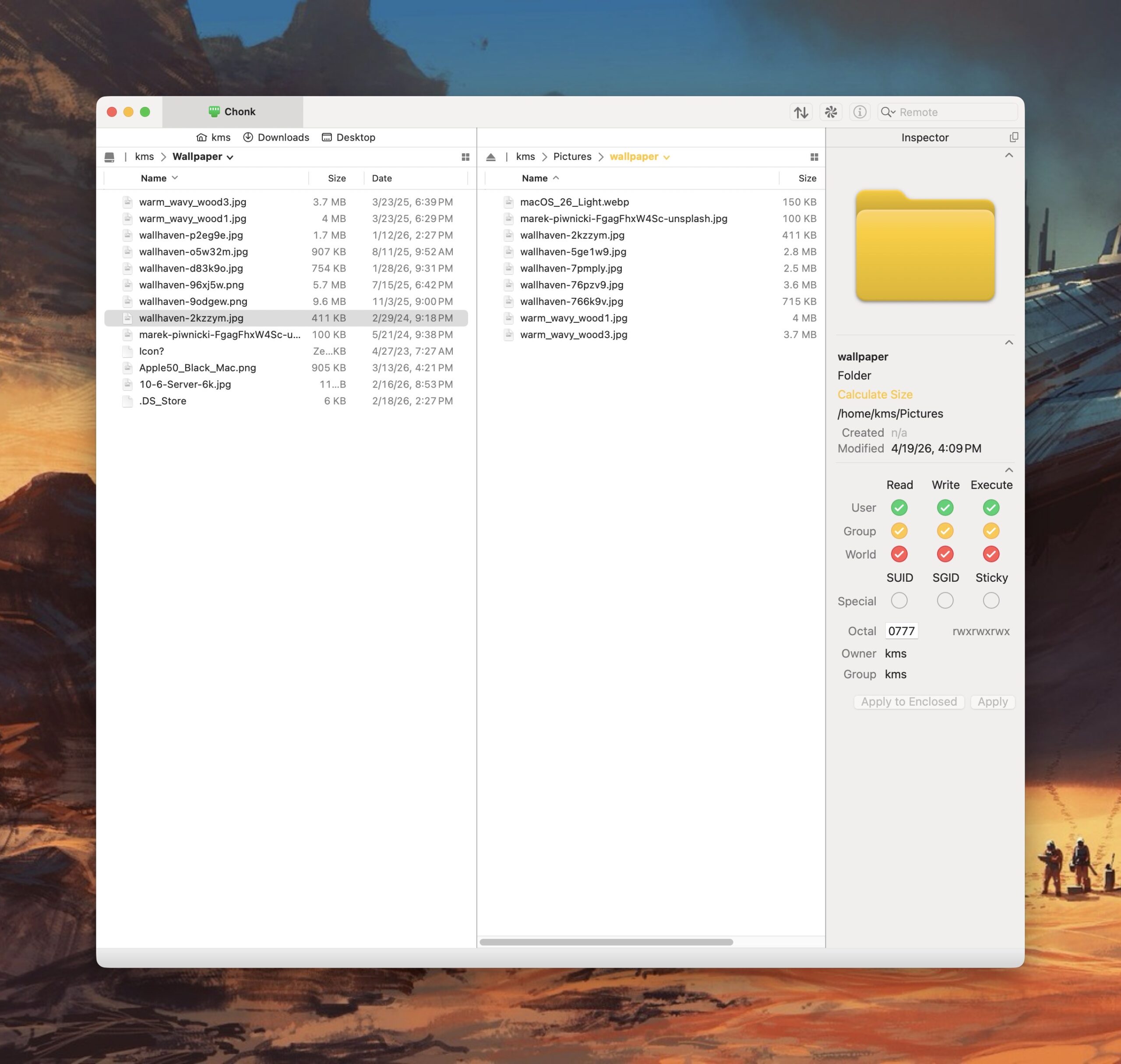
Transmit, from Panic Software, is a powerful and elegant FTP application for the Mac. I’ve used Transmit for three decades now, starting with its first version, released on classic MacOS. It’s fast and intuitive, making working between local files and servers a breeze. I also use it to quickly shuttle files between my Mac and my Linux boxen on my local network.

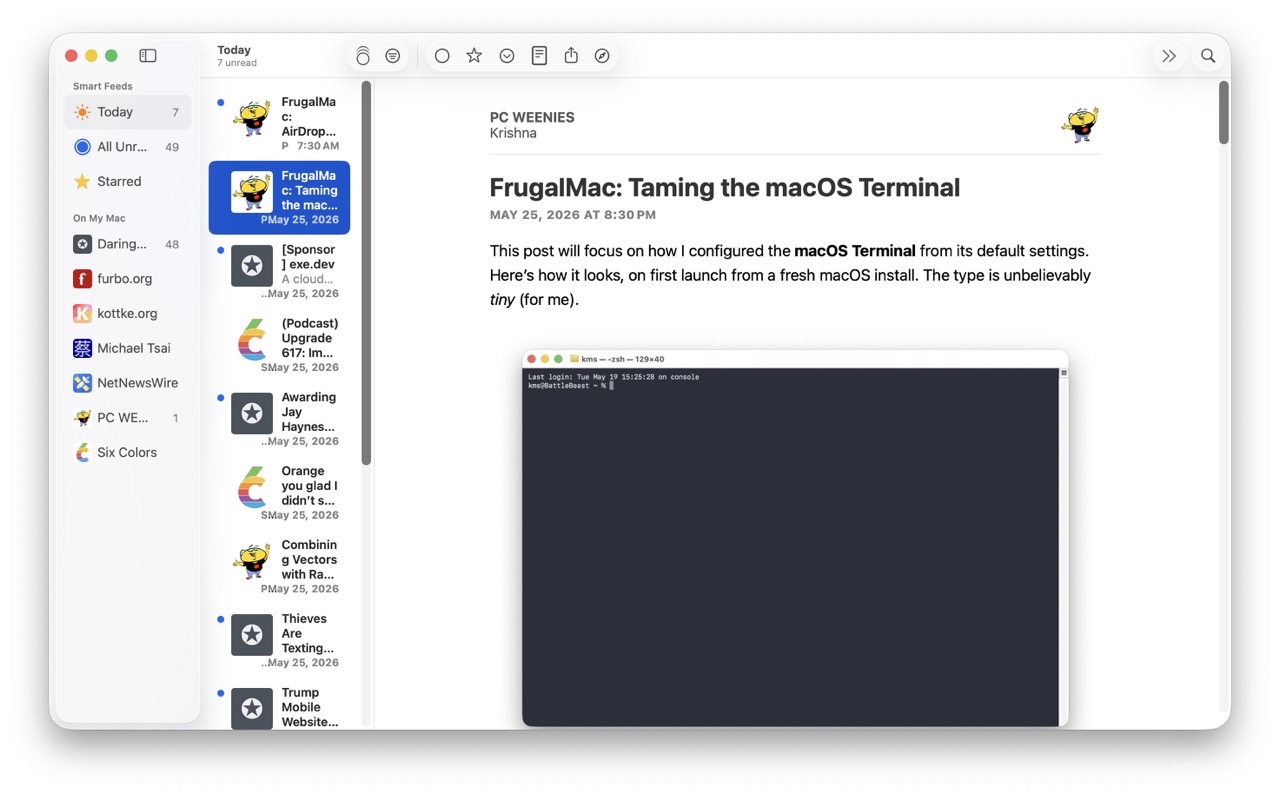
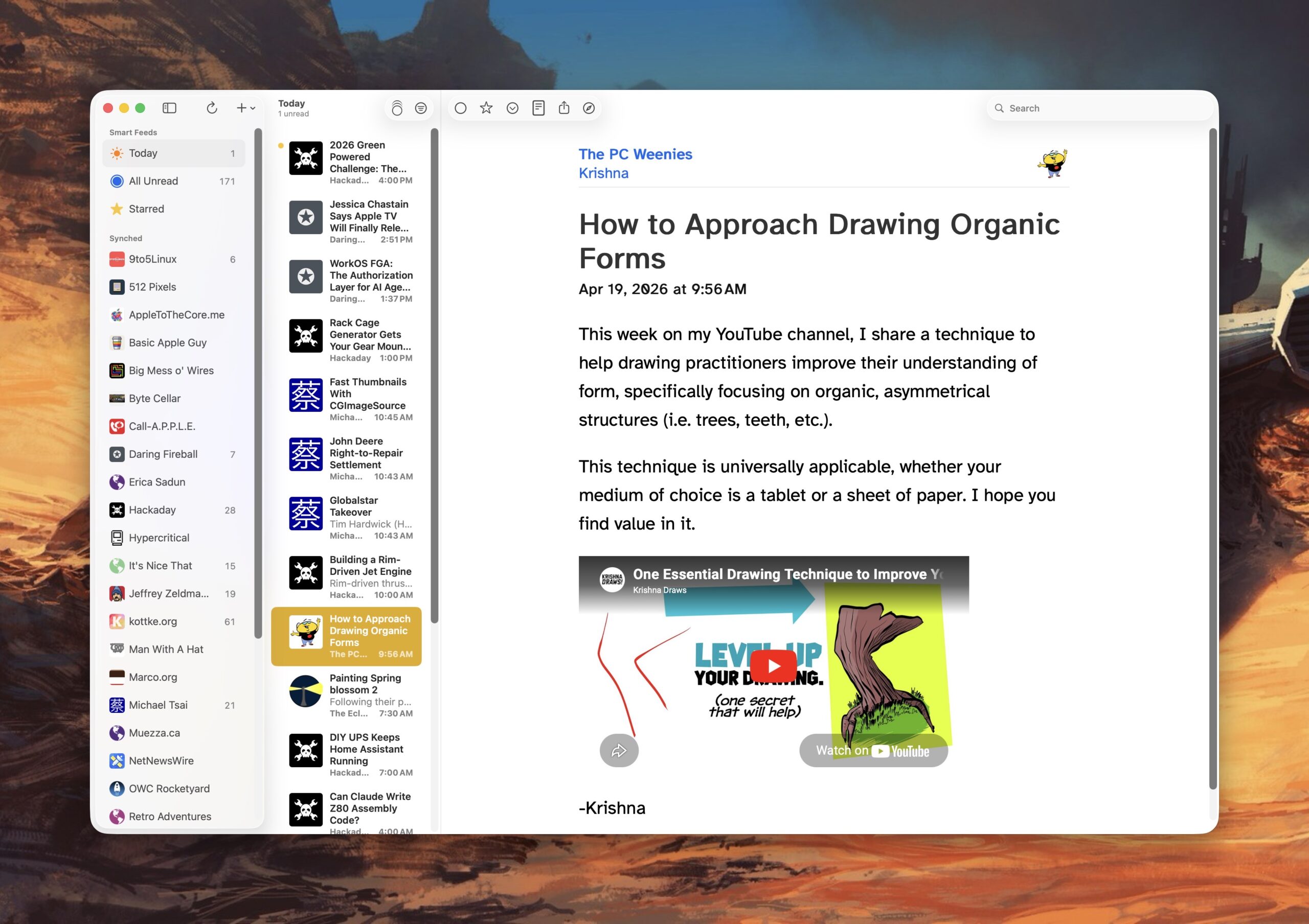
Reading is just as important as writing. For keeping up with my favorite blogs, I use NetNewsWire, an open source RSS reader for the Mac (and iOS). I have this application running on both Macs and my iPhone. I use iCloud to keep my RSS feeds in sync, so I can always pick up where I left off, regardless of what device I’m using. NetNewsWire is free, fast, and intuitive (do you see a pattern here?).

I also use a custom action to convert HEIC images shared from my iPhone to smaller sized JPEG files I can use with my posts.
And that’s my Mac blogging stack.
-Krishna

“There are two kinds of tech users in the world: Those who have lost data, and those who are about to lose data.”
I’m paraphrasing a popular idiom here, but I find it to be true nonetheless. If you work with computers, you need a back-up strategy. Computers can be replaced, but the data it stores is one of a kind, whether its personal photos, important documents, creative media etc.
My back-up system is multi-faceted. It involves having both local back-ups and off-site back-ups. Local back-ups make sense: having more than one copy of data on an attached storage device provides peace of mind. But off-site back-ups are equally important. Should the unthinkable happen, and I lose my home due to a fire or natural disaster, I don’t want my data to go with it.
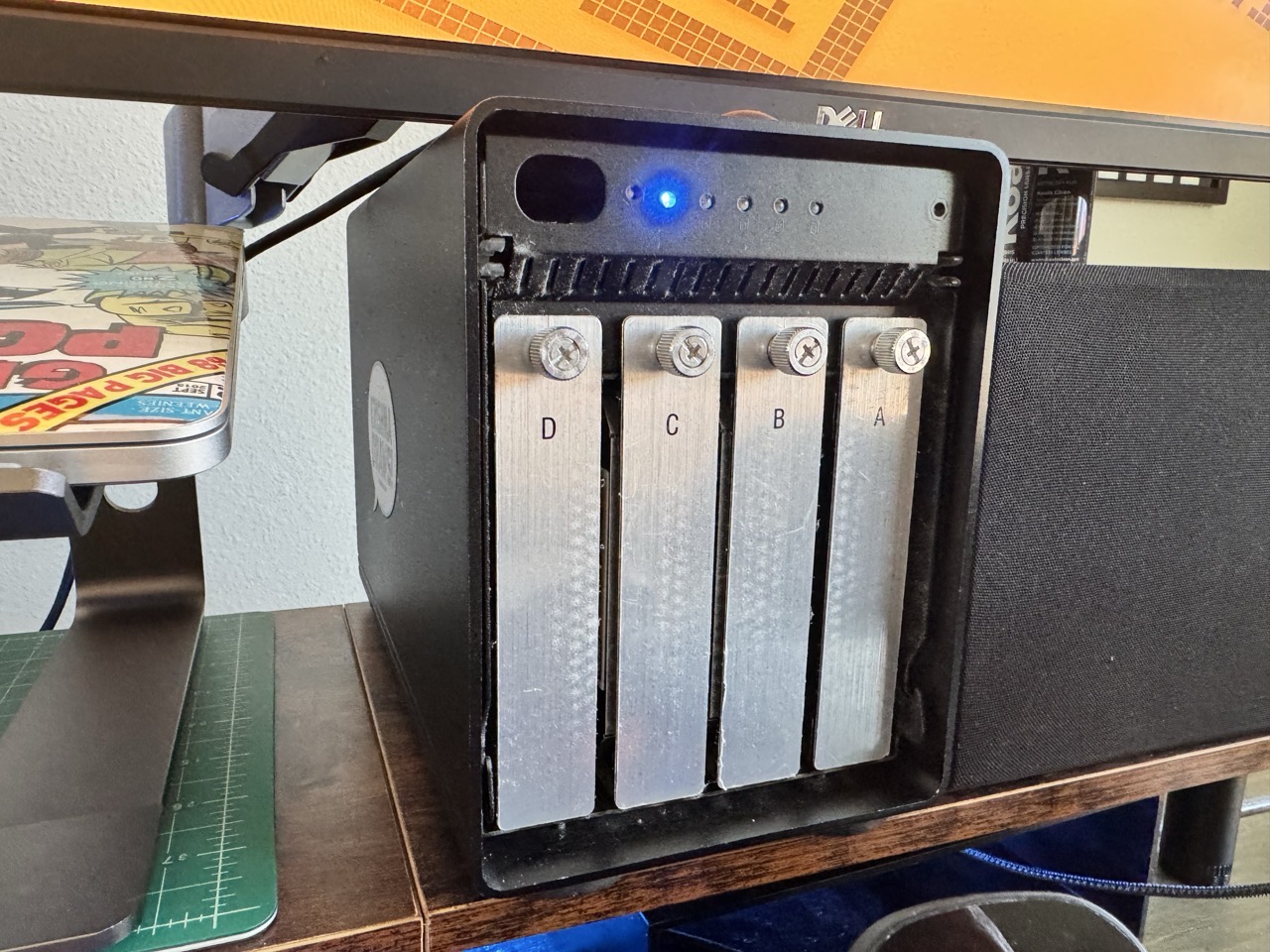
For context: I have two Macs, a laptop and an M4 Mac mini with 512GB storage. The MacBook Pro is connected to an OWC ThunderBay 4 enclosure, which is populated with four drives.
I’ll use my Mac mini’s boot drive as an example here, but I apply the same strategy for any attached storage I connect to it. I have a separate 512GB external NVME drive attached to it, which serves as a clone of the internal storage. For every storage device I actively write data to (SOURCE), I have a separate storage device serving as its back-up (CLONE).
The ThunderBay 4 enclosure contains two SOURCE drives, with two corresponding CLONE drives.
My advice when buying new storage is to buy in twos. (Buy once, cry once.)

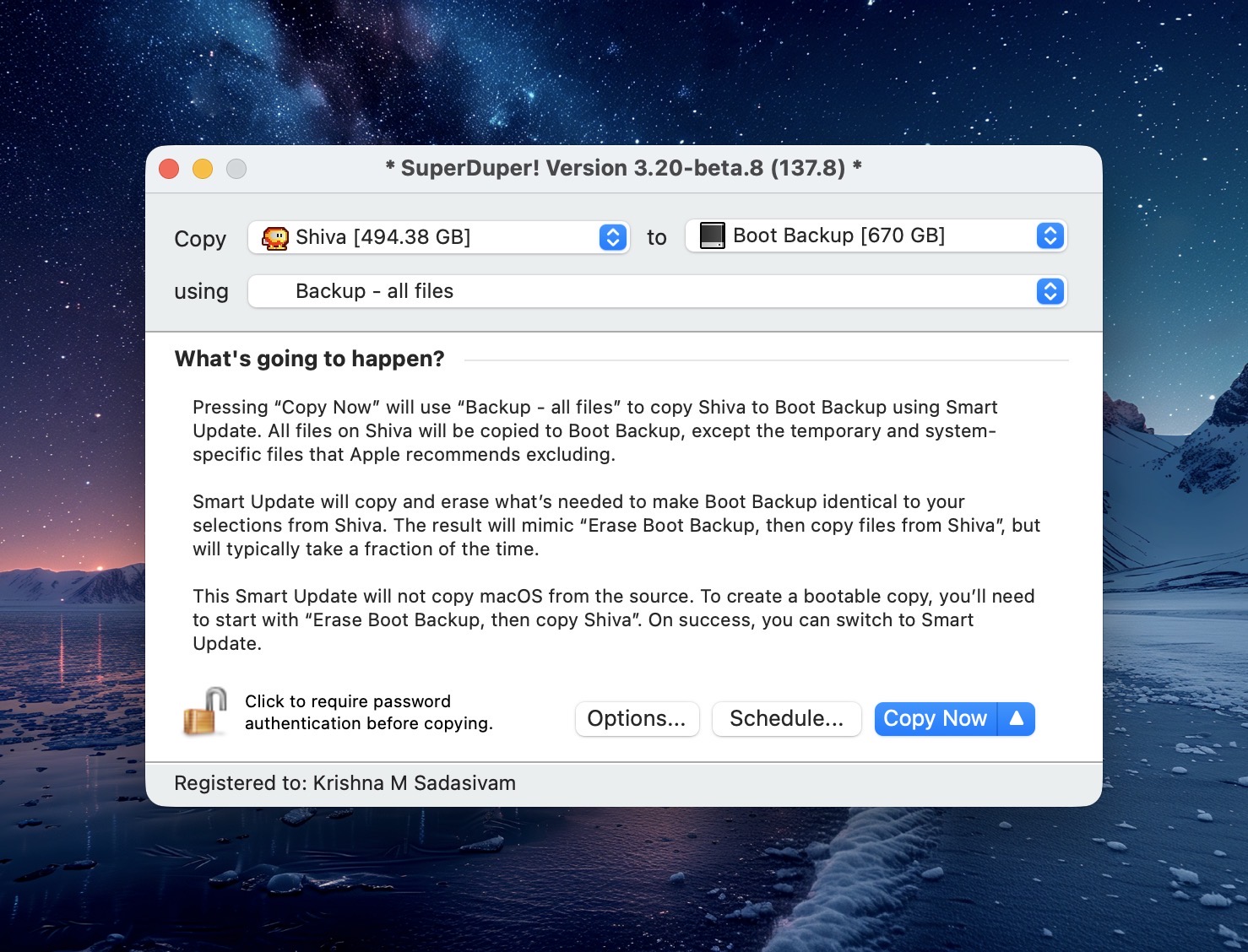
For cloned back-ups, I use SuperDuper. It has been my go-to for reliable back-ups for more than a decade. SuperDuper lets me set a specific back-up schedule for each SOURCE drive on my system. At the scheduled time, SuperDuper will launch and make back-ups to the CLONE without my intervention. (From time to time, I will check the integrity of the back-up to make sure that my data is intact. No issues thus far.)
macOS includes Time Machine, a software back-up solution. I have assigned a separate drive for Time Machine, set to back-up specific files and folders on my MacBook Pro’s internal drive. Time Machine takes snap-shots of these files / folders, allowing me to “go back in time” to revert a file back to an earlier state. I don’t use this often, but it does come handy in the times I need it.

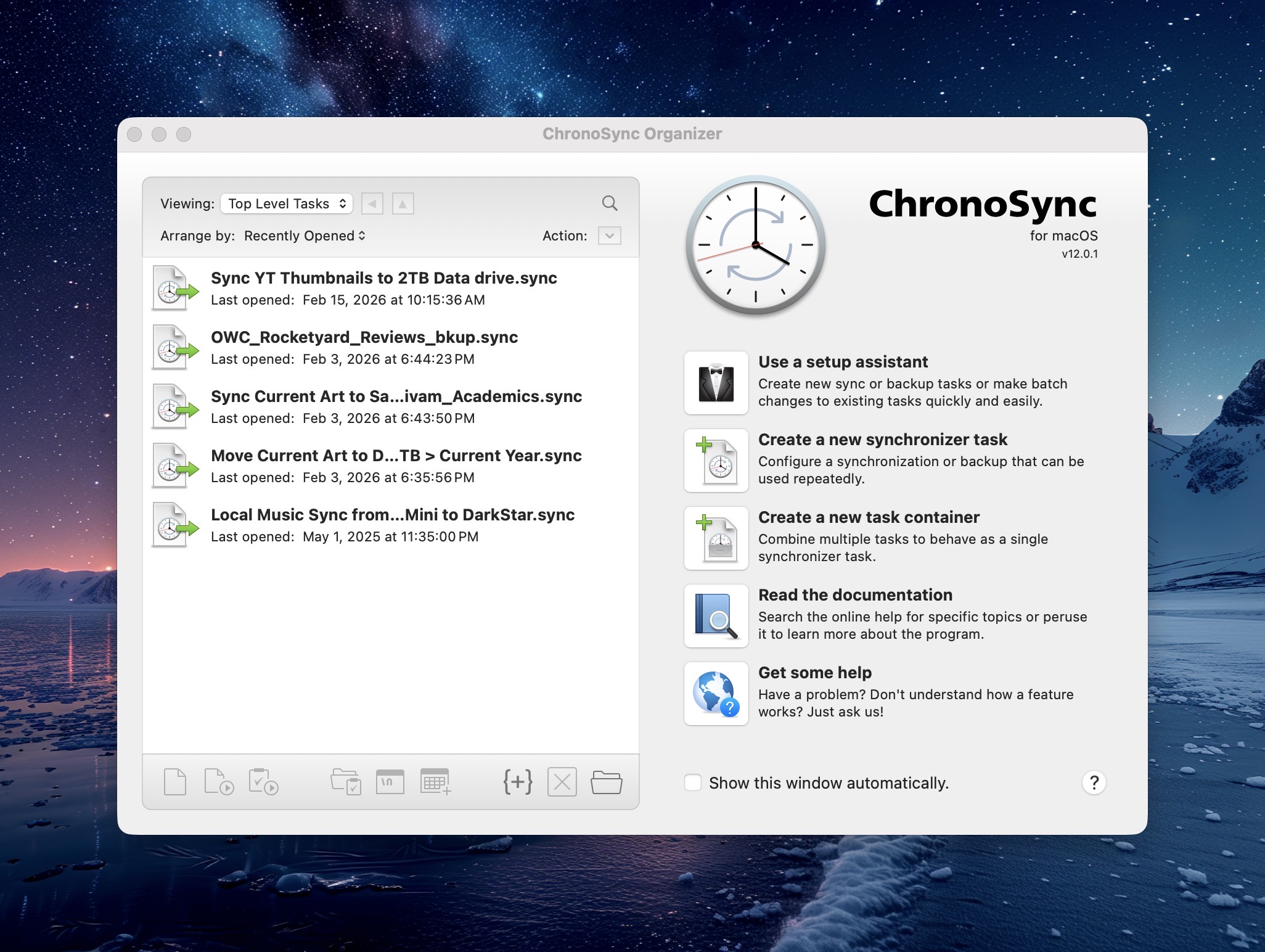
In addition to cloned back-ups, I also sync specific folders between my two Macs. This allows me to work on the latest files on either of my Macs. Syncing insures that the same files exist in two places, and for that task I use ChronoSync. Like my cloned back-ups, ChronoSync offers scheduled syncs.
For off-site back-ups, I use BackBlaze. There’s a monthly cost ($7US) associated with this, but BackBlaze offers unlimited data back-ups. Should I lose all of my local data, BackBlaze will overnight a drive with all of my data. I hope I never have to take advantage of this, but again – it’s really for my peace of mind.
Back-ups are important. New computers can be purchased, but your data can’t. Choose wisely.
-Krishna