Tag: Mac

  • Two Launchers, One Mac

    Two Launchers, One Mac

    Jason Snell’s recent post on reverting back to Launchbar led me to reflect a bit on my own use of Mac launchers. I use two, specifically.

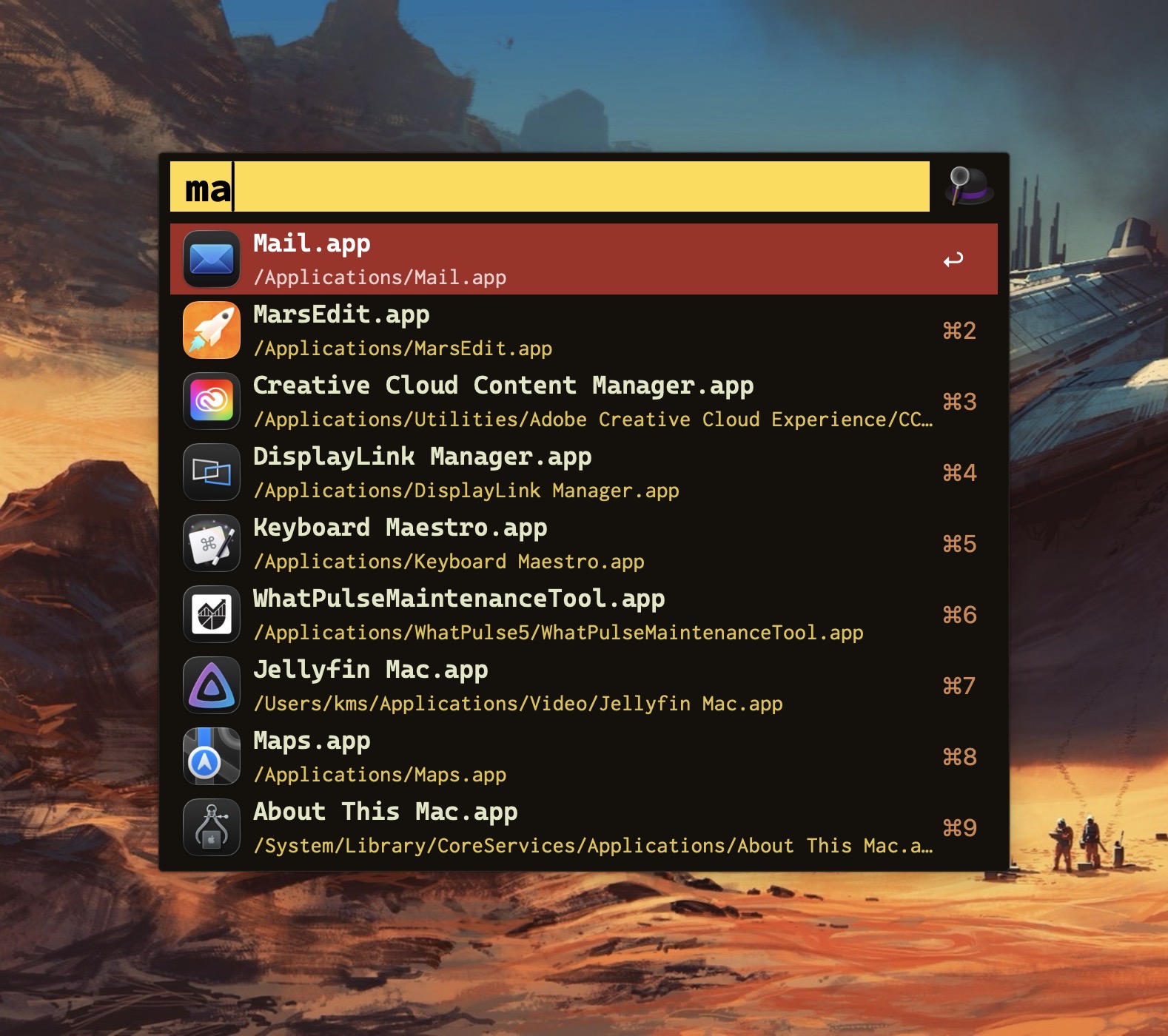
    Alfred app search.

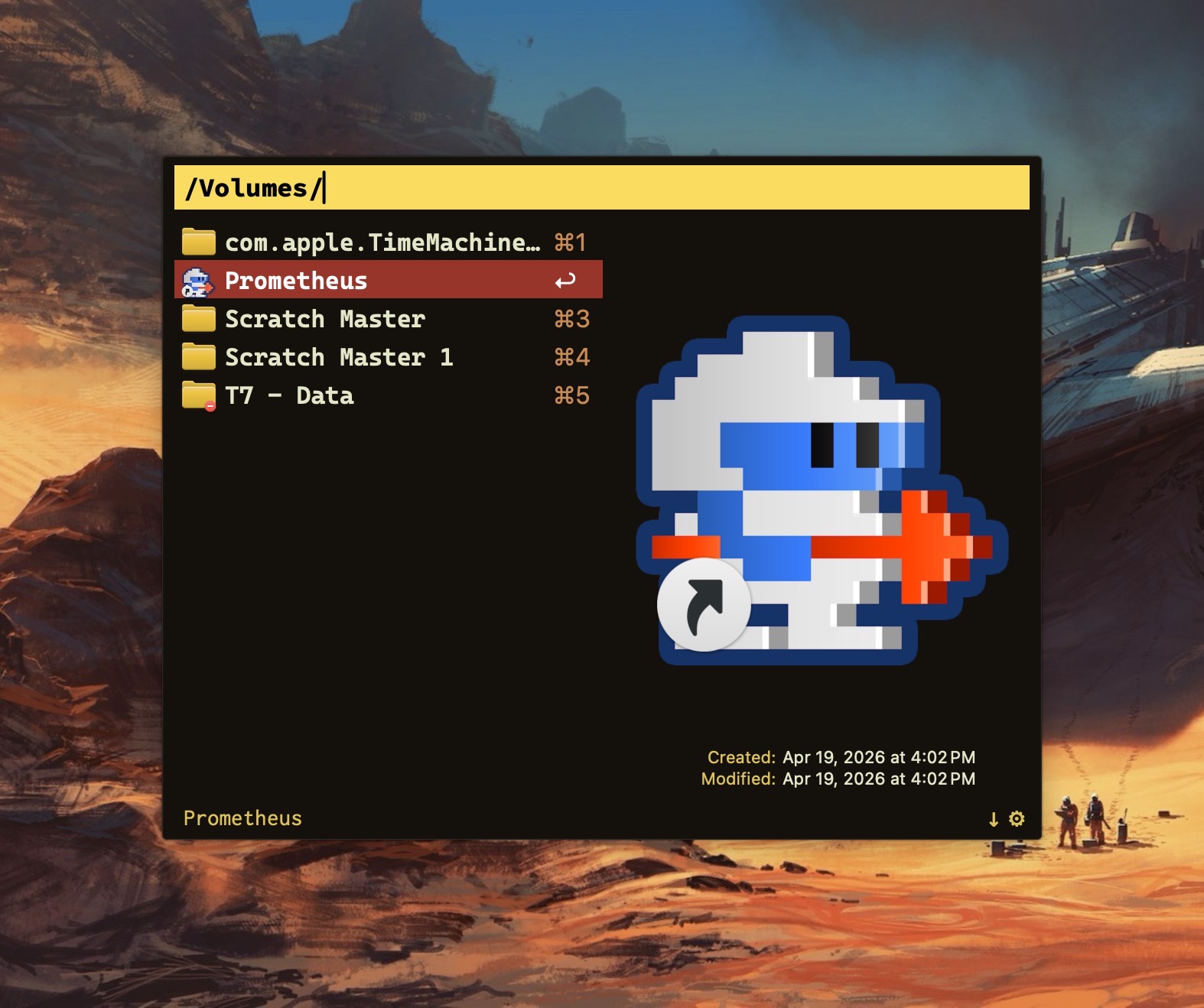
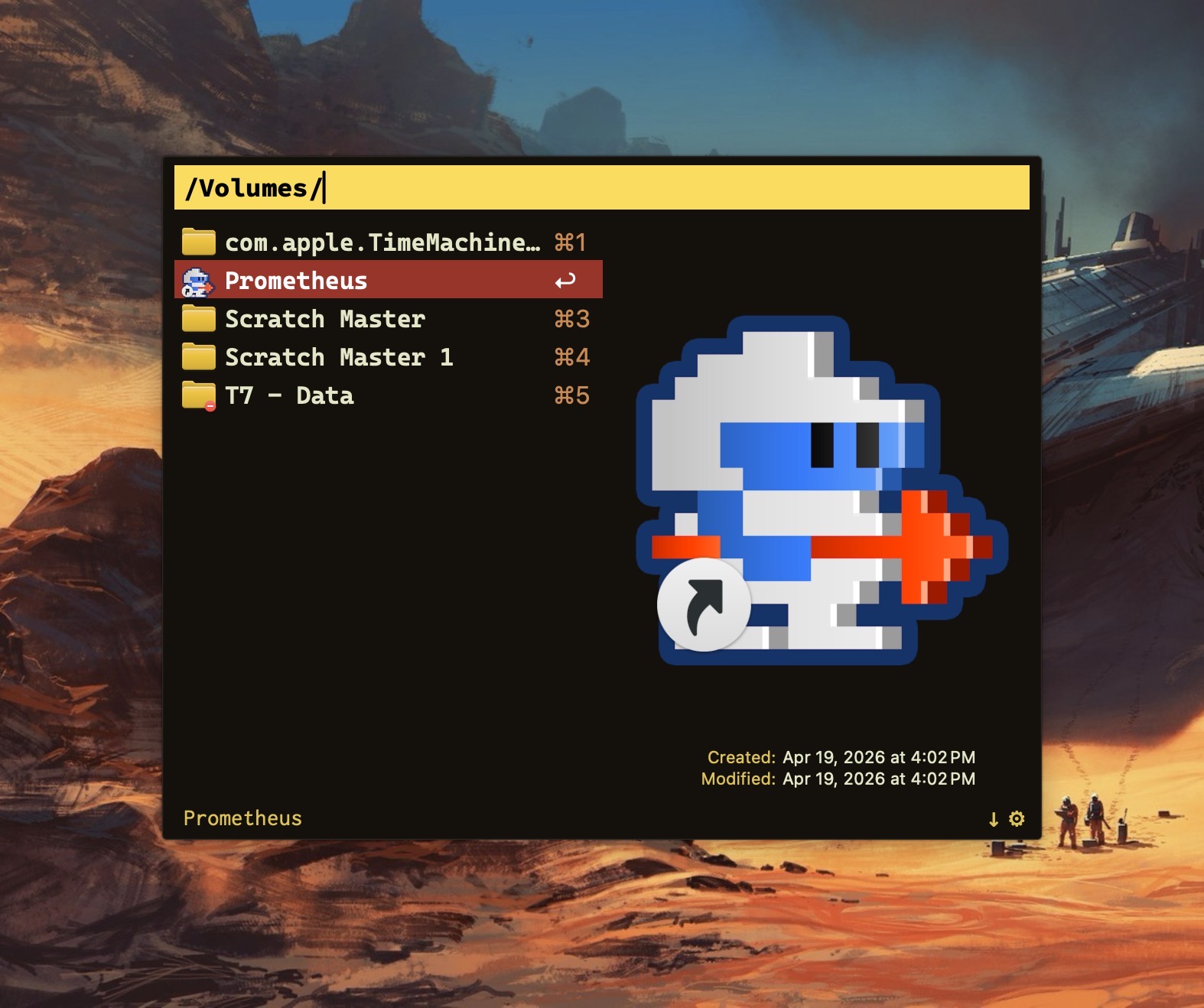
    Alfred file nav.

    My launcher of choice is Alfred, which I use for a variety of tasks: launching apps, file navigation, running terminal commands, searching the web, etc. As a power user, it’s efficient (and, dare I say, liberating) to perform these operations entirely from the keyboard.

    Alfred’s power comes in the form of its extensibility, thanks to the (optional) Alfred Powerpack. Think of the Powerpack as a turbo-charger that integrates seamlessly with Alfred’s main engine. I’ve used Alfred for almost a decade; I can’t imagine sitting at a Mac that doesn’t have it.

    So if Alfred’s the cat’s meow, why use Raycast?

    Simply put: window management.

    Raycast includes several useful window management configurations; each can be assigned a customized hotkey.

    Why not switch from Alfred to Raycast then? Raycast lacks the ability to traverse my Finder files in the same way that Alfred does. 

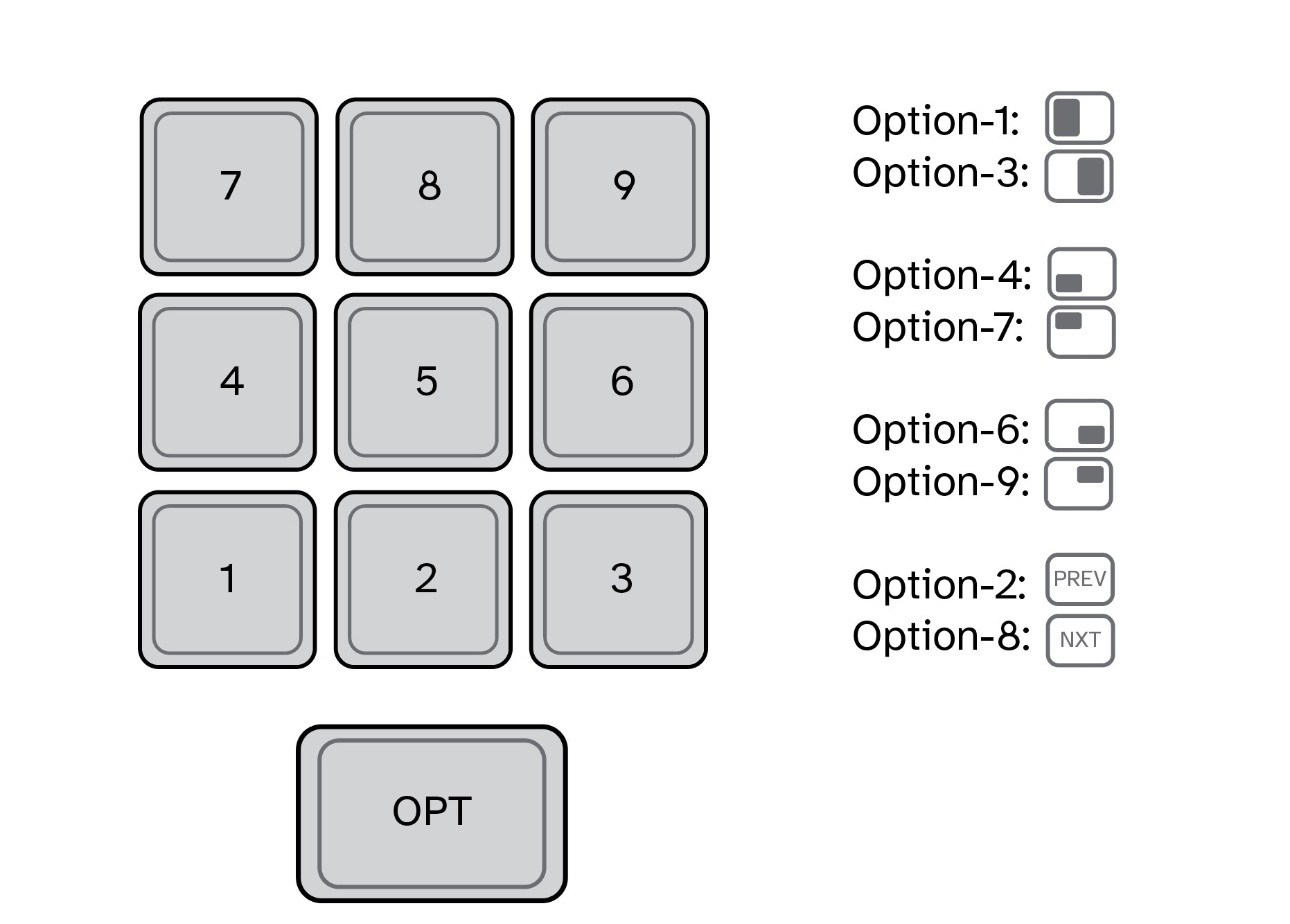
    For visualization purposes, I’ve mapped my custom window management hotkeys to a numeric keypad (see below). They also work fine when used with a standard keyboard.

    In my Raycast configuration, pressing Option-1 moves the active window to take up the left half of my Mac’s display. Option-3 moves the active window to the right half. I use these two hotkeys the most, so they are configured for easy reach. (I use keyboards with built-in numeric keypads.)

    In my view, hotkey assignments are only useful if they’re memorable. The quadrant hotkeys are easy to remember because they are spatially correlated. On a numeric keypad, 4 is in the lower left, 7 is on the upper left, 6 is on the lower right, and 9 is on the upper right.

    Numeric keypad for window management.

    I use multiple displays with my MacBook Pro, both at home and at work. To move an active window to the screen on my left, I press Option-2. Pressing this keystroke successively will cycle the window counterclockwise across each of my three displays. Likewise, pressing Option-8 will move an active window to the screen on my right. Option-5 (not shown above) puts the active window in the center.

    I’ve gotten so accustomed to using my keyboard to move windows around my Mac that manually selecting and sizing an active window with my mouse feels downright barbaric

    Alfred is free. The Alfred Powerpack is a paid upgrade (well worth it, in my opinion.) Raycast has free and pro versions, but the free version meets my needs. 

    If you find yourself needing more than what Spotlight gives, you have options.

    -Krishna

  • My Mac Blogging Stack

    My Mac Blogging Stack

    Now that I’m back to regularly blogging once again, I wanted to document the software tools I use, along with my rationale for their use. My blogging chain is Mac-based, and each of the apps listed below are exclusive to this platform.

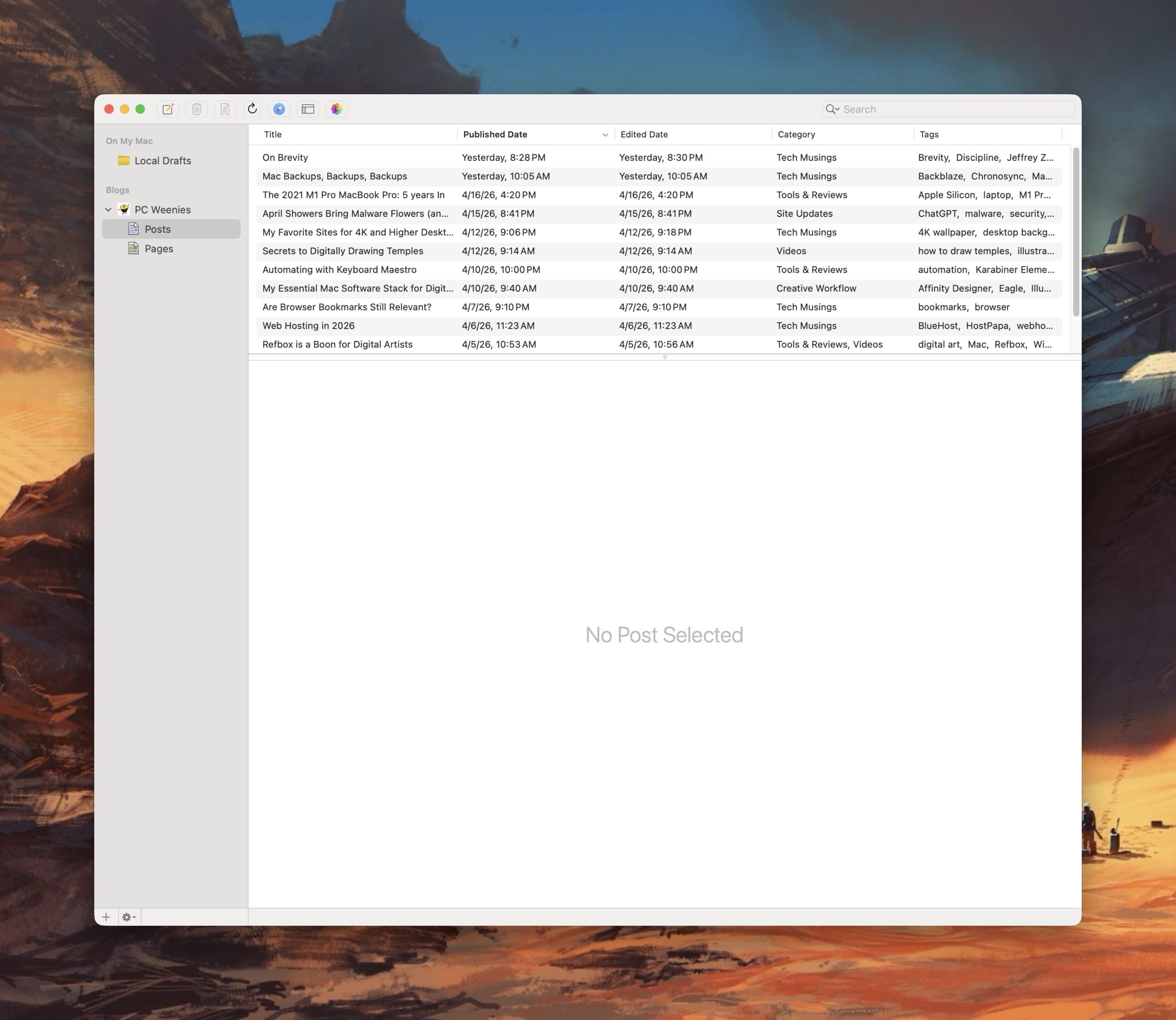
    MarsEdit, by Red Sweater Software, is my preferred tool for writing and publishing posts. Having local back-ups for each and every post is very important to me. MarsEdit offers this feature, and much, much more. The biggest benefit to using the program is that I can draft new posts locally on my Mac, without the need to login to WordPress.

    Every post on this site, with the exception of the first three articles, have been written using MarsEdit. MarsEdit removes the friction associated with posting to WordPress, making the process of drafting new posts something I actually look forward to.

    MarsEdit

    Transmit, from Panic Software, is a powerful and elegant FTP application for the Mac. I’ve used Transmit for three decades now, starting with its first version, released on classic MacOS. It’s fast and intuitive, making working between local files and servers a breeze. I also use it to quickly shuttle files between my Mac and my Linux boxen on my local network. 

    Transmit

    Reading is just as important as writing. For keeping up with my favorite blogs, I use NetNewsWire, an open source RSS reader for the Mac (and iOS). I have this application running on both Macs and my iPhone. I use iCloud to keep my RSS feeds in sync, so I can always pick up where I left off, regardless of what device I’m using.  NetNewsWire is free, fast, and intuitive (do you see a pattern here?). 

    NetNewsWire

    I also use a custom action to convert HEIC images shared from my iPhone to smaller sized JPEG files I can use with my posts.

    And that’s my Mac blogging stack. 

    -Krishna

  • Automating with Keyboard Maestro

    Automating with Keyboard Maestro


    Automation options are plentiful on the Mac. It’s one of the main reasons I prefer using macOS over other platforms. Automating tasks saves me time. With a little upfront work in setting up an automation, I can make tedious or routine tasks go much faster.

    Apple includes a few free automation utilities in the form of Shortcuts and Automator. Both are easy to use (no programming knowledge needed). If you’re new to automation, this is where I would start.

    But sometimes you want even more power. Thankfully, macOS has a robust set of great third party automation utilities. One of these is Keyboard Maestro. I’ve used this program for a few years now, and have made a few custom automations for my day-to-day tasks. I’m by no means an expert at using Keyboard Maestro, but I know enough to be dangerous

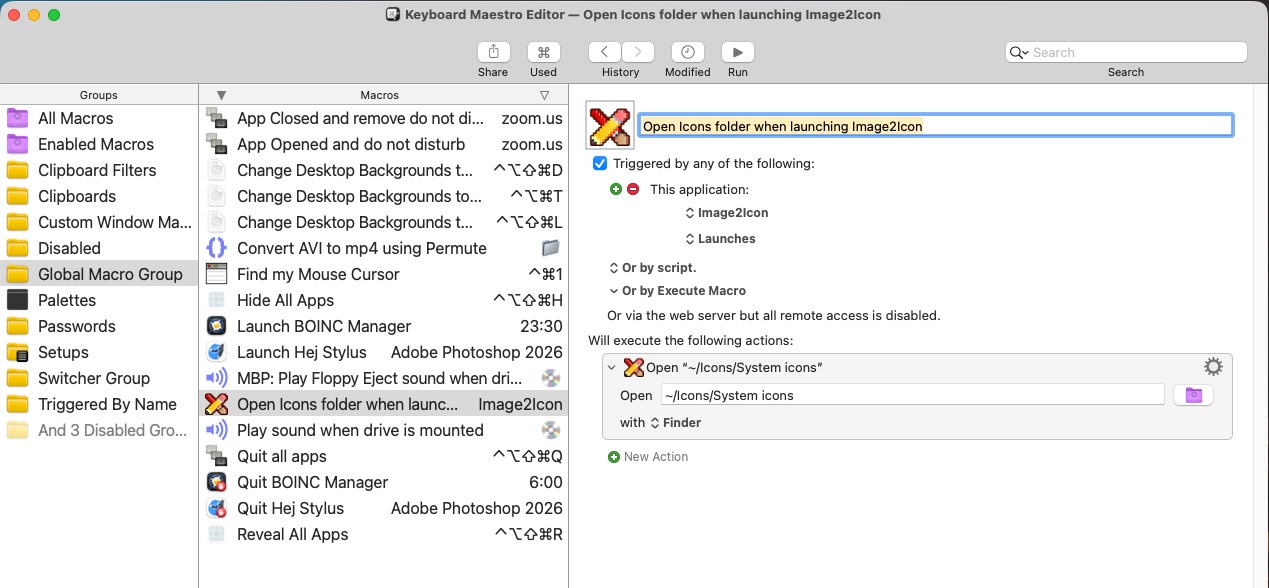
    Keyboard Maestro icons folder automation.


    Keyboard Maestro operates on triggers. A trigger is something that will initate an automation to run. A launched application can be one of those triggers. For example, when Keyboard Maestro detects that the Image2Icon app has launched, it will trigger an automation to open my System Icons folder, giving me quick access to my custom Mac icons. 

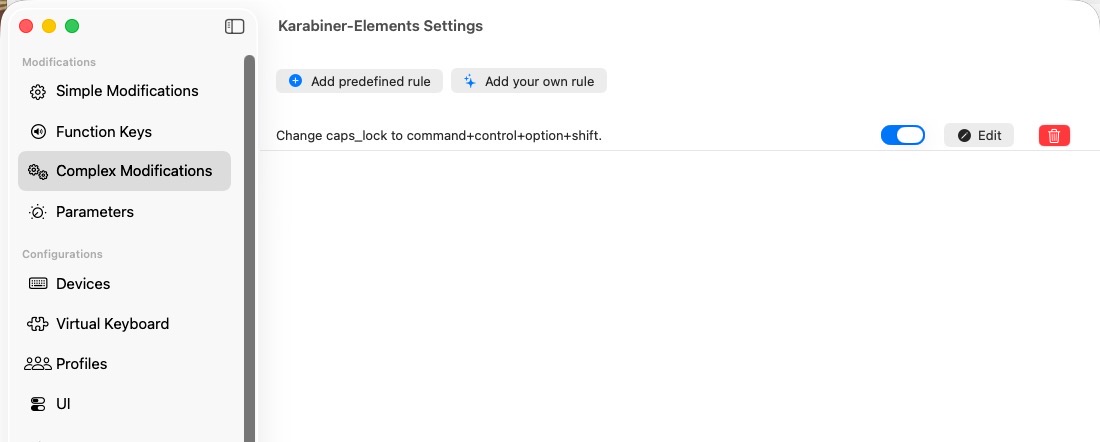
    Keyboard shortcuts can also serve as a trigger. When I press Command-Shift-Option-Control D, my Mac’s display changes to what I’ve assigned as a default wallpaper. (Incidentally, I’ve mapped Command-Shift-Option-Control to my Caps Lock key on my keyboard. Pressing Caps Lock is equivalent to pressing all of the above keys at once. I use Karabiner Elements to make this key assignment. See below.)

    Karabiner Elements.


    If the idea of Mac automation intrigues you, read on for a few of my favorite Keyboard Maestro automation routines.


    -Krishna

  • Refbox is a Boon for Digital Artists

    Refbox is a Boon for Digital Artists

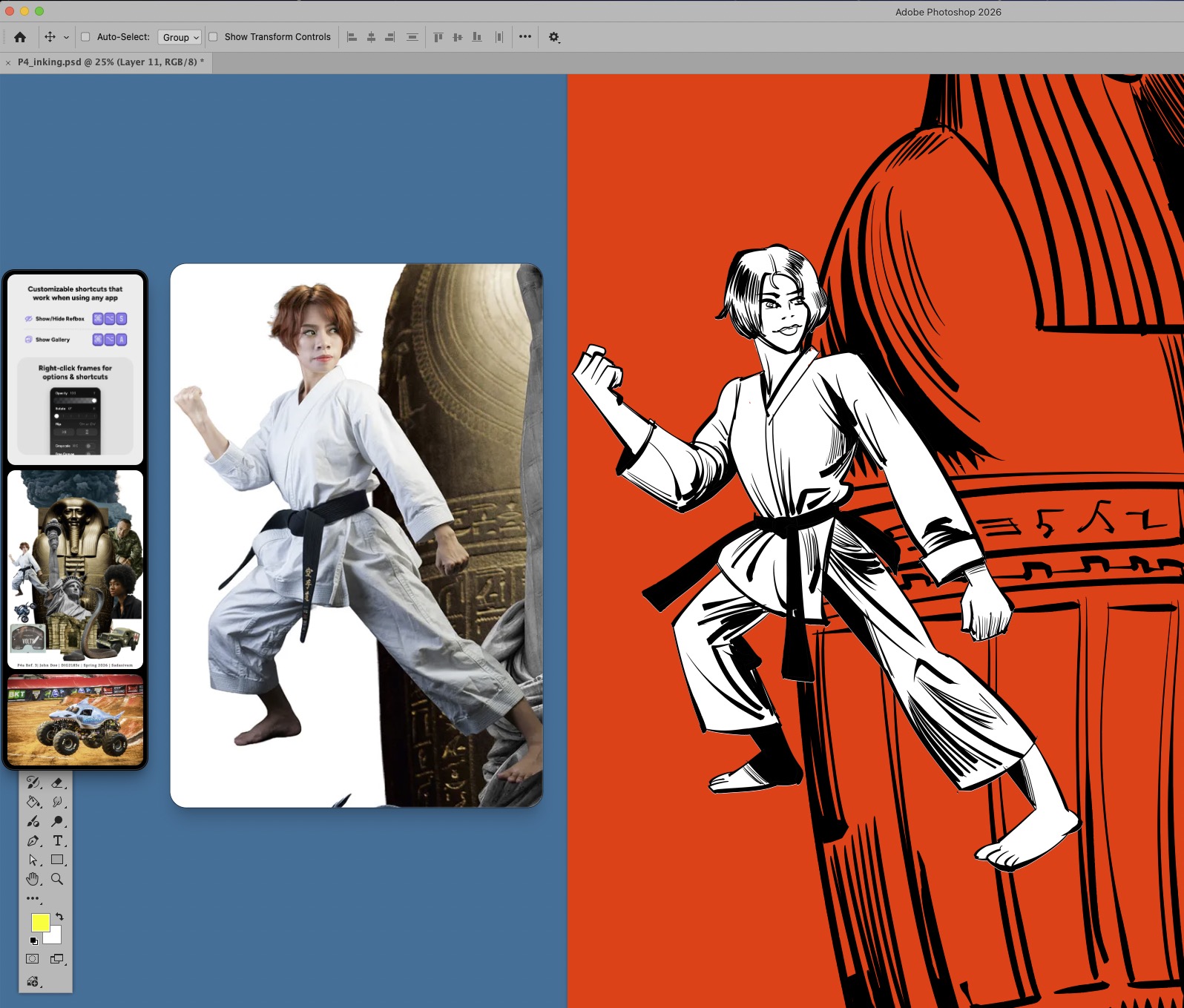
    Refbox has been a game-changer for my digital art workflow. In my latest video, I go over some of my favorite features. Refbox works on both Mac and Windows, and retails for $29US. A trial is available. One week after using Refbox, I find it to be absolutely indispensable.


    Prior to Refbox, I would have to bring references into the digital canvas directly. Doing so would limit my full view of my canvas, and I would have to employ a series of workarounds. The feeling can best be described as trying to move items around while stuck inside a crowded closet.

    Refbox lets me float references above my canvas. But it does so much more: With it, I can flip images horizontally, zoom in on a section of the reference, sample colors from the reference and so much more.

    Refbox supports images, GIFs, videos, 3D models, audio, notes, links and even PDFs. I can’t find any downside to using it.

    -Krishna