Tag: Finder

  • FrugalMac: The Bloom is Off the Finder

    FrugalMac: The Bloom is Off the Finder

    The Finder.

    It’s been around since the original Mac rolled off the assembly line in 1984. Ironically, my first exposure to the Finder was not on a Mac, but rather, on an Apple IIGS running GS/OS. (But that’s a story for another day…)

    While the Finder has evolved with the Mac over the years, it still feels inefficient to work with, especially when it involves movings files around

    Finder windows.

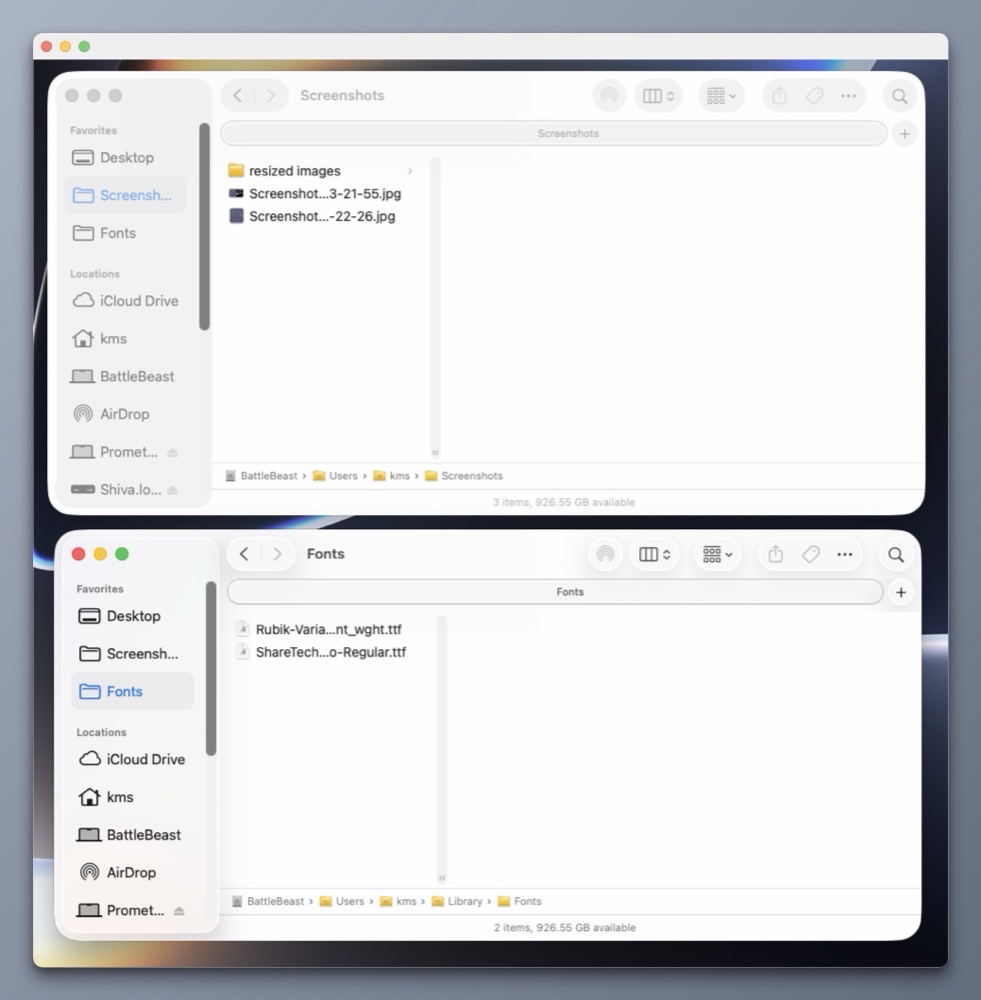
    Let’s assume you have to copy or move a file from one location on your Mac to another location on your external storage device. To perform the task within macOS, two Finder windows are needed. One which shows the location of the source file, the other showing the intended destination

    We’re still moving files around like this in the year 2026.

    Bananas. 

    While Apple seems content with making small, incremental features to the Finder, it’s not enough for me.

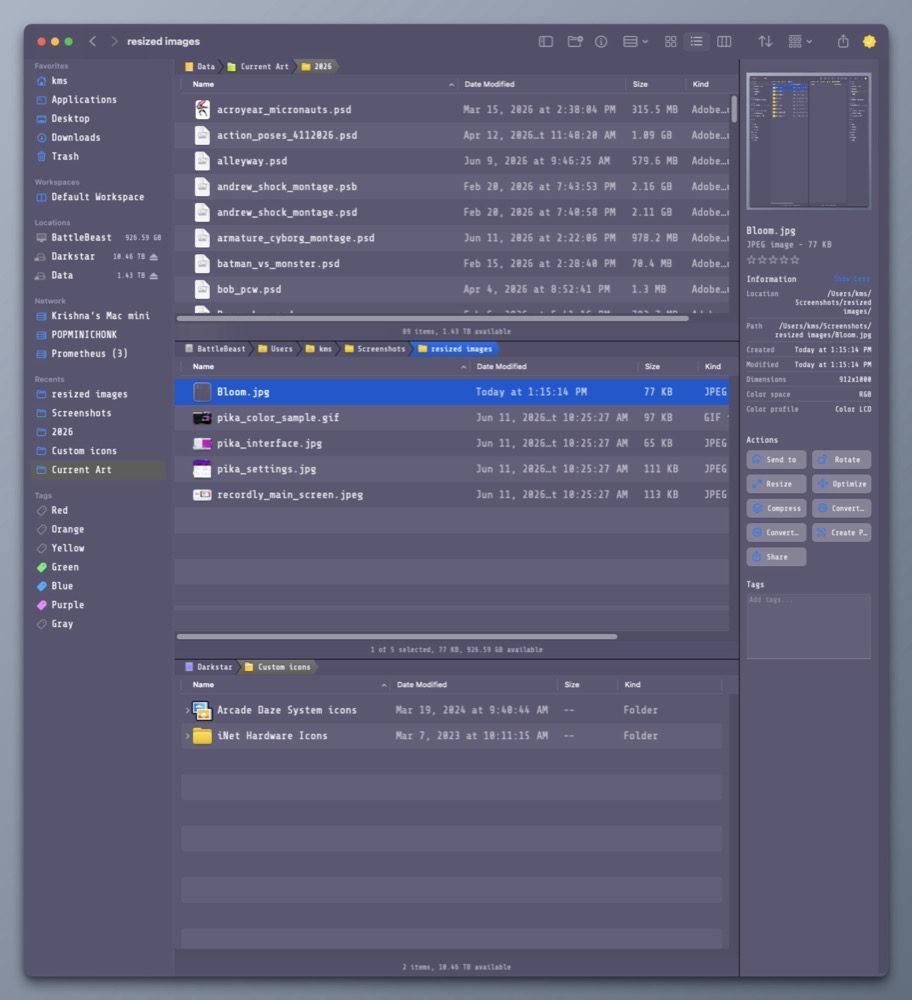
    That’s where Bloom comes in. I’ve been using Bloom for many months now, and it truly delivers on its promise of providing a “refined Finder experience”. 
    Why do I like Bloom so much?

    1) Flexibility.

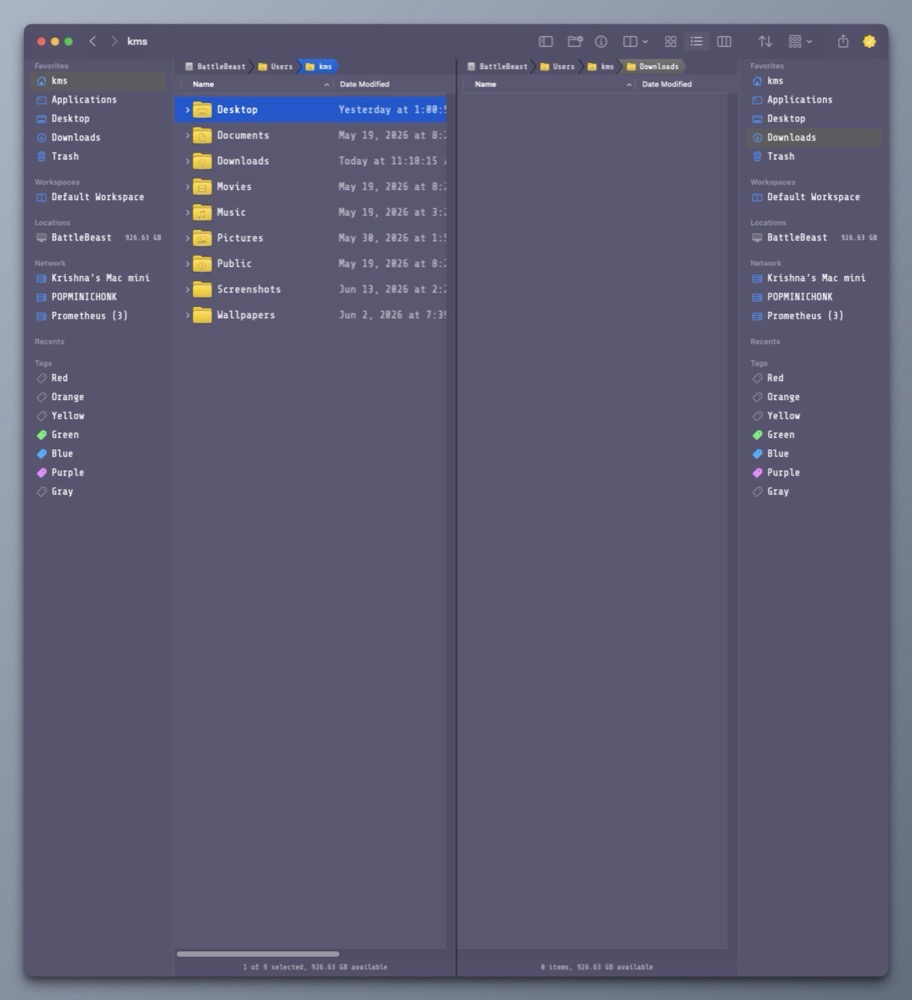
    Bloom includes many multi-panel layouts so that I can easily view, arrange and copy files and folders within one Bloom window pane. (I particularly like the 3-vertical stack option.)

    2) Better Search.

    Hit Command Shift Return and Bloom will bring up its search bar. Type what you want and get results at blazing speed. I know Apple will be overhauling search in macOS Golden Gate (macOS 27), but I can have it right now.

    3) Convenience.

    Superman has X-Ray vision. Bloom lets me see the contents within a compressed .zip file within its inspector. Bloom also works with Cloud storage like iCloud Drive, DropBox or OneDrive.

    4) Customization.

    Unlike the Finder, Bloom gives me the ability to change its appearance, including the color of the window, the type face for the main window and side bar, and so much more. The side bar can be completely customized to show only what you want. There’s also a handy rename feature to quickly change one or more filenames. It even supports RegEx!

    Bloom is what the Finder wishes it could be when it grows up

    Boom isn’t free, but I think it’s well worth its reasonable purchase price ($16US). The alternative is to wait for Apple to make improvements. But I’m not holding my breath.

    -Krishna
  • FrugalMac: Fixing the Finder Windows

    FrugalMac: Fixing the Finder Windows

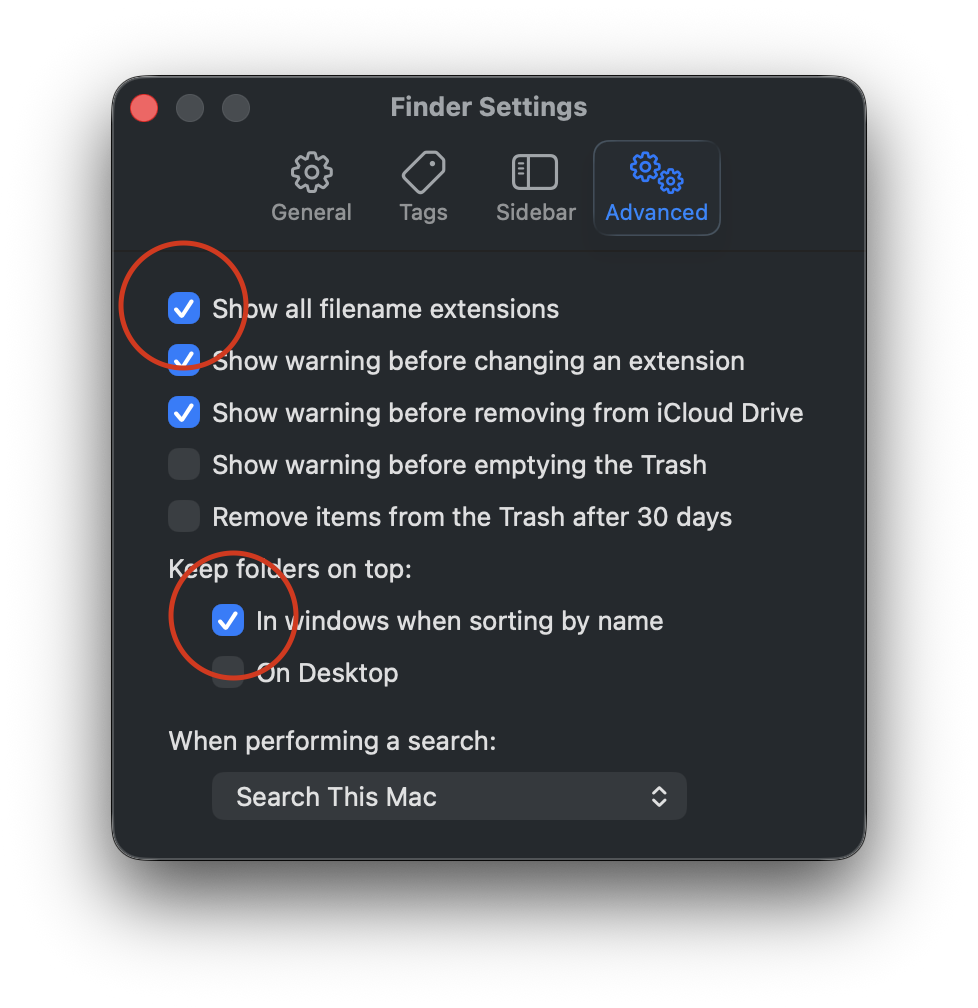
    Perhaps the title is a bit hyperbolic. I’m not fixing the Finder’s windows, I’m configuring them to work best for me. But first, let’s go to Finder Settings > Advanced and turn on Filename Extensions and Keep folders on top.  I routinely share files between different platforms, so having visible file name extensions are a must. I also like to keep my Folders separated from my files.

    Finder settings file extensions.

    Next, let’s go to View > Show View Options, where I will increase the text size and sort items by name.

    Desktop text size.

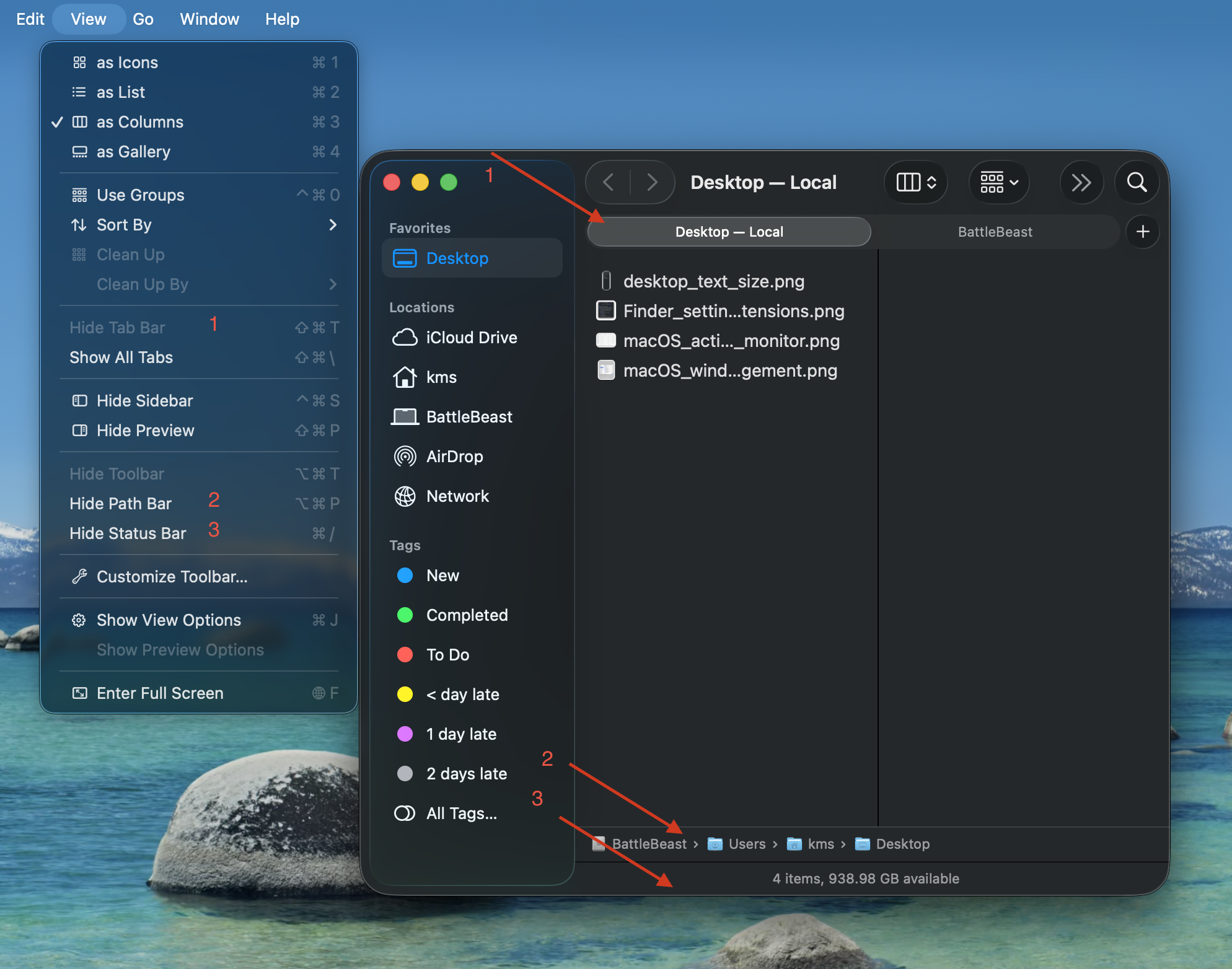
    Now let’s move to the Finder window settings. I have “Show Tab Bar”, “Show Path Bar” and “Show Status Bar” active. The first option will let me quickly move between two different Finder locations in one window. The second option will show a breadcrumb trail of where I’m at within the file structure. The third option gives me an item count and overall remaining space. Of the three options, I feel that “Show Path Bar” should be the default setting from Apple, because it makes the most sense.

    Finder window settings.

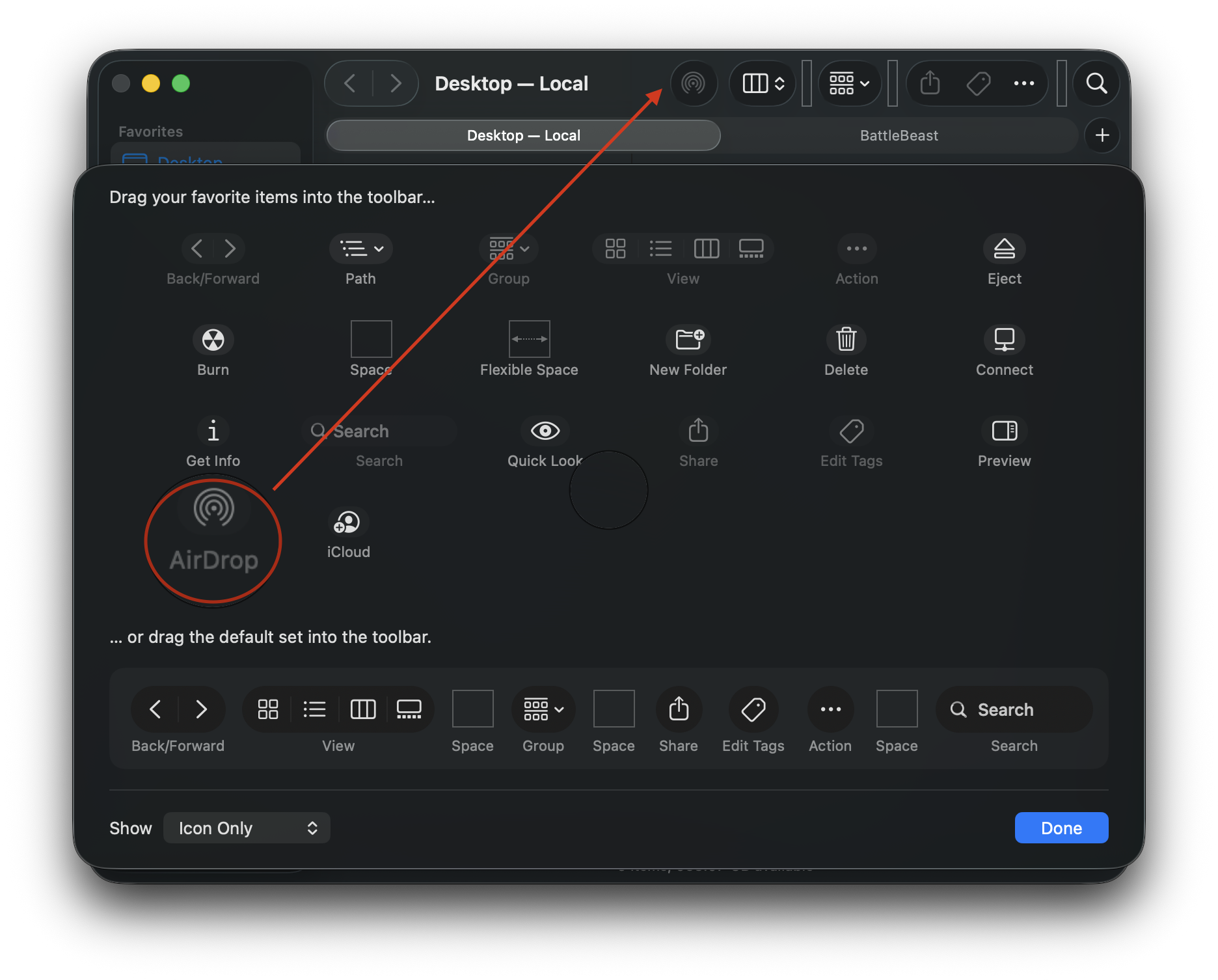
    To configure the Finder window’s toolbar, go to View > Customize Toolbar. I keep the default settings, with the exception of adding AirDrop. Dragging the AirDrop icon into the toolbar gives me quick access for sharing files and folders from each and every Finder window.

    Finally, the Finder is somewhat useable

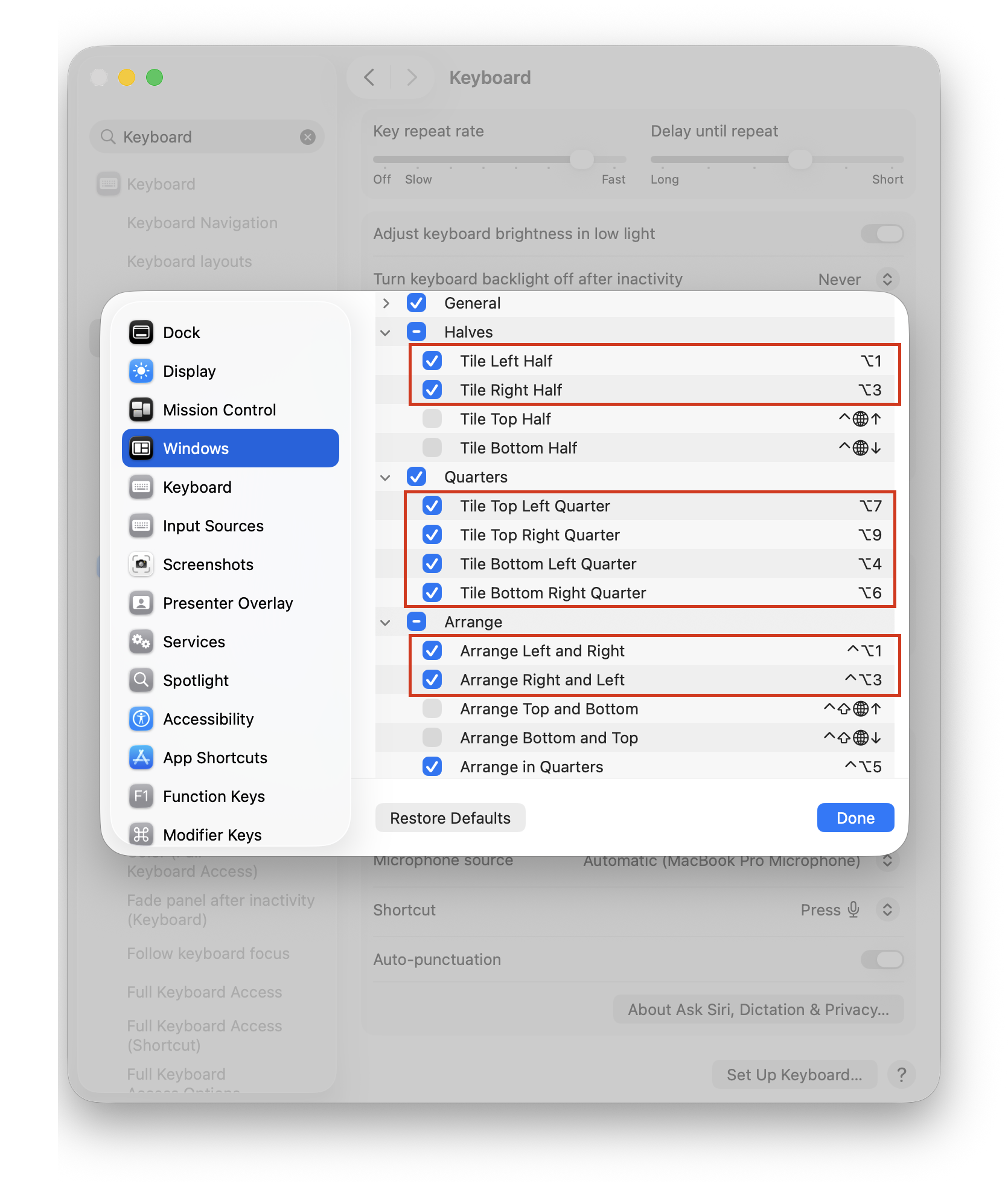
    One more thing… let’s configure useful hotkeys to make the window management experience less painful. In System Settings, search for Keyboard Shortcuts. Then, scroll down to Windows. Below are my custom hotkeys, replacing Apple’s defaults. These are the same hotkeys I’ve used when managing windows with Raycast. The Arrange section lets me switch / flip windows from left to right or vice versa.

    (Alas, macOS does not include any built-in option for moving a window to a different display via hotkey. This is a hole that I will have to remedy with third party window management software.)

    MacOS window management.

    Incidentally, I have yet to add any new piece of software to this Mac. My FrugalMac approach is to work with what I have first. When I run into limitations that go beyond the scope of what the vanilla macOS experience provides, I will investigate appropriate third party solutions. 

    -Krishna