
While superfluous to some, the ability to customize my computing environment has always been important to me. In fact, I can’t remember a time where I didn’t customize some aspect of my computer.
It’s how I learned about computing, whether I was creating a bespoke desktop wallpaper background or making the Trash icon look like Oscar the Grouch.
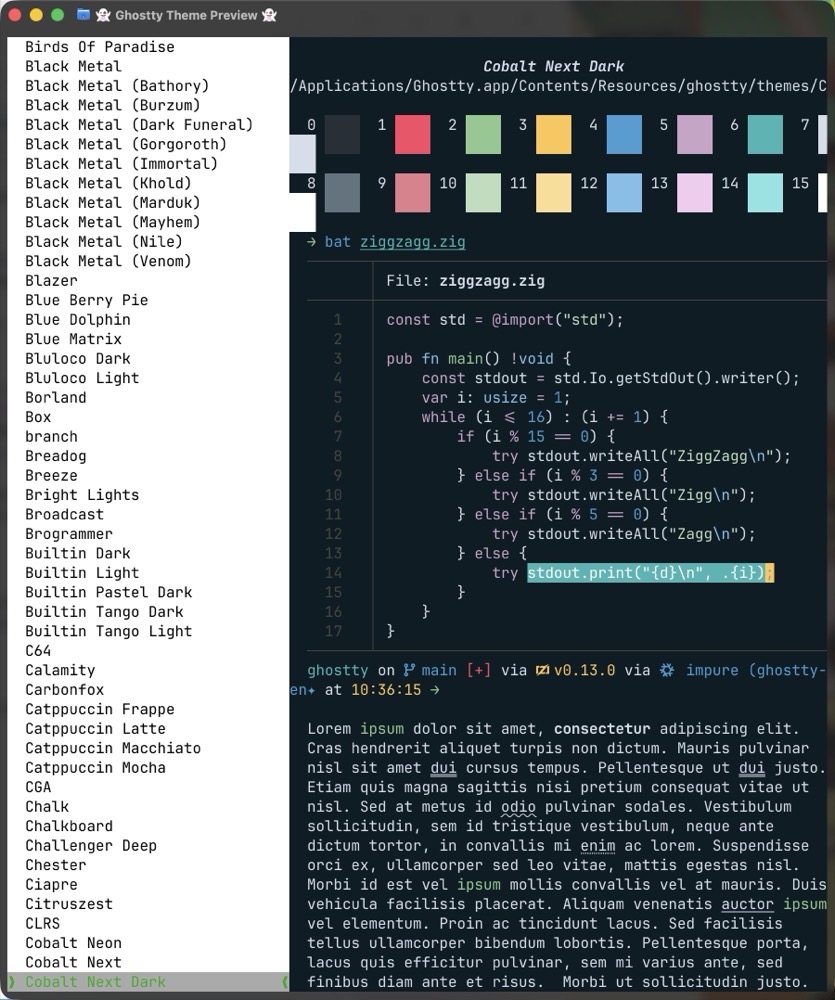
Ghostty offers a wealth of customization options by way of themes, which give your terminal a very specific look and feel. Theme settings can be overridden at a granular level to match exactly what you’re after. Translation: if you have a very specific font or color tweak you’d like to implement, it’s as easy as adding a line or two in your Ghostty configuration file. (Users can even make their own Ghostty theme from scratch.)
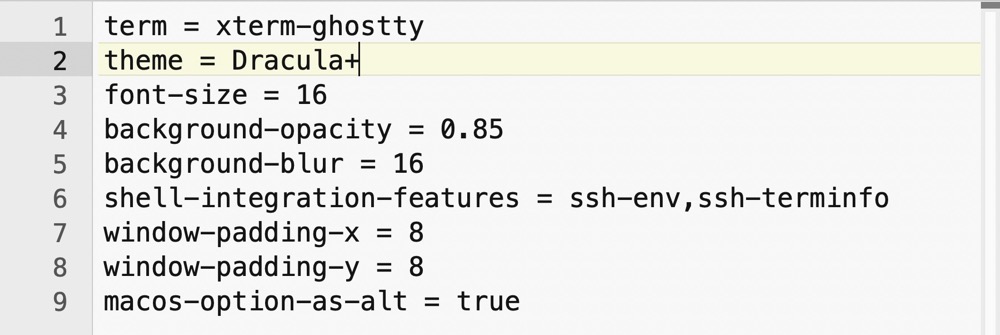
Below is a screenshot of my Ghostty configuration file, where I’ve assigned the Dracula+ theme and increased the font size for improved readability.
Ghostty’s theme options can be accessed from within the terminal, by typing the following:
ghostty +list-themes
As of this post, there are hundreds of themes to choose from. Themes are organized alphabetically on the left, with a detailed preview of the selected theme on the right.
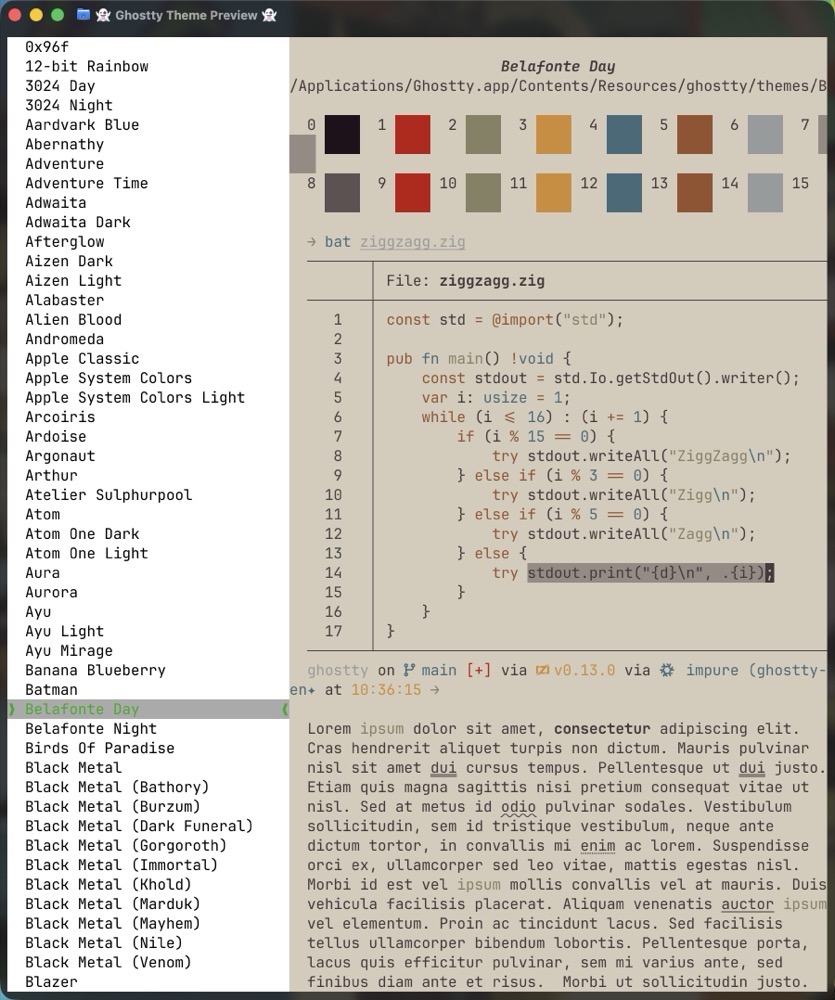
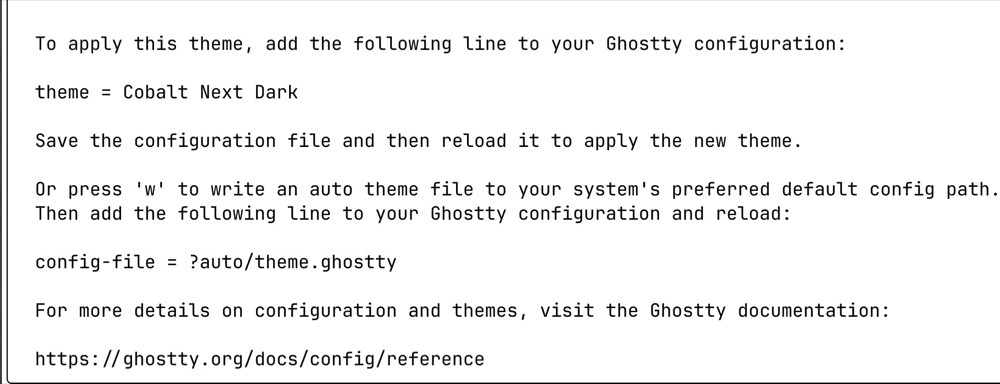
Pick a theme from the list by using the up / down arrow keys. Pressing Return on a specific theme will show instructions for activating it.
theme = Dracula+
I don’t change themes very often, but when I do, I want the process to be easy. Since I hate remembering esoteric commands, I created an alias called themes in my .zshrc file.
alias themes='ghostty +list-themes'
Now I can browse Ghostty themes whenever the mood strikes, without having to remember the command that gets me there.
-Krishna